Introduction
Welcome to the user manual for your Avantree Opera Plus Wireless Headphones. This guide provides detailed instructions on setting up, operating, maintaining, and troubleshooting your new headphones. Designed for an optimal TV watching experience, the Opera Plus features clear dialogue, volume boost for enhanced hearing, and seamless integration with your existing sound system.
What's in the Box
Please ensure all items listed below are included in your package:
- Avantree Opera Plus Headphones
- Transmitter & Charging Dock
- USB Power Adapter
- Type C Power Cable for Transmitter
- Type C Charging Cable for Headphones
- Optical Audio Cable
- AUX 3.5mm Audio Cable
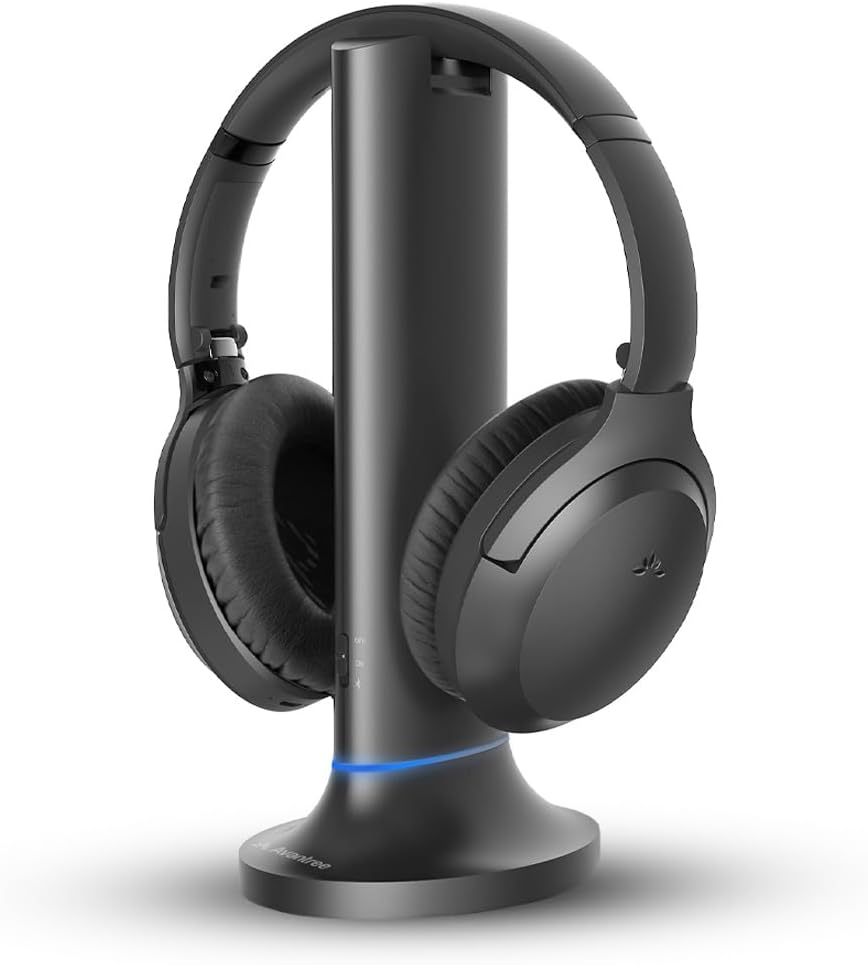
Figure 1: Avantree Opera Plus Headphones on Charging Dock.

Figure 2: All included components of the Opera Plus set.
Setup Guide
The Avantree Opera Plus is designed for easy plug-and-play setup. Follow these steps to get started:
1. Connect the Transmitter
Connect the transmitter to a power source using the provided USB-C power cable and USB adapter. Place the transmitter near your TV.
Next, connect the transmitter to your TV using one of the following audio input options:
- Optical (TOSLINK): Use the optical audio cable for digital audio output. This is the recommended connection for most modern TVs.
- AUX (3.5mm): Use the 3.5mm AUX audio cable for analog audio output.
- HDMI ARC: Connect via HDMI ARC for integrated audio and control (ensure your TV supports HDMI ARC audio output).

Figure 3: Detailed view of the transmitter's input/output ports.
2. Power On and Pair
The headphones and transmitter come pre-paired from the factory. Simply slide the power switch on the transmitter to 'ON' and the power switch on the headphones to 'TV/Base'. They should automatically connect.
If re-pairing is needed, hold the 'PAIR' button on the transmitter until the LED flashes red & blue. On the headphones, hold the 'TV/Base' button until the LED flashes red & blue. Once connected, the LEDs will turn solid blue.
3. Adjust TV Audio Settings
Depending on your TV model and connection type, you may need to adjust the TV's audio output settings. For optical connections, set the digital audio output format to 'PCM' (Pulse-Code Modulation) and not 'Dolby Digital' or 'DTS'.
Video 1: Interactive User Guide for Avantree Opera Plus TV Headphones. This video provides a step-by-step visual guide for initial setup and connection.
Operating Instructions
Sound Modes and Volume Boost
The Opera Plus headphones offer two distinct sound profiles and a volume boost feature:
- Clear Dialogue Mode: Enhances speech clarity, ideal for news, talk shows, or users with hearing difficulties.
- Cinema Mode: Provides an immersive audio experience with richer bass and dynamic sound, perfect for movies and music.
- Volume Boost: Delivers up to 20% louder sound than standard headphones without distortion, activated via the 'VOL Boost' button on the transmitter.
Figure 4: Visual representation of Clear Dialogue and Extra Loud Volume capabilities.
Soundbar Sharing (Pass-Through)
The transmitter features a pass-through function, allowing you to listen to TV audio through your headphones while simultaneously outputting sound to a soundbar or external speaker. This is ideal for shared viewing environments.
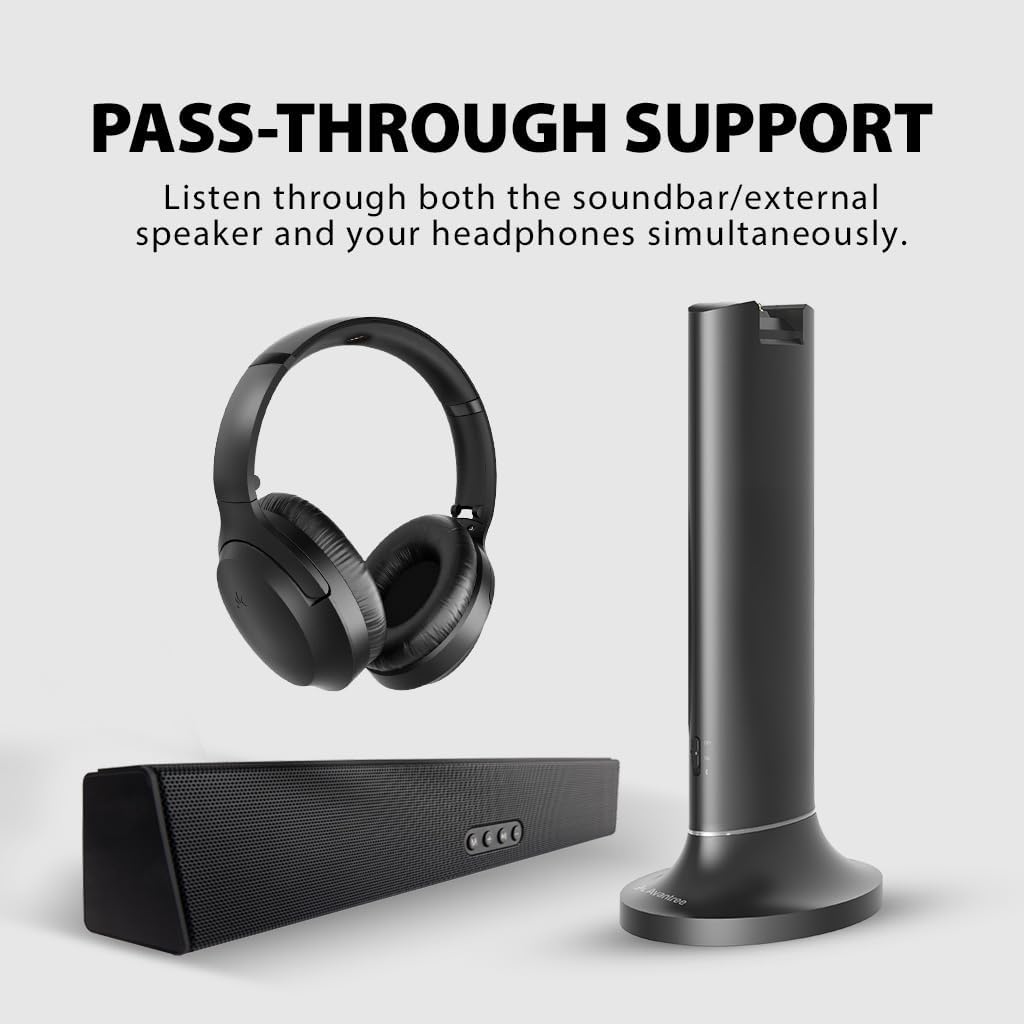
Figure 5: Illustration of the pass-through support feature, enabling simultaneous audio output to headphones and a soundbar.
Flexible Usage (2.4GHz and Bluetooth)
The Opera Plus headphones can be used in two modes:
- 2.4GHz Wireless: Connects to the transmitter for ultra-low latency audio, ensuring perfect lip-sync with TV content.
- Bluetooth: When detached from the base, the headphones can connect directly to Bluetooth-enabled devices like smartphones, tablets, and smart TVs for independent use.

Figure 6: The headphones support both 2.4GHz wireless and Bluetooth connectivity for versatile use.
Low Latency Performance
The 2.4GHz wireless connection provides an ultra-low audio latency of 30 milliseconds, virtually eliminating any noticeable delay between the on-screen action and the audio you hear. This ensures a perfectly synchronized viewing experience.

Figure 7: Enjoy perfectly synchronized audio and video with minimal delay.
Maintenance
Charging Your Headphones
To charge the headphones, simply place them on the charging dock. The LED indicator on the headphones will show charging status. A full charge provides up to 35 hours of battery life and takes approximately 2 hours.
Cleaning and Care
Wipe the headphones and transmitter with a soft, dry cloth. Avoid using harsh chemicals or abrasive materials. Keep the charging contacts clean and free of dust.
Earpad Replacement
The Opera Plus headphones are designed with soft, comfortable, and replaceable earpads for long-term comfort and hygiene. Refer to the Avantree website or contact support for replacement earpads and instructions.
Troubleshooting
No Sound from Headphones
- Ensure the transmitter is powered on and connected to the TV correctly.
- Verify the input selector on the transmitter matches your TV's audio output (Optical, AUX, HDMI ARC).
- Check your TV's audio settings. For optical connections, set the digital audio output format to 'PCM'.
- Confirm the headphones are powered on and successfully paired with the transmitter (solid blue LED).
Audio Delay (Lip-Sync Issues)
- Ensure you are using the 2.4GHz wireless connection with the transmitter, as Bluetooth connections may introduce slight delays depending on the device.
- Check if your TV has any audio delay settings that can be adjusted.
Headphones Not Charging
- Ensure the headphones are correctly seated on the charging dock and the charging contacts are clean.
- Verify the charging dock is powered on and connected to a working power outlet.
Video 2: Avantree Opera Plus - Wireless Headphones for TV Watching. This video provides an overview of the product's features and may assist with common queries.
Technical Specifications
| Feature | Specification |
|---|---|
| Model Name | Opera Plus |
| Model Number | BTHT-6190P-EU |
| Connectivity Technology | Wireless (Bluetooth & 2.4G RF) |
| Battery Life | 35 Hours |
| Charging Time | 2 Hours |
| Audio Latency | 30 Milliseconds |
| Frequency Range | 20Hz-20KHz |
| Impedance | 32 Ohm |
| Ear Placement | Over Ear |
| Control Type | Button Control / Push Button |
| Compatible Devices | Televisions, Laptops, Desktops, Gaming Consoles, Tablets, Smart Speaker, Cellphones |
Warranty and Support
Warranty Information
Avantree Opera Plus comes with a 24-month warranty. Please register your product on the Avantree website or refer to the QR code provided with the product for warranty details and future support.
Customer Support
For further assistance, technical support, or to purchase accessories, please visit the official Avantree website or contact their customer service directly. You can also refer to the User Manual (PDF) for additional details.


