
WOLFANG WD01
WOLFANG 4K Dash Cam Front and Rear User Manual
Brand: WOLFANG | Model: WD01
1. Introduction
Thank you for choosing the WOLFANG WD01 4K Dash Cam. This manual provides detailed instructions for the installation, operation, and maintenance of your new dash camera system. Designed for optimal road safety, the WD01 offers high-resolution recording, advanced features, and user-friendly controls to ensure a reliable and comprehensive driving record.
The WOLFANG WD01 is a dual-camera system capable of simultaneously recording 4K video from the front camera and 1080P video from the rear camera. It features a responsive 3-inch IPS touch screen, built-in GPS for route tracking, and WiFi connectivity for easy access via a smartphone app. Enhanced night vision, G-sensor, loop recording, and 24-hour parking monitoring provide comprehensive protection for your vehicle.

Figure 1.1: WOLFANG WD01 4K Dash Cam system overview, showing the main unit, rear camera, and smartphone app integration.
2. Package Contents
Please check the package carefully to ensure all items are present and in good condition. If any items are missing or damaged, please contact WOLFANG customer support.
- 1 x WOLFANG WD01 4K Dash Cam (Front Camera)
- 1 x 1080P Rear Camera
- 1 x Rear Camera Cable
- 1 x Car Charger (with built-in GPS module)
- 1 x Suction Cup Mount
- 1 x Type-C Power Cable
- 1 x Car Wire Trim Tool
- 1 x User Manual
- Spare 3M type stickers (for rear camera and GPS unit, if applicable)

Figure 2.1: All components included in the WOLFANG WD01 Dash Cam package.
3. Specifications
| Feature | Description |
|---|---|
| Model Name | WD01 |
| Video Capture Resolution | Front 4K UHD (3840x2160P) and Rear 1080P FHD (1920x1080P) |
| Display | 3-inch IPS Touch Screen |
| Field of View | Front 170 Degrees, Rear 140 Degrees |
| Connectivity | Built-in WiFi, GPS, Type-C USB |
| Night Vision | SONY STARVIS Sensor, F1.8 Aperture, WDR & HDR |
| Special Features | Auto Recording, Loop Recording, G-Sensor, 24/7 Parking Monitoring (G-Sensor, Time-lapse), Automatic and Manual Emergency Recording |
| Storage | Supports TF card up to 256GB (not included) |
| Power Source | Car Charger (12V) |
| Dimensions (Front Cam) | 1.52 x 3.6 x 2.2 inches |
| Item Weight | 1.23 pounds |
| Batteries | 1 Lithium Ion battery required (built-in) |
| Manufacturer | WOLFANG |
| Country of Origin | China |
4. Setup and Installation
Follow these steps for proper installation of your WOLFANG WD01 Dash Cam system.
4.1 Preparing for Installation
- Format Micro SD Card: Before first use, insert a high-speed (Class 10 or higher) TF card (up to 256GB, not included) into the dash cam and format it via the camera's settings menu. This ensures optimal performance and prevents recording errors.
- Choose Mounting Location: Select a location on your windshield that does not obstruct your view of the road. The ideal spot is usually behind the rearview mirror. For the rear camera, choose a central location on the rear windshield.
4.2 Front Camera Installation
- Clean the chosen area on your windshield thoroughly to ensure strong adhesion of the suction cup mount.
- Attach the suction cup mount to the dash cam.
- Press the suction cup firmly against the windshield and lock it into place.
- Adjust the angle of the front camera to ensure it captures the road ahead clearly.
4.3 Rear Camera Installation
- Clean the chosen area on your rear windshield.
- Attach the rear camera using its adhesive pad.
- Connect the rear camera cable to the rear camera and route it neatly to the front dash cam. Use the included trim tool to tuck the cable along the vehicle's headliner and A-pillars for a clean installation.
- Plug the rear camera cable into the AV-IN port on the main dash cam unit.
4.4 Power Connection
- Plug the car charger into your vehicle's cigarette lighter socket.
- Connect the Type-C end of the power cable to the Type-C port on the dash cam.
- Route the power cable neatly, tucking it along the dashboard and console using the trim tool.
- The dash cam will automatically power on and begin recording when your vehicle's ignition is turned on.

Figure 4.1: Wiring diagram for the WOLFANG WD01 Dash Cam system.
5. Operation
5.1 Basic Recording
Once powered on, the dash cam will automatically start recording. The front camera records in 4K UHD, and the rear camera records in 1080P FHD simultaneously. Recordings are saved to the inserted TF card.

Figure 5.1: Visual representation of 4K front and 1080P rear recording quality.
- Loop Recording: The dash cam records video in continuous loops (e.g., 1, 3, or 5-minute segments). When the TF card is full, the oldest unlocked video files will be overwritten automatically.
- Emergency Recording (G-Sensor): In the event of a sudden impact or collision, the built-in G-sensor will automatically detect the event and lock the current video file, preventing it from being overwritten by loop recording. These files are stored in a separate "Event" folder.
- Manual Emergency Recording: You can manually lock the current recording by pressing the designated button on the dash cam (refer to the on-screen interface or physical buttons).
5.2 3-inch IPS Touch Screen
The responsive 3-inch IPS touch screen allows for easy navigation of menus, settings, and video playback. Simply tap the icons on the screen to access various functions.
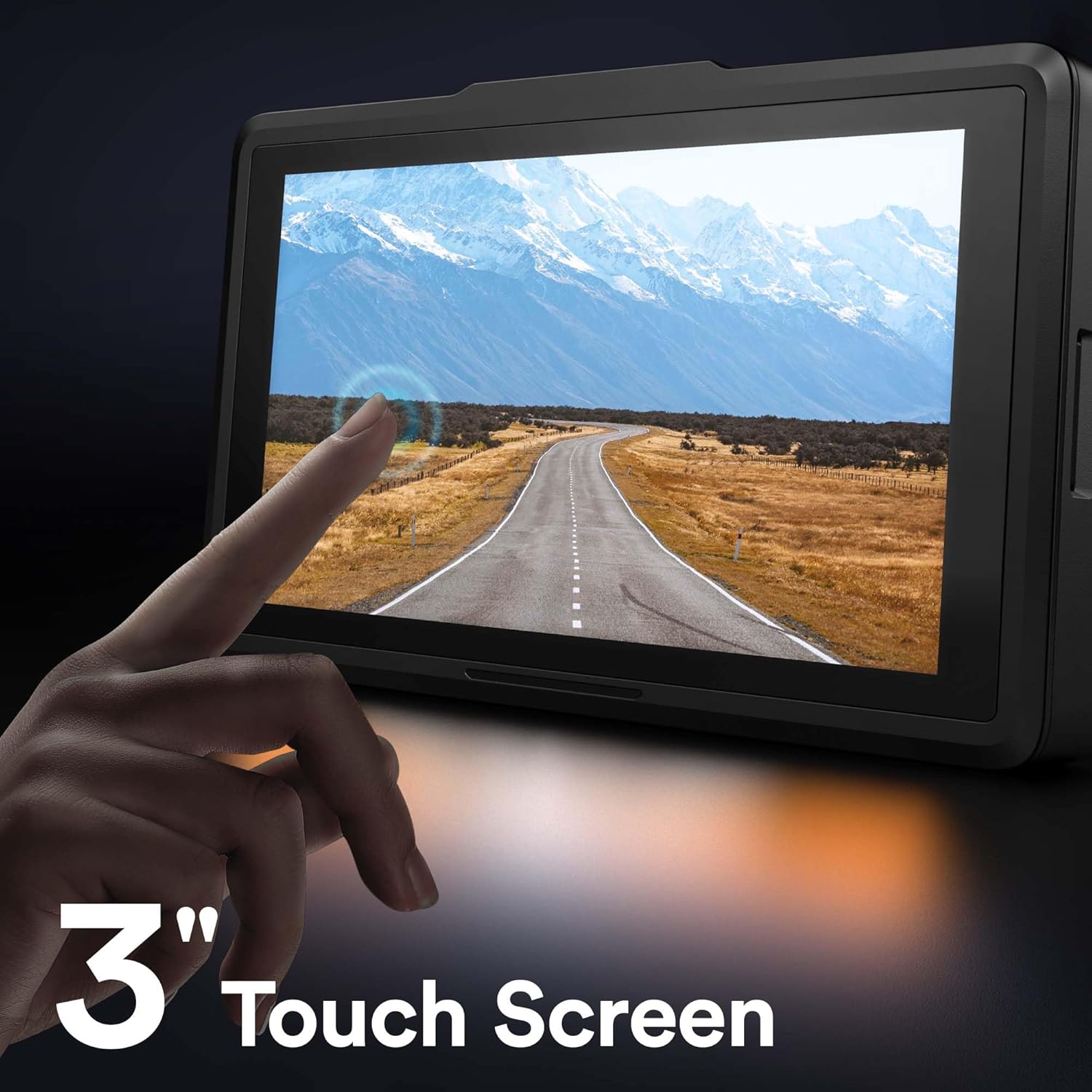
Figure 5.2: The 3-inch IPS touch screen interface.
5.3 GPS Functionality
The built-in GPS module (integrated into the car charger cable) records your driving route, speed, and other location data. This information can be viewed using a dedicated GPS player software on your Windows or Mac computer, providing crucial evidence in case of an incident. Please contact WOLFANG support to obtain the GPS player software.

Figure 5.3: GPS data access via computer and WiFi connectivity for smartphone.
5.4 Built-in WiFi & App Control
The WOLFANG WD01 features built-in WiFi, allowing you to connect your smartphone (iOS or Android) to the dash cam via the "LuckyCam" app. This app provides convenient access to:
- Live preview of recordings.
- Playback of recorded videos.
- Adjustment of camera settings.
- Direct download of recorded videos to your smartphone.
- Easy sharing of footage on social media.
Download the "LuckyCam" app from your smartphone's app store. Follow the in-app instructions to connect to your dash cam's WiFi network.

Figure 5.4: Easy access and control via the LuckyCam smartphone application.
5.5 Night Vision
Equipped with an advanced SONY STARVIS sensor, F1.8 large aperture, and TRUE WDR (Wide Dynamic Range) technology, the WD01 dash cam provides enhanced low-light sensitivity, ensuring clear and detailed video recordings even in challenging night-time conditions.
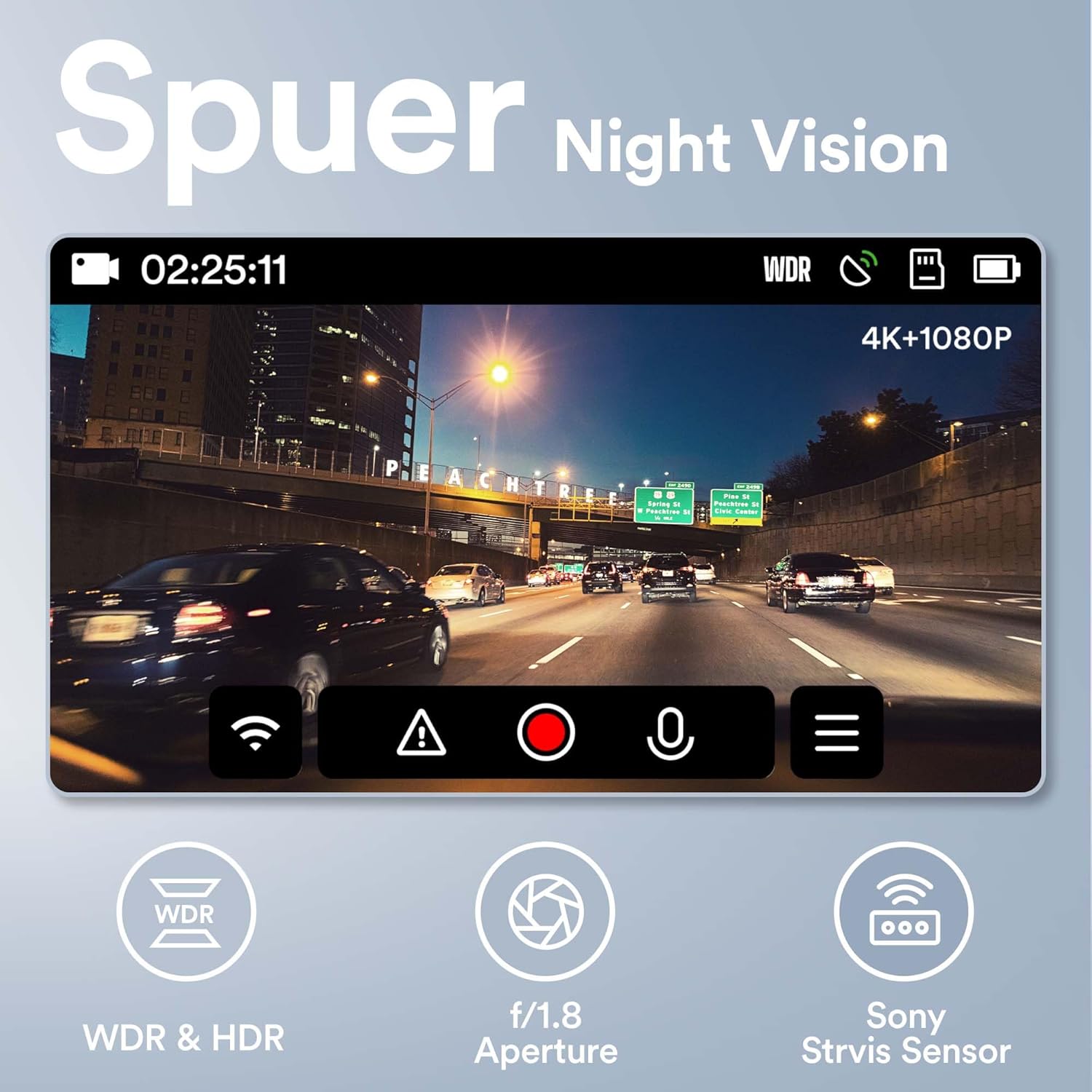
Figure 5.5: Super Night Vision capabilities of the WOLFANG WD01.
5.6 24-Hour Parking Monitoring
The 24-hour parking monitoring feature provides continuous protection for your vehicle even when parked. This mode can be activated through the camera settings and typically includes:
- G-Sensor Mode: If an impact is detected while parked, the dash cam will automatically power on and record a short video, then power off.
- Time-lapse Monitor: Records continuous video at a low frame rate (e.g., 1 frame per second) to save storage space, then plays back at a normal speed, allowing you to review long periods of parking activity quickly.
Note: For continuous 24-hour parking monitoring, a hardwire kit (sold separately) is usually required to provide constant power to the dash cam without draining the car battery.

Figure 5.6: Overview of 24-hour parking monitoring features.
6. Maintenance
- Cleaning: Use a soft, dry cloth to clean the camera lens and screen. Do not use abrasive cleaners or solvents.
- TF Card Maintenance: It is recommended to format the TF card once a month to maintain optimal performance and prevent data corruption. Back up any important videos before formatting.
- Temperature: Avoid exposing the dash cam to extreme temperatures (hot or cold) for extended periods, as this can affect battery life and component integrity.
- Firmware Updates: Periodically check the WOLFANG official website for any available firmware updates. Updating the firmware can improve performance and add new features.
7. Troubleshooting
| Problem | Possible Solution |
|---|---|
| Dash cam does not power on. |
|
| Camera stops recording or shows "Card Error". |
|
| Video footage is blurry or unclear. |
|
| GPS signal is not found or inaccurate. |
|
| WiFi connection issues with the app. |
|
8. Warranty and Support
WOLFANG is committed to providing high-quality products and excellent customer service.
- Warranty: The WOLFANG WD01 Dash Cam comes with a one-year warranty from the date of purchase, covering manufacturing defects. Additionally, WOLFANG offers a 3-year quality guarantee.
- Returns: You are eligible for a 365-day return policy. Please refer to your purchase platform's return guidelines for specific details.
- Customer Support: For any questions, technical assistance, or warranty claims, please contact our professional after-sales team. We offer 24-hour after-sales service.
Contact Email: support.vc@wolfang.co
Please provide your product model (WD01) and purchase details when contacting support for faster service.
Related documentsWD01


Ask a question about this manual
Ask about setup, troubleshooting, compatibility, parts, safety, or missing instructions. Manuals+ will review the question and use this page’s manual context to help answer it.