
1. Introduction
The ASHATA F1 Language Translator Device is an advanced portable translation tool designed to facilitate communication across language barriers. Utilizing artificial intelligence, it offers real-time two-way voice translation, photo translation, and offline translation capabilities. This manual provides detailed instructions for setting up, operating, and maintaining your device to ensure optimal performance.
2. Product Overview
2.1 Key Features
- Artificial Intelligence Translation: Fast response time (less than 0.5 seconds) and high accuracy (97%) for complex sentences.
- Large 2.4-inch HD Touchscreen: Provides clear readability for speech-to-text translation and navigation.
- Extensive Language Support: Supports 85 online languages and accents, 12 major offline languages, and 43 languages for photo translation.
- Dual Noise Canceling Microphones: Ensures accurate real-time speech recognition in various environments.
- Long Battery Life: 1500mAh battery offers 8 hours of continuous use and a week of standby time.
2.2 Device Components

The ASHATA F1 Language Translator Device, presented in gray, alongside its white USB charging cable. The device features a 2.4-inch HD touchscreen displaying icons for 'Translate', 'PhotoTranslate', 'Recording', and 'Conference', with two physical buttons below the screen for voice input.

A detailed close-up of the two distinct voice input buttons on the ASHATA F1 Language Translator Device. One button is colored blue with a microphone icon, and the other is orange with a microphone icon, indicating their function for two-way translation.
The rear panel of the ASHATA F1 Language Translator Device, displaying the IMEI number (554628483828677), model information (Model: F1, Input: 5V-1A), and regulatory marks (RoHS, CE). This view also shows the speaker grille and camera lens.
3. Setup
3.1 Charging the Device
Before first use, fully charge the device. Connect the provided USB cable to the device's charging port and a compatible USB power adapter (5V-1A recommended). A full charge typically takes 1-2 hours.

The ASHATA F1 Language Translator Device is shown against a background illustrating a charging battery, emphasizing its power features. The device's screen displays the main menu, and the text below highlights its 1500mAh battery capacity and charging time.
3.2 Powering On/Off
- To Power On: Press and hold the power button (usually on the side) until the screen illuminates.
- To Power Off: Press and hold the power button, then select 'Power Off' on the screen.
3.3 Wi-Fi Connection
For online translation features, connect the device to a Wi-Fi network:
- From the main menu, tap on 'Settings'.
- Select 'WIFI'.
- Toggle Wi-Fi 'On' and select your desired network from the list.
- Enter the password if prompted and tap 'Connect'.
3.4 Downloading Offline Packages
To use offline translation, you must download language packages:
- Ensure the device is connected to Wi-Fi.
- Navigate to 'Offline Package Management' (usually found within 'Settings' or a dedicated app).
- Select the languages you wish to download for offline use.
4. Operating Instructions

A close-up view of the ASHATA F1 Language Translator Device's 2.4-inch HD touchscreen, clearly showing the main menu with icons for 'Translate', 'PhotoTranslate', 'Recording', and 'Conference'. The battery indicator shows 52% charge.
4.1 Two-Way Voice Translation
This mode allows for real-time spoken language translation.
- From the main menu, tap 'Translate'.
- Select the source and target languages on the screen.
- Press and hold the blue button (or the button corresponding to the source language) and speak clearly into the microphone. Release the button when finished.
- The device will translate and speak the text in the target language.
- For the other person to speak, they should press and hold the orange button (or the button corresponding to their language) and speak.
4.2 Photo Translation
Translate text from images, such as signs or menus.
- From the main menu, tap 'PhotoTranslate'.
- Select the source and target languages.
- Position the device's camera over the text you wish to translate. Ensure good lighting and focus.
- Tap the capture button on the screen. The device will process the image and display the translated text.
4.3 Recording
The recording function allows you to capture audio.
- From the main menu, tap 'Recording'.
- Tap the record button to start recording.
- Tap the stop button to end the recording.
- Recordings can typically be played back or managed within this section.
4.4 Conference Mode
This feature is designed for multi-person or group translation scenarios.
- From the main menu, tap 'Conference'.
- Follow the on-screen instructions to set up a conference session, which may involve joining a room or creating one.
- Participants can then speak in their respective languages, and the device will provide translations for all connected users.
5. Settings

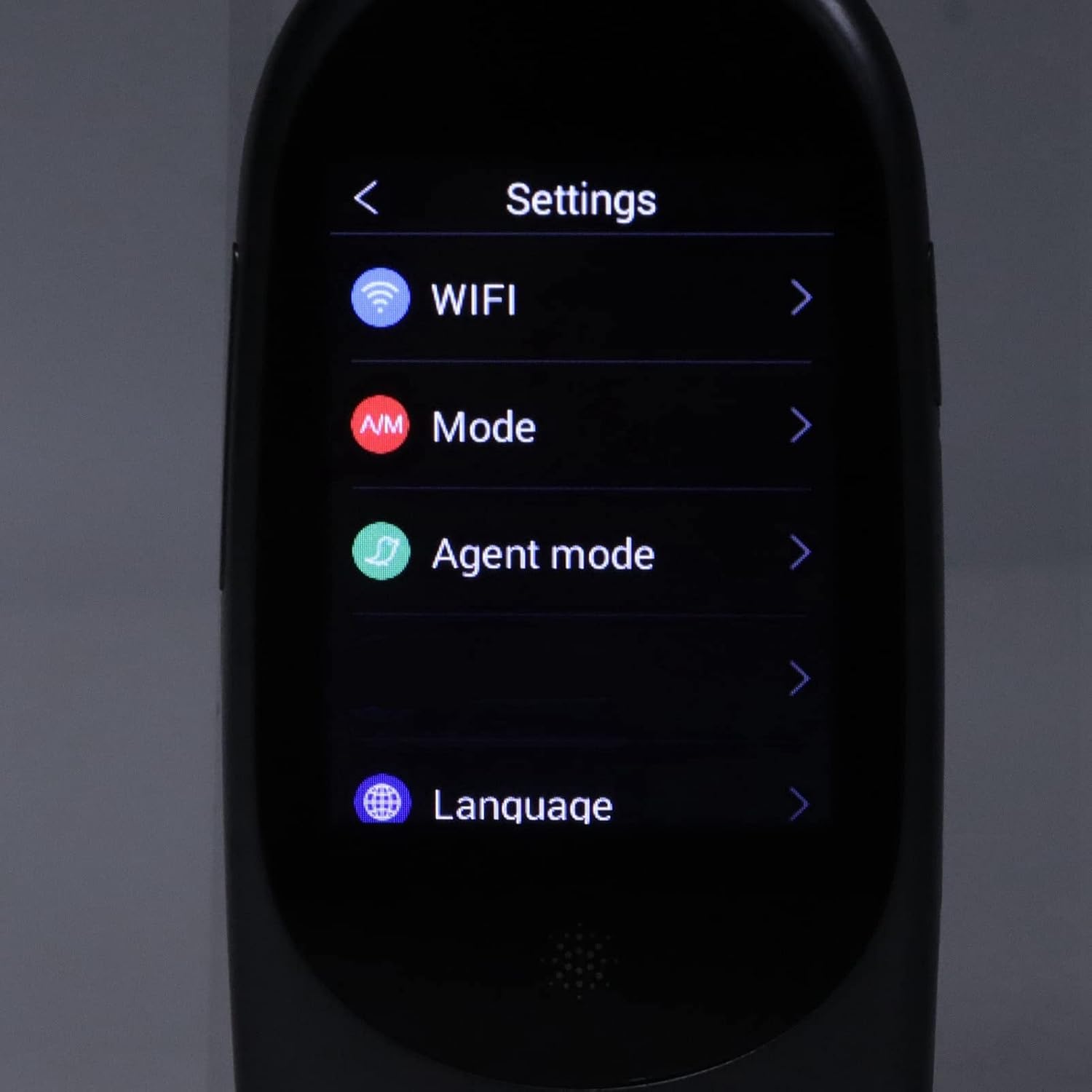
The ASHATA F1 Language Translator Device's screen displays the 'Settings' menu, which includes options for 'WIFI', 'Mode', 'Agent mode', and 'Language'. This image demonstrates the device's configuration options.
The 'Settings' menu allows you to customize various aspects of your device:
- WIFI: Manage your wireless network connections.
- Mode: Adjust operational modes or preferences.
- Agent mode: Specific settings related to an 'Agent' function, if applicable. Refer to on-screen prompts for details.
- Language: Change the device's user interface language and default translation languages.
- Other settings may include display brightness, volume, date/time, and system information.
6. Maintenance
- Cleaning: Use a soft, dry cloth to clean the device. Avoid liquid cleaners or abrasive materials.
- Storage: Store the device in a cool, dry place away from direct sunlight and extreme temperatures.
- Battery Care: To prolong battery life, avoid fully discharging the device frequently. Charge it regularly.
- Software Updates: Periodically check for and install software updates to ensure optimal performance and access to new features.
7. Troubleshooting
7.1 Common Issues and Solutions
- Device not powering on: Ensure the device is charged. Connect it to a power source and try again.
- No translation output: Check Wi-Fi connection for online translation. For offline translation, ensure the necessary language packages are downloaded. Verify microphone input by speaking clearly.
- Inaccurate translation: Speak clearly and at a moderate pace. Ensure the correct source and target languages are selected.
- Screen unresponsive: Try restarting the device. If the issue persists, contact customer support.
- Poor photo translation: Ensure good lighting, clear focus, and that the text is within the camera frame. Avoid glare.
8. Specifications
| Feature | Specification |
|---|---|
| Brand | ASHATA |
| Model Number | ASHATAeg4p8t61k7-11 |
| Item Weight | 7.6 ounces |
| Package Dimensions | 6.69 x 3.54 x 1.57 inches |
| Screen | 2.4-inch HD Touchscreen |
| Battery Capacity | 1500mAh |
| Continuous Working Time | 8 hours |
| Standby Time | 1 week |
| Charging Time | 1-2 hours |
| Online Translation Languages | 85+ |
| Offline Translation Languages | 12 major languages |
| Photo Translation Languages | 43 languages |
| Translation Response Time | Less than 0.5 seconds |
| Translation Accuracy | 97% (test accuracy rate) |
| Microphone | Dual Noise Canceling Mic |
| Input | 5V-1A |
9. Warranty and Support
For warranty information and technical support, please refer to the documentation included with your purchase or visit the official ASHATA website. Keep your proof of purchase for warranty claims.