
1. Product Overview
The Earto CT100 is an ultra-slim 96% layout mechanical keyboard designed for versatility and ergonomic comfort. It features a durable aluminum alloy body, white keycaps, and white LED backlighting. With multiple connectivity options and system compatibility, it is suitable for various computing environments.

Image: The Earto CT100 keyboard, showcasing its sleek design and the 'Crescent 96%' branding, highlighting its compact form factor.
2. What's in the Box
- Earto CT100 Wireless Mechanical Keyboard
- USB Cable (Type-C to USB-A)
- USB Receiver (2.4G)
- User Manual
3. Setup
3.1 Charging the Keyboard
Before initial use, fully charge the keyboard using the provided USB-C cable. Connect the USB-C end to the keyboard's charging port and the USB-A end to a power source (e.g., computer USB port, USB wall adapter). The keyboard has a 2000mAh Lithium Polymer battery.
3.2 Connectivity Modes
The CT100 supports three connectivity modes: Bluetooth 5.0, 2.4G wireless, and wired USB-C. A toggle switch on the keyboard allows you to select your preferred mode.
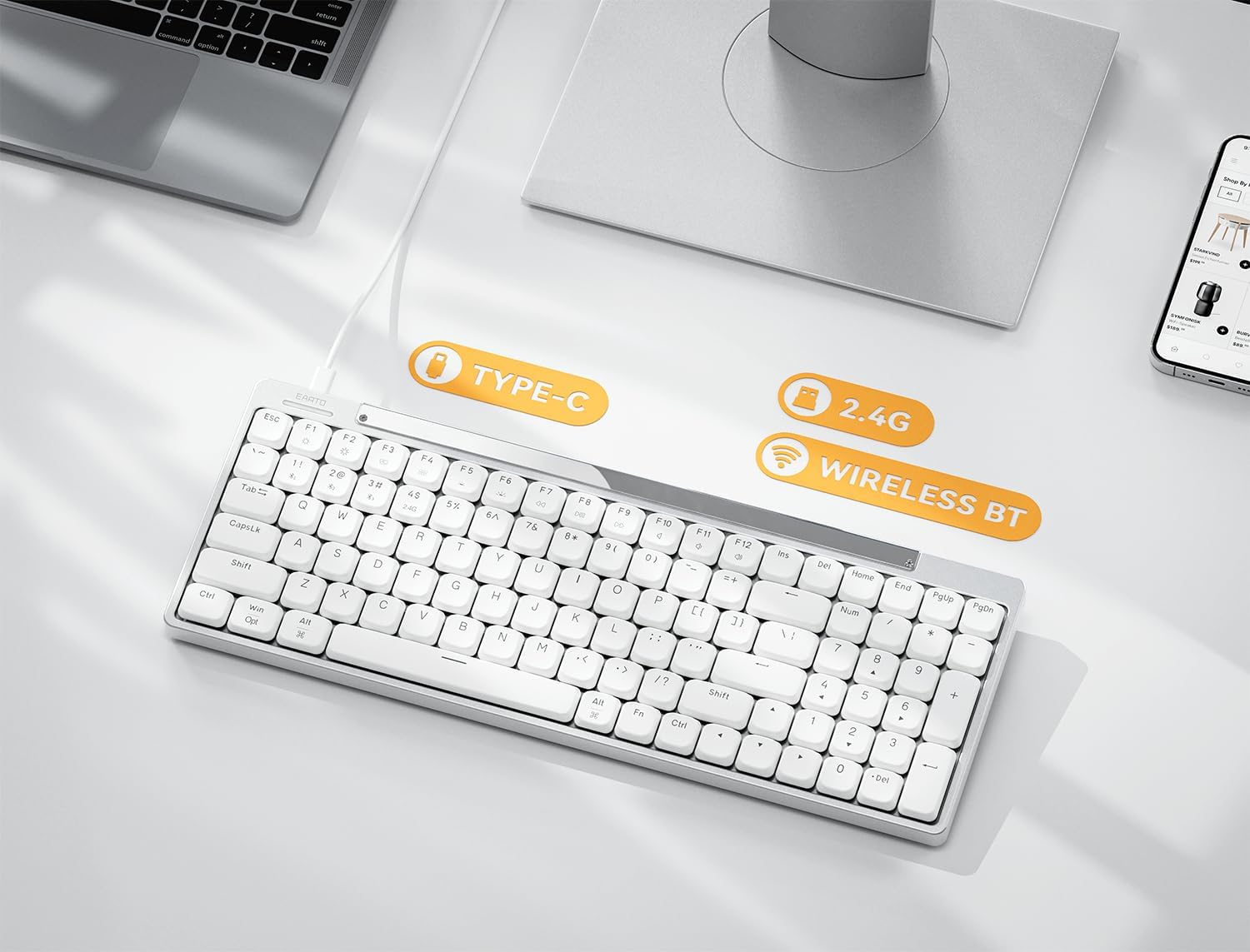
Image: The Earto CT100 keyboard on a desk, illustrating its multiple connectivity options: wired via Type-C cable, 2.4G wireless with a USB dongle, and Bluetooth wireless.
3.2.1 Bluetooth Connection
- Toggle the switch on the keyboard to Bluetooth mode.
- On your device (computer, phone, tablet), enable Bluetooth and search for available devices.
- Select 'Earto CT100' from the list to pair. The keyboard can store up to three Bluetooth devices, allowing easy switching.
3.2.2 2.4G Wireless Connection
- Locate the 2.4G USB receiver (usually stored in a slot on the keyboard or included separately).
- Plug the USB receiver into an available USB-A port on your computer.
- Toggle the switch on the keyboard to 2.4G wireless mode. The keyboard should automatically connect.
3.2.3 Wired Connection
- Connect the USB-C cable to the keyboard's port.
- Connect the USB-A end of the cable to your computer.
- Toggle the switch on the keyboard to wired mode.
3.3 System Compatibility
The CT100 is compatible with both Windows and Mac OS. Use the dedicated paddle switch on the keyboard to select the appropriate operating system layout for seamless functionality.
4. Operating Instructions
4.1 Key Layout and Design
The keyboard features a 96% layout with 100 keys, offering a compact design while retaining essential function and numeric keys. The ultra-slim low-profile mechanical switches provide faster triggering and easier key presses, reducing wrist fatigue.

Image: A detailed view of the Earto CT100's low-profile keycaps (5mm) and mechanical switches (8mm), emphasizing the ultra-slim design and faster switch actuation.
4.2 Backlighting Effects
The CT100 includes white LED backlighting with translucent ABS keycaps for a pleasant visual experience. You can adjust the brightness (3 levels) and choose from 20 different light modes to suit your preference.

Image: The Earto CT100 keyboard illuminated with radiant white keys, highlighting its customizable brightness and various light modes.
4.3 Adjustable Typing Angle
The keyboard features a dual support bracket, allowing you to adjust the typing angle to 6° or 9°. These angles are ergonomically designed to enhance comfort during extended typing sessions.
5. Maintenance
5.1 Cleaning
To clean the keyboard, gently wipe the surface with a soft, dry, lint-free cloth. For deeper cleaning, you may carefully remove keycaps using a keycap puller (if provided) and clean underneath. Avoid using harsh chemicals, abrasive materials, or excessive moisture.
5.2 Storage
When not in use, store the keyboard in a cool, dry place away from direct sunlight and extreme temperatures. Ensure it is turned off to conserve battery life.
6. Troubleshooting
6.1 Connectivity Issues
- Keyboard not connecting: Ensure the keyboard is charged and the mode switch is set correctly (Bluetooth, 2.4G, or Wired). For Bluetooth, ensure your device's Bluetooth is on and the keyboard is in pairing mode. For 2.4G, ensure the USB receiver is securely plugged in.
- Intermittent connection: Try moving the keyboard closer to your device or using a different USB port for the 2.4G receiver. Ensure there are no strong interference sources nearby.
6.2 Backlight Issues
- Backlight not turning on: Check if the keyboard battery is low. Adjust brightness levels using the designated function keys.
- Backlight flickering: This could indicate a low battery. Recharge the keyboard fully.
6.3 Typing Issues
- Incorrect key output: Verify that the system compatibility switch (Windows/Mac) on the keyboard is set to match your operating system.
- Keys not responding: Ensure the keyboard is powered on and properly connected. Try switching to a different connectivity mode.
7. Specifications
| Feature | Detail |
|---|---|
| Product Dimensions | 14.5"L x 7"W x 1.3"H (369.6 x 133.2 x 12.0 mm) |
| Item Weight | 2.7 pounds (770 g) |
| Manufacturer | Earto |
| Item Model Number | CT100 |
| Batteries | 1 Lithium Polymer battery (2000mAh), included |
| Compatible Devices | Laptop, PC, Tablet |
| Connectivity Technology | Bluetooth 5.0, 2.4G Wireless, Wired (USB-C) |
| Keyboard Description | Mechanical, Low Profile, 96% Layout (100 Keys) |
| Recommended Uses | Casual Gaming, Multimedia, Office |
| Special Feature | Low Profile Design, Space-Efficient 96% Layout, Dual Support Bracket (6°/9°), White LED Backlight (20 modes, 3 brightness levels) |
| Color | Red Switch (White Keycaps) |
| Keyboard Backlighting | Single Color (White) |
| Style | Modern |

Image: A table detailing the specifications of the Earto Crescent 96% keyboard, including switch type, layout, number of keys, backlight, battery, compatible systems, materials, size, and weight.
8. Official Product Videos
8.1 Unboxing the Sleek Earto CT100 White Keyboard!
Video Description: An official unboxing video for the Earto CT100 White Keyboard, showcasing its packaging and initial presentation.
8.2 Earto Crescent 96% Low Profile Mechanical Keyboard
Video Description: An official video highlighting the features and design of the Earto Crescent 96% Low Profile Mechanical Keyboard.
8.3 You'll love this white keyboard!! Earto did it!
Video Description: An official video showcasing the Earto white keyboard, emphasizing user satisfaction and design.
9. Warranty and Support
9.1 Product Warranty
The Earto CT100 Wireless Mechanical Keyboard comes with a standard manufacturer's warranty. Please refer to the warranty card included in the packaging for specific terms and conditions. Keep your proof of purchase for warranty claims.
9.2 Customer Support
For any technical assistance, troubleshooting, or warranty inquiries, please contact Earto customer support. Contact details can typically be found on the product packaging, warranty card, or the official Earto website.