
1. Introduction
This manual provides essential information for setting up, operating, and maintaining your new SHARP Roku TV. Please read this manual thoroughly before using the television to ensure proper and safe operation. Keep this manual for future reference.
Your SHARP Roku TV combines stunning 4K Ultra HD resolution with the intuitive Roku operating system, offering access to a vast library of streaming content and smart features.
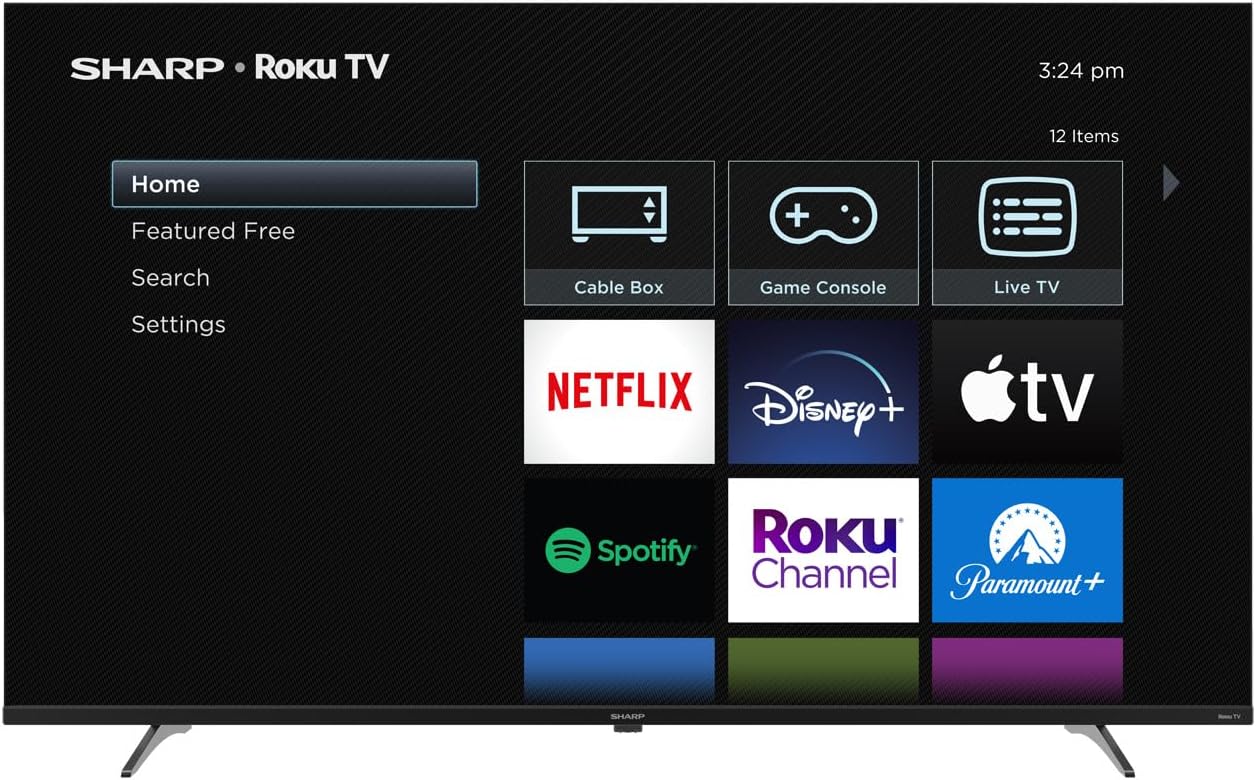
Image 1.1: SHARP Roku TV with Home Screen
This image shows the front view of the SHARP Roku TV, powered on and displaying the main Roku home screen. The screen features a menu on the left with options like Home, Featured Free, Search, and Settings. On the right, large icons for various streaming services such as Netflix, Disney+, Apple TV, Spotify, Roku Channel, and Paramount+ are visible, along with input options for Cable Box, Game Console, and Live TV.
2. Safety Information
Always follow basic safety precautions when using this product to reduce the risk of fire, electric shock, and injury to persons.
- Power Source: Connect the TV only to the type of power source indicated on the marking label.
- Ventilation: Ensure proper ventilation. Do not block ventilation openings.
- Water and Moisture: Do not expose the TV to rain or moisture. Do not place objects filled with liquids, such as vases, on the TV.
- Cleaning: Unplug the TV from the wall outlet before cleaning. Use a soft, dry cloth. Do not use liquid cleaners or aerosol cleaners.
- Placement: Place the TV on a stable, level surface. Avoid placing it in direct sunlight or near heat sources.
- Children: Supervise children to ensure they do not climb on or play with the TV.
3. What's in the Box
Carefully unpack the box and ensure all items are present and in good condition.
- SHARP Roku TV (Model: 4T-C50EL8UR)
- Simple Roku Remote Control
- TV Stand (2 pieces)
- Power Cable
- Quick Start Guide (not included in this manual)
- Screws for Stand Installation
- AAA Batteries (2) for Remote Control
4. Setup
4.1 Unpacking
Remove the TV and all accessories from the packaging. It is recommended to keep the original packaging materials in case you need to transport the TV in the future.
4.2 Attaching the Stand
If you are not wall-mounting your TV, you will need to attach the included stand. Place the TV face down on a soft, clean surface to prevent screen damage. Align the stand pieces with the screw holes on the bottom of the TV and secure them with the provided screws.
4.3 Wall Mounting (Optional)
Your SHARP Roku TV is VESA compatible (200x300). If you choose to wall-mount the TV, ensure you use a VESA-compliant wall mount kit and follow the instructions provided with the wall mount. Professional installation is recommended for wall mounting.
4.4 Connecting Peripherals
Connect your external devices to the TV using the available ports.
- HDMI: The TV features 4 HDMI ports, including one with eARC support for enhanced audio return channel functionality. Connect Blu-ray players, game consoles, cable boxes, etc.
- USB: Two USB ports are available for connecting USB storage devices to view media files.
- Ethernet: For a stable wired internet connection, connect an Ethernet cable to the LAN port.
- Power: Connect the power cable to the TV's power input and then to a wall outlet.
4.5 Initial Power On and Roku Setup
- Plug in the TV.
- Insert the included AAA batteries into the remote control.
- Press the Power button on the remote.
- Follow the on-screen instructions for the guided Roku setup. This includes selecting your language, connecting to a Wi-Fi network (or using Ethernet), and activating your Roku account.
- The TV will guide you through channel scanning for over-the-air broadcasts if an antenna is connected.
5. Operating
5.1 Remote Control Overview
The simple Roku remote control provides easy navigation. Key buttons include:
- Power: Turns the TV on/off.
- Home: Returns to the Roku Home screen.
- Directional Pad: Navigates menus and selects items.
- OK: Confirms selections.
- Back: Returns to the previous screen.
- Volume Up/Down: Adjusts audio volume.
- Mute: Silences the audio.
- Instant Replay: Jumps back a few seconds in video playback.
- Star (*): Accesses options menu for selected content.
- Dedicated Channel Buttons: Quick access to popular streaming services.
5.2 Navigating the Roku Interface
The Roku Home screen is your central hub. Use the directional pad on your remote to:
- Browse installed streaming channels.
- Access input sources (HDMI, USB, Live TV).
- Search for movies, TV shows, and channels.
- Adjust TV settings.
5.3 Using Streaming Channels
Select a channel icon from the Home screen to launch it. Follow the on-screen prompts to sign in to your accounts for subscription services. The Roku Channel offers a wide selection of free live TV and on-demand content.
5.4 Input Selection
To switch between connected devices (e.g., Blu-ray player, game console), navigate to the input tile on the Roku Home screen and select the desired HDMI or other input.
5.5 Picture and Sound Settings
Access picture and sound settings through the Roku interface (usually under 'Settings' or by pressing the '*' button during playback). Your TV supports 4K Ultra HD with HDR10 for enhanced contrast and color. It also features Dolby Digital Audio for an immersive sound experience.

Image 5.1: Dolby Audio Feature
This image highlights the Dolby Audio feature of the SHARP Roku TV. The television is shown displaying a vibrant scene of a whale breaching the ocean surface against a dramatic sky. In the foreground, the prominent 'Dolby Audio' logo is displayed, emphasizing the TV's advanced sound capabilities.
5.6 Voice Assistant Ready
Your SHARP Roku TV is compatible with popular voice assistants. To use this feature, you may need a compatible voice-enabled remote or a smart speaker linked to your Roku account. Refer to Roku's official support for detailed instructions on integrating voice control.
6. Maintenance
6.1 Cleaning
- Screen: Gently wipe the screen with a soft, lint-free cloth. For stubborn marks, slightly dampen the cloth with water or a screen-specific cleaner (never spray directly onto the screen).
- Cabinet: Wipe the TV cabinet with a soft, dry cloth.
- Do NOT use: Abrasive cleaners, waxes, or solvents.
6.2 Software Updates
Your Roku TV automatically checks for and installs software updates when connected to the internet. This ensures you have the latest features and security enhancements. You can manually check for updates in the Settings menu.
7. Troubleshooting
If you encounter issues with your TV, refer to the following common solutions:
| Problem | Possible Solution |
|---|---|
| No Power | Ensure the power cable is securely connected to both the TV and a working wall outlet. Try a different outlet. |
| No Picture, but Sound is Present | Check the input source. Ensure the connected device is powered on and functioning correctly. |
| No Sound, but Picture is Present | Check the volume level and ensure the TV is not muted. Verify audio settings for the selected input. |
| Remote Control Not Working | Replace the batteries. Ensure there are no obstructions between the remote and the TV's IR sensor. |
| Cannot Connect to Wi-Fi | Ensure your Wi-Fi router is on and within range. Re-enter the Wi-Fi password carefully. Try restarting your router and the TV. |
| Picture Quality Issues (e.g., blurry, distorted) | Check the source resolution. For streaming, ensure a stable internet connection. Adjust picture settings in the TV menu. |
8. Specifications
Detailed technical specifications for the SHARP Roku TV 4T-C50EL8UR.

Image 8.1: SHARP Roku TV Dimensions
This image provides a detailed diagram of the SHARP Roku TV's physical dimensions. It clearly labels the overall width as 43.72 inches (W), the height without the stand as 25.30 inches (H), and the height with the stand as 26.52 inches (H). The stand width is also indicated as 33.99 inches.
| Feature | Specification |
|---|---|
| Model Number | 4T-C50EL8UR |
| Screen Size (Diagonal) | 50 Inches (49.51" Diag.) |
| Display Technology | LED (DLED Backlight) |
| Resolution | 4K Ultra HD (3840 x 2160) |
| HDR Support | HDR10/HLG |
| Refresh Rate | 60Hz |
| Operating System | Roku TV |
| Audio Technology | Dolby Digital Audio, Built-In Speaker System |
| HDMI Ports | 4 (including 1 eARC) |
| USB Ports | 2 |
| Connectivity | Wi-Fi Compatible, Ethernet |
| VESA Compatibility | 200x300 |
| Product Dimensions (W x D x H) | 43.7" x 9.56" x 26.53" (with stand) |
| Item Weight | 20.9 Pounds |
| Power Consumption (On-mode) | 0.5 Watts |
| Voltage | 120 Volts (AC) |
| Included Components | TV, Remote Control, Stand, Power Cable |
9. Warranty and Support
For warranty information and technical support, please refer to the warranty card included with your product or visit the official SHARP support website. You can also find extensive support resources and FAQs on the Roku support website.


