
1. Introduction
This manual provides essential instructions for the proper use and maintenance of your Celly Trainer Smartband. Please read this manual thoroughly before using the device to ensure optimal performance and longevity. Keep this manual for future reference.
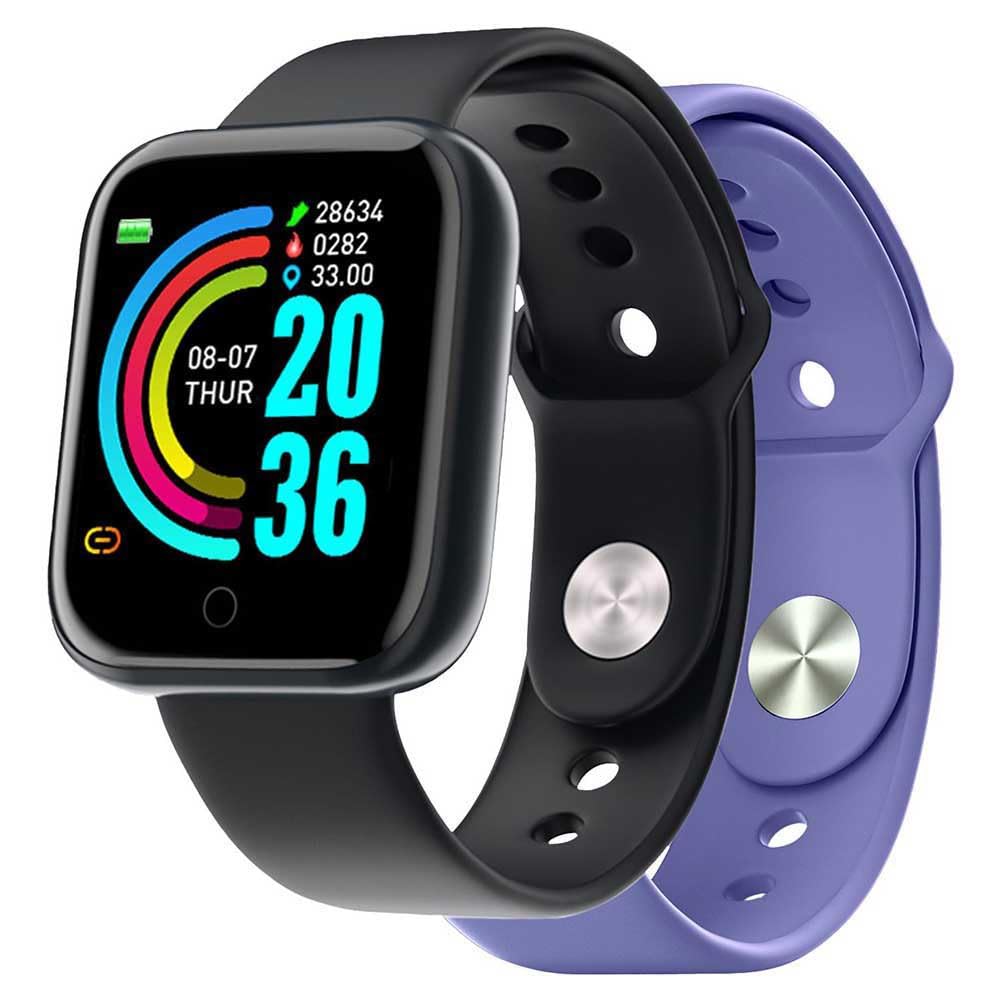
Image: The Celly Trainer Smartband in black, showing its digital display with time, date, and activity metrics.
Package Contents:
- Celly Trainer Smartband (main unit)
- Silicone Strap (Black)
- Additional Silicone Strap (Purple)
- Charging Cable (USB)
- User Manual (this document)
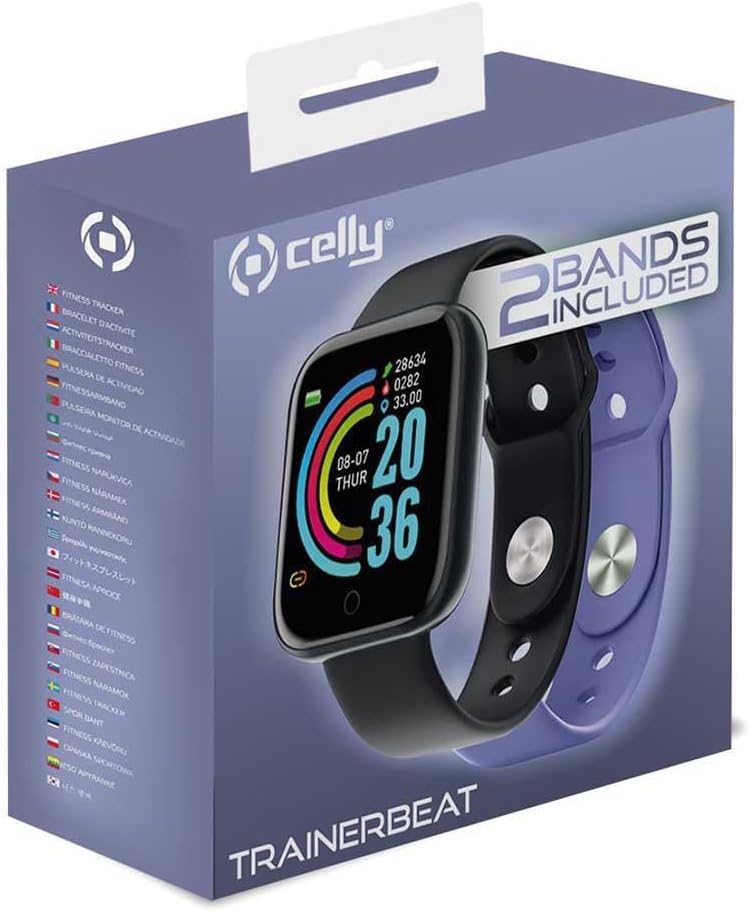
Image: Retail packaging of the Celly Trainer Smartband, clearly indicating the inclusion of two bands: one black and one purple.
2. Setup
2.1 Charging the Device
Before initial use, fully charge your Celly Trainer Smartband. Connect the charging cable to the USB port on the smartband and plug the other end into a standard USB power adapter (not included) or a computer's USB port. The device typically takes approximately 4 hours to fully charge.
A battery icon on the screen will indicate the charging status. Once fully charged, the icon will show a full battery.
2.2 Installing the FitPro App
The Celly Trainer Smartband requires the FitPro application for full functionality. Download the FitPro app from your smartphone's app store (Google Play Store for Android or Apple App Store for iOS).
- Android Compatibility: Android 7.1 to 13.0
- iOS Compatibility: iOS 8.0 to 16
2.3 Pairing with Your Smartphone
- Ensure your smartband is charged and powered on.
- Enable Bluetooth on your smartphone.
- Open the FitPro app.
- Follow the in-app instructions to search for and connect to your Celly Trainer Smartband. The app will guide you through the pairing process.
- Confirm the pairing request on both your smartphone and the smartband if prompted.
Once paired, the smartband will synchronize data with the app and display the correct time and date.
3. Operating Instructions
3.1 Basic Navigation
The smartband is operated using its physical button(s) and touch-sensitive screen (if applicable). Press the button to wake the screen or cycle through different display modes (time, steps, heart rate, etc.). Long-press the button for specific functions as indicated on the screen or in the app.
3.2 Activity Tracking
- Pedometer: Automatically tracks your steps throughout the day.
- Distance: Calculates distance covered based on your steps and stride length (set in the app).
- Calories Burned: Estimates calorie expenditure based on your activity and personal data.
View your daily activity summaries directly on the smartband or in detail within the FitPro app.
3.3 Health Monitoring
- Heart Rate Monitor: Measures your heart rate. Ensure the smartband is snug on your wrist for accurate readings.
- Blood Oxygen Sensor (SpO2): Measures blood oxygen levels.
- Sleep Monitor: Tracks your sleep patterns, including deep sleep, light sleep, and wake times. Wear the smartband while sleeping for accurate data.
All health data is synchronized with the FitPro app for historical tracking and analysis.
3.4 Notifications
Once paired with your smartphone, the smartband can display notifications for calls, SMS messages, and other supported applications. Enable or disable specific app notifications within the FitPro app settings.
3.5 Remote Camera Control
The smartband supports remote camera control. Open the camera function within the FitPro app, then shake your wrist or press the smartband's button to remotely trigger your phone's camera shutter.
3.6 Music Control
Control music playback on your smartphone directly from the smartband. Functions typically include play/pause, skip forward, and skip backward. This feature requires the music app to be active on your phone.
4. Maintenance
4.1 Cleaning
Regularly clean your smartband and strap to prevent skin irritation and maintain device hygiene. Use a soft, damp cloth to wipe the device. Do not use harsh chemicals or abrasive cleaners.
Ensure the charging contacts are clean and dry before charging.
4.2 Water Resistance (IP67)
The Celly Trainer Smartband has an IP67 rating, meaning it is protected from dust and can withstand immersion in water up to 1 meter for up to 30 minutes. It is suitable for daily use, such as washing hands or light rain. However, it is not resistant to hot water, steam, or prolonged immersion. Do not wear it while swimming, showering, or in a sauna.
If the device gets wet, dry it thoroughly before charging or prolonged use.
4.3 Strap Replacement
The smartband features a removable strap. To replace the strap, gently detach it from the main unit by following the instructions provided with the replacement strap or by carefully pulling it away from the watch body. Attach the new strap by aligning it and pushing it into place until it clicks securely.

Image: A purple silicone strap, demonstrating the interchangeable nature of the smartband's wristbands.
5. Troubleshooting
| Problem | Possible Cause | Solution |
|---|---|---|
| Device does not turn on. | Low battery. | Charge the device for at least 30 minutes. |
| Cannot pair with smartphone. | Bluetooth is off; app not open; device out of range; previous pairing issues. |
|
| Inaccurate heart rate/SpO2 readings. | Loose fit; sensor obstruction; excessive movement. |
|
| Notifications not received. | App permissions; notification settings in FitPro app; Bluetooth disconnected. |
|
| Short battery life. | Frequent use of features; high brightness; old battery. |
|
6. Specifications
| Feature | Detail |
|---|---|
| Model Name | TRAINERBEATVL |
| Brand | Celly |
| Display Type | Digital |
| Screen Size | 45 mm (approx. 1.44 inches) |
| Connectivity | Bluetooth |
| Supported Mobile OS | Android 7.1 - 13.0, iOS 8.0 - 16 |
| Companion App | FitPro |
| Sensors | Heart Rate Monitor, Blood Oxygen Sensor, Pedometer |
| Water Resistance Rating | IP67 (Dust protected, immersion up to 1m for 30 min) |
| Battery Type | Lithium-Ion |
| Battery Life (Typical) | Up to 5 days |
| Charging Time | Approx. 4 hours |
| Strap Material | Silicone |
| Case Material | Plastic |
| Watch Face Dimensions | Approx. 45mm (Length) x 7mm (Thickness) |
| Total Length (with strap) | 245 mm |
| Weight | 27.2 g |
| GPS | No |
7. Warranty and Support
7.1 Limited Warranty
The Celly Trainer Smartband comes with a limited warranty. Please refer to the warranty card included in your product packaging or visit the official Celly website for detailed terms and conditions. This warranty typically covers manufacturing defects but may not cover damage caused by misuse, accidents, or unauthorized modifications.
7.2 Customer Support
For technical assistance, troubleshooting not covered in this manual, or warranty claims, please contact Celly customer support. Contact information can usually be found on the Celly website or on the product packaging.
Website: www.celly.com
When contacting support, please have your product model number (TRAINERBEATVL) and proof of purchase readily available.