1. Introduction
Thank you for choosing the QttyElok Tuya WiFi Access Control Kit. This kit provides a secure and convenient solution for managing access to your premises, combining an IP68 waterproof RFID keypad, a powerful 180kg electric magnetic lock, and smart control via the Tuya application. This manual will guide you through the installation, operation, and maintenance of your access control system.
2. Safety Information
- Ensure all wiring is performed by a qualified electrician to prevent electrical hazards.
- Disconnect power before performing any installation or maintenance.
- Do not expose the power supply unit to moisture or extreme temperatures. The keypad is IP68 rated for outdoor use, but proper installation is crucial.
- Use only the specified power voltage (DC 12V) for the access control system.
- Keep the product away from strong electromagnetic interference.
3. Product Overview
The QttyElok Tuya WiFi Access Control Kit includes the following main components:
3.1 Access Control Keypad
This is the primary interface for access. It features a touch screen, blue backlight, and a doorbell button. It supports both 125 kHz and 13.56 MHz RFID frequencies and can be controlled via the Tuya app, RFID card, or password.

Image: Front view of the access control keypad, highlighting the work indicator, touch keyboard, and doorbell button.
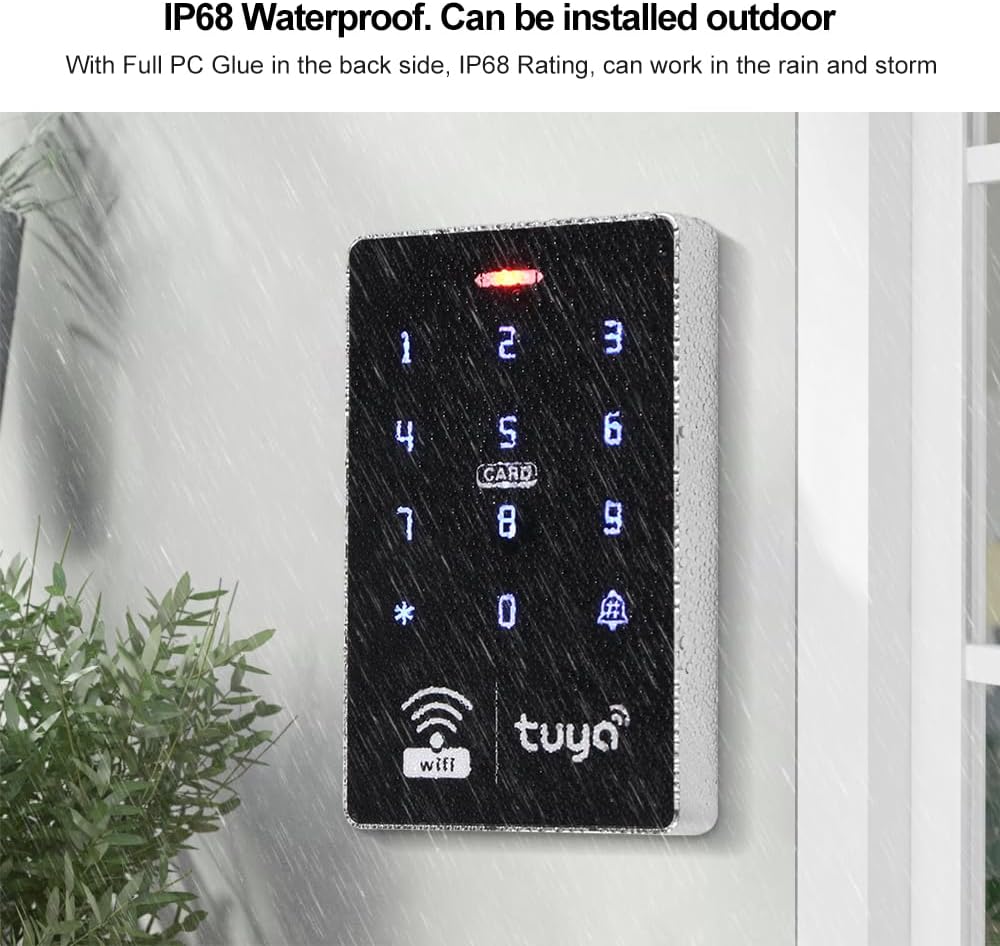
Image: The access control keypad installed outdoors, showing its IP68 waterproof capability in rain.
3.2 Power Supply Control
The power supply unit converts AC input to DC 12V/3A output for the system. It includes adjustable timing for door opening.

Image: The power supply control unit, displaying its dimensions and electrical specifications.
3.3 180kg Electric Magnetic Lock
This lock provides a strong holding force of 180kg (350lbs). It is designed to be locked when power is applied and unlocked when power is removed, suitable for various door types including metal, wood, and glass.

Image: The 180kg magnetic lock, showing its components, dimensions, and a typical installation example.
3.4 RFID Keyfobs
The kit includes 10 blue RFID keyfobs operating at 13.56 MHz for convenient access.
3.5 Door Exit Button
A plastic door exit button is included for easy egress from the secured area.

Image: The door exit button with its dimensions, and a row of ten blue RFID keyfobs.
4. Setup
4.1 Installation of Components
- Keypad Installation: Mount the access control keypad at the desired entry point. Ensure it is securely fastened and that wiring can be routed safely. The IP68 rating allows for outdoor installation.
- Magnetic Lock Installation: Install the magnetic lock on the door frame and the armature plate on the door, ensuring proper alignment for maximum holding force. Refer to the magnetic lock's specific mounting instructions for your door type.
- Power Supply Installation: Mount the power supply unit in a secure, dry location, preferably indoors.
- Door Exit Button Installation: Install the exit button on the inside of the door, at a convenient height.
4.2 Wiring Diagram (General)
Connect the components as per the following general guidelines. Always refer to the detailed wiring diagram provided with your product for precise connections.
- Connect the keypad's power input to the DC 12V output of the power supply.
- Connect the magnetic lock to the appropriate lock output terminals on the power supply (typically NC - Normally Closed for fail-secure operation).
- Connect the door exit button to the 'PUSH' or 'EXIT' terminals on the power supply.
- Ensure all ground (GND) connections are properly made.
4.3 Tuya App Setup and WiFi Connection
- Download App: Download the 'Tuya Smart' or 'Smart Life' app from your smartphone's app store.
- Register/Login: Create an account or log in.
- Add Device: Power on the access control keypad. In the Tuya app, tap '+' to add a new device. Select 'Security & Video Surveillance' > 'Access Control'.
- WiFi Pairing: Follow the in-app instructions to put the keypad into pairing mode (usually by pressing a specific key combination or holding a button on the keypad). Connect the device to your 2.4GHz WiFi network.
- Device Renaming: Once connected, you can rename the device for easy identification.
5. Operating Instructions
5.1 Unlocking Methods
The system supports multiple unlocking methods:
- RFID Card: Present a registered RFID card to the keypad.
- Password: Enter a registered password on the keypad, followed by '#'.
- Tuya App: Use the Tuya app on your smartphone for remote unlocking.

Image: Visual representation of unlocking the access control system using the Tuya app, an RFID card, and a numerical password.
5.2 User Management (Tuya App)
The Tuya app provides comprehensive user management features:
- Remote Unlock: Unlock the door from anywhere.
- Temporary Codes: Generate time-limited access codes for visitors.
- Member Management: Add or remove users, assign RFID cards or passwords.
- Access Logs: View a history of access events.

Image: Multiple screenshots illustrating the Tuya app's functionalities for remote access, temporary code creation, user management, and reviewing access history.
5.3 Normally Open Mode
You can configure the system to remain unlocked for specific periods using the 'Normally Open' mode via the Tuya app.

Image: The access control keypad alongside a smartphone screen displaying the Tuya app's 'Door keep open' settings for scheduling normally open periods.
5.4 Door Open Time Adjustment
The door open time (how long the lock remains disengaged after a valid access) can be adjusted from 0 to 99 seconds via the keypad programming or Tuya app settings.
5.5 Doorbell Function
Press the doorbell button on the keypad to activate the integrated doorbell function (if connected to an internal chime, sold separately).
6. Maintenance
- Cleaning: Wipe the keypad and other components with a soft, damp cloth. Do not use abrasive cleaners or solvents.
- Regular Checks: Periodically check all wiring connections for security and integrity.
- Firmware Updates: Check the Tuya app for any available firmware updates for the access control device to ensure optimal performance and security.
7. Troubleshooting
- Door Not Unlocking:
- Check power supply to the magnetic lock.
- Verify correct wiring between the keypad, power supply, and lock.
- Ensure the RFID card or password is correctly registered.
- Check if the door open time is set to '0' seconds.
- Keypad Unresponsive:
- Check if the keypad is receiving power.
- Restart the system by cycling power to the power supply unit.
- WiFi Connection Issues:
- Ensure your WiFi network is 2.4GHz.
- Check WiFi signal strength at the keypad's location.
- Restart your WiFi router and the access control system.
- Attempt to re-pair the device with the Tuya app.
- RFID Card Not Detected:
- Ensure the card is registered in the system.
- Verify the card frequency (13.56 MHz for included keyfobs).
8. Specifications
8.1 Access Control Keypad
- Material: Plastic
- Panel: Touch screen
- Operating Voltage: DC 12V
- User Capacity: 10000
- Waterproof Level: IP68 (Outdoor use)
- Operating Frequency: Dual frequency 125 kHz & 13.56 MHz
- Identification Method: Tuya App, RFID Card, Password
- Backlight: Blue
- Doorbell Button: Yes
- Management Card: Yes
- Wiegand Signal: WG26/WG34 Output
- Operating Current: ≤ 30A
- Door Open Time: Adjustable 0-99 seconds
- Dimensions: 115 x 72 x 17 mm
8.2 Power Supply Control
- Material: Steel
- AC Input: AC100V-260V / 50-60HZ
- DC Output: 12V DC / 3A
- Timing: Adjustable 0-15 seconds
- Dimensions: 140 x 67 x 33 mm
8.3 RFID Keyfobs
- Material: ABS
- Operating Frequency: 13.56 MHz
- Detection Range: 0-10 cm
- Color: Blue
- Quantity: 10 pieces
8.4 180kg Electric Magnetic Lock
- Material: Aluminum alloy shell + Iron plate
- Holding Force: 180 kg (350 lbs)
- Operating Voltage: DC 12V
- Operating Current: 380-430 mA
- Suitable for Doors: Metal, Wood, Glass doors
- Operating Mode: Locked when power is ON, Unlocked when power is OFF (Fail-secure)
- Waterproof: Yes (Can be installed outdoors)
9. Warranty and Support
For warranty information, technical support, or service inquiries, please refer to the documentation provided with your purchase or contact the manufacturer directly. Keep your purchase receipt as proof of purchase.


