
Introduction
This manual provides detailed instructions for the setup, operation, and maintenance of your TQQ Keyboard Case. This accessory is designed to enhance your iPad experience by providing a physical keyboard and multi-touch trackpad, transforming your tablet into a versatile workstation.

Image: The TQQ Keyboard Case with an iPad inserted, configured in a laptop-like orientation, highlighting the integrated keyboard and multi-touch trackpad.
Compatibility
The TQQ Keyboard Case is specifically designed for the following iPad models:
- iPad 10th Generation (10.9-inch, 2022 Release) - Model Numbers: A2757, A2777, A2696
- iPad (A16) 11th Generation (11-inch, 2025 Release) - Model Numbers: A3354, A3355, A3356
To verify your iPad model number, please check the back of your device. This case is not compatible with iPad Air 11-inch (M3/M2, 2025/2024) or any other iPad models.

Image: A visual guide illustrating the compatible iPad models (10th Gen 10.9-inch and 11th Gen 11-inch) and how to locate the model number on the back of an iPad.
Package Contents
Please ensure all items are present in the package:
- 1 x TQQ Keyboard Case
- 1 x USB-C Charging Cable
- 1 x User Guide (this document)

Image: An illustration of the package contents, including the keyboard case, charging cable, and user manual.
Setup
Charging the Keyboard
Before initial use, fully charge the keyboard. Connect the provided USB-C charging cable to the charging port on the keyboard and a power source. The charge indicator light will illuminate during charging and turn off when fully charged.
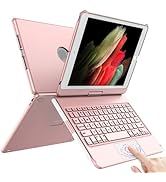
Image: A close-up view of the keyboard's USB-C charging port, showing a charging cable connected.
Bluetooth Connection
Follow these steps to pair your TQQ Keyboard Case with your iPad:
- Switch the ON/OFF switch on the keyboard to the ON position.
- Press and hold the 'Pair' button for 3 seconds. The Bluetooth indicator light will begin blinking.
- On your iPad, go to Settings > Bluetooth and toggle Bluetooth ON.
- Under 'MY DEVICES', tap 'Bluetooth Keyboard'. The device is connected when the Bluetooth indicator stops flashing.

Image: A visual guide indicating the power switch, pair button, and Bluetooth indicator on the keyboard for connection setup.
Operating Instructions
Multi-Touch Trackpad
The integrated multi-touch trackpad supports various gestures to navigate your iPad. Ensure your iPad's operating system is iOS 13 or above for full trackpad functionality.
- Click: Single tap or press down on the trackpad.
- Scroll: Use two fingers to swipe up or down.
- Zoom: Pinch in or out with two fingers.
- Go Home: Swipe up with three fingers.
To lock the trackpad function, press Fn + A.
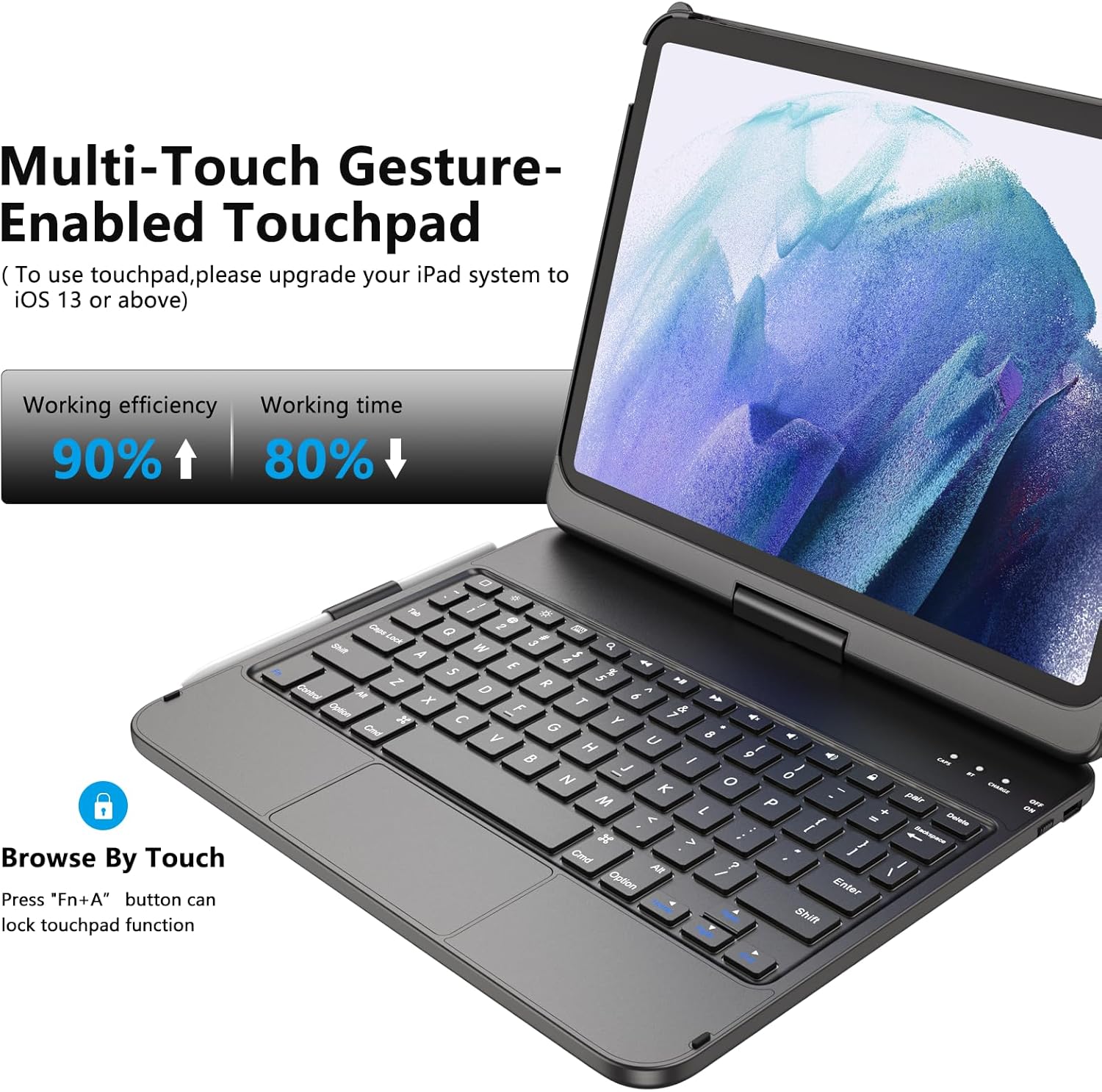
Image: A hand interacting with the multi-touch trackpad, demonstrating its functionality.

Image: Visual representations of common multi-touch gestures for the trackpad, including clicking, scrolling, zooming, and returning to the home screen.
Adjustable Viewing Angles and Modes
The keyboard case features a 360° rotatable hinge and 180° flip capability, allowing for multiple viewing angles and usage modes:
- Laptop Mode: Standard laptop-like setup for typing.
- Stand Mode: Ideal for viewing content without the keyboard.
- Tent Mode: Suitable for presentations or watching videos in confined spaces.
- Tablet Mode: Fold the keyboard behind the iPad for tablet-only use.
- Protect Mode: Fully closed to protect both the iPad and keyboard.
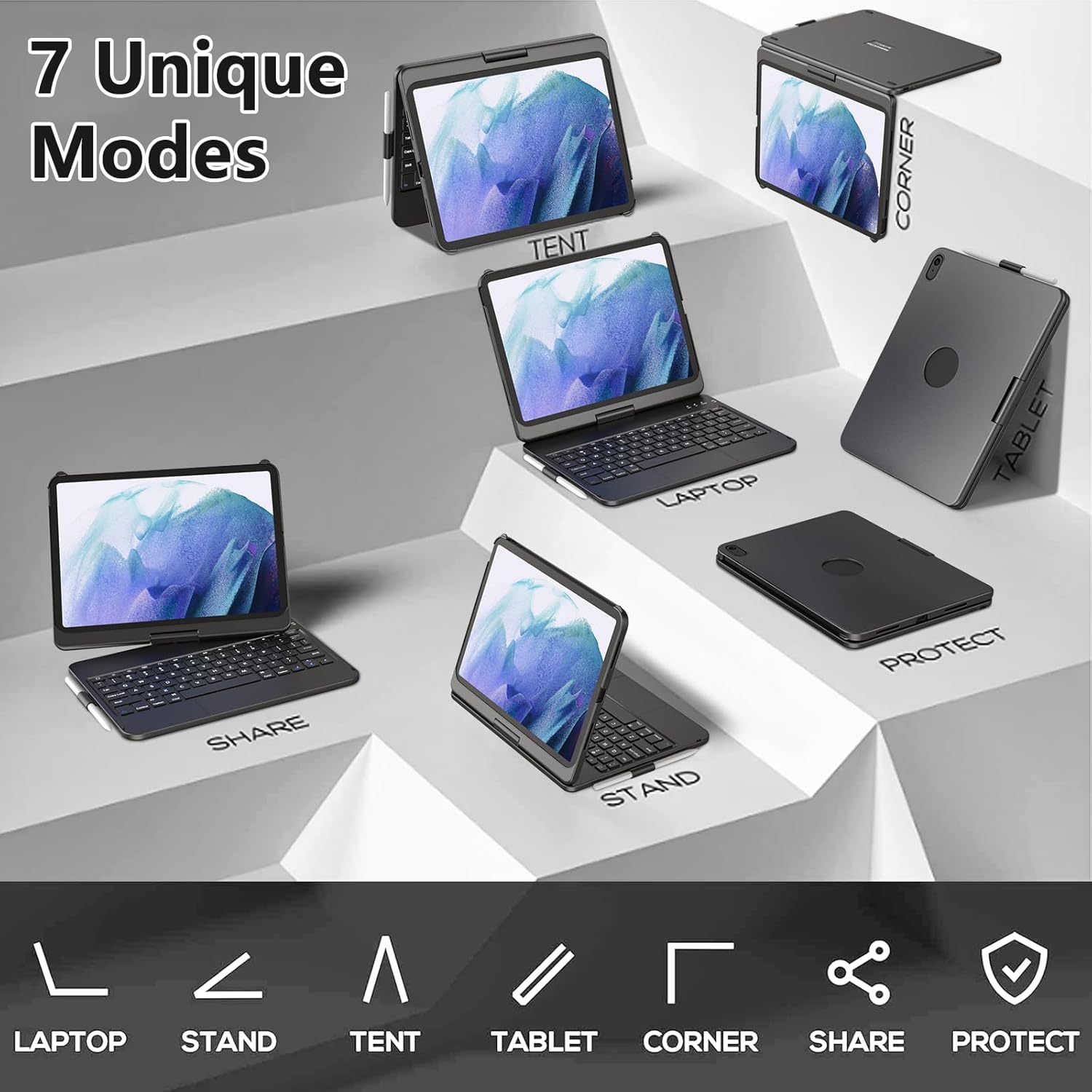
Image: An illustration showcasing seven different configurations of the keyboard case, including laptop, stand, tent, and tablet modes.
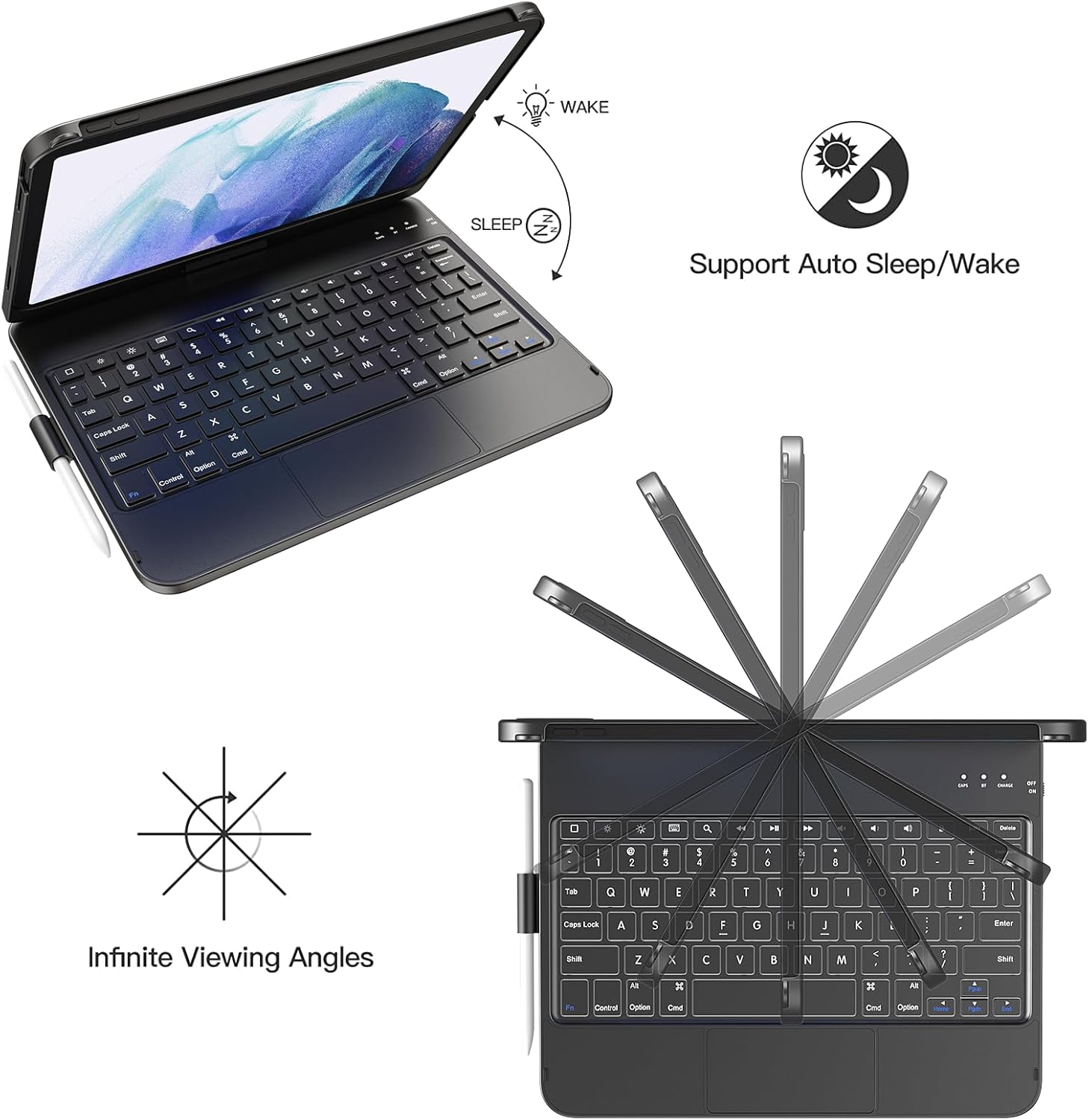
Image: A visual representation of the keyboard case's flexible hinge, allowing for 360-degree rotation and various viewing angles.
Auto Sleep/Wake Function
The case supports auto sleep/wake functionality. Closing the case will put your iPad to sleep, and opening it will wake it up, helping to conserve battery life.
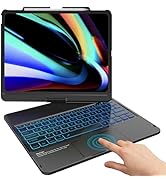
Image: A graphic depicting the auto sleep and wake feature, showing the iPad screen turning off when the case is closed and turning on when opened.
Maintenance
To ensure the longevity of your TQQ Keyboard Case:
- Clean the case and keyboard with a soft, dry cloth. Avoid abrasive cleaners or solvents.
- Keep the device away from extreme temperatures and direct sunlight.
- Avoid spilling liquids on the keyboard.
- When not in use, ensure the case is closed to protect the iPad and keyboard.
Troubleshooting
Bluetooth Connection Issues
If your Bluetooth keyboard is not connecting or functioning correctly:
- If the keyboard was previously connected to another device, ensure it is disconnected from that device. On the previous device, go to Bluetooth settings and select 'Forget this Device' for the keyboard. Note: Simply clicking 'Disconnect' may not be sufficient.
- On your iPad, go to Settings > Bluetooth and select 'Forget this Device' for the 'Bluetooth Keyboard' if it appears.
- Restart the keyboard by turning the ON/OFF switch off and then on again.
- Press the 'Pair' button again for 3 seconds. The Bluetooth indicator light should blink, and you can attempt to reconnect from your iPad's Bluetooth settings.

Image: A graphic depicting a person contemplating Bluetooth connection issues, accompanied by troubleshooting steps.
Keyboard Enters Sleep Mode
The keyboard is designed to enter sleep mode after 10 minutes of inactivity to conserve battery. It will disconnect from your iPad in this state. To wake it up and reconnect, simply press any key on the keyboard. It will automatically re-establish the connection with your iPad.
Specifications
| Brand | TQQ |
| Model Number | Keyboard Case for 10th Generation |
| Compatible Devices | iPad 10th Generation (10.9-inch, 2022), iPad (A16) 11th Generation (11-inch, 2025) |
| Connectivity | Bluetooth |
| Battery Type | 1 Lithium Ion battery (included) |
| Item Weight | 2.02 pounds |
| Package Dimensions | 11.22 x 8.23 x 1.37 inches |
Warranty and Support
For any questions regarding product functionality, troubleshooting, or warranty claims, please refer to the contact information provided with your purchase or visit the official TQQ website. We are committed to providing support for our products.