
1. Introduction and Compatibility
This TQQ iPad Keyboard Case is designed to enhance your iPad experience by providing a protective cover, a full-featured keyboard, and a multi-touch trackpad. It transforms your iPad into a versatile workstation, offering multiple viewing angles and smart protection.
Compatible Models:
- iPad 10th Generation (10.9-inch, 2022 Release): Models A2757, A2777, A2696
- iPad (A16) 11th Generation (11-inch, 2025 Release): Models A3354, A3355, A3356
Note: This case is not compatible with iPad Air 11-inch (M3/M2, 2025/2024), iPad Pro 11-inch (1st-4th Gen), or iPad Pro 11-inch M4/M5. Please verify your iPad model number on the back of your device before use.
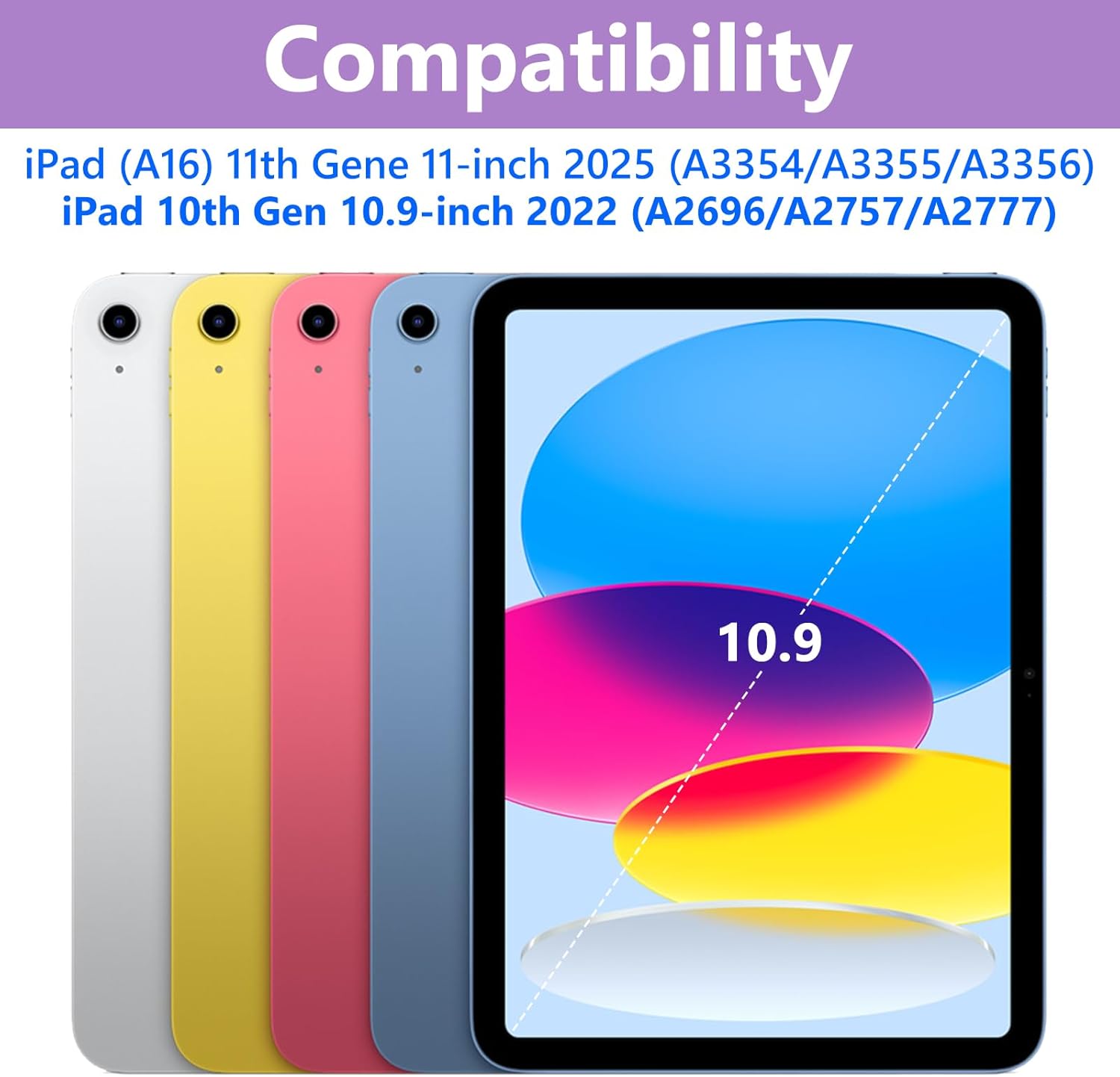
Figure 1: Product Compatibility Overview

Figure 2: Detailed iPad Model Compatibility
2. Setup Instructions
2.1 Installing Your iPad
Gently insert your iPad into the protective case, ensuring all edges are securely fitted. The case is designed for a snug fit to provide maximum protection.

Figure 3: iPad securely installed in the keyboard case
2.2 Charging the Keyboard
Before initial use, ensure the keyboard is fully charged. Connect the provided USB charging cord to the keyboard's charging port and a suitable power source. The charging indicator light will illuminate during charging.
Figure 4: Keyboard Charging Port
2.3 Bluetooth Connection
Follow these steps to pair your keyboard with your iPad:
- Switch the ON/OFF switch on the keyboard to the ON position.
- Press and hold the 'Pair' button for 3 seconds. The Bluetooth indicator light will start blinking.
- On your iPad, toggle Bluetooth ON in the Settings app. The device is connected when the Bluetooth indicator stops flashing.
- Tap 'Bluetooth Keyboard' under 'MY DEVICES' in the Bluetooth section of the Settings app.

Figure 5: Bluetooth Pairing Instructions
3. Operating Instructions
3.1 Adjustable Viewing Angles and Rotation
The keyboard case features a unique design allowing 360° rotation and 180° flip, providing versatile viewing angles for various activities such as typing, viewing, FaceTime, or reading. This allows you to quickly convert your iPad into a mini-laptop or a tablet.

Figure 6: Infinite Viewing Angles

Figure 7: Seven Unique Usage Modes
3.2 Multi-Touch Trackpad
The integrated multi-touch trackpad supports various gestures, allowing you to navigate your iPad with precision and speed. This feature transforms your tablet into a highly performant laptop-like device. To use the trackpad, ensure your iPad system is upgraded to iOS 13 or above. You can lock the trackpad function by pressing 'Fn+A'.

Figure 8: Multi-Touch Trackpad in Use

Figure 9: Common Trackpad Gestures
3.3 Auto Sleep and Wake Function
The case supports auto sleep and wake functionality, which helps preserve your iPad's battery life. Closing the case puts your iPad to sleep, and opening it wakes the iPad.
Figure 10: Auto Sleep/Wake Feature
3.4 Apple Pencil Holder
A dedicated holder is integrated into the case to securely store your Apple Pencil, ensuring it is always ready for use and protected.
Figure 11: Apple Pencil Holder
4. Maintenance
4.1 General Care
To maintain the longevity and appearance of your TQQ iPad Keyboard Case, avoid exposing it to extreme temperatures, direct sunlight for prolonged periods, or harsh chemicals. Keep the case dry and clean.
4.2 Cleaning
Wipe the exterior of the case with a soft, damp cloth. For the keyboard, use a soft, dry cloth or a specialized keyboard cleaner. Do not spray cleaning solutions directly onto the keyboard or trackpad.
5. Troubleshooting
5.1 Bluetooth Link Not Working
If your keyboard is not connecting or the Bluetooth link is unstable, try the following steps:
- If the keyboard was previously connected to another device, please 'Forget this Device' on that device first. Note: Clicking 'Disconnect' is not always effective.
- On your iPad, go to Bluetooth settings and 'Forget this Device' for the 'Bluetooth Keyboard'.
- Restart the keyboard by turning the On/Off switch off and then on again.
- Press the 'Pair' button again. The Bluetooth indicator will light up, and the keyboard should reconnect to your iPad.

Figure 12: Bluetooth Troubleshooting Guide
6. Specifications
| Feature | Detail |
|---|---|
| Brand | TQQ |
| Model Number | Keyboard Case for 10th Generation |
| Compatible Devices | iPad 10th Gen (10.9-inch, 2022), iPad (A16) 11th Gen (11-inch, 2025) |
| Form Factor | Case |
| Shell Type | Hard |
| Item Weight | 2.03 pounds |
| Package Dimensions | 11.18 x 8.27 x 1.26 inches |
| Batteries | 1 Lithium Ion battery (included) |
7. Package Contents
The TQQ iPad Keyboard Case package includes the following items:
- 1 x TQQ iPad Keyboard Case
- 1 x USB Charging Cord
- 1 x User Guide (this manual)

Figure 13: Package Contents
8. Official Product Video
Video 1: Demonstration of the TQQ iPad Keyboard Case for 10th Generation iPad. This video showcases the product's features, including its design, keyboard functionality, and various usage modes.
9. Warranty and Support
For any questions regarding your TQQ iPad Keyboard Case model or function, please contact our customer service. We are committed to solving your problems and ensuring your satisfaction.
Please refer to the contact information provided in your product packaging or visit the official TQQ website for support details.