
1. Product Overview
The EsaSam Android Car Stereo M400S is a 9-inch touchscreen multimedia player designed for the JAC Refine S3 2019 model. It features an Android 11/12 operating system, GPS navigation, Bluetooth 4.0, WiFi, and 4G connectivity. This unit supports various functions including Carplay, Android Auto, steering wheel control, and a reverse camera input, enhancing your driving experience with advanced infotainment capabilities.

Image: The EsaSam Android Car Stereo M400S integrated into a vehicle's dashboard, showcasing its 9-inch display and user interface.
2. Package Contents
Verify that all items listed below are included in your package. If any items are missing or damaged, please contact customer support.

Image: All components of the EsaSam Android Car Stereo M400S package, including the head unit and various cables.
- Main Head Unit (9-inch touchscreen display)
- Power Harness (specific for JAC Refine S3 2019)
- External Microphone (MIC)
- RCA Input/Output Cables
- 2 x USB Cables
- Camera Input Cable
- GPS Antenna
- Instruction Manual
- 4G Antenna (for 8-core models only)
- AHD Backup Camera (gift)
3. Installation Guide
This unit is specifically designed for the JAC Refine S3 2019. Professional installation is recommended. Ensure the vehicle's power is disconnected before beginning installation.
- Preparation: Carefully remove the original car radio unit from your JAC Refine S3 2019 dashboard.
- Connect Power Harness: Connect the provided power harness to the car's wiring. Ensure all connections are secure.
- Connect Antennas:
- Connect the GPS antenna and position it in a location with a clear view of the sky (e.g., dashboard corner).
- If your model supports 4G, connect the 4G antenna.
- Connect USB Cables: Route the USB cables to a convenient location, such as the glove compartment, for future use with USB devices.
- Connect External Microphone: Plug in the external microphone for improved call quality and voice commands.
- Connect RCA Cables: If using external amplifiers or other audio/video devices, connect the RCA input/output cables as needed.
- Connect Reverse Camera: Install the AHD backup camera at the rear of the vehicle and route its cable to the head unit. Connect it to the camera input cable.
- Mount the Head Unit: Securely mount the EsaSam M400S head unit into the dashboard opening.
- Initial Power On: Reconnect the vehicle's power. Turn on the ignition and power on the car stereo.
- System Configuration:
- Factory Password: For initial access or specific settings, use the factory password. For M400S models, the password is 3368.
- Steering Wheel Control: To configure original steering wheel controls, navigate to the system settings and follow the on-screen instructions to learn or configure the CANBUS protocol.
4. Operating Instructions
4.1 Android Operating System
The unit runs on an Android 11/12 operating system, providing a familiar interface. Navigate using the 9-inch capacitive multi-touch screen. You can download, install, and manage applications from the Google Play Store.

Image: The Android operating system interface displayed on the car stereo, showing various application icons.
4.2 Bluetooth 4.0
Connect your mobile phone via Bluetooth 4.0 for hands-free calling and audio streaming. The system supports synchronizing your contact list for easy access.
- Pairing: Go to Bluetooth settings on the head unit and your phone to pair devices.
- Hands-free Calls: Make and receive calls directly from the car stereo.
- Music Playback: Stream audio from your phone to the car speakers.
4.3 GPS Navigation
The built-in GPS module supports both online and offline navigation applications. Connect to WiFi to download offline maps for use without an internet connection. The dual-zone function allows you to listen to music while navigation is active.

Image: A GPS navigation map showing routes and current location on the car stereo screen.
4.4 FM/AM Radio
Access FM and AM radio stations. The system allows you to save your favorite stations for quick access.
- FM Frequency: 87.5-108.5MHz
- AM Frequency: 520-1700 Hz
4.5 Mirror Link
Support for both Android and iOS devices to mirror your phone's screen onto the car radio display. This allows you to view your phone's content directly on the larger screen.
4.6 Steering Wheel Control (SWC)
The unit supports original steering wheel controls. Configure these controls in the system settings to manage audio, calls, and other functions without taking your hands off the wheel.

Image: A steering wheel with control buttons, illustrating the integration with the car stereo for convenient operation.
4.7 Reverse Camera Input
The system automatically displays the rear view when the vehicle is shifted into reverse. The included AHD backup camera provides a clear image for safer parking and maneuvering.
4.8 Split Screen Function
Utilize the split-screen feature to display two applications simultaneously, such as navigation and music playback, for enhanced multitasking.

Image: The car stereo display in split-screen mode, showing a navigation map on one side and a music player on the other.
4.9 Built-in Carplay and Android Auto
The M400S supports both wireless Carplay and Android Auto (via USB cable). Connect your smartphone to access navigation, music, messages, and other apps safely through the car's display.
4.10 DSP Processor
The Digital Sound Processor (DSP) allows for various sound effects and music styles (pop, rock, jazz, etc.) to be set, providing a customizable audio experience.
4.11 4G LTE Connectivity
For models with 4G support, connect to the internet to stream online music, watch videos, and access web content directly from the car stereo.
4.12 5GHz WiFi Support
The unit supports 5GHz WiFi (802.11 b/g/n) for faster data transmission, wider coverage, and a more stable internet connection compared to 2.4GHz WiFi.
4.13 ADAS DVR Support
When connected to an optional ADAS DVR, the system can provide advanced driver-assistance features such as anti-collision warnings and lane departure warnings.
4.14 360 Panoramic Camera Support
The unit supports a 360-degree panoramic camera system (requires additional camera hardware and a 360 camera chip on the radio motherboard) for a comprehensive view around the vehicle.
4.15 User Interface (UI) Options
The system offers various user interface designs, allowing you to customize the visual appearance of your car stereo's home screen and menus.
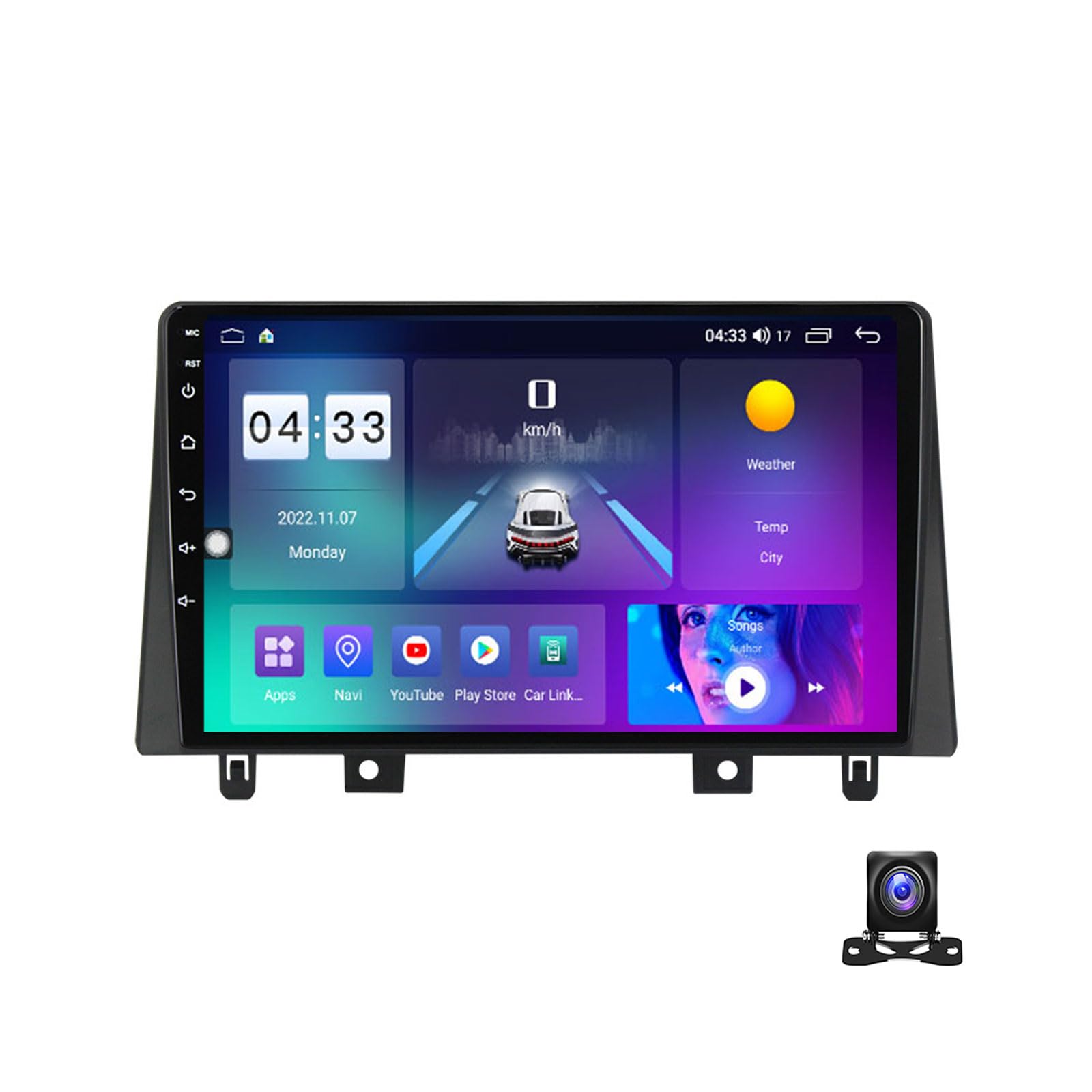
Image: Examples of different user interface designs available on the EsaSam car stereo.
5. Specifications
| Brand Name | EsaSam |
| Model Number | M400S |
| Operating System | Android 11/12 |
| Screen Size | 9 Inch |
| Screen Resolution | 1024*600 (or 1280*720 for higher models) |
| Processor | Quad-core / Octa-core |
| RAM Options | 1GB / 2GB / 3GB / 4GB / 6GB / 8GB DDR3 |
| ROM Options | 16GB / 32GB / 64GB / 128GB |
| Bluetooth | Bluetooth 4.0 |
| WiFi | Built-in (802.11 b/g/n), supports 5GHz |
| 4G Support | Yes (with 4G antenna for 8-core models) |
| GPS | Built-in GPS module |
| Radio Frequencies | AM: 520-1700 Hz, FM: 87.5-108.5MHz |
| Video Output | Full RCA Output, supports HD 1080P |
| Audio Output | Subwoofer audio output, DSP support |
| Connectivity | USB, SD, AUX-IN |
| Supported Features | Carplay, Android Auto, SWC, Reverse Camera, DVR, TPMS, OBD2, DAB+ |
| Languages | Multi-lingual (English, Russian, French, German, Spanish, Italian, Arabic, etc.) |
6. Troubleshooting
If you encounter issues with your EsaSam Android Car Stereo, refer to the following common solutions:
- No Power: Check all power connections and fuses. Ensure the vehicle's ignition is on.
- No Sound: Verify speaker connections. Check volume levels and audio settings. Ensure the mute function is not active.
- GPS Signal Loss: Ensure the GPS antenna is properly connected and has a clear view of the sky. Try restarting the unit.
- Bluetooth Connection Issues: Ensure Bluetooth is enabled on both the head unit and your mobile device. Try unpairing and re-pairing the devices.
- Touchscreen Unresponsive: Restart the unit. If the issue persists, a factory reset might be necessary (note: this will erase all user data).
- System Slow/Freezing: Close unnecessary applications. Clear cache. If persistent, consider a factory reset or system update.
- Steering Wheel Controls Not Working: Re-enter the steering wheel control learning interface in settings and reconfigure the buttons. Check CANBUS connections if applicable.
For issues not covered here, please contact EsaSam customer support.
7. Maintenance
Proper maintenance ensures the longevity and optimal performance of your car stereo.
- Screen Cleaning: Use a soft, lint-free cloth slightly dampened with water or a screen cleaner. Avoid harsh chemicals or abrasive materials.
- Software Updates: Periodically check for and install system software updates to ensure optimal performance and access to new features.
- Temperature: Avoid exposing the unit to extreme temperatures for extended periods.
- Ventilation: Ensure the unit's ventilation openings are not blocked to prevent overheating. The unit may include a cooling fan for M200S-M700S models to prevent abnormal operation due to high temperatures.
8. Warranty and Customer Support
For warranty information, technical assistance, or any questions regarding your EsaSam Android Car Stereo M400S, please refer to the warranty card included in your package or contact EsaSam customer support directly through their official channels.
When contacting support, please have your model number (M400S) and purchase details ready.