
1. Introduction
Welcome to your new Hocazor HP033 Pro Bluetooth 5.4 AM FM Radio Headphones. These headphones are designed to provide effective hearing protection while allowing you to enjoy audio via Bluetooth, AM/FM radio, or AUX input. They are ideal for noisy environments such as workshops, mowing, or other industrial settings.
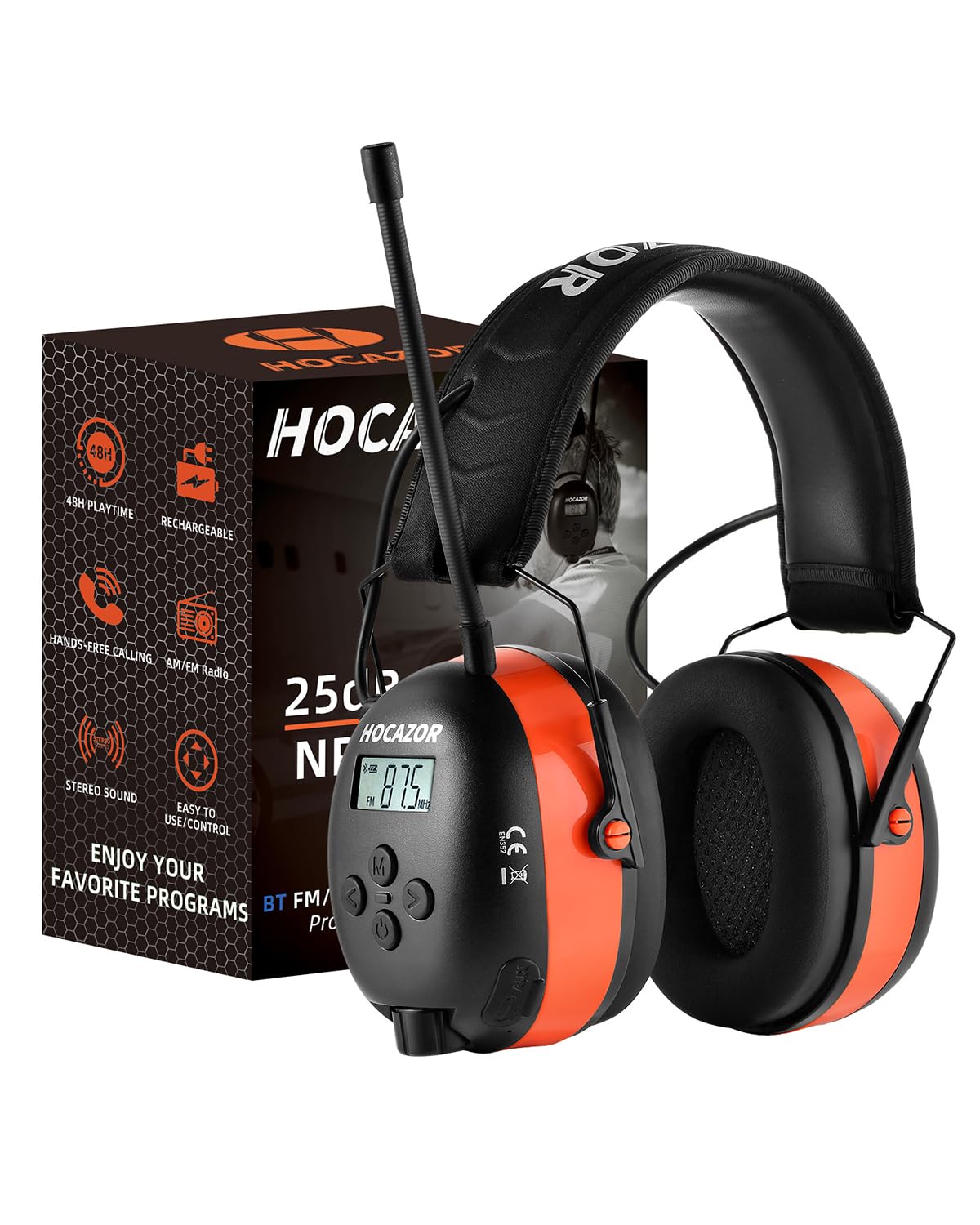
Image: Hocazor HP033 Pro Bluetooth 5.4 AM FM Radio Headphones, featuring an orange and black design.
Key Features:
- Upgrade Type-C Charging Port: Replaced the 3.5mm charging port with a Type-C port for faster and more convenient charging.
- Built-in Non-removable Rechargeable Battery: Features a 2000mAh battery providing up to 48 hours in Bluetooth mode, 40 hours in AM/FM mode, and 120 hours in AUX mode.
- Bluetooth 5.4 Technology with Premium Sound: Offers easy operation for calls and music via multifunctional buttons, ensuring a stable connection and clear audio.
- AM FM Digital Radio Headset: Equipped with an LCD display for easy tuning and the ability to store 10 AM and 10 FM stations with high reception sensitivity.
- Noise Reduction Rating (NRR) 25dB: Provides effective hearing protection in loud environments.
- Comfort Design: Features a padded skeletonized rubber headband with adjustable sliders and anti-sweat snap-in ear cushions for long-lasting comfort.
2. Safety Information
Important Safety Instructions:
- Read all instructions carefully before using the product.
- Do not expose the headphones to extreme temperatures, direct sunlight, or excessive moisture.
- Do not attempt to disassemble, repair, or modify the device. This will void the warranty and may cause damage or injury.
- Use only the provided Type-C charging cable. Using unauthorized cables may damage the battery or device.
- Ensure the headphones fit properly to achieve the stated Noise Reduction Rating (NRR) and effective hearing protection.
- Keep out of reach of children.
3. Package Contents
What's Included:
- Hocazor HP033 Pro Bluetooth 5.4 AM FM Radio Headphones
- Type-C Charging Cable
- AUX Cable
- User Manual
4. Product Overview
Headphone Components:
Familiarize yourself with the various parts and controls of your Hocazor HP033 Pro headphones for optimal use.

Image: This diagram highlights the key components of the Hocazor HP033 Pro headphones, including the display, buttons, and ports.
- LCD Display: Shows current mode (BT, AM, FM, AUX), radio frequency, and battery status.
- Power/Mode Button (M): Long press to power the headphones on or off. Short press to cycle through Bluetooth, AM, FM, and AUX modes.
- Up Button (>): In radio mode, short press to tune up frequency; long press for auto-scan. In Bluetooth mode, short press for next track; single press to redial last number during a call.
- Down Button (<): In radio mode, short press to tune down frequency; long press for auto-scan. In Bluetooth mode, short press for previous track; long press to reject a call.
- Preset Button (P): In radio mode, short press to select saved presets; long press to save current station. In Bluetooth mode, single press to answer or end a call.
- Volume Knob: Located on the bottom of the right earcup, rotate to adjust the audio volume.
- Antenna: Extend for improved AM/FM radio reception.
- Type-C Charging Port: Used to charge the internal rechargeable battery.
- AUX Input Port: For connecting external audio devices via the included AUX cable.

Image: This image details the upgraded EVA headband, featuring industrial canvas, soft-seal leather, and high-density EVA foam for comfort and durability.
5. Setup
Initial Charging:
Before using your headphones for the first time, ensure they are fully charged.
- Connect the provided Type-C charging cable to the charging port on the right earcup.
- Connect the other end of the cable to a USB power adapter (not included) or a computer's USB port.
- The LCD display will indicate charging status. A full charge typically takes approximately 4 hours.
- Once fully charged, disconnect the charging cable.

Image: This image illustrates the Type-C charging port and the charging process for the built-in rechargeable battery.
Adjusting the Fit:
For optimal comfort and effective noise reduction, adjust the headphones to fit your head securely.
- Extend or retract the adjustable sliders on the headband to achieve a comfortable fit over your head.
- Ensure the ear cushions fully cover your ears, creating a snug seal to maximize noise isolation.
6. Operating Instructions
Power On/Off:
To power on or off the headphones, long press the Power/Mode button (M) for approximately 3 seconds.
Switching Modes:
Short press the Power/Mode button (M) to cycle through the available modes: Bluetooth (BT), AM Radio, FM Radio, and AUX.
Bluetooth Pairing:
Connect your headphones to a Bluetooth-enabled device.
- Ensure the headphones are powered on and in Bluetooth mode (the LCD display will show "BT").
- On your smartphone, tablet, or other Bluetooth device, enable Bluetooth and search for available devices.
- Select "HP033 Pro" from the list of found devices to initiate pairing.
- A voice prompt will confirm successful connection.

Image: This image visually guides the user through the Bluetooth pairing process, from turning on the headphones to connecting with a smartphone.
AM/FM Radio Operation:
Enjoy your favorite radio stations with clear reception.
- Short press the Power/Mode button (M) until "FM" or "AM" appears on the LCD display.
- Auto-Search & Save Presets: Long press the Preset button (P) for 3 seconds. The headphones will automatically scan for available stations and save them to presets (up to 10 AM and 10 FM stations).
- Manual Tuning: Short press the Up (>) or Down (<) buttons to manually tune to desired frequencies.
- Select Presets: Short press the Preset button (P) to cycle through your saved stations.

Image: This image illustrates the buttons used for controlling AM/FM radio, including auto-search, manual tuning, and preset selection.
AUX Mode:
For a wired audio connection, use the included AUX cable.
- Connect one end of the AUX cable to the headphone's AUX input port.
- Connect the other end to the audio output of your external device.
- The headphones will automatically switch to AUX mode.
Call Functions (in Bluetooth Mode):
Manage phone calls directly from your headphones when connected via Bluetooth.
- Answer/End Call: Single press the Preset button (P).
- Reject Call: Long press the Down (<) button.
- Redial Last Number: Single press the Up (>) button.

Image: This image details how to manage phone calls using the headphone buttons when connected via Bluetooth.
Volume Control:
Adjust the audio output level to your preference.
- Rotate the volume knob, located on the bottom of the right earcup, clockwise to increase volume and counter-clockwise to decrease volume.
7. Maintenance
Cleaning:
Regular cleaning helps maintain the performance and longevity of your headphones.
- Wipe the exterior of the headphones with a soft, slightly damp cloth.
- Do not use abrasive cleaners, solvents, or harsh chemicals, as these may damage the finish or internal components.
- The anti-sweat snap-in ear cushions can be carefully removed for cleaning or replacement if necessary.
Storage:
Proper storage protects your headphones when not in use.
- Store the headphones in a cool, dry place away from direct sunlight and extreme temperatures.
- The headphones feature a foldable design for compact storage and easy transport.
8. Troubleshooting
Common Issues and Solutions:
| Problem | Solution |
|---|---|
| Headphones won't power on | Ensure the battery is charged. Connect to a power source using the Type-C cable and allow it to charge for a few minutes before attempting to power on again. |
| Cannot pair via Bluetooth | 1. Ensure headphones are in Bluetooth pairing mode (display shows "BT"). 2. Turn off and on your device's Bluetooth. 3. Move the headphones closer to your device (within 10 meters/33 feet). 4. Forget "HP033 Pro" from your device's Bluetooth list and try pairing again. |
| Poor radio reception | 1. Extend the antenna fully. 2. Try moving to an open area or adjusting your position. 3. Perform an auto-search for stations to ensure strong signals are saved. |
| No sound | 1. Check volume levels on both the headphones (volume knob) and the connected device. 2. Ensure the correct mode (Bluetooth, AM, FM, or AUX) is selected. 3. If using AUX, ensure the cable is fully inserted into both ports. |
| Charging issue | 1. Verify the Type-C cable is securely connected to both the headphones and the power source. 2. Try a different Type-C charging cable or a different USB power adapter. 3. Ensure the power source is functioning correctly. |
9. Specifications
Technical Specifications:
| Feature | Detail |
|---|---|
| Model | HP033 Pro |
| Noise Reduction Rating (NRR) | 25dB |
| Bluetooth Version | 5.4 |
| Battery Capacity | 2000mAh Lithium Ion |
| Battery Life (Bluetooth) | Up to 48 hours |
| Battery Life (AM/FM) | Up to 40 hours |
| Battery Life (AUX) | Up to 120 hours |
| Charging Port | Type-C |
| AM Frequency Range | 520-1710KHz |
| FM Frequency Range | 87.5-108MHz |
| Special Features | Adjustable Headband, Foldable, Noise Isolation, Rechargeable Battery, Volume Control |
| Item Weight | 1 pound |
| Package Dimensions | 8.19 x 6.46 x 4.13 inches |
| Manufacturer | Hocazor |
10. Warranty and Support
Warranty Information:
Please refer to the product packaging or the manufacturer's official website for detailed warranty information regarding your Hocazor HP033 Pro headphones.
Customer Support:
For further assistance, technical support, or inquiries, please contact Hocazor customer support. Contact details may be found on the product packaging or the official Hocazor website.

