
1. Introduction
This user manual provides comprehensive instructions for the setup, operation, and maintenance of your UPERFECT 17.3-inch 2K 144Hz Portable Monitor. Please read this manual thoroughly before using the product to ensure proper functionality and longevity.
The UPERFECT portable monitor is designed to enhance your gaming, productivity, and multimedia experiences with its high resolution, fast refresh rate, and versatile connectivity options.
2. What's in the Box
Verify that all items listed below are included in your package:
- 1x UPERFECT 17.3-inch 2K 144Hz Portable Monitor
- 1x Mini HDMI to HDMI Cable (4K compatible)
- 2x USB-C to USB-C Cable
- 1x PD 18W Power Adapter

This image displays the portable monitor along with its essential accessories, including the smart cover, various connection cables, and the power adapter, all neatly arranged.
3. Product Overview and Features
The UPERFECT portable monitor offers a range of features designed for high-performance visual experiences:
- 144 Hz Refresh Rate: Experience ultra-smooth visuals, crucial for fast-paced gaming, reducing motion blur and ghosting.
- 2K (2560x1440P) Resolution: Enjoy crisp, detailed images on the 17.3-inch IPS screen, providing superior clarity compared to standard 1080p displays.
- 100% DCI-P3 IPS Screen: Delivers a wider color gamut and precise color accuracy, ideal for professional design, photo editing, and immersive multimedia.
- HDR Functionality: Enhances contrast and color depth for a more dynamic and lifelike viewing experience.
- FreeSync Technology: Synchronizes the monitor's refresh rate with your GPU's frame rate, eliminating screen tearing and stuttering for fluid gameplay.
- VESA Compatible & Adjustable Kickstand: Features standard 75x75 mm VESA holes for mounting and an integrated kickstand for flexible positioning in landscape or portrait mode.
- Dual Speakers & 3.5mm Audio Jack: Built-in stereo speakers provide audio output, with an additional audio jack for headphones or external speakers.
- Versatile Connectivity: Equipped with two full-featured USB-C ports and one HDMI port for broad compatibility with various devices.
3.1 Visual Performance
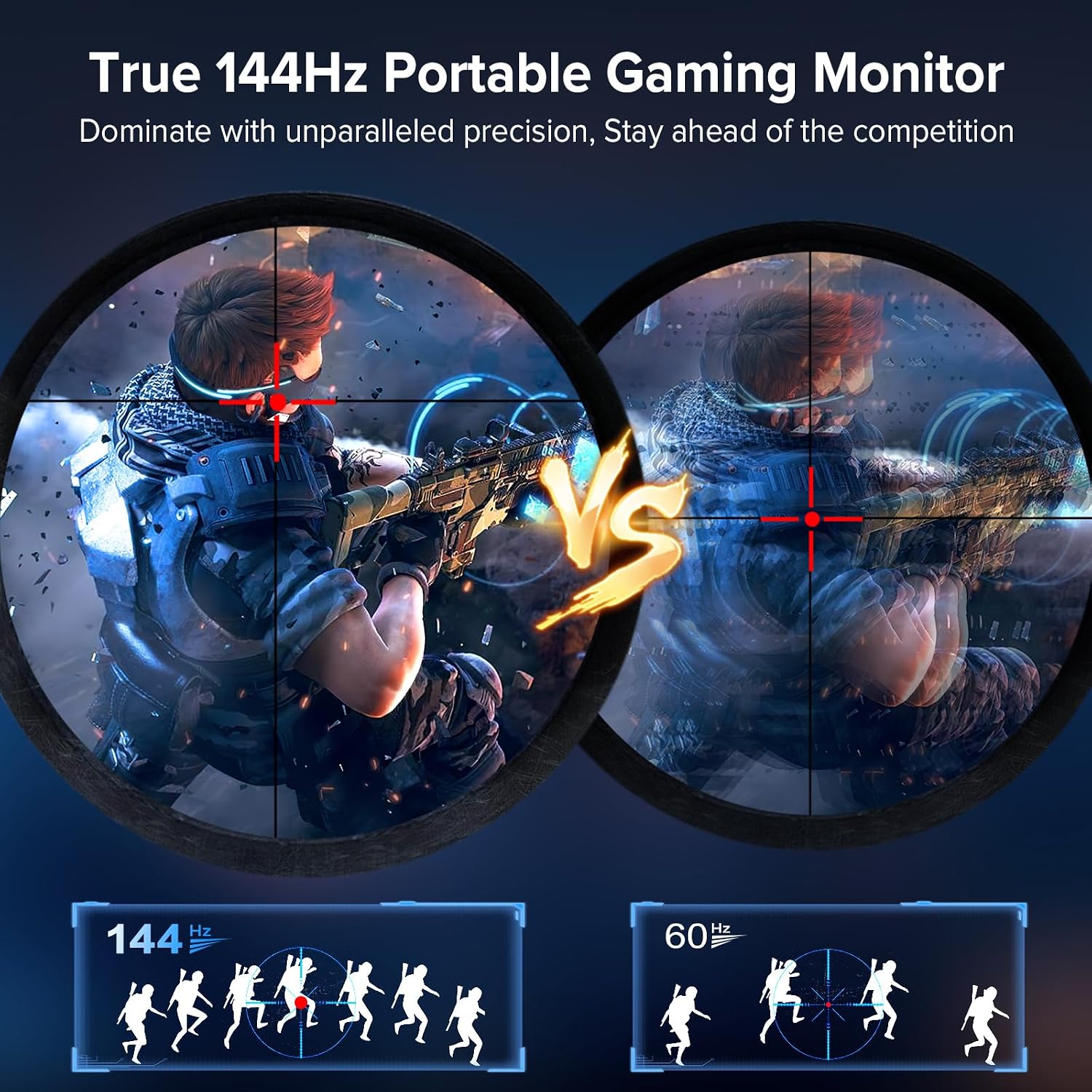
This image illustrates the enhanced smoothness and clarity provided by a 144Hz refresh rate compared to a standard 60Hz, particularly noticeable in fast-moving scenes like gaming.

This image highlights the superior image clarity and detail achieved with 2K resolution (2560x1440) compared to the lower pixel density of 1080p (1920x1080).

This diagram visually represents the monitor's ability to display 100% of the DCI-P3 color space, indicating exceptional color accuracy and vibrancy for professional and entertainment use.

This image demonstrates the benefit of FreeSync technology, showcasing how it prevents screen tearing and stuttering, resulting in smoother and more fluid motion during gameplay.
3.2 Physical Design and Ports

This image illustrates the monitor's VESA mounting points (75x75mm) for desk or wall mounts, alongside its integrated adjustable kickstand, offering versatile setup options.

This image provides a detailed view of the monitor's input/output ports, including two Type-C ports, one Mini HDMI port, and a 3.5mm audio jack, highlighting its broad device compatibility.

This image displays the physical dimensions of the portable monitor, indicating its slim profile and compact size for easy portability.
4. Setup Instructions
Follow these steps to set up your UPERFECT portable monitor:
- Power Connection: Connect the provided PD 18W Power Adapter to one of the USB-C ports labeled "Type-C" on the monitor and plug it into a power outlet. Alternatively, if your device supports power delivery over USB-C, a single USB-C cable can provide both power and video signal.
- Video Connection:
- USB-C Connection: Use one of the provided USB-C to USB-C cables to connect your laptop, PC, phone, or game console (e.g., Steam Deck, Nintendo Switch) to a "Type-C" port on the monitor. Ensure your device's USB-C port supports video output (DisplayPort Alternate Mode).
- HDMI Connection: Use the provided Mini HDMI to HDMI cable to connect your device (e.g., PC, game console like PS4/PS5, Xbox) to the "HD" (Mini HDMI) port on the monitor.
- Positioning: Utilize the integrated adjustable kickstand to position the monitor at your desired viewing angle. For a more permanent setup, use the VESA mount holes to attach the monitor to a compatible desk or wall mount.
- Audio: The monitor has built-in dual speakers. For private listening or higher quality audio, connect headphones or external speakers to the 3.5mm audio jack.
5. Operating Instructions
The monitor features an intuitive control system for adjusting settings:
- Power On/Off: Press and hold the power button (often integrated with the scroll wheel/joystick) for a few seconds to turn the monitor on or off.
- On-Screen Display (OSD) Menu: Press the scroll wheel/joystick button to access the OSD menu.
- Navigation: Use the scroll wheel/joystick to navigate through the OSD menu options. Push up/down to scroll, and press to select.
- Adjusting Settings: Within the OSD menu, you can adjust various settings such as brightness, contrast, color temperature, input source, HDR mode, FreeSync, and more.
- Volume Control: Typically, pushing the scroll wheel/joystick up or down without entering the OSD menu will adjust the volume.
6. Maintenance
To ensure the longevity and optimal performance of your UPERFECT portable monitor, follow these maintenance guidelines:
- Cleaning the Screen: Use a soft, lint-free cloth specifically designed for electronics. Lightly dampen the cloth with water or a screen-cleaning solution. Avoid harsh chemicals, abrasive cleaners, or direct spraying onto the screen.
- Cleaning the Casing: Wipe the monitor's casing with a soft, dry cloth.
- Storage: When not in use, store the monitor in its smart cover to protect the screen from scratches and dust. Store in a cool, dry place away from direct sunlight and extreme temperatures.
- Handling: Always handle the monitor with care. Avoid dropping it or applying excessive pressure to the screen.
- Ventilation: Ensure the monitor's ventilation openings are not blocked to prevent overheating.
7. Troubleshooting
If you encounter issues with your UPERFECT portable monitor, refer to the following common problems and solutions:
| Problem | Possible Cause | Solution |
|---|---|---|
| No Signal / Black Screen | Incorrect input source selected, loose cable connection, insufficient power, device not outputting video. |
|
| Flickering Screen / Unstable Image | Cable quality, refresh rate mismatch, FreeSync issues. |
|
| No Audio / Low Volume | Volume too low, incorrect audio output selected on device, faulty cable. |
|
| Monitor Not Powering On | No power, faulty power adapter/cable. |
|
8. Specifications
| Feature | Detail |
|---|---|
| Screen Size | 17.3 Inches |
| Resolution | 2560 x 1440 (2K QHD) |
| Refresh Rate | 144 Hz |
| Panel Type | IPS |
| Color Gamut | 100% DCI-P3 |
| Brightness | 400 Candela |
| Aspect Ratio | 16:9 |
| Screen Surface | Matte |
| Connectivity | 2x USB-C (Full-featured), 1x Mini HDMI, 1x 3.5mm Audio Jack |
| VESA Mount | 75x75 mm (M4*4 mm screws) |
| Product Dimensions | 0.39 x 15.35 x 9.45 inches |
| Item Weight | 4.22 pounds |
| Model Number | M173J07 |
| Manufacturer | UPERFECT |
9. Warranty and Support
UPERFECT is committed to providing excellent customer service and product reliability:
- Warranty: The UPERFECT 17.3-inch 2K 144Hz portable monitor comes with a 3-year warranty.
- Returns & Exchanges: Enjoy a 30-day free return policy and a 90-day free exchange policy from the date of purchase.
- Technical Support: Lifetime technical support is available. For any issues or inquiries, contact UPERFECT customer service. Support is available 24/7, with problems typically resolved within 8 hours.
For support, please visit the official UPERFECT website or contact their customer service team directly.