
Introduction
This manual provides detailed instructions for setting up, operating, maintaining, and troubleshooting your Acebaff CK241GL+CM621GL Wireless Backlit Keyboard and Mouse Combo. Please read this manual thoroughly before use to ensure optimal performance and longevity of your devices.
Package Contents
- 1 x Acebaff Wireless Backlit Keyboard
- 1 x Acebaff Wireless RGB Mouse
- 1 x 2.4GHz USB Receiver (stored in the mouse)
- 1 x Type-C Charging Cable
- 1 x User Manual
Setup
1. Charging the Devices
Before first use, it is recommended to fully charge both the keyboard and mouse.
- Connect the provided Type-C charging cable to the charging port on the keyboard and mouse, and then to a USB power source.
- The keyboard has a 1000mAh battery, and the mouse has a 500mAh battery.
- A low battery indicator will alert you when charging is needed. Both devices can be used while charging.

Image: The keyboard and mouse connected via Type-C cable for charging, highlighting power-saving features and battery capacities.
2. Connecting the Keyboard and Mouse
The keyboard and mouse connect wirelessly via a single 2.4GHz USB receiver.
- Locate the USB receiver. It is typically stored in a compartment on the underside of the mouse.
- Plug the 2.4GHz USB receiver into an available USB port on your computer.
- Turn on the power switch for both the keyboard and the mouse. The power switch for the keyboard is located on the top right, and for the mouse, it is on the bottom.
- The devices are plug-and-play and should connect automatically within a few seconds. No additional software installation is required.

Image: A visual representation of the USB receiver being inserted into a laptop, demonstrating the 2.4G wireless connection.

Image: Close-up of the mouse's underside, indicating the location of the USB receiver, On/Off switch, and LED mode switch.
Operating Instructions
1. Keyboard Features
- Backlight Control: The keyboard features a 7-color rainbow backlight. Adjust brightness using Fn + End keys. There are 4 adjustable brightness levels: Off, 30%, 60%, and 100%. Note: The keyboard backlight is rainbow only and cannot be adjusted to a single color.
- Shortcut Keys: The keyboard includes 11 independent shortcut keys and 13 F1-F12 function keys for enhanced productivity.
- Phone/Tablet Holder: An integrated 8.46-inch holder accommodates phones and tablets up to 12.9 inches, allowing for convenient multi-tasking. Note: This holder is for viewing only and does not connect or interact with the keyboard. Thick protective cases may not be supported.
- Dual System Compatibility: Dedicated buttons allow switching between Windows and Mac OS layouts.
- Ergonomics: The keyboard features a foldable stand for an 8-degree typing angle and anti-slip rubber feet for stability.

Image: The keyboard showcasing its built-in phone and tablet holder, with a phone and tablet placed in it.
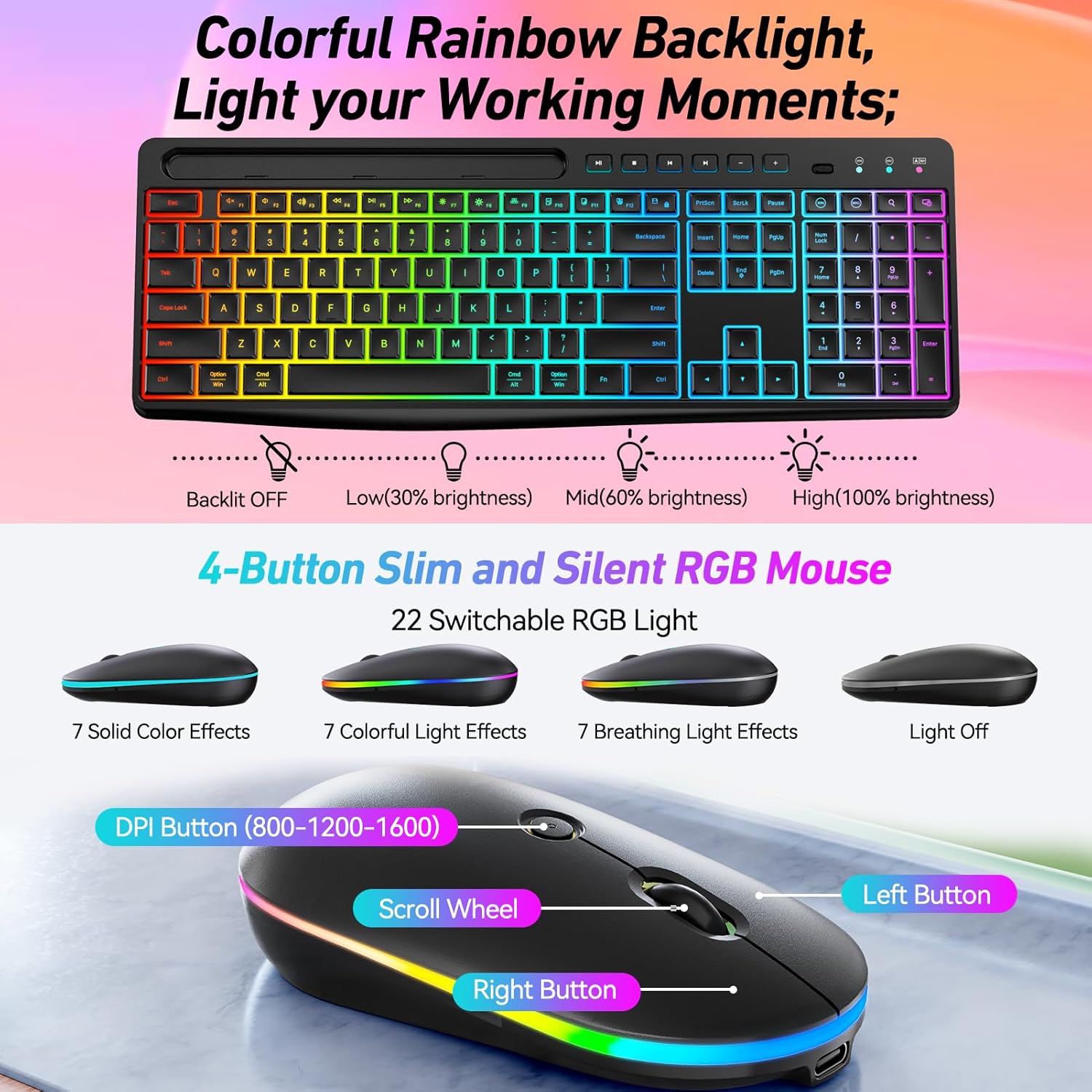
Image: The keyboard displaying its colorful rainbow backlight and the mouse with its RGB lighting effects, along with brightness adjustment details.

Image: A user's hands on the keyboard, illustrating the comfortable and ergonomic design, including the foldable kickstand and quiet crater switches.
2. Mouse Features
- RGB Backlighting: The mouse offers 22 switchable RGB lighting effects, including 7 solid color effects, 7 colorful light effects, and 7 breathing light effects, plus an option to turn the light off. Use the LED Mode Switch on the bottom of the mouse to cycle through effects.
- Adjustable DPI: Cycle through DPI settings (800-1200-1600) using the DPI button located on the top of the mouse to adjust sensitivity.
- Silent Click: The mouse features silent switches for quiet operation.
- Ambidextrous Design: The symmetrical design makes it suitable for both left and right-handed users.
Image: Close-up of the mouse, detailing the DPI button, scroll wheel, left and right buttons, and the LED mode switch on the underside.
3. Power Saving Features
- Automatic Backlight Off: The keyboard backlight automatically turns off after 90 seconds of inactivity to conserve power.
- Auto-Sleep Mode: Both the keyboard and mouse will enter sleep mode after 10 minutes of inactivity. Move the mouse or press any key to wake them up.
- Independent Power Switches: Both devices have separate power switches to manually turn them off and save battery life when not in use.
Maintenance
1. Cleaning
- Turn off both the keyboard and mouse before cleaning.
- Use a soft, damp cloth to wipe the surfaces. Avoid using harsh chemicals or abrasive materials.
- For dust and debris between keys, use compressed air.
2. Battery Care
- Charge the devices regularly to maintain battery health.
- Avoid exposing the devices to extreme temperatures, which can affect battery performance.
- If storing for an extended period, charge the devices to about 50% and turn them off.
Troubleshooting
| Problem | Possible Solution |
|---|---|
| Keyboard/Mouse not responding |
|
| Backlight not working on keyboard |
|
| Mouse RGB lighting not changing |
|
| Keys feel sticky or unresponsive |
|
| Short battery life |
|
Specifications
| Feature | Detail |
|---|---|
| Brand | Acebaff |
| Model Number | CK241GL+CM621GL |
| Color | Black |
| Connectivity Technology | 2.4G Wireless Tech with USB Receiver |
| Wireless Range | Up to 10 meters (33 feet) |
| Keyboard Backlighting | 7-Color Rainbow, 4 adjustable brightness levels |
| Mouse Backlighting | 22 Switchable RGB effects |
| Keyboard Battery Capacity | 1000mAh (Rechargeable) |
| Mouse Battery Capacity | 500mAh (Rechargeable) |
| Charging Port | Type-C |
| Keyboard Layout | US QWERTY, Full-size with 11 shortcut keys |
| Mouse DPI Settings | 800-1200-1600 |
| Compatible Operating Systems | Windows 11/10/8/7/XP/VISTA, Mac OS (10.12 Sierra+), Chrome OS (134+), Linux |
| Special Features | Integrated Phone/Tablet Holder, Quiet Click Keys/Switches, Auto-Sleep, Independent Power Switches |
Warranty and Support
1. Warranty Information
Your Acebaff CK241GL+CM621GL Wireless Backlit Keyboard and Mouse Combo is covered by a 2-Year Warranty. This warranty covers manufacturing defects and ensures the product performs as described under normal use.
2. Customer Support
Acebaff provides 24 Months VIP support for its products. If you encounter any issues or have questions regarding your product, please refer to the contact information provided with your purchase or visit the official Acebaff support website for assistance.


