
1. Introduction
The BoxWave AllReader SD Card Reader is a versatile device designed for easy file transfer between memory cards and various electronic devices. This compact reader supports both standard SD and microSD cards and features multiple connectivity options, making it compatible with a wide range of smartphones, tablets, and computers.

Image: The BoxWave AllReader SD Card Reader, showcasing its compact design and various connectors.
2. Setup
- Identify Connector: Determine the appropriate connector for your device from the available options: USB-C, USB-A, Micro-USB, or Apple.
- Insert Memory Card: Carefully insert your SD or microSD card into the designated slot on the AllReader until it clicks into place. Ensure the card is inserted in the correct orientation.
- Connect to Device: Plug the AllReader into the corresponding port on your smartphone, tablet, laptop, or desktop computer.
- Plug and Play: The device is designed for plug-and-play functionality. No additional drivers or software installation are typically required for most operating systems.
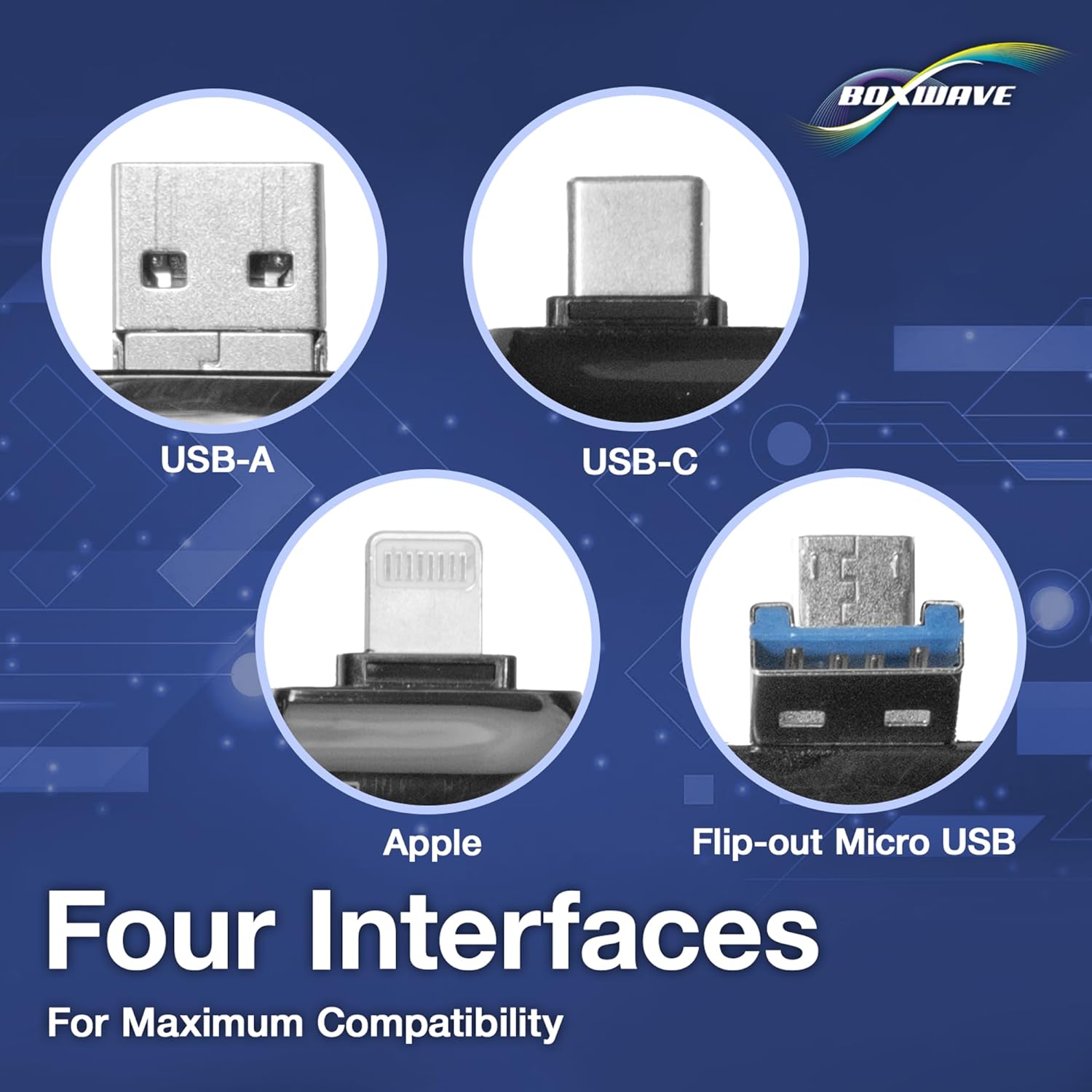
Image: Detailed view of the four distinct interfaces (USB-A, USB-C, Apple, Micro-USB) on the AllReader SD Card Reader.
3. Operating Instructions
- Device Recognition: Once connected, your host device (smartphone, tablet, or computer) should automatically recognize the AllReader as an external storage device.
- Access Files: Navigate to the file management application on your device. This might be named "Files" (iOS), "My Files" (Android), "File Explorer" (Windows), or "Finder" (macOS).
- Locate Memory Card: Within the file manager, locate the connected memory card, which will appear as a removable drive or external storage.
- Transfer Data: You can now copy, move, delete, or access files directly from the SD or microSD card. Follow your device's standard procedures for file operations.
- Safe Removal: Before physically disconnecting the AllReader, it is recommended to safely eject the device through your operating system's interface to prevent data corruption.

Image: The AllReader SD Card Reader connected to a smartphone, demonstrating its use for file transfer with an inserted SD card.

Image: Visual representation of the AllReader facilitating data transfer across smartphones, tablets, laptops, and desktop PCs.
4. Features
- Four Interfaces: Equipped with USB-C, USB-A, Micro-USB, and Apple (Lightning) connectors for broad compatibility with various devices.
- Easy File Transfer: Designed for quick and simple data transfer, allowing users to move photos, videos, and other files efficiently.
- Plug and Play Functionality: Operates without the need for additional software or driver installations.
- Compact Design: Its small and lightweight form factor ensures portability and convenience for on-the-go use.
- Universal Card Compatibility: Supports both standard SD cards and smaller microSD cards.

Image: The AllReader SD Card Reader demonstrating its compact size when held in a hand.

Image: The AllReader SD Card Reader displaying its compatibility with both SD and microSD card types.
5. Specifications
| Item Weight | 6 ounces |
| ASIN | B0CGTCMZV9 |
| Date First Available | January 26, 2023 |
| Manufacturer | BoxWave |
| Interfaces | USB-C, USB-A, Micro-USB, Apple (Lightning) |
| Card Compatibility | SD, microSD |
6. Troubleshooting
- Device Not Recognized:
- Ensure the AllReader is fully inserted into your device's port.
- Verify that the memory card is correctly and securely inserted into the AllReader.
- Try connecting the AllReader to a different port or a different host device to rule out port-specific issues.
- Restart your host device (smartphone, tablet, or computer).
- Cannot Access Files:
- Check if the memory card is formatted correctly and is compatible with your host device's operating system.
- Ensure the memory card is not write-protected. Some SD cards have a small physical lock switch.
- If possible, try accessing the memory card directly on another device to confirm the card itself is functional.
- Slow Transfer Speeds:
- Transfer speeds can vary significantly based on the speed class of your memory card and the USB port version of your host device.
- Transferring a large number of small files can be slower than transferring a few large files.
7. Maintenance
- Cleaning: Keep the AllReader clean and free from dust, dirt, and debris. Use a soft, dry cloth for cleaning. Avoid liquid cleaners.
- Storage: Store the device in a dry place, away from direct sunlight and extreme temperatures.
- Handling: Avoid bending or forcing the connectors into ports. Handle the device with care to prevent physical damage.
- Disassembly: Do not attempt to disassemble the device, as this will void any potential warranty and may cause damage.
8. Warranty and Support
For detailed warranty information, technical support, or customer service inquiries regarding your BoxWave AllReader SD Card Reader, please visit the official BoxWave website or contact their customer support team directly. It is advisable to retain your purchase receipt as proof of purchase for any warranty claims.