
Introduction
This manual provides detailed instructions for the setup, operation, and maintenance of your MARVO 2.4G Wireless Keyboard and Mouse Combo. This combo offers a reliable 2.4G wireless connection, an ergonomic design, a built-in phone/tablet holder, and a silent 6-button mouse with adjustable DPI settings. It is compatible with Windows and macOS operating systems.
Package Contents
- Wireless Keyboard
- Wireless Mouse
- 2.4G USB Nano Receiver
- User Manual (this document)
Note: AA batteries are not included and must be purchased separately for both the keyboard and mouse.
Setup Instructions
- Install Batteries:
- For the keyboard: Open the battery compartment on the underside of the keyboard and insert one AA battery, ensuring correct polarity. Close the compartment.
- For the mouse: Open the battery compartment on the underside of the mouse and insert one AA battery, ensuring correct polarity. Close the compartment.
- Connect USB Receiver:
Locate the 2.4G USB Nano Receiver, typically stored in the mouse's battery compartment. Plug the receiver into an available USB port on your computer or laptop. For optimal signal, consider using a front USB port if experiencing connectivity issues.

Image: The compact 2.4G USB Nano Receiver is shown plugged into the side of a laptop, indicating its connection point for the wireless keyboard and mouse combo.
- Power On Devices:
- For the keyboard: Locate the ON/OFF switch, usually on the top right side of the keyboard, and slide it to the "ON" position.
- For the mouse: Locate the ON/OFF switch on the underside of the mouse and slide it to the "ON" position.
- Initial Connection:
Upon powering on, the red power indicator light on the keyboard will blink for approximately 5-8 seconds and then turn off. This indicates a normal connection process. The devices are now ready for use.

Image: A yellow MARVO wireless keyboard and matching mouse are displayed. A tablet is positioned vertically in the integrated holder on the keyboard, and the USB receiver is shown separately.
Operating Instructions
Keyboard Functions
- Standard Typing: Use the full-size keyboard for comfortable and quiet typing.
- Multimedia Keys: The keyboard features dedicated multimedia keys for quick access to volume control, media playback, and other functions. These are typically located above the numeric keypad or as F-key combinations.

Image: A yellow MARVO keyboard with black keys. Blue lines and text highlight the multimedia function keys (F1-F12) and dedicated media control buttons, indicating their optimized design for laptops and PCs.
Mouse Functions
- 6-Button Design: The mouse includes left click, right click, scroll wheel, DPI switch button, and two side buttons (Page Up/Page Down).
- DPI Adjustment: Press the DPI Switch Button (located behind the scroll wheel) to cycle through DPI settings: 800, 1200, and 1600. This adjusts the mouse cursor speed and sensitivity.
- Silent Clicks: The mouse is designed for silent operation, reducing click noise.
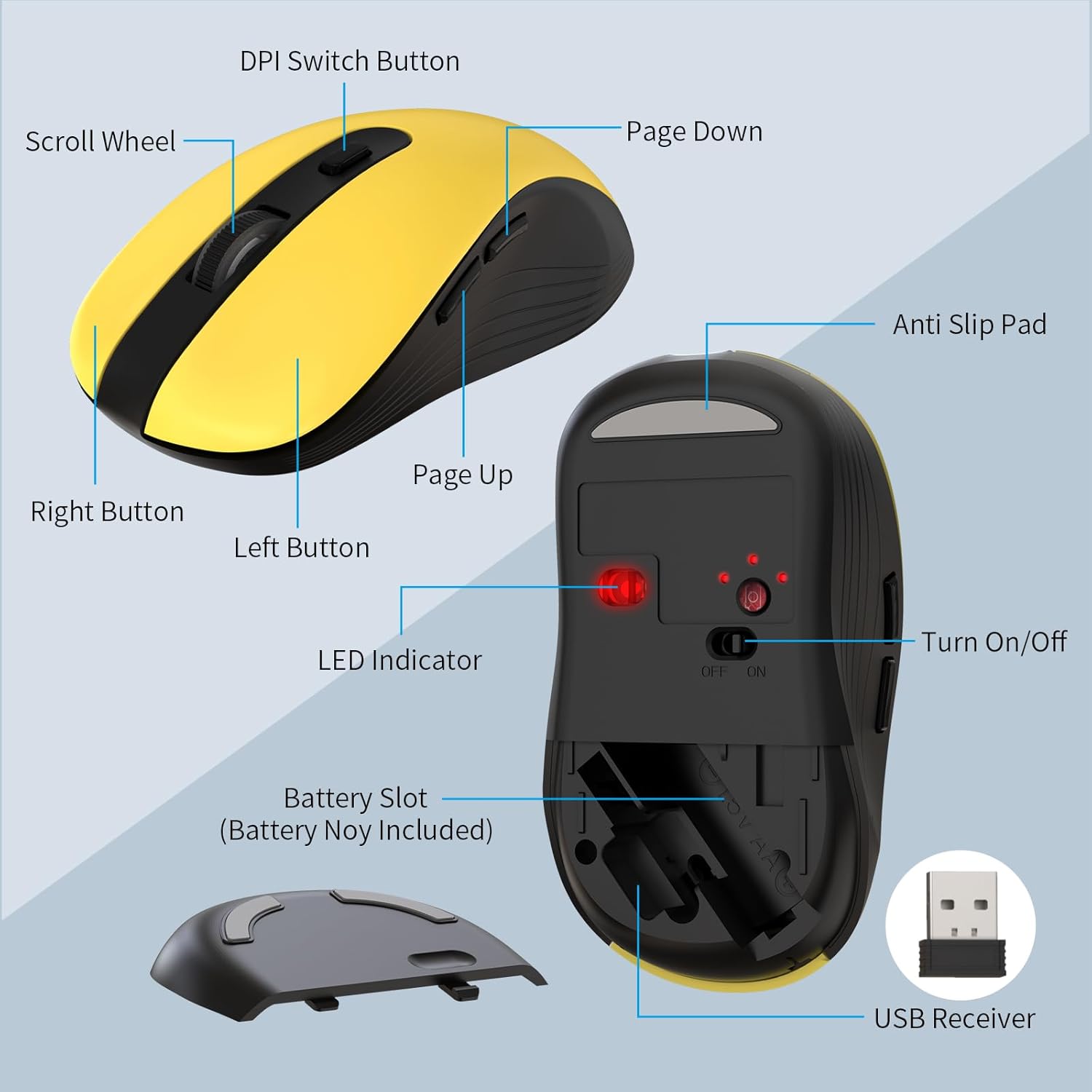
Image: A detailed diagram of the MARVO wireless mouse, highlighting its components: Scroll Wheel, DPI Switch Button, Left Button, Right Button, Page Up, Page Down, LED Indicator, Turn On/Off switch, Battery Slot, Anti-Slip Pad, and the USB Receiver storage.
Phone/Tablet Holder
- The integrated holder on the keyboard is designed to securely hold smartphones and tablets ranging from 5.8 to 12.9 inches, providing a convenient viewing angle.

Image: A yellow MARVO wireless keyboard with a smartphone and a tablet placed upright in its integrated holder, demonstrating its compatibility with various mobile devices.
Maintenance
- Cleaning: Use a soft, dry cloth to clean the surfaces of the keyboard and mouse. For stubborn dirt, a slightly damp cloth can be used, ensuring no liquid enters the device.
- Battery Replacement: When the red power indicator light on the keyboard blinks during use, it indicates low battery. Replace the AA batteries in both the keyboard and mouse as needed.
- Storage: When not in use for extended periods, turn off both the keyboard and mouse to conserve battery life. Store the USB receiver in the mouse's battery compartment to prevent loss.
Troubleshooting
- No Connection/Unresponsive Devices:
- Ensure both the keyboard and mouse are switched "ON".
- Check that the USB Nano Receiver is securely plugged into a working USB port. Try a different USB port if necessary.
- Replace the batteries in both the keyboard and mouse with fresh AA batteries.
- Move the USB receiver closer to the keyboard and mouse, or try a front USB port on your computer to improve signal strength.
- Red Power Light Blinking:
If the red power light blinks when you press any key after the initial 5-8 second connection phase, it indicates that the battery is low and needs to be replaced.
- Mouse Cursor Jumps or is Erratic:
- Clean the optical sensor on the underside of the mouse.
- Ensure you are using the mouse on a suitable surface (non-reflective, non-transparent).
- Adjust the DPI setting using the DPI switch button to find a comfortable sensitivity.
- Keyboard Keys Not Responding:
- Verify the keyboard is powered on and has fresh batteries.
- Ensure the USB receiver is properly connected.
- Restart your computer.
Specifications
| Feature | Detail |
|---|---|
| Brand | MARVO |
| Connectivity Technology | 2.4G Wireless |
| Special Feature | Ergonomic Design, Phone/Tablet Holder |
| Compatible Devices | Laptop, Personal Computer, Tablet (Windows XP/Vista/7/8/10, macOS) |
| Mouse Buttons | 6 Buttons |
| Mouse DPI Settings | 800/1200/1600 DPI (Adjustable) |
| Keyboard Phone/Tablet Holder Size | Supports 5.8 to 12.9 inch devices |
| Item Weight | 1.72 pounds (approx. 0.78 kg) |
| Package Dimensions | 17.13 x 9.33 x 1.93 inches (approx. 43.5 x 23.7 x 4.9 cm) |

Image: A technical drawing showing the dimensions of the MARVO wireless keyboard (17.0 inches / 430mm length, 6.0 inches / 152mm width, 0.7 inches / 18mm height) and mouse (2.5 inches / 63mm width, 4.4 inches / 111mm length, 1.5 inches / 39mm height).
Warranty and Support
MARVO provides a 12-month worry-free warranty for this product, covering manufacturing defects and malfunctions under normal use. For any questions, technical assistance, or warranty claims, please contact MARVO customer service. Our friendly customer service team is available to assist you.
For support, please refer to the contact information provided on the product packaging or the official MARVO website.


