
1. Introduction and Overview
The DIGITNOW HD Video Capture Box is a versatile device designed for converting and recording video content from various analog and digital sources to digital files. It supports 1080P 60FPS video capture via USB 2.0 and features a built-in 5-inch OLED screen for real-time monitoring and playback. This device allows users to digitize old VHS tapes, Hi8, camcorder footage, DVD content, TV box output, and gaming system video without requiring a computer for recording. It offers both AV and HDMI input/output capabilities, along with integrated stereo speakers for a comprehensive standalone recording solution.

Image: The DIGITNOW HD Video Capture Box shown connected to a laptop and tablet, illustrating its video capture and display capabilities.
2. Package Contents
Upon unboxing, please verify that all the following items are included in your package:
- DIGITNOW HD Video Capture Box (Main Unit)
- 5V Power Adapter
- HDMI Cable
- TYPE-C USB Cable
- AV Cable (RCA to 3.5mm)
- User Manual
- SD Card (pre-installed or included separately)

Image: A visual representation of all items included in the product package.
3. Product Features
3.1. HD 1080P Video Capture
The device is capable of capturing high-definition 1080P video at 60 frames per second from various sources, including VCRs, VHS Tapes, Hi8 camcorders, DVDs, TV Boxes, and gaming systems. This ensures high-quality digital conversions of your media.

Image: The capture box facilitating Full HD 1080P 60FPS capture, connected to a television.
3.2. Integrated 5-inch OLED Screen
Monitor your video input and recorded content directly on the built-in 5-inch OLED screen. This feature allows for convenient real-time viewing and playback without the need for an external display.
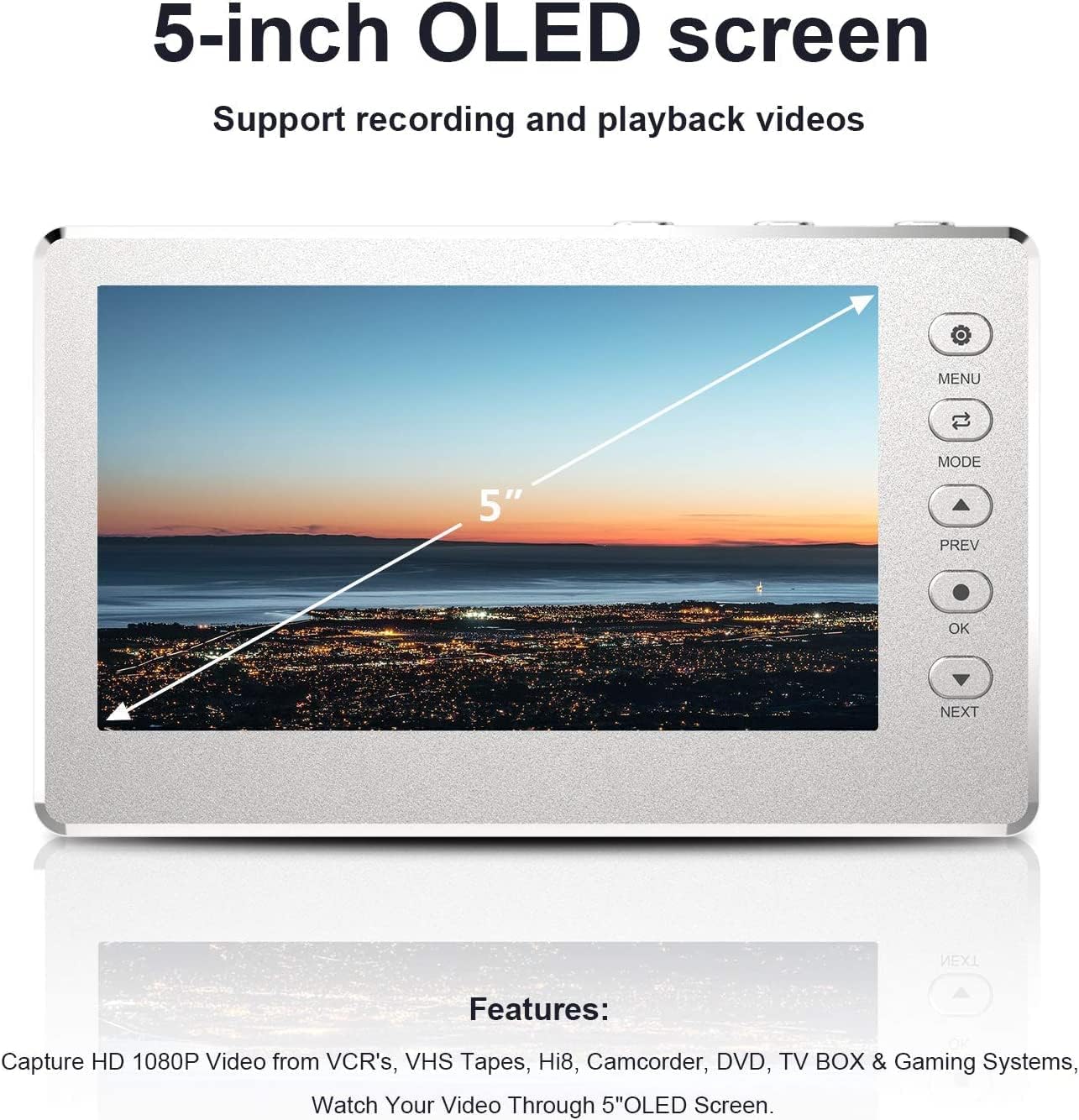
Image: The 5-inch OLED screen, highlighting its capability to support recording and playback.
3.3. Built-in Large Capacity Battery
Equipped with a large capacity 1800mAh battery, the device offers portability, allowing you to record and watch videos anywhere. The battery can be recharged via the included power adapter or a computer's USB port.
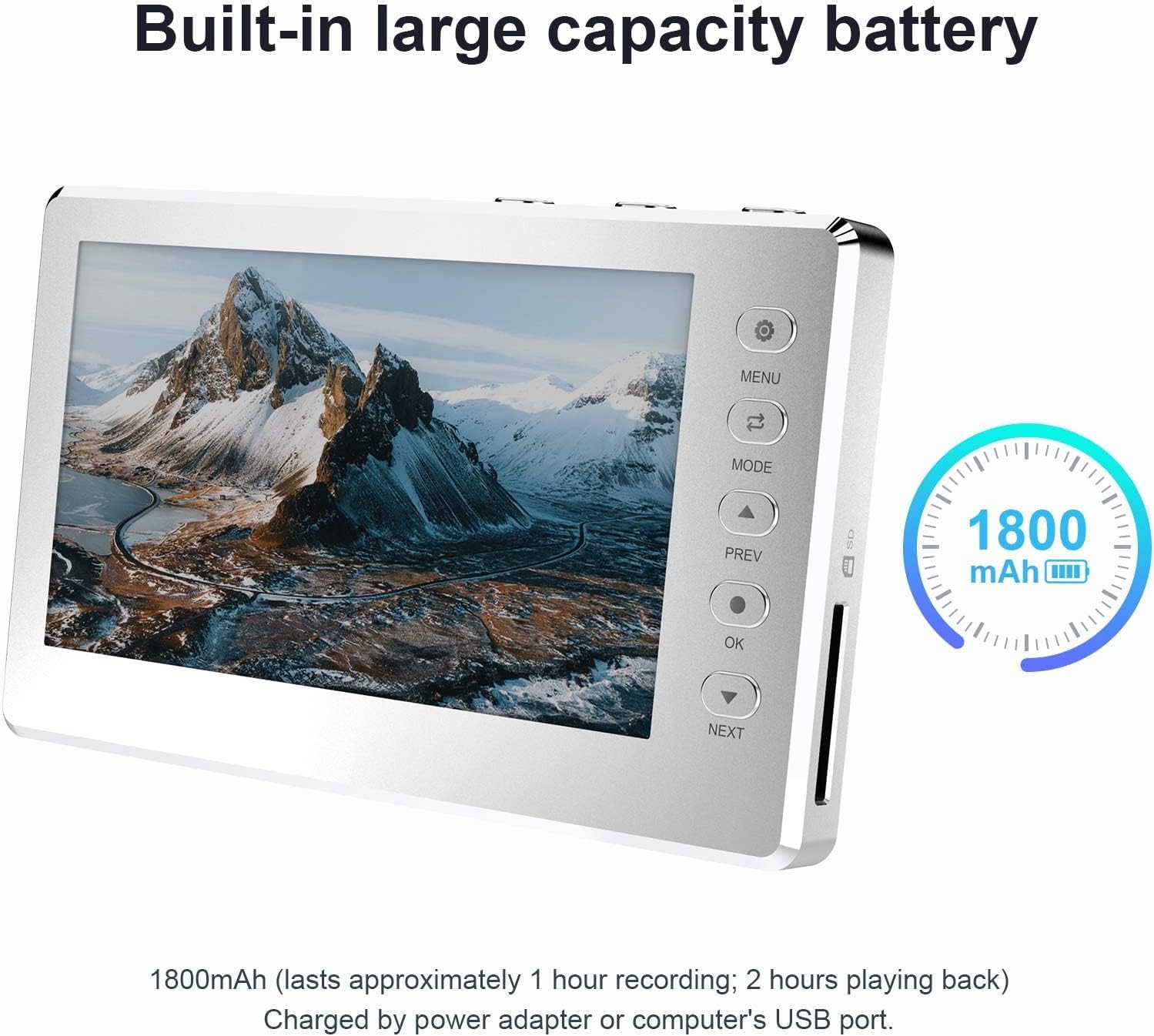
Image: The device highlighting its built-in large capacity battery for portable use.
3.4. USB/SD Card Support
The device features plug-in USB and SD card ports, enabling you to save your recorded videos directly to a USB flash drive or SD card. This allows for easy transfer of files to a computer (PC Windows or Mac compatible) and eliminates the need for a computer during the recording process. It is recommended to use a Class 10 or higher speed SD card for optimal performance, formatted to FAT32 or exFAT, with a maximum capacity of 128GB.

Image: The device supporting plug-in USB and SD ports for direct video storage.
3.5. AV & HDMI Connectivity
The capture box supports both AV and HDMI HD 1080P video signal input and output. It includes 3.5mm video input/output ports for AV connections, providing broad compatibility with various legacy and modern devices.

Image: A detailed view of the device's input and output ports, including AV and HDMI connections.
3.6. Built-in Stereo Speakers
For immediate audio feedback, the device incorporates built-in stereo speakers, allowing you to listen to the audio of your captured or played-back videos directly from the unit.

Image: A visual emphasizing the device's integrated stereo speakers.
4. Setup
- Charge the Device: Before initial use, fully charge the built-in battery using the provided 5V power adapter and TYPE-C USB cable. The device can also be charged via a computer's USB port.
- Insert SD Card: Open the SD card slot cover and insert the provided SD card (or your own, ensuring it is Class 10 or higher, formatted to FAT32 or exFAT, and up to 128GB capacity).
- Connect Input Source:
- For HDMI sources (e.g., gaming console, TV box): Connect an HDMI cable from your source's HDMI OUT port to the capture box's HDMI IN port.
- For AV sources (e.g., VCR, camcorder): Connect the AV cable from your source's AV OUT ports (Red, White, Yellow) to the corresponding 3.5mm AV IN port on the capture box.
- Connect Output Display (Optional): If you wish to view the input on a larger screen while recording, connect an HDMI cable from the capture box's HDMI OUT port to your TV or monitor's HDMI IN port. Alternatively, use the 3.5mm AV OUT port for analog displays.
- Power On: Press and hold the power button on the side of the device to turn it on. The 5-inch OLED screen will illuminate.
Video: An unboxing and initial setup guide for the DIGITNOW HD Video Capture Box, demonstrating how to connect cables and insert the SD card.
5. Operating Instructions
5.1. Recording Video
- Verify Input: Ensure your input source (VCR, DVD, camcorder, etc.) is turned on and actively sending a video signal to the capture box. The video should appear on the 5-inch OLED screen.
- Start Recording: Press the REC button (usually labeled with a red circle or "REC") on the device. A recording indicator (e.g., a red dot or timer) will appear on the screen, indicating that recording has begun.
- Monitor Recording: Keep an eye on the screen to ensure the recording is progressing as expected. The device will automatically split longer recordings into 4GB MOV video files (approximately 20 minutes for 1080p, 40 minutes for 720p).
- Stop Recording: Press the REC button again to stop the recording. The recording indicator will disappear. Your video file will be saved to the inserted SD card or USB flash drive.
5.2. Playing Back Recorded Video
- Access Playback Mode: Navigate to the playback mode using the device's menu or mode buttons.
- Select Video: Use the navigation buttons (PREV/NEXT or arrow keys) to browse through your recorded video files.
- Start Playback: Press the OK button to start playing the selected video.
- Adjust Volume: Use the volume up/down buttons to control the audio output.
6. Maintenance
To ensure the longevity and optimal performance of your DIGITNOW HD Video Capture Box, please follow these maintenance guidelines:
- Cleaning: Use a soft, dry cloth to clean the exterior of the device. Avoid using liquid cleaners or abrasive materials, which may damage the screen or casing.
- Storage: Store the device in a cool, dry place away from direct sunlight, extreme temperatures, and high humidity. When not in use for extended periods, ensure the battery is partially charged (around 50%) to preserve its lifespan.
- Cable Care: Handle all cables with care. Avoid bending or crimping them excessively, as this can lead to internal damage.
- SD Card Handling: Always safely eject the SD card from the device before removing it to prevent data corruption. Keep the SD card clean and protected in its case when not in use.
7. Troubleshooting
If you encounter any issues with your DIGITNOW HD Video Capture Box, please refer to the following troubleshooting steps:
- No Audio/Video Signal:
- Ensure input sources (e.g., set-top boxes, computers, game consoles) are turned on and providing an audio or video signal to the product.
- Verify that all cables are securely connected to both the input sources and the device.
- Device Crashes/Freezes:
- If the product crashes or seizes up, use a needle or similar thin object to push the mini hole at the back of the product to reset it.
- Recording Issues (e.g., no recording, corrupted files):
- Use an SD card whose transfer speed is Class 10 or above.
- Ensure the SD card or USB flash drive is formatted to FAT32 or exFAT, and its capacity does not exceed 128GB. Incorrect format or a low-speed SD card may affect normal device operation.
- Check that the cables are correctly and securely connected.
- Screen Remains Black:
- If the screen remains black despite pressing the on/off menu button for a protracted period, the battery may be depleted. Connect the charger and try again.
- File Splitting:
- This device automatically splits longer recordings into MOV video files that are 4 GB each (capture 1080p video is about 20 minutes, capture 720p video is about 40 minutes). If you wish to combine a longer recording into one file, this must be done on a computer after recording. Segments cannot currently be combined on the device.
8. Specifications
| Feature | Specification |
|---|---|
| Product Name | HD Video Capture Box |
| Model Number | V102S |
| Brand | DigitConvert |
| Video Resolution | 1080P 60FPS |
| Display Screen | 5" OLED Screen |
| Connectivity | USB 2.0, AV In/Out, HDMI In/Out, 3.5mm Audio |
| Storage Support | USB Flash Disk, SD Card (Max 128GB, FAT32/exFAT, Class 10+) |
| Battery Capacity | 1800mAh (approx. 1 hour recording, 2 hours playback) |
| Item Weight | 1.15 pounds |
| Package Dimensions | 7.2 x 4.53 x 2.64 inches |
| Color | Silver-grey |
9. Warranty and Support
For warranty information, technical support, or any inquiries not covered in this manual, please contact DigitConvert customer service. Refer to the product packaging or the official DigitConvert website for the most up-to-date contact details and warranty terms.
Online Support: Visit the DigitConvert Store on Amazon