
Acebaff CK241G+CM621G
Acebaff Wireless Keyboard and Mouse Combo User Manual
Model: CK241G+CM621G
Introduction
This manual provides detailed instructions for the setup, operation, maintenance, and troubleshooting of your Acebaff 2.4G Wireless Keyboard and Mouse Combo. This product is designed to offer a quiet, comfortable, and efficient input experience for various computing environments.
The combo features a full-size keyboard with a built-in phone/tablet holder and a silent optical mouse, both connecting wirelessly via a single USB receiver.
Setup
Package Contents
- Wireless Keyboard
- Wireless Mouse
- USB Receiver (stored in mouse battery compartment)
- User Manual (this document)
Battery Installation
- For the keyboard, open the battery compartment on the underside. Insert 1 AAA battery (not included), ensuring correct polarity.
- For the mouse, open the battery compartment on the underside. Insert 2 AAA batteries (not included), ensuring correct polarity.
- Close both battery compartments securely.
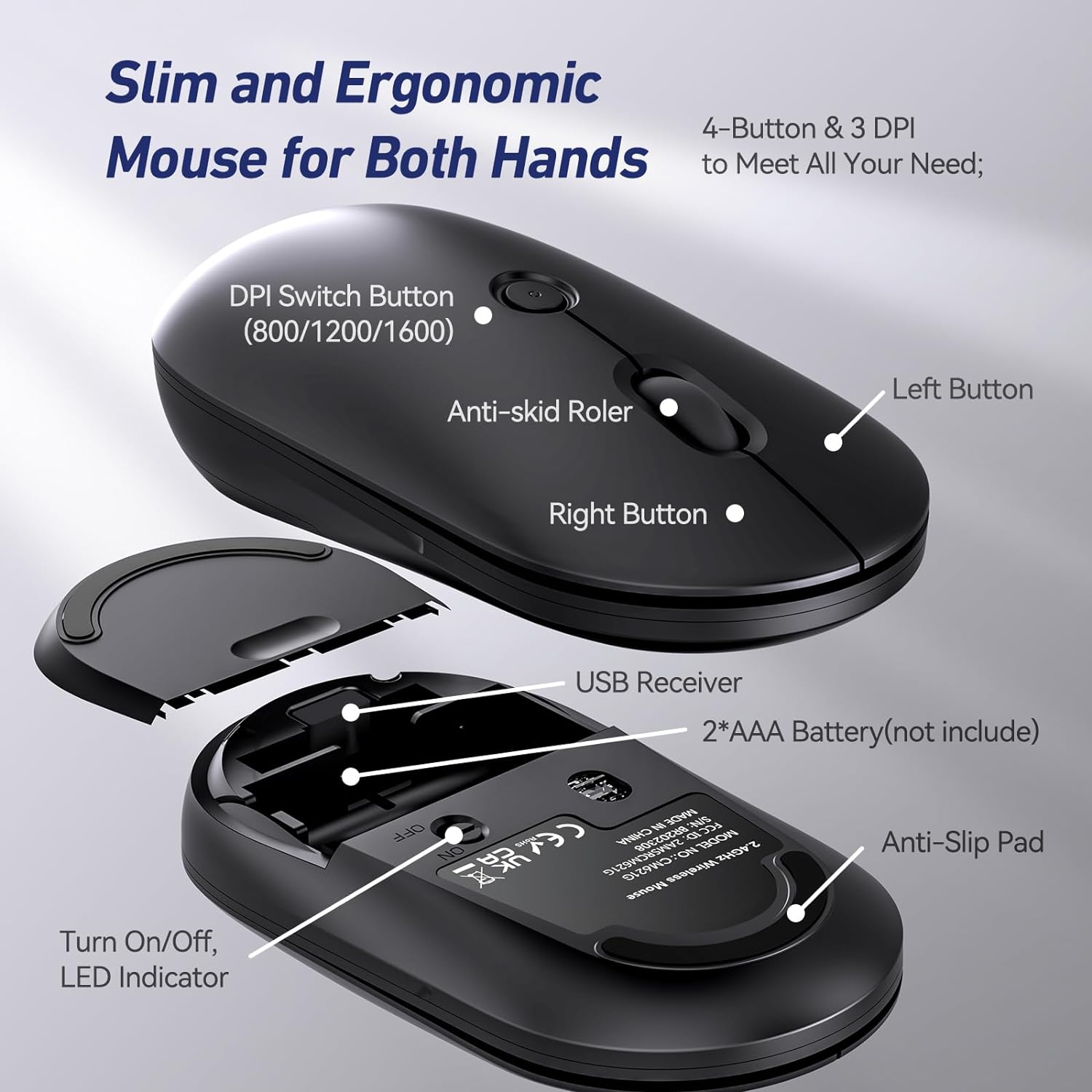 Image: Underside of the wireless mouse, illustrating the battery compartment and the storage slot for the USB receiver.
 Image: A close-up view of the mouse with the USB receiver removed from its dedicated storage compartment.
Connecting to Your Device
- Locate the USB receiver, which is typically stored inside the mouse's battery compartment.
- Plug the USB receiver into an available USB port on your computer (PC, MacBook, etc.).
- Turn on the keyboard and mouse using their respective power switches. The devices are plug-and-play and should connect automatically within a few seconds.
 Image: The Acebaff wireless keyboard and mouse combo, showcasing the keyboard with a tablet in its holder, the mouse, and the small USB receiver.
 Image: The wireless keyboard and mouse in use, connected to a laptop, demonstrating the clutter-free workspace provided by the 2.4G wireless connection.
Operating Instructions
Keyboard Features
- Full-size Layout: Standard US QWERTY layout with a numeric keypad for efficient data entry.
- Shortcut Keys: 11 independent shortcut keys and 12 multimedia hotkeys (Fn-keys) for quick access to functions like volume control, media playback, and calculator.
- Integrated Phone/Tablet Holder: A universal holder built into the keyboard allows you to prop up your phone or tablet (5.8 to 12.9 inches) at an optimal viewing angle. Note: This holder is for convenience and does not enable interaction between the keyboard and the device in the holder. Thick protective cases may not be supported.
- Ergonomic Design: Features a foldable stand to provide a comfortable typing angle, reducing wrist strain.
- Quiet Keystrokes: Low-profile keys offer a responsive, laptop-style typing experience with significantly reduced noise.
 Image: The keyboard layout, illustrating the placement of multimedia and function keys for enhanced productivity.
 Image: The keyboard featuring its integrated phone and tablet holder, demonstrating how devices can be conveniently propped up for viewing.
Video: A demonstration highlighting the comfortable and quiet operation of the Acebaff Wireless Keyboard and Mouse.
Mouse Features
- Silent Clicks: Equipped with silent switches to reduce click noise by over 90%.
- Adjustable DPI: Features a DPI switch button (800/1200/1600 DPI) to adjust cursor sensitivity to your preference.
- Symmetrical Design: Ergonomic and compact, suitable for both left and right-handed users.
- Anti-skid Roller: Provides precise scrolling control.
Image: A detailed view of the wireless mouse, highlighting its silent buttons, adjustable DPI switch, and ergonomic design.
Video: An overview of the ergonomic and comfortable design of the Acebaff Wireless Mouse and Keyboard Combo.
Maintenance
Power Management
- Both the keyboard and mouse have independent power switches. Turn them off when not in use to conserve battery life.
- The devices automatically enter sleep mode after 10 minutes of inactivity. To wake them up, simply click any button on the mouse or press any key on the keyboard.
 Image: Illustration of the smart power-saving features, including independent power switches and auto-sleep mode for extended battery life.
Cleaning and Care
- The keyboard features an anti-splash design with drainage holes. While it offers protection against accidental spills, it is not fully waterproof. Avoid submerging the device in liquids.
- To clean, gently wipe the surfaces with a soft, damp cloth. Do not use harsh chemicals or abrasive cleaners.
- Keep the USB receiver free from dust and debris.
 Image: The keyboard surface with water droplets, demonstrating its anti-splash and sweat-resistant design for enhanced durability.
Troubleshooting
Common Issues and Solutions
| Problem | Possible Cause | Solution |
|---|---|---|
| Keyboard/Mouse not responding | Low battery; Devices are off; USB receiver not properly connected; Interference. | Replace batteries; Ensure power switches are ON; Re-insert USB receiver into a different port; Move devices closer to the receiver; Avoid strong electromagnetic interference. |
| Lag or delayed response | Distance from receiver; Interference; Low battery. | Reduce distance between devices and receiver (within 10 meters/33 ft); Check for other 2.4Ghz devices causing interference; Replace batteries. |
| Mouse cursor erratic or not moving smoothly | Dirty optical sensor; Surface not suitable; Low battery. | Clean the optical sensor on the mouse underside; Use on a clean, non-reflective surface (e.g., mouse pad); Replace batteries. |
| Keyboard enters sleep mode too quickly | Normal power-saving feature. | Press any key or click the mouse to wake the devices. This is designed to extend battery life. |
If you encounter persistent issues, please refer to the Warranty and Support section for contact information.
Specifications
- Model: CK241G+CM621G
- Product Dimensions: 17.32 x 8.86 x 1.57 inches
- Item Weight: 1.63 pounds
- Connectivity Technology: 2.4G Wireless Tech with USB Receiver
- Wireless Range: Up to 10 meters (33 feet)
- Keyboard Battery: 1 x AAA (not included)
- Mouse Battery: 2 x AAA (not included)
- Mouse DPI Settings: 800/1200/1600 DPI
- Compatible Devices: Windows 11/10/8/7/XP/VISTA, Mac OS, Chrome OS, Linux
- Manufacturer: AB
- Country of Origin: China
Warranty and Support
Acebaff provides 24 Months VIP after-sale support for any product issues. For assistance, please contact our customer service team.
You can typically find contact information by visiting the seller's store page on the platform where you purchased the product. Look for a "Contact Seller" or "Ask a question" button.
Related documentsCK241G+CM621G


Ask a question about this manual
Ask about setup, troubleshooting, compatibility, parts, safety, or missing instructions. Manuals+ will review the question and use this page’s manual context to help answer it.