1. Introduction
Thank you for choosing the GreenLaw Keyboard Case for your Samsung Galaxy Tab S10 Ultra or S9 Ultra 14.6-inch tablet. This manual provides detailed instructions for setup, operation, and maintenance to ensure optimal performance and longevity of your device.
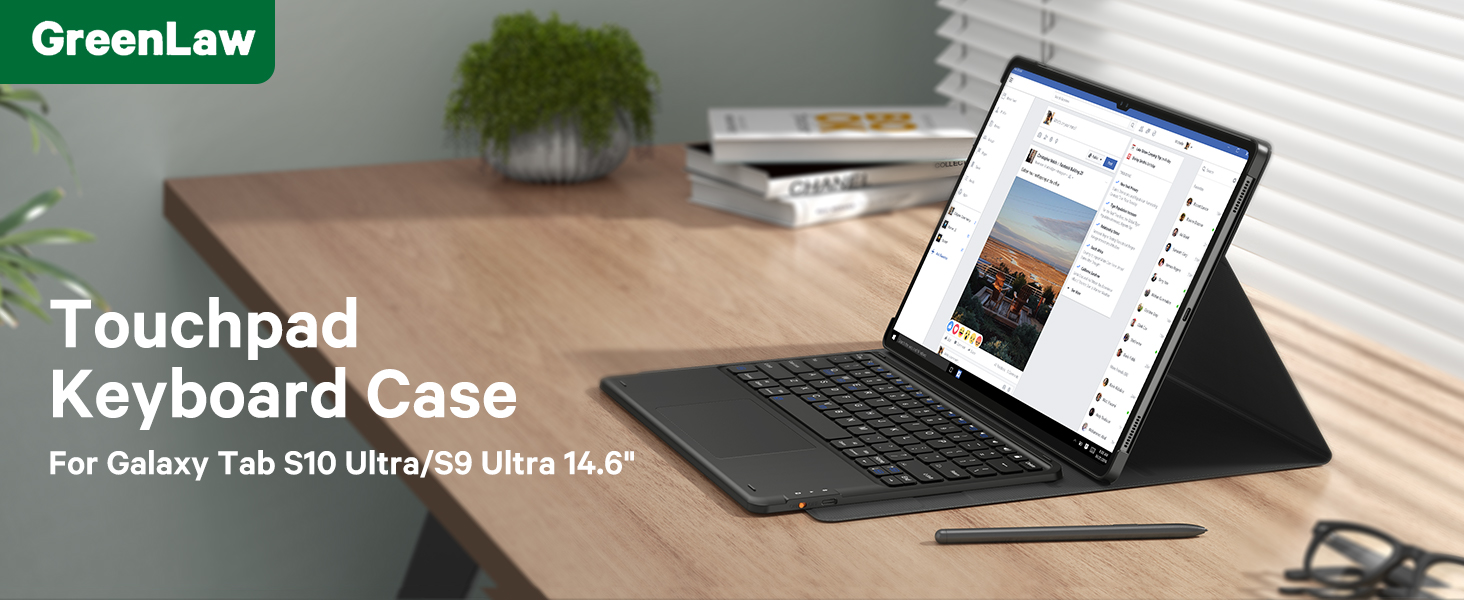
Image: GreenLaw Keyboard Case with a Samsung Galaxy Tab S10/S9 Ultra 14.6-inch tablet in use.
2. Compatibility
This keyboard case is designed for the following models:
- Samsung Galaxy Tab S10 Ultra (Models: SM-X920, SM-X926B) 2024
- Samsung Galaxy Tab S9 Ultra 14.6-inch (Models: SM-X910, SM-X916B) 2023
Please verify your tablet's model number (SM-Txxx or SM-Xxxx) in your device settings before use to ensure compatibility.

Image: Visual guide illustrating compatibility with Samsung Galaxy Tab S10 Ultra and S9 Ultra 14.6-inch models, and incompatibility with smaller models.
3. Package Contents
- GreenLaw Keyboard Case
- USB-C Charging Cable
- User Manual
4. Setup Instructions
4.1 Attaching the Tablet
- Carefully align your Samsung Galaxy Tab S10 Ultra or S9 Ultra 14.6-inch tablet with the case's frame.
- Gently press the tablet into the case, ensuring all edges are securely seated. The case is designed to provide a snug fit and protect your device.
4.2 Connecting the Keyboard (Bluetooth Pairing)
- Ensure the keyboard is charged (refer to Section 6 for charging instructions).
- Turn on the keyboard by sliding the power switch to the "ON" position. The indicator light will flash.
- On your Samsung Galaxy Tab, go to Settings > Connected devices > Bluetooth and turn Bluetooth ON.
- Select "GreenLaw Keyboard" from the list of available devices.
- If prompted, enter the pairing code displayed on your tablet onto the keyboard and press Enter.
- Once paired, the indicator light on the keyboard will stop flashing, and your tablet will show the keyboard as "Connected."

Image: Illustration of the magnetic detachable keyboard feature, showing how it securely attaches to the case.
5. Operating Instructions
5.1 Precision Touchpad
The integrated smart touchpad supports multi-gesture controls for efficient navigation and multitasking. Refer to your tablet's operating system for specific gesture functionalities.

Image: Close-up of the keyboard case highlighting the precision touchpad with multi-touch control capabilities.
5.2 Scissor Keys Design
Enjoy a quiet and comfortable typing experience with the scissor-foot keys. The keyboard includes various shortcuts to enhance productivity. Common shortcuts include:
- Fn + [Function Key]: For multimedia controls and system functions.
- Specific shortcuts may vary based on your tablet's operating system.
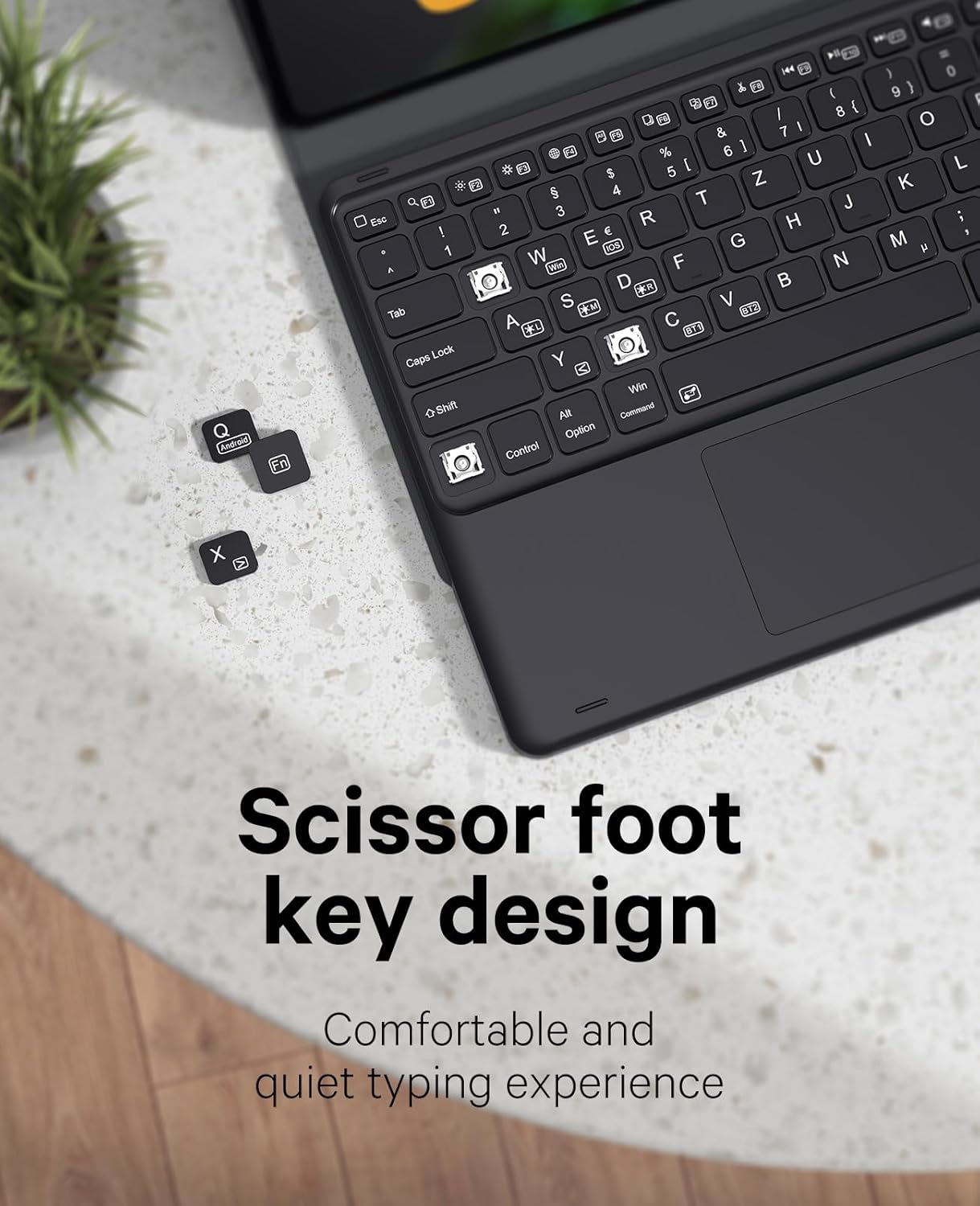
Image: Detailed view of the keyboard's scissor-foot key design, emphasizing comfortable and quiet typing.
5.3 Adjustable Viewing Angles
The case offers adjustable viewing angles at 110°, 120°, and 130° to suit your preference for working, watching, or reading. Simply adjust the tablet's position within the case to achieve the desired angle.

Image: Visual representation of the case's multi-angle adjustment feature, showing different viewing positions.
5.4 S Pen Slot Design
The integrated S Pen slot is strategically located to align with your tablet's rear magnetic charging area, allowing for convenient storage and charging of your S Pen.

Image: Detailed view of the S Pen slot, indicating its position for magnetic charging and secure storage.
5.5 Auto Sleep Feature for Keyboard
The keyboard features an auto-sleep function to conserve battery life. It will automatically enter hibernation mode when not in use and wake up upon key press.
6. Charging the Keyboard
To charge the keyboard, connect the provided USB-C charging cable to the keyboard's charging port and plug the other end into a USB power adapter (not included). The charging indicator light will illuminate during charging and change color or turn off when fully charged.
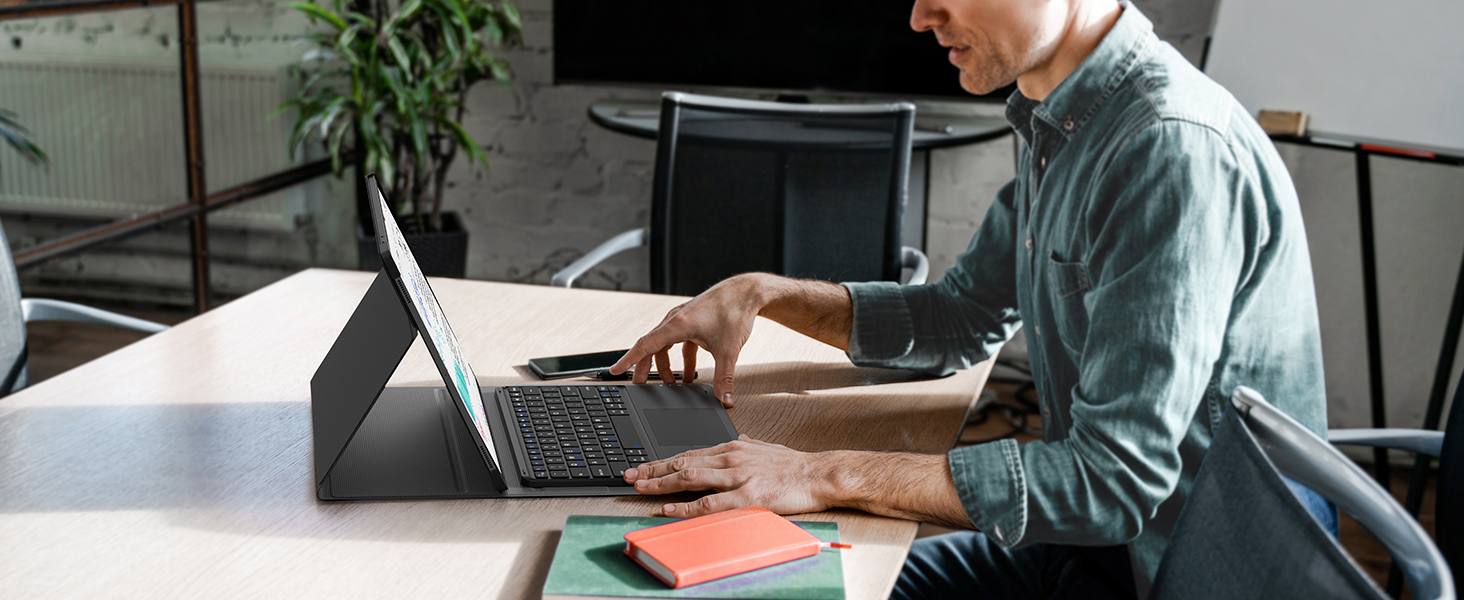
Image: The keyboard connected to a USB-C charging cable, indicating the charging process.
7. Maintenance
- Keep the keyboard and case clean by wiping with a soft, dry cloth.
- Avoid exposing the device to extreme temperatures, humidity, or direct sunlight.
- Do not use harsh chemicals or abrasive cleaners.
8. Troubleshooting
8.1 Keyboard Not Connecting
- Ensure the keyboard is powered on and fully charged.
- Verify Bluetooth is enabled on your tablet.
- Delete "GreenLaw Keyboard" from your tablet's Bluetooth device list and attempt to re-pair.
- Restart both your tablet and the keyboard.
8.2 Keys Not Responding
- Check if the keyboard is properly connected via Bluetooth.
- Ensure the keyboard is charged.
- Clean any debris from around the keys.
8.3 Touchpad Not Working
- Confirm the keyboard is connected.
- Ensure the touchpad is not accidentally disabled (check for a function key combination to toggle it).
- Clean the touchpad surface.
9. Specifications
| Brand | GreenLaw |
| Compatible Devices | Samsung Galaxy Tab S10 Ultra, S9 Ultra 14.6-inch |
| Connectivity Technology | Bluetooth |
| Keyboard Description | Accessible, Scissor Keys |
| Special Features | Hotkeys and Media Keys, Rechargeable, Trackpad, Magnetic Detachable, Adjustable Viewing Angles, S Pen Holder, Auto Sleep |
| Color | Black |
| Material | Plastic, Silicone |
| Item Weight | 2.33 pounds |
| Batteries | 1 Lithium Polymer battery (included) |
| Model Numbers | SM-X920, SM-X926B, SM-X910, SM-X916B |
10. Warranty and Support
GreenLaw products are designed for durability and performance. For warranty information or technical support, please refer to the contact details provided on the product packaging or visit the official GreenLaw website. Keep your purchase receipt for warranty claims.


