
Introduction
The Grandstream GXV3480 is a high-end smart video phone designed for comprehensive communication solutions. It integrates a 16-line IP video phone with multi-platform video collaboration capabilities and the functionality of an Android tablet. This manual provides essential information for setting up, operating, and maintaining your GXV3480 device.
What's in the Box
Upon unpacking your Grandstream GXV3480, please verify that all standard components are included:
- Grandstream GXV3480 High-End Smart Video Phone (Black)
- Handset with coiled cord
- Ethernet cable
- Power adapter (if not using PoE)
- Quick Installation Guide
Product Overview
The GXV3480 features an 8-inch capacitive touch screen, a built-in 2-megapixel camera with a privacy shutter, and various ports for connectivity.

Figure 1: Front view of the Grandstream GXV3480 IP Video Phone, showing the handset on the left and the large touch screen displaying the home interface with contacts and time.

Figure 2: Side view of the Grandstream GXV3480, illustrating the adjustable stand and the sleek profile of the device.
Setup
1. Physical Connection
- Connect the coiled cord from the handset to the handset port on the phone base.
- Connect an Ethernet cable from the LAN port on the GXV3480 to a network switch or router. If using Power over Ethernet (PoE/PoE+), the device will power on automatically.
- If PoE is not available, connect the provided power adapter to the power port on the phone and then to a power outlet.
2. Initial Configuration
- Upon first boot, the device will guide you through initial setup steps, including language selection and network settings.
- Configure your SIP accounts via the phone's touch screen interface or through the web user interface (Web UI) by accessing the phone's IP address from a web browser on the same network.
Operating Instructions
Making and Receiving Calls
- To make a call: Tap the Phone icon on the home screen, dial the number, and press the call button.
- To receive a call: Tap the green answer button on the screen when an incoming call is displayed.
- Video Calls: The GXV3480 supports video calls. During a call, tap the video icon to enable or disable your camera.
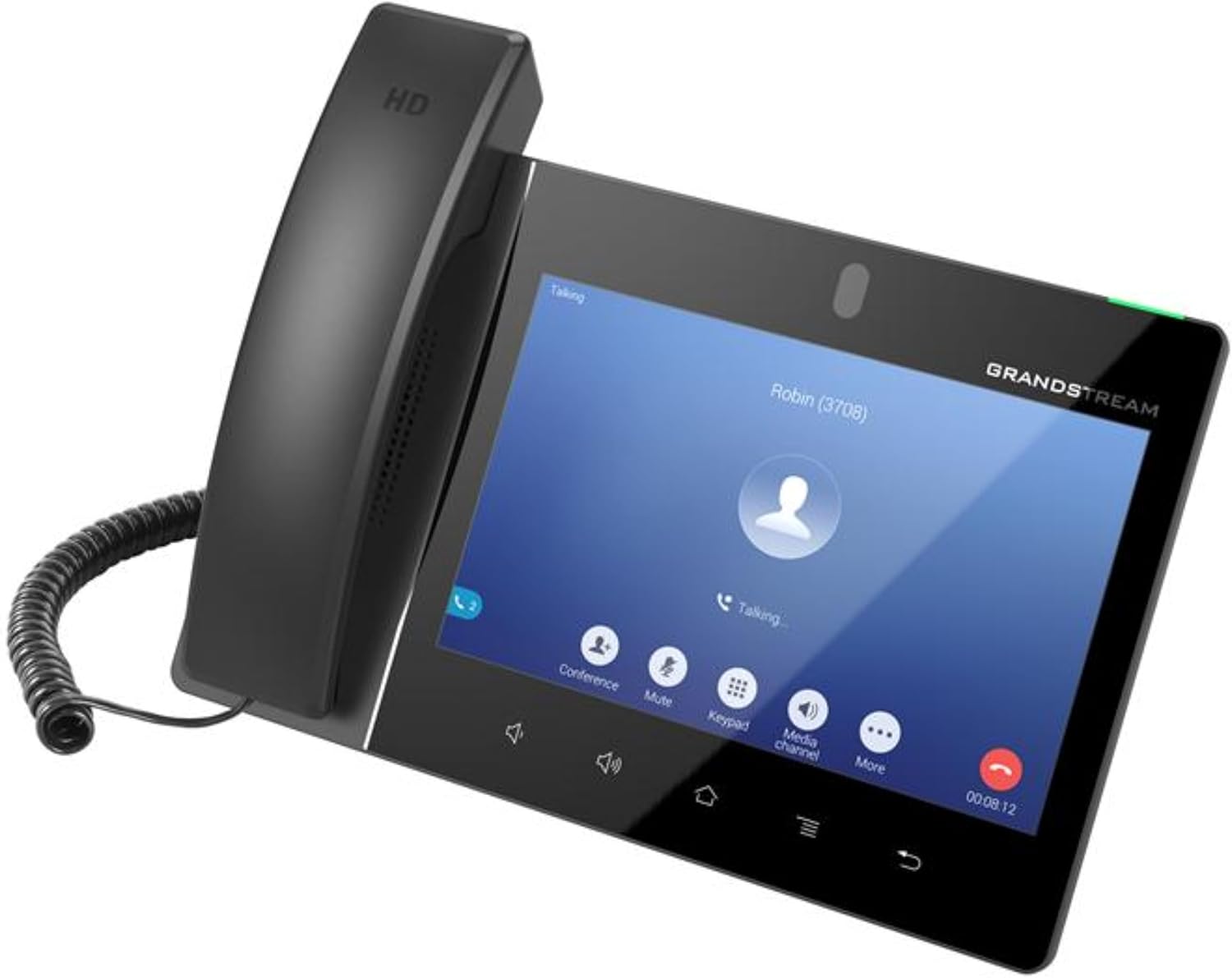
Figure 3: The GXV3480 screen displaying an active call, with options for conference, mute, keypad, media channel, and more.
Android Functionality
As an Android-based device, the GXV3480 allows access to various Android applications. You can download and install apps from the Google Play Store (if configured) or other sources, enhancing the phone's capabilities for business and collaboration.
Bluetooth Connectivity
The device features built-in Bluetooth 5.0. To pair a Bluetooth headset or mobile device:
- Go to Settings > Connected devices > Bluetooth.
- Enable Bluetooth and search for available devices.
- Select your device from the list to pair.
Maintenance
Cleaning the Device
- Use a soft, dry, lint-free cloth to clean the screen and exterior surfaces.
- For stubborn marks, slightly dampen the cloth with water. Avoid using harsh chemicals or abrasive cleaners.
- Do not spray cleaners directly onto the device.
Software Updates
Regularly check for and install software updates to ensure optimal performance, security, and access to new features. Updates can typically be managed through the device's settings menu or via a central management system if deployed in an enterprise environment.
Troubleshooting
| Problem | Possible Cause | Solution |
|---|---|---|
| No Power | Power adapter not connected or faulty; PoE not active. | Ensure power adapter is securely connected to a working outlet, or verify PoE connection and switch status. |
| Cannot make/receive calls | Network issue; SIP account not registered. | Check Ethernet cable connection. Verify network connectivity. Ensure SIP account status is "Registered" in phone settings. Contact your VoIP service provider. |
| Poor video quality | Insufficient network bandwidth; poor lighting. | Ensure stable and sufficient internet connection. Improve lighting conditions in your environment. |
| Touch screen unresponsive | Temporary software glitch. | Restart the device by unplugging and re-plugging the power, or by using the power button if available. |
Specifications
| Feature | Detail |
|---|---|
| SIP Accounts | Up to 16 lines with 16 SIP accounts |
| Camera | Built-in 2 megapixel camera with privacy shutter |
| Operating System | Android 11 |
| Bluetooth | Built-in Bluetooth 5.0 |
| Network Ports | Dual-switched auto-sensing 10/100/1000Mbps Gigabit Ethernet ports |
| Wi-Fi | Integrated dual-band Wi-Fi 6 (2.4GHz and 5GHz) |
| PoE | Built-in PoE/PoE+ |
| Processor | Quad-core 2.0GHz ARM Cortex-A55 |
| Memory | 4GB RAM, 16GB eMMC Flash |
| Display | 8-inch (1280x800) capacitive 10-point touch screen IPS LCD |
| Audio Features | Dual-mic HD speakerphone with noise shield 2.0, advanced echo cancellation |
| Conferencing | 12-way HD audio conferencing, 3-way 1080p 30fps HD video capability |
| Dimensions (L x W x H) | 8.31 x 20.87 x 17.32 inches |
| Item Weight | 1.39 pounds (0.63 Kilograms) |
Warranty and Support
The Grandstream GXV3480 comes with a standard manufacturer's warranty. For detailed warranty information, technical support, or service inquiries, please refer to the official Grandstream website or contact their customer support directly. Keep your purchase receipt as proof of purchase.


