
1. Introduction
This manual provides essential information for the installation, operation, and maintenance of your A-Tech 4GB DDR3 1600MHz PC3-12800 DIMM memory module. Please read these instructions carefully before proceeding with installation to ensure optimal performance and system stability. This memory module is designed to enhance the performance of compatible desktop computer systems by expanding their RAM capacity.
2. Product Overview
The A-Tech 4GB DDR3 1600MHz PC3-12800 DIMM is a high-quality memory module designed for desktop computers. It operates at 1600MHz with a voltage of 1.5V and features a 240-pin Non-ECC Unbuffered design, ensuring compatibility and reliable performance for specified systems.

Figure 2.1: Top view of the A-Tech 4GB DDR3 1600MHz PC3-12800 DIMM memory module, showing the label with specifications.

Figure 2.2: Front view of the A-Tech 4GB DDR3 RAM module, highlighting the gold contacts and green PCB.

Figure 2.3: Angled view of the A-Tech 4GB DDR3 RAM module, showing the memory chips and circuit board layout.
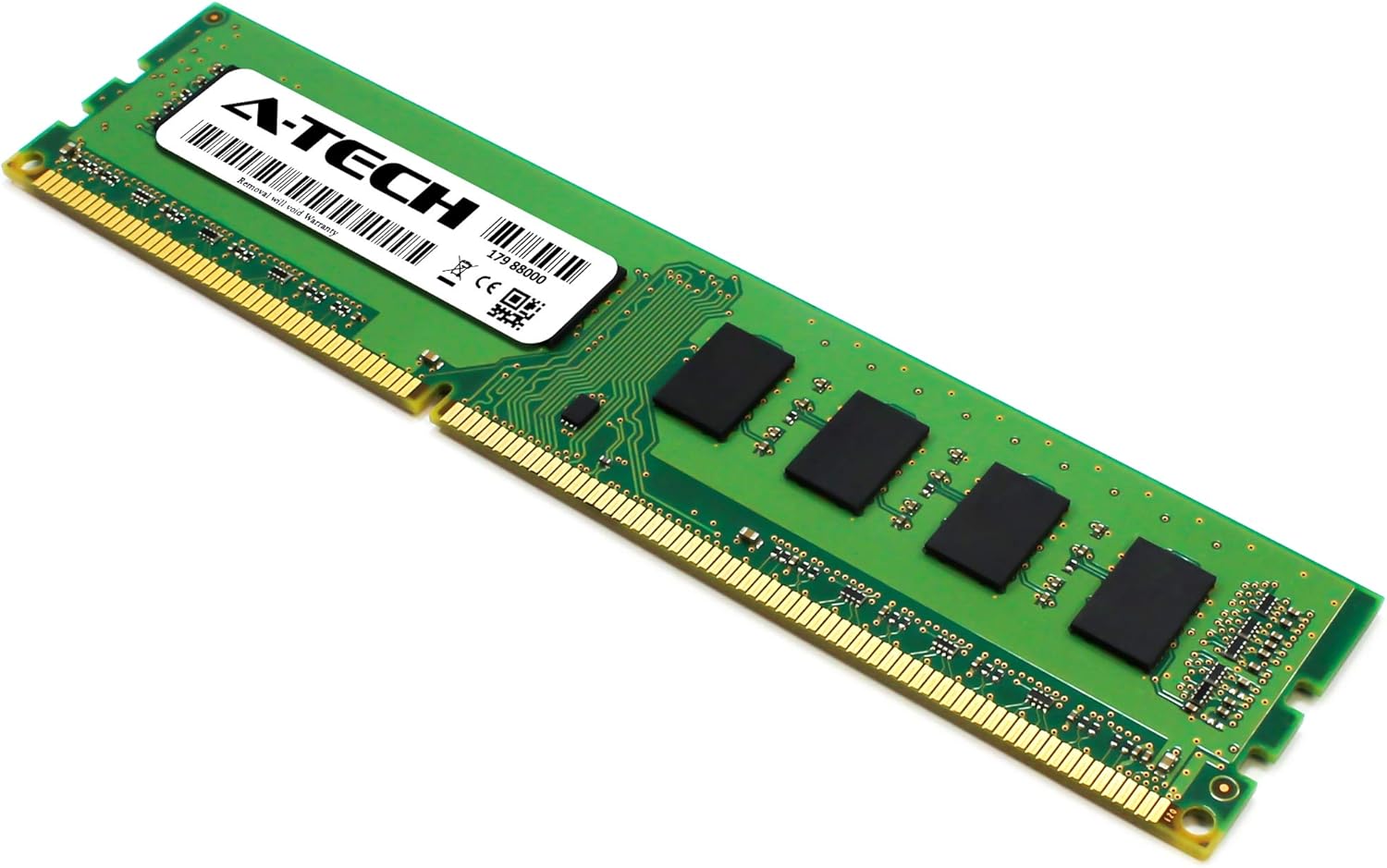
Figure 2.4: Another angled view of the A-Tech 4GB DDR3 RAM module, providing a different perspective of its components.

Figure 2.5: Top-down view of the A-Tech 4GB DDR3 RAM module, clearly showing the PCB traces and chip placement.

Figure 2.6: Close-up view of the A-Tech 4GB DDR3 RAM module, detailing the memory chips and label.

Figure 2.7: A different angled view of the A-Tech 4GB DDR3 RAM module, showcasing its physical form factor.

Figure 2.8: Perspective view of the A-Tech 4GB DDR3 RAM module, emphasizing its slim profile.

Figure 2.9: Another perspective view of the A-Tech 4GB DDR3 RAM module, showing the full length of the module.
Figure 2.10: Dimensional diagram of the A-Tech DDR3 DIMM memory module, indicating length (133.35mm / 5.25in) and height (30mm / 1.18in).
3. Compatibility
This A-Tech 4GB DDR3 1600MHz PC3-12800 DIMM memory module is specifically designed for compatibility with a range of ASUS desktop systems. Please verify your system's compatibility before installation. Compatible models include:
- ASUS B85M-E R2.0
- ASUS BM6AF
- ASUS CM6431
- ASUS H170M-E D3
- ASUS P8P67-M
- ASUS P8Z77-V LX
- ASUS P9X79 PRO
- ASUS Z170-P D3
- ASUS Z87I-DELUXE
- ASUS Z87I-PRO
- ASUS Z87-WS
This module is for desktop computers only and is not compatible with laptop systems. Always refer to your system's manual for specific seating and channel guidelines.

Figure 3.1: Image illustrating the compatibility of A-Tech DDR3 memory with various desktop computers, gaming rigs, and workstations.
4. Setup & Installation
Installing RAM is a straightforward process, but care must be taken to avoid damage to components. It is recommended to consult your computer's motherboard manual for specific instructions regarding RAM slot locations and configuration.
4.1 Safety Precautions
- Power Off: Always power down your computer completely and unplug it from the wall outlet before opening the case.
- Ground Yourself: Discharge any static electricity by touching a grounded metal object (e.g., the unpainted metal chassis of your computer) before handling components. Consider using an anti-static wrist strap.
- Handle Carefully: Hold the memory module by its edges, avoiding contact with the gold connectors or the chips.
4.2 Installation Steps
- Open Computer Case: Remove the side panel of your computer case to access the motherboard.
- Locate RAM Slots: Identify the DIMM slots on your motherboard. These are typically long slots with clips on either end.
- Open Clips: Gently push the clips at both ends of the DIMM slot outwards to open them.
- Align Module: Align the notch on the bottom edge of the RAM module with the key in the DIMM slot. The module will only fit one way.
- Insert Module: Place the module into the slot and press down firmly and evenly on both ends until the clips snap into place, securing the module.
- Verify Seating: Ensure the module is fully seated and the clips are locked. There should be no gap between the module and the slot.
- Close Case: Replace the computer case side panel and reconnect all cables.
- Power On: Turn on your computer. The system should automatically detect the new memory.
5. Operating Principles
Random Access Memory (RAM) is a form of computer data storage that can be accessed randomly at any time, in any order, and from any physical location. It is used to store working data and machine code. The A-Tech 4GB DDR3 1600MHz module provides a temporary storage area for your computer's processor to quickly access data, improving overall system responsiveness and multitasking capabilities.

Figure 5.1: Image depicting a user multitasking across multiple applications, illustrating the benefit of expanded RAM capacity.
Upgrading your system's memory with this module allows your computer to handle more applications simultaneously, process larger files, and run demanding software more smoothly, reducing bottlenecks and improving data processing speed.

Figure 5.2: Image showing A-Tech memory modules with text indicating performance upgrade benefits like reduced bottlenecks and improved data processing.
6. Maintenance
Memory modules generally require minimal maintenance. However, following these guidelines can help ensure their longevity and reliable operation:
- Keep Clean: Ensure your computer's interior is free from dust buildup, which can impede airflow and lead to overheating. Use compressed air to gently clean around RAM slots and modules.
- Proper Handling: When handling memory modules, always hold them by the edges to avoid touching the gold contacts or integrated circuits, which can be sensitive to oils and static electricity.
- Environmental Control: Operate your computer in a cool, dry environment to prevent issues related to heat and humidity.
- Firmware/BIOS Updates: Keep your motherboard's BIOS/UEFI firmware updated, as manufacturers often release updates that improve memory compatibility and stability.
7. Troubleshooting
If you encounter issues after installing your A-Tech memory module, consider the following troubleshooting steps:
7.1 Common Issues & Solutions
- Computer Does Not Boot / No Display:
- Ensure the memory module is fully seated in its slot. Re-seat the module by pressing down firmly until the clips lock.
- Try installing only one module at a time if you installed multiple.
- Test the module in a different RAM slot.
- Verify that the module is compatible with your motherboard and CPU.
- Incorrect RAM Capacity Detected:
- Check your system's BIOS/UEFI settings to ensure the correct memory amount is recognized.
- Ensure all modules are properly seated.
- Update your motherboard's BIOS/UEFI to the latest version.
- System Instability / Blue Screens of Death (BSOD):
- Run a memory diagnostic tool (e.g., Windows Memory Diagnostic or MemTest86) to check for errors.
- Ensure your system's power supply unit (PSU) is sufficient for all components.
- Check for overheating issues within your computer case.
- Slow Performance:
- Verify that the memory is running at its advertised speed in BIOS/UEFI.
- Ensure your operating system is 64-bit to fully utilize more than 4GB of RAM.
If these steps do not resolve the issue, please contact A-Tech customer support for further assistance.
8. Specifications
Detailed technical specifications for the A-Tech 4GB DDR3 1600MHz PC3-12800 DIMM memory module (Model ASM116).
| Feature | Specification |
|---|---|
| Brand | A-Tech |
| Model Number | ASM116 |
| Memory Size | 4 GB |
| Memory Technology | DDR3 |
| Memory Speed | 1600 MHz (PC3-12800 / PC3-1600) |
| Module Type | DIMM (240-Pin) |
| Error Correction | Non-ECC Unbuffered |
| Voltage | 1.5 Volts |
| Product Dimensions (LxWxH) | 5.25 x 1.18 x 0.15 inches (133.35 x 30 x 3.8 mm) |
| Compatible Devices | ASUS B85M-E R2.0, BM6AF, CM6431, H170M-E D3, P8P67-M, P8Z77-V LX, P9X79 PRO, Z170-P D3, Z87I-DELUXE, Z87I-PRO, Z87-WS |
9. Warranty Information
All A-Tech memory modules undergo stringent quality control testing to ensure dependable and reliable performance. This product is backed by A-Tech's Limited Lifetime Warranty. For specific terms and conditions of the warranty, please refer to the official A-Tech website or contact customer support.

Figure 9.1: Image emphasizing the reliability of A-Tech memory modules through extensive quality control testing.
10. Support
For technical assistance, warranty claims, or any questions regarding your A-Tech memory module, please contact our knowledgeable Tech Team. Support is available before and after your purchase.
Visit the official A-Tech website for contact information and additional resources: https://atechmemory.com/


