
Introduction
Thank you for choosing the WESEARY WG1 Wireless Gaming Headset. This manual provides detailed instructions on how to set up, operate, and maintain your headset to ensure optimal performance and longevity. Please read this manual thoroughly before using the product.
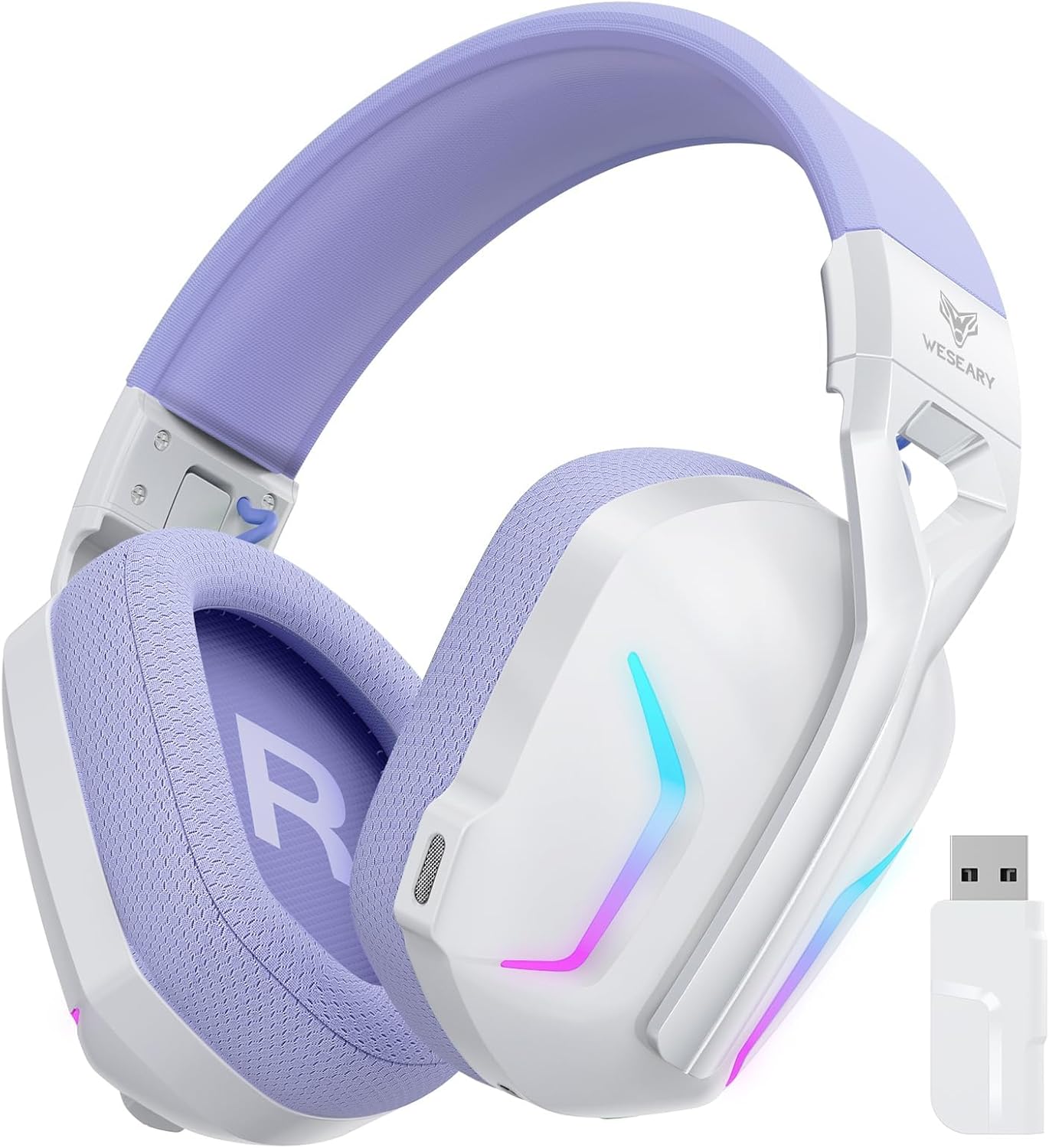
Image: The WESEARY WG1 Wireless Gaming Headset, showcasing its white and purple design along with the included USB dongle.
Package Contents
Ensure all items are present in the package:
- 1 x WESEARY WG1 Wireless Gaming Headset
- 1 x USB Dongle (2.4GHz)
- 1 x USB-C Charging Cable
- 1 x User Manual
Specifications
| Feature | Detail |
|---|---|
| Model Number | WG1 |
| Connectivity Technology | Wireless (2.4GHz, Bluetooth), Wired (USB) |
| Compatible Devices | Desktops, Laptops, Tablets, PS5, PS4, PC, Switch, Mac, Smartphones |
| Audio Drivers | 50mm Titanium-plated Drivers |
| Sound Features | 7.1 Virtual Surround Sound, Deep Bass, Clear Highs |
| Microphone | Integrated Dual-beam Noise-cancelling (ENC) |
| Battery Capacity | 1200mAh Lithium-ion |
| Playtime | Up to 50 hours (40 hours with RGB) |
| Charging Time | Approx. 2.5 hours (USB-C) |
| Wireless Range | Up to 49 feet (2.4GHz mode) |
| Weight | 250 Grams |
| Special Features | Noise Reduction, Foldable, Lightweight, RGB Lighting, Memory Foam Earpads, Adjustable Headband |
Setup Guide
Charging the Headset
Before first use, fully charge the headset. Connect the included USB-C charging cable to the headset's charging port and the other end to a USB power source (e.g., computer USB port, wall adapter). The LED indicator will show charging status.

Image: Visual representation of the headset's 50-hour playtime, 1200mAh battery capacity, 2.5-hour Type-C full charge time, and 40-hour RGB mode playtime.
Connectivity Modes
The WESEARY WG1 headset supports three connectivity modes:
- 2.4GHz Dongle Mode:
This mode provides a low-latency wireless connection ideal for gaming. Compatible with PS5, PS4, PC, Mac, and Switch (microphone not valid on Switch in this mode).
- Insert the 2.4GHz USB dongle into an available USB port on your device.
- Turn on the headset. It should automatically connect to the dongle.
- Ensure the headset is selected as the audio output/input device in your system settings.
- Bluetooth Mode:
This mode is suitable for general use with Bluetooth-enabled devices. Compatible with PC, Mac, Switch (microphone not valid on Switch in this mode), and smartphones.
- Long press the microphone button on the headset to switch to Bluetooth mode.
- Enable Bluetooth on your device and search for "WESEARY WG1".
- Select the headset to pair.
- USB Cable Mode (Wired):
For a stable wired connection, compatible with PS5, PS4, PC, and Mac.
- Connect the headset to your device using the USB-C charging cable.
- The headset will function as a wired audio device.
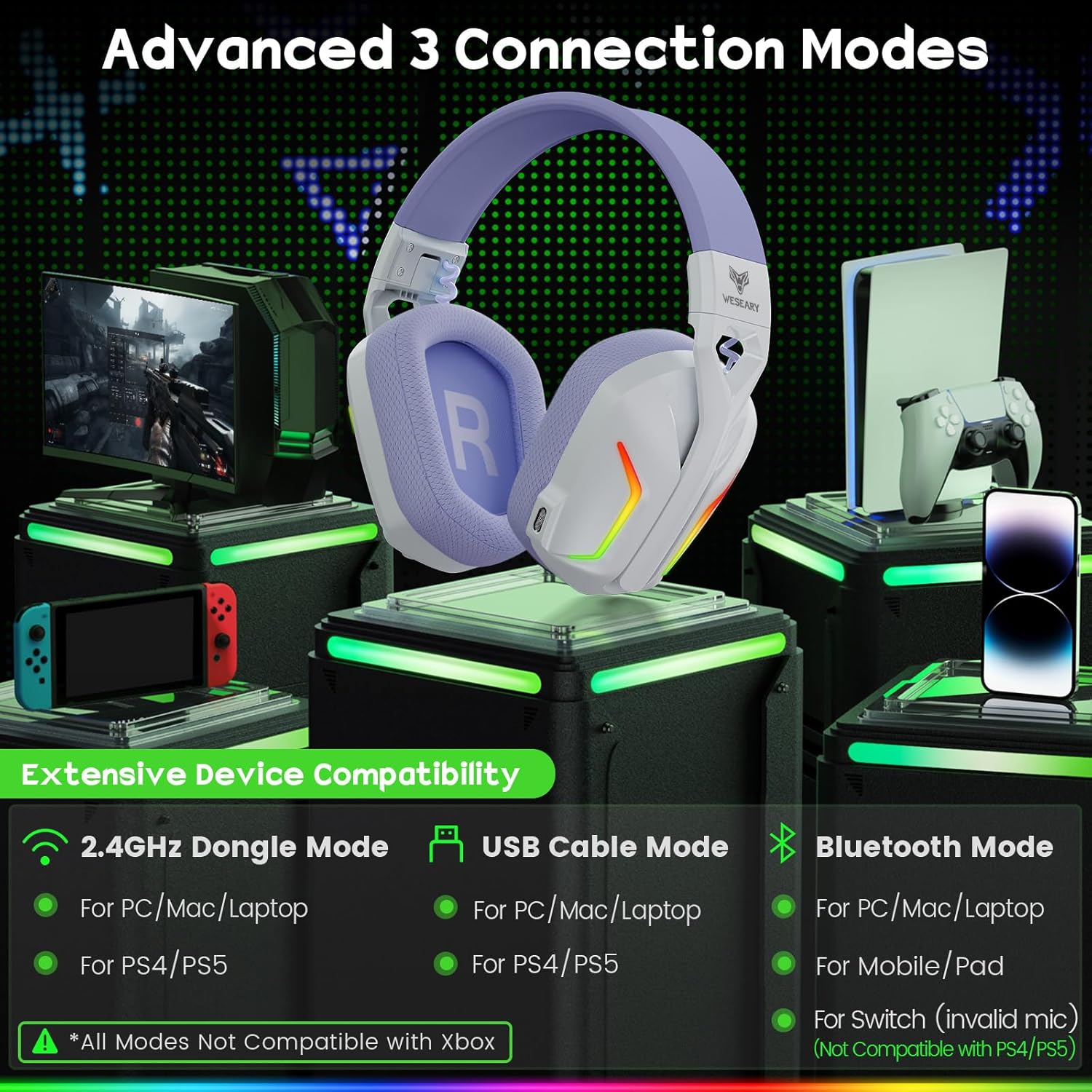
Image: An illustration detailing the three advanced connection modes (2.4GHz Dongle, USB Cable, Bluetooth) and their respective device compatibilities, including PS5, PS4, PC, Mac, Switch, and mobile/pad.
Important Notes:
- None of the three modes are compatible with all Xbox devices.
- The microphone is not usable in Bluetooth mode on the Nintendo Switch.
- Bluetooth mode is not compatible with PS4/PS5 consoles.
- Long press the microphone button to switch between Bluetooth mode and dongle mode.
Operating Instructions
Headset Controls

Image: A detailed diagram illustrating the various control buttons on the WESEARY WG1 headset, including power, volume, microphone, and RGB/surround sound controls, along with their corresponding functions.
- Power Button (1):
- Turn on/off: Long press for 3 seconds.
- Play/Pause: Single click.
- Answer Call: Single click.
- Hang up Call: Single click.
- Reject Call: Long press for 2 seconds.
- Traceback: Double click.
- Volume Down / Previous Track Button (2):
- Volume Down: Single click.
- Previous Track: Long press for 2 seconds.
- Volume Up / Next Track Button (3):
- Volume Up: Single click.
- Next Track: Long press for 2 seconds.
- Clear All Devices (for pairing): Press volume up/down together for 6 seconds.
- Microphone Button (4):
- Mic on/off: Single click.
- Switch between BT mode and 2.4G mode: Long press for 2 seconds.
- RGB / 7.1 Surround Sound Button (5):
- Turn on/off RGB: Single click.
- 7.1 Surround on/off: Double click.
- Re-pairing (BT mode): Long press for 3 seconds.
Audio Features
The WG1 headset features 50mm titanium-plated drivers for rich audio and 7.1 virtual surround sound for an immersive experience.

Image: An illustration demonstrating the 7.1 Pro Stereo Surround Sound feature, showing sound waves emanating from various directions around a gamer wearing the headset, indicating immersive audio.

Image: A detailed cutaway view of the 50mm titanium-plated driver, highlighting its components and the robust vibrations that deliver profound bass and crystalline highs for unparalleled sound clarity.
Microphone Usage
The integrated dual-beam microphones utilize ENC (Environmental Noise Cancellation) technology to ensure clear voice communication by suppressing up to 95% of background noise.

Image: A graphic illustrating the "Crystal Clear Voice Call" feature, showing how the headset precisely captures voice while suppressing 95% of rear and side background noise, accompanied by a noise reduction graph.
Maintenance and Care
- Cleaning: Use a soft, dry cloth to clean the headset. Do not use abrasive cleaners or solvents.
- Storage: Store the headset in a cool, dry place away from direct sunlight and extreme temperatures. The headset is foldable for easy storage and transport.
- Battery Care: To prolong battery life, avoid fully discharging the headset frequently. Charge it regularly, even if not in use for extended periods.
- Handling: Avoid dropping the headset or subjecting it to strong impacts.

Image: A visual representation of the headset's ergonomic design, highlighting its lightweight and breathable nano breathable mesh with high-density sponge, memory foam earpads, and adjustable headbands for comfort and adaptability.
Troubleshooting
| Problem | Possible Cause | Solution |
|---|---|---|
| No sound from headset | Headset not powered on; Incorrect audio output selected; Low battery; Not properly connected. | Ensure headset is powered on. Check system audio settings and select "WESEARY WG1". Charge the headset. Reconnect the dongle/cable or re-pair Bluetooth. |
| Microphone not working | Microphone muted; Incorrect audio input selected; Compatibility issue (e.g., Switch Bluetooth mode). | Single click the microphone button to unmute. Check system audio input settings and select "WESEARY WG1". Refer to compatibility notes for specific devices. |
| Connection unstable or lagging | Interference; Too far from dongle/device; Low battery. | Move closer to the dongle/device. Ensure no strong interference sources nearby. Charge the headset. For Bluetooth, try re-pairing. |
| Headset not pairing via Bluetooth | Headset not in pairing mode; Device Bluetooth off; Already paired with another device. | Long press the microphone button to enter Bluetooth mode. Ensure device Bluetooth is on. Try clearing all paired devices (press volume up/down together for 6s) and re-pair. |
If you encounter issues not listed here, please refer to the official WESEARY support channels.
Warranty and Support
WESEARY products come with a standard manufacturer's warranty. For warranty claims, technical support, or further assistance, please contact WESEARY customer service through their official website or the platform where you purchased the product. Please retain your proof of purchase for warranty purposes.
For the latest information and support, visit: www.weseary.com (Note: This is a placeholder URL, please refer to actual product documentation for official support links.)
