1. Introduction
The Lovskoo 300M WiFi Booster is designed to extend the range of your existing Wi-Fi network, eliminating dead zones and providing strong, reliable internet access throughout your home or office. This device acts as a signal amplifier, ensuring high-speed connectivity for all your devices, even in areas previously unreachable by your main router.
It supports IEEE 802.11n and IEEE 802.11g/b standards, offering speeds up to 300 Mbps. With its plug-in design and robust security mechanisms (WPA/WPA-PSK, WPA2/WPA2-PSK), it provides a secure and convenient solution for enhancing your wireless coverage.
2. Package Contents
- 1 x Lovskoo WiFi Extender
- 1 x User Manual
3. Product Features
- Super Signal Coverage: Utilizes a new generation main control chip to search for 2.4G network signals, providing a maximum transmission rate of 300Mbps for high-speed internet surfing.
- WiFi Range Extender: Equipped with two external 2dBi omnidirectional antennas for improved performance, transmission rate, and stability. Automatically avoids channel conflicts and expands signal range up to 100 meters indoors and 300 meters outdoors (environment dependent).
- Ethernet Port: Includes a 10/100Mbps Ethernet port, allowing the extender to connect wired devices as an adapter.
- Easy Setup: Designed for professional interaction with a minimalist and visual style, enabling expansion in just three simple steps. Features an advanced transparent BRIDGE mode for easy LAN access.
- Safe Internet Environment: Maximizes network security, preventing unauthorized access, protecting data, and avoiding Wi-Fi interference and privacy issues.
- Wide Compatibility: Works seamlessly with any standard router or gateway, extending WiFi signals for various devices including iOS, Android, and Windows.
- Smart Indicator: A smart indicator light helps in finding the optimal placement for the internet signal booster.
4. Product Overview and Components

Figure 4.1: Front and side view diagram of the Lovskoo WiFi Repeater, highlighting its 2 dBi antennas, LED indicators (WAN, WiFi, Repeater, Power, LAN), WPS/Reset button, WAN port, and LAN port.

Figure 4.2: A clear view of the Lovskoo WiFi Repeater, showcasing its compact design and two adjustable external antennas.

Figure 4.3: Bottom perspective of the device, clearly displaying the WAN and LAN Ethernet ports for wired connections.
5. Setup Guide
Follow these steps to set up your Lovskoo WiFi Booster:
- Power On: Plug the WiFi Booster into a power outlet. The Power LED should light up.
- Connect to the Booster:
- Wireless Connection: On your computer or mobile device, search for available Wi-Fi networks. Connect to the network named "wifi-xxxxxx" (where xxxxxx is the last 6 digits of the MAC address found on the back of the device).
- Wired Connection: Alternatively, connect your computer to the Booster's LAN port using an Ethernet cable.
- Access Setup Page: Open a web browser and enter the default IP address: 192.168.188.1 in the address bar.
- Login: When prompted, enter the default username "admin" and password "admin".
- Select Mode: Choose your desired working mode (Repeater, AP, or Router). For extending an existing network, select "Repeater" mode.
- Configure Repeater Mode:
- Scan for available Wi-Fi networks.
- Select your home Wi-Fi network from the list.
- Enter the password for your home Wi-Fi network.
- You can choose to keep the same SSID (network name) or create a new one for the extended network.
- Apply Settings: Save the settings. The device will restart.
- Verify Connection: Once restarted, the Repeater LED should be solid, indicating a successful connection. You can now connect your devices to the extended network.
WPS Setup (Recommended for quick setup)
If your main router supports WPS (Wi-Fi Protected Setup), you can use this method for a quicker setup:
- Plug the WiFi Booster into a power outlet near your main router.
- Press the WPS button on your main router.
- Within 2 minutes, press the WPS/Reset button on the Lovskoo WiFi Booster for 2 seconds.
- The Repeater LED on the booster should start blinking and then turn solid, indicating a successful connection.
- You can now unplug the booster and move it to a suitable location within your router's Wi-Fi range, ensuring the Repeater LED remains solid.
Wired Connection Examples
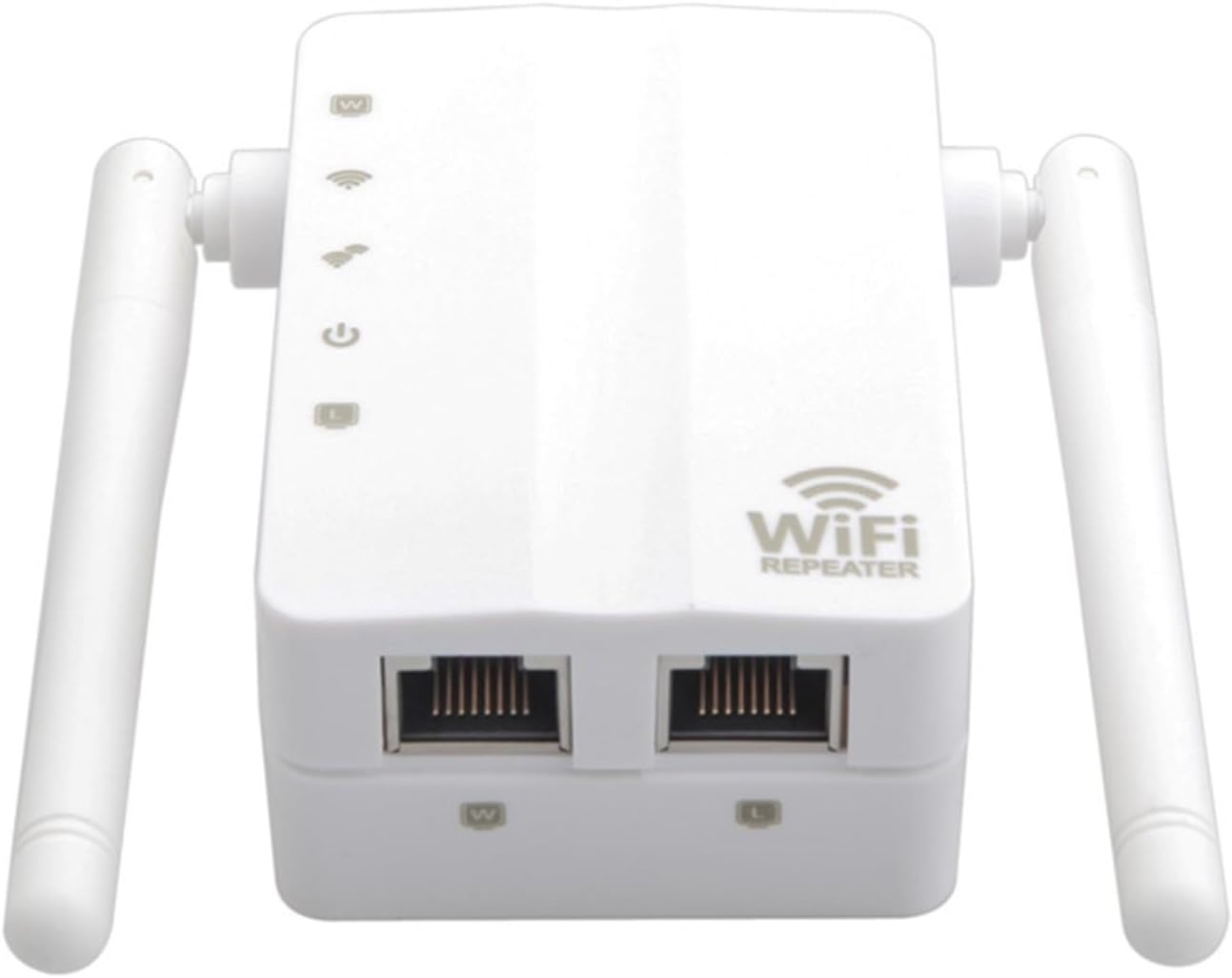
Figure 5.1: Connection diagram illustrating how to connect the Lovskoo WiFi Repeater to your internet source (modem/router) using the WAN port.

Figure 5.2: Connection diagram demonstrating how to connect a wired device, such as a computer, to the Lovskoo WiFi Repeater using the LAN port.
Setup Video Guide
Video 5.1: An official video demonstrating the setup and functionality of the Lovskoo WiFi Booster, highlighting its long-range capabilities.
6. Operating Modes
The Lovskoo WiFi Booster supports multiple operating modes to suit various networking needs:
- Repeater Mode: Extends the range of an existing wireless network. This is the most common mode for eliminating Wi-Fi dead zones.
- AP (Access Point) Mode: Converts a wired network connection into a wireless one. Ideal for creating a new Wi-Fi hotspot from an Ethernet port.
- Router Mode: Functions as a basic router, providing internet access to multiple devices via a single internet connection (e.g., from a modem).
You can switch between these modes via the web-based management interface during or after the initial setup.
7. Specifications
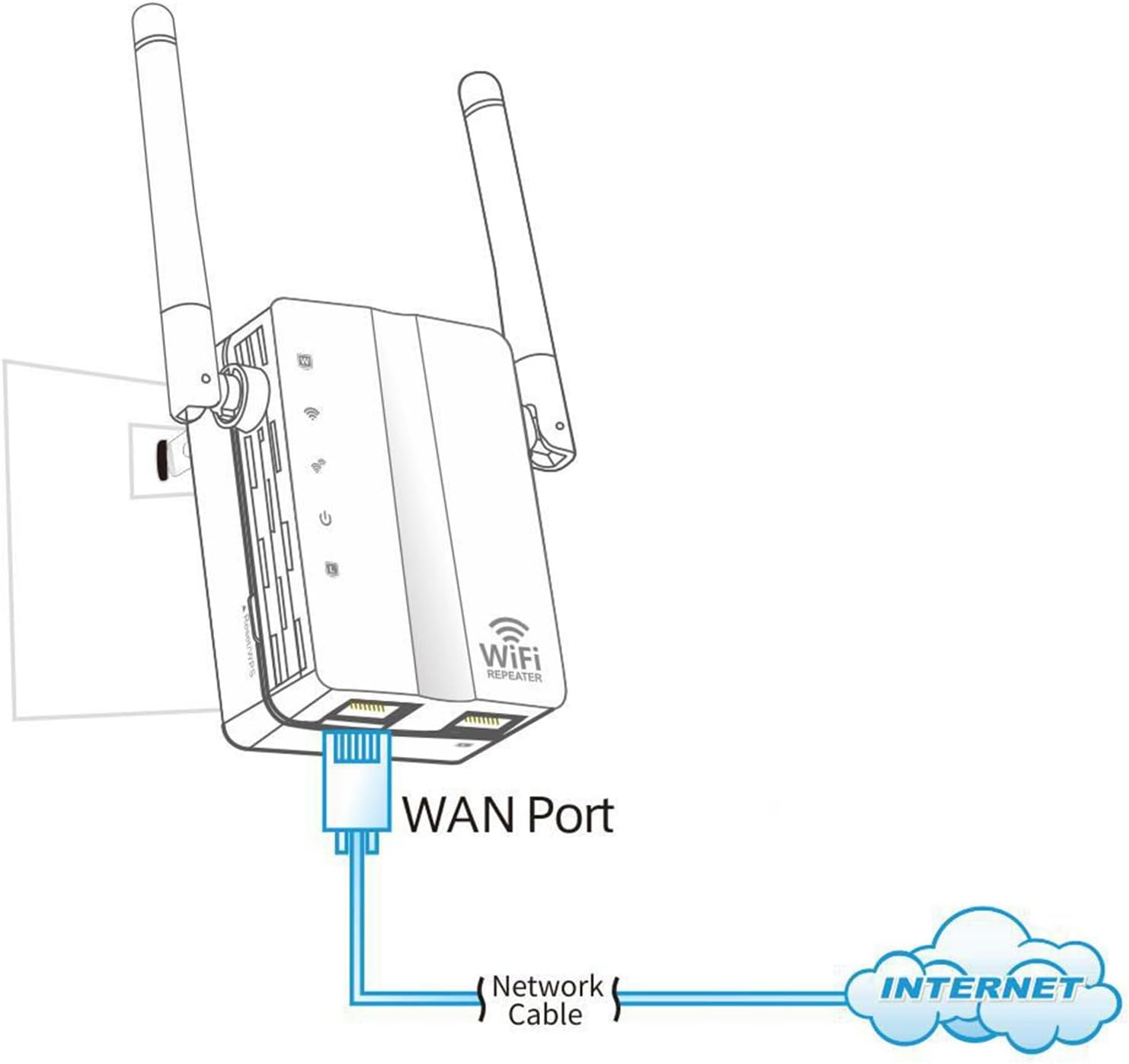
Figure 7.1: Dimensional drawing of the Lovskoo WiFi Repeater, showing its height, width, and depth.
| Feature | Detail |
|---|---|
| Chipset | MTK7628kn |
| Interface | 1 x 10/100Mbps WAN Port, 1 x 10/100Mbps LAN Port |
| Wireless Speed | Up to 300Mbps (11n) |
| Frequency Range | 2.4-2.4835GHz |
| Transmit Power | 20dBm (maximum EIRP) |
| Antenna | 2 x 2dBi External Antennas (fixed) |
| Working Modes | Repeater / AP / Router |
| Security | 64/128-bit WEP, WPA/WPA2, WPA-PSK/WPA2-PSK (TKIP/AES) |
| Operating Temperature | -20 ℃ to 70 ℃ (-4°F to 158°F) |
| Storage Temperature | -40 ℃ to 90 ℃ (-40°F to 194°F) |
| Operating Humidity | 5% to 95% (non-condensing) |
| Storage Humidity | 90% max (non-condensing) |
| Supported OS | Windows XP/Vista/Linnux/Win 7/Win 8/Win8.1/Win10/Mac OS |
| Adapter Type | US Plug |
| Color | Black, White |
| Product Dimensions | 142 x 90 x 50 mm (5.59 x 3.54 x 1.97 inches) |
| Item Weight | 5.3 ounces |
8. Troubleshooting
- Cannot access the web management page (192.168.188.1):
- Ensure your device is connected to the booster's Wi-Fi network or via Ethernet.
- Verify that your computer's IP settings are set to "Obtain an IP address automatically".
- Try clearing your browser's cache or using a different browser.
- If the issue persists, perform a factory reset.
- No internet access after setup:
- Check if the Repeater LED is solid, indicating a successful connection to your main router.
- Ensure you entered the correct Wi-Fi password for your main router during setup.
- Relocate the booster closer to your main router to ensure it's within range.
- Restart both your main router and the WiFi Booster.
- Slow internet speed:
- Ensure the booster is placed in an optimal location, ideally halfway between your router and the desired coverage area, where it receives a strong signal from the main router. The smart indicator light can help.
- Avoid placing the booster near large metal objects, concrete walls, or other electronic devices that may cause interference.
- Check for channel interference from neighboring Wi-Fi networks. You might need to change the Wi-Fi channel on your main router.
- How to reset the device to factory settings:
With the device powered on, press and hold the WPS/Reset button for approximately 8 seconds until all LEDs flash. The device will then restart with default settings.
9. Maintenance and Safety Information
Maintenance
- Keep the device clean and free from dust. Use a soft, dry cloth for cleaning.
- Ensure proper ventilation; do not block the ventilation holes.
- Regularly check for firmware updates on the manufacturer's website (if available) to ensure optimal performance and security.
Safety Information
- This device is designed for indoor use only. Do not expose it to water, moisture, or extreme temperatures.
- Do not attempt to disassemble or repair the device yourself. Refer all servicing to qualified personnel.
- Use only the power adapter provided or specified by the manufacturer.
- Keep the device away from heat sources and direct sunlight.
- Ensure the power outlet is easily accessible for disconnecting the device if needed.
10. Warranty and Support
This product comes with a standard manufacturer's warranty. For specific warranty terms, duration, and support inquiries, please refer to the warranty card included in your package or contact Lovskoo customer support directly.
For technical assistance or further questions, please visit the official Lovskoo website or contact their customer service department through the contact information provided with your purchase.


