
1. Introduction
This manual provides detailed instructions for the PUSOKEI F10 2G Flip Cell Phone. Please read this manual carefully before using your device to ensure proper operation and to maximize its features. The F10 is designed for ease of use, featuring a 1.8-inch screen, large backlit buttons, and a 3600mAh battery, making it suitable for seniors or as a reliable backup phone.
Key features include:
- 1.8-inch high-definition display.
- Large, backlit, raised buttons for easy dialing and navigation.
- Support for 3 SIM cards and 1 storage card (up to 16GB, not included).
- 3600mAh lithium-ion battery for extended standby time.
- Functions: Calls, SMS, camera, MP3/MP4, Bluetooth, FM radio, alarm, recording, calendar, flashlight, calculator, and basic internet browser.
- Loud speaker for clear audio during calls.
2. Setup
2.1 Package Contents
Verify that all items are present in the package:
- 1 x PUSOKEI F10 Mobile Phone
- 1 x Power Adapter (US Plug)
- 1 x Lithium Ion Battery (3600mAh)
- 1 x User Manual (this document)
2.2 Battery, SIM Card, and Storage Card Installation
Follow these steps to install the battery, SIM cards, and an optional storage card:
- Remove the Back Cover: Gently pry open the back cover of the phone using the notch provided, usually at the bottom edge.
- Insert SIM Cards: The phone supports up to three SIM cards. Locate the SIM card slots. Insert your 2G GSM SIM cards into the designated slots with the gold contacts facing down and the cut corner oriented correctly. Ensure they click into place.
- Insert Storage Card (Optional): If you wish to expand storage, insert a MicroSD card (up to 16GB, not included) into the storage card slot.
- Install the Battery: Place the 3600mAh lithium-ion battery into the battery compartment, ensuring the gold contacts on the battery align with the contacts in the phone.
- Replace the Back Cover: Align the back cover and press it firmly until it snaps securely into place.
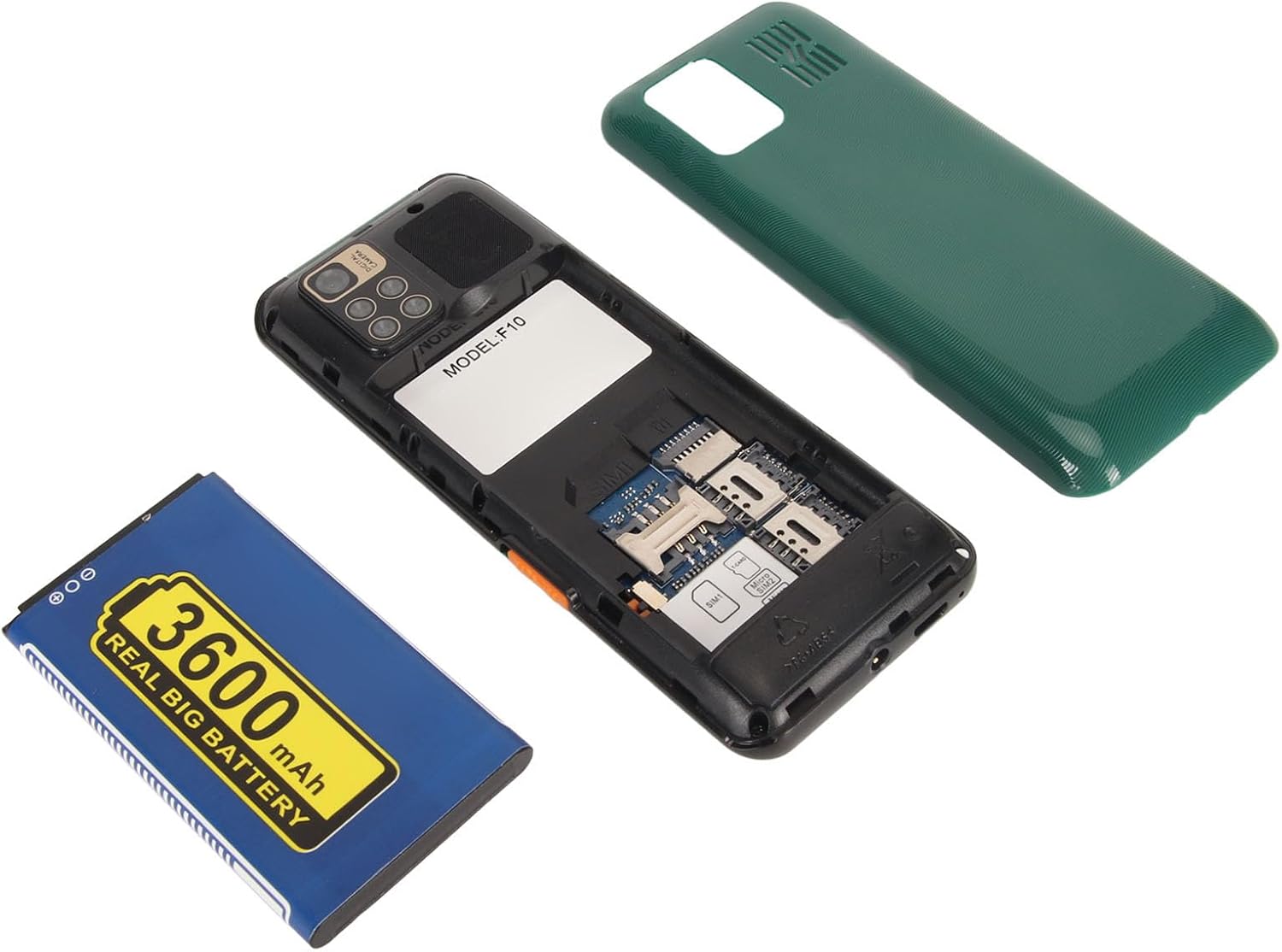
2.3 Charging the Battery
Before first use, fully charge the phone's battery.
- Connect the small end of the Micro USB charging cable to the charging port at the bottom of the phone.
- Connect the larger end of the charging cable to the provided power adapter.
- Plug the power adapter into a wall outlet.
- The battery indicator on the screen will show the charging status. Once fully charged, disconnect the charger.

3. Operating Instructions
3.1 Power On/Off
- To Power On: Press and hold the Power/End Call button (usually red) until the screen lights up.
- To Power Off: Press and hold the Power/End Call button until the power off options appear, then select "Power Off".
3.2 Basic Navigation
The phone features a physical keypad and a central navigation button for menu interaction.

- Navigation Button: Use the central 4-way navigation button (Up, Down, Left, Right) to scroll through menus and options.
- OK/Confirm Button: The central button within the 4-way navigation is typically used to select or confirm an option.
- Soft Keys: The buttons directly below the screen (often labeled "Menu" and "Contacts" or similar) perform context-sensitive actions displayed on the screen above them.
- Call Button: Press the green call button to initiate a call or answer an incoming call.
- End Call Button: Press the red end call button to end a call or return to the home screen.
3.3 Making and Receiving Calls
- To Make a Call:
- From the home screen, dial the phone number using the keypad.
- Press the green Call button to initiate the call.
- To Answer a Call: When the phone rings, press the green Call button.
- To End a Call: Press the red End Call button.
- Adjusting Volume: During a call, use the side volume buttons (if present) or navigation keys to adjust the call volume.
3.4 Messaging (SMS)
- From the main menu, navigate to "Messages" or "SMS".
- Select "Write Message" or "New Message".
- Enter the recipient's phone number or select from contacts.
- Type your message using the keypad. Press the '#' key to switch input modes (e.g., ABC, Abc, abc, 123).
- Press the "Send" option (usually a soft key).
3.5 Camera
The phone is equipped with a 0.3MP camera.
- From the main menu, select "Camera".
- Frame your shot using the screen as a viewfinder.
- Press the central OK/Confirm button to take a picture.
- Pictures are saved to the phone's memory or the installed storage card.

3.6 Multimedia and Other Functions
Explore the main menu for various applications:
- MP3/MP4 Player: Play audio and video files stored on your phone or storage card.
- Bluetooth: Connect to compatible Bluetooth devices like headsets. Go to "Settings" > "Bluetooth" to enable and pair.
- FM Radio: Listen to local radio stations. A headset may be required to act as an antenna.
- Flashlight: Activate the built-in flashlight from the shortcuts or tools menu.
- Alarm Clock, Recording, Calendar, Calculator, Games: Access these standard utility functions from the main menu.
- Internet Browser/WhatsApp: The phone supports basic internet access and applications like WhatsApp. Note that performance may vary due to 2G network limitations.
4. Maintenance
4.1 Cleaning the Device
- Use a soft, dry, lint-free cloth to clean the phone's screen and body.
- Avoid using harsh chemicals, cleaning solvents, or strong detergents, as these can damage the phone's surface or internal components.
- Do not expose the phone to excessive moisture.
4.2 Battery Care
- To prolong battery life, avoid fully discharging the battery frequently.
- Charge the phone using only the provided charger or a compatible charger.
- Do not expose the battery to extreme temperatures (hot or cold).
- If the phone will not be used for an extended period, charge it to about 50% before storing.
4.3 Storage
- Store the phone in a cool, dry place away from direct sunlight and extreme temperatures.
- Keep the phone away from magnetic fields.
5. Troubleshooting
If you encounter issues with your PUSOKEI F10, refer to the following common solutions:
| Problem | Possible Cause / Solution |
|---|---|
| Phone does not power on. |
|
| No network signal or cannot make/receive calls. |
|
| Call volume is too low. |
|
| Phone is unresponsive or frozen. |
|
| Cannot access internet or WhatsApp. |
|
6. Specifications
| Feature | Detail |
|---|---|
| Model | F10 |
| Brand | PUSOKEI |
| Screen Size | 1.8 Inches |
| Display Type | LCD |
| Resolution | 240 x 320 |
| Network Type | 2G GSM |
| Frequency Band | GSM 850/900/1800/1900 MHz |
| SIM Card Slots | 3 (Triple SIM Standby) |
| Storage Card Support | MicroSD up to 16GB (not included) |
| Battery Capacity | 3600mAh Lithium-Ion |
| Camera | 0.3MP |
| Bluetooth | Version 2.0 |
| Charging Interface | Micro USB |
| Languages Supported | English, French, Indonesian, Portuguese, Russian, Spanish, Vietnamese |
| Body Dimensions | 130 x 53 x 15mm / 5.1 x 2.1 x 0.6in |
| Weight | Approx. 170g / 6.0oz |
7. Warranty and Support
7.1 Warranty Information
The PUSOKEI F10 Flip Cell Phone comes with a standard manufacturer's warranty. Please refer to the warranty card included in your product packaging for specific terms, conditions, and duration. Keep your proof of purchase for warranty claims.
7.2 Customer Support
For technical assistance, troubleshooting beyond this manual, or warranty inquiries, please contact PUSOKEI customer support through the retailer where you purchased the product or visit the official PUSOKEI website for contact details.
When contacting support, please have your product model (F10) and purchase information ready.