
Introduction
The BoxWave AquaProof USB Keyboard is designed for environments where hygiene and durability are paramount. This keyboard features a waterproof design, allowing for easy cleaning and disinfection, ensuring a healthy and functional workspace. Its robust construction includes rubberized gaskets and UV coating to protect internal electronics, and high-quality mechanical switches built for longevity.

Image: The BoxWave AquaProof USB Keyboard, a full-sized black keyboard, is shown alongside a silver laptop, illustrating its intended use as an external peripheral.
Setup
- Unpack the Keyboard: Carefully remove the AquaProof USB Keyboard from its packaging.
- Connect to Device: Locate an available USB port on your computer or device. The keyboard features a 6-foot long USB cable. Insert the USB-A connector into the USB port.
- Plug-and-Play: The keyboard utilizes a universal Plug-and-Play USB protocol, meaning no additional drivers are typically required. Your operating system should automatically detect and configure the keyboard.
- Utilize Extension Ports (Optional): The keyboard includes two extra USB extension ports. These can be used to connect additional USB devices, such as a mouse or a USB flash drive, directly through the keyboard.

Image: A detailed diagram of the BoxWave AquaProof USB Keyboard highlighting various features including its 1.8M USB cable, plug-and-play capability, and full-size layout, demonstrating its ease of setup.
Operation
The AquaProof USB Keyboard functions as a standard full-size keyboard, compatible with Windows 7/8, Windows 9/10, and Mac operating systems. It features a 104/105 key layout, including a numeric keypad and function keys.
- Typing: The keyboard is equipped with silent keycaps and high-quality mechanical switches designed for a comfortable and durable typing experience, rated for over 8 million clicks.
- Adjustable Tilt Legs: For ergonomic comfort, the keyboard features adjustable tilt legs on its underside. Extend these legs to raise the back of the keyboard to your preferred typing angle.
- Non-Slip Feet: Rubberized feet ensure the keyboard remains stable and does not move during use.
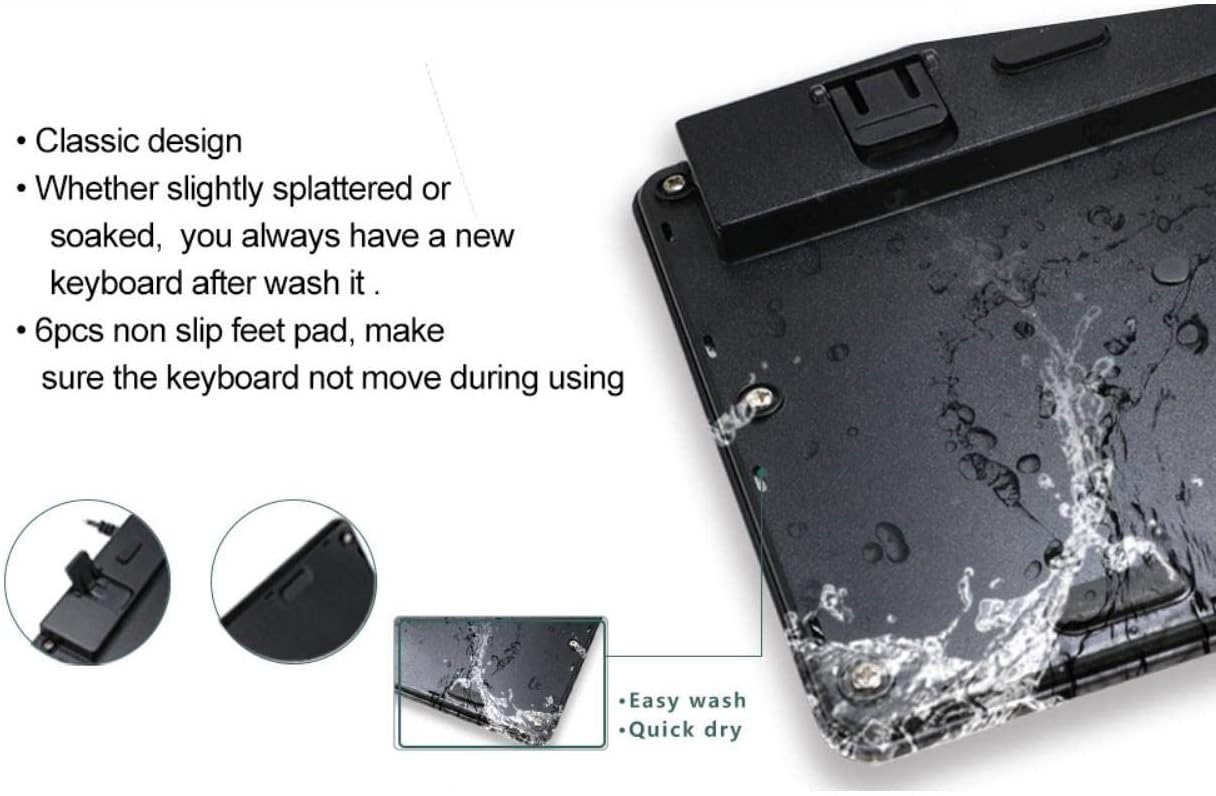
Image: The underside of the BoxWave AquaProof USB Keyboard, illustrating the adjustable tilt legs and non-slip feet, which contribute to a stable and customizable typing experience.
Maintenance
One of the key features of the BoxWave AquaProof USB Keyboard is its ability to be easily cleaned, promoting a hygienic workspace. The keyboard is designed to be washable and waterproof.
- Cleaning Procedure: You can spray the keyboard with disinfectant, wipe it down, or even wash it with soap and water. The rubberized gaskets and UV coating protect the internal electronics from water damage.
- Drying: After washing, ensure the keyboard is thoroughly dried before prolonged use. Its design facilitates quick drying.
- Avoid Harsh Chemicals: While resistant to water and common disinfectants, avoid using abrasive cleaners or strong solvents that could damage the keycap legends or the UV coating.
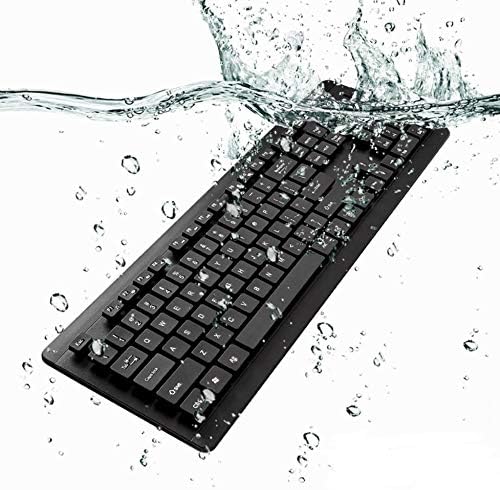
Image: The BoxWave AquaProof USB Keyboard is shown partially submerged in water, with splashes, demonstrating its waterproof capability for easy cleaning.

Image: A hand is shown holding the BoxWave AquaProof USB Keyboard under a running water faucet in a sink, illustrating the practical application of its washable feature.
Troubleshooting
If you encounter any issues with your BoxWave AquaProof USB Keyboard, please consider the following common troubleshooting steps:
- Keyboard Not Responding:
- Ensure the USB cable is securely plugged into a functioning USB port on your device.
- Try plugging the keyboard into a different USB port.
- Restart your computer or device.
- If using a USB hub, try connecting the keyboard directly to the computer.
- Keys Not Functioning Correctly:
- Ensure the keyboard is clean and free of debris. If recently washed, ensure it is completely dry.
- Test the keyboard on another computer to determine if the issue is with the keyboard or the original device.
If problems persist after attempting these steps, please refer to the "Warranty & Support" section for further assistance.
Specifications
| Feature | Detail |
|---|---|
| Model Name | AquaProof USB Keyboard |
| Brand | BoxWave |
| Color | Jet Black |
| Connectivity Technology | USB-A |
| Human Interface Input | Keyboard |
| Dimensions (L x W x H) | 450 x 144 x 27 mm (17.7 x 5.7 x 1.1 inches) |
| Item Weight | 1.12 pounds (approx. 508 grams) |
| Cable Length | 6 feet (approx. 1.8 meters) |
| Key Switch Durability | Over 8 million clicks |
| Special Features | Washable, Waterproof, UV Coated, Adjustable Tilt Legs, Non-slip Feet, 2 Extra USB Extension Ports |
| Compatibility | Windows 7/8, Windows 9/10, Mac (Compatible with AGB Orion RA-0301) |

Image: The BoxWave AquaProof USB Keyboard is displayed with its key dimensions (length 450mm, width 144mm) and weight (620g) clearly indicated, providing a visual reference for its size.
Warranty & Support
BoxWave stands behind the quality of its products. For support regarding your AquaProof USB Keyboard, please contact BoxWave Corporation directly.
- Technical Support: Limited third-party technical support is included for compatibility with devices like the AGB Orion RA-0301 (up to 3 inquiries via electronic messaging). Please note, BoxWave is not affiliated with or endorsed by AGB.
- Contact Information: For general product inquiries, warranty claims, or further technical assistance, please visit the official BoxWave website or contact their customer service department. Refer to your product packaging or the BoxWave website for the most current contact details.