
Introduction
The BoxWave MagnetoSync mini Adapter offers a convenient and versatile solution for charging and data transfer across various devices. This adapter utilizes a magnetic connection system, designed to minimize wear and tear on your device's charging ports. It includes interchangeable magnetic tips for broad compatibility, supporting USB Type-C, Micro USB, and Lightning devices, and enables simultaneous charging and data transfer.
Product Overview
The MagnetoSync mini Adapter system comprises a main USB-A adapter unit and several magnetic connector tips. These tips are designed to be inserted into your device's charging port, allowing for quick and easy magnetic attachment of the main adapter.
- Main Adapter Unit: This unit connects to a standard USB-A port on a power source or computer. It features a magnetic receptacle for the tips and a reversible USB-A plug for easy connection.
- USB Type-C Magnetic Tip: Designed for devices equipped with a USB Type-C charging port.
- Micro USB Magnetic Tip: Designed for devices equipped with a Micro USB charging port.
- Lightning (i-product) Magnetic Tip: Designed for devices equipped with a Lightning charging port.
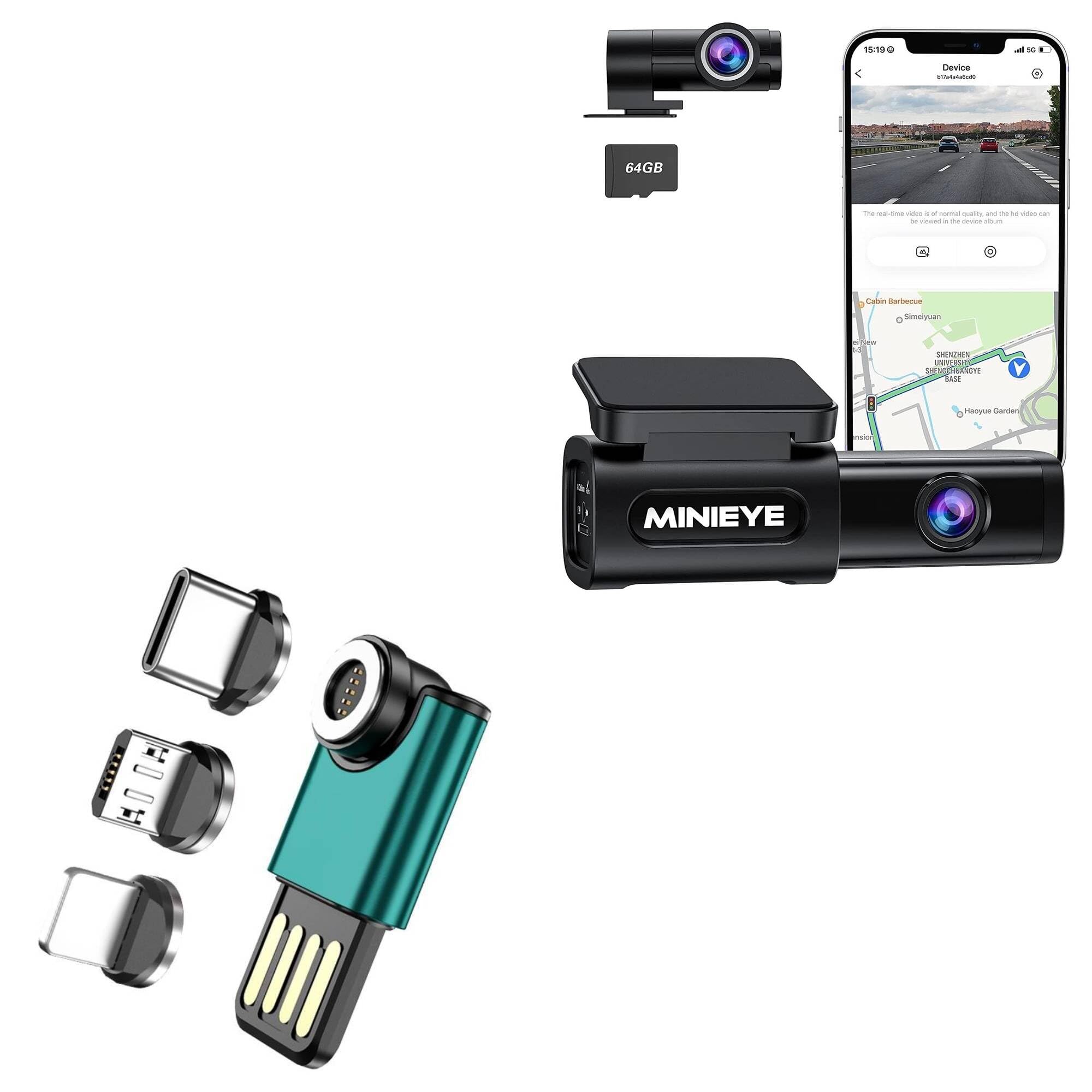
Image: The MagnetoSync mini Adapter showing the main USB-A unit and three magnetic tips (USB-C, Micro USB, and Lightning).

Image: The main adapter unit separated from the magnetic tips, illustrating the modular design of the system.
Setup
- Identify Device Port: Determine the charging port type on your device (USB Type-C, Micro USB, or Lightning).
- Insert Magnetic Tip: Carefully insert the corresponding magnetic tip into your device's charging port. Ensure it is fully seated and flush with the device's surface. This tip is designed to remain in the port for convenience.
- Connect Main Adapter: Plug the USB-A end of the MagnetoSync mini Adapter into a compatible USB-A port on a power source (e.g., wall adapter, car charger) or a computer for data transfer. The USB-A connector is reversible, allowing it to be plugged in either orientation.
- Magnetic Connection: Bring the main adapter unit close to the magnetic tip inserted in your device. The strong magnets will automatically align and connect, initiating charging or data transfer.

Image: A hand demonstrating the compact size and portability of the MagnetoSync mini Adapter.

Image: A detailed view of the reversible USB-A connector, indicated by blue arrows, highlighting its user-friendly design.
Operating Instructions
The MagnetoSync mini Adapter simplifies the process of connecting your devices for power and data.
- Charging: Once the magnetic tip is securely in your device and the main adapter is connected to a power source, simply bring the adapter near the tip. The magnetic connection will secure it, and your device will begin charging.
- Data Transfer: Connect the main adapter to a computer's USB-A port. Then, magnetically attach your device (with the appropriate tip inserted) to the adapter. Your device should be recognized by the computer for data synchronization. The adapter supports simultaneous charging and data transfer.
- 540° Rotation: The magnetic connection point on the main adapter allows for a 540-degree rotation. This feature provides flexibility in how your device is oriented while connected, helping to prevent cable strain and allowing for comfortable use in various positions.

Image: A diagram illustrating the 540-degree rotational capability of the magnetic connector, allowing for flexible device positioning.

Image: The MagnetoSync mini Adapter in use, connecting a smartphone to a laptop for charging and data transfer.
Maintenance
- Cleaning: Keep the magnetic contact points on both the adapter and the tips clean and free of dust or debris. Use a dry, soft cloth to gently wipe them if necessary. Avoid using liquids or abrasive cleaners.
- Storage: When not in use, store the adapter and tips in a clean, dry place. The compact design allows for easy storage in a backpack, pocket, or purse.
- Handling: Avoid excessive force when inserting or removing the magnetic tips from your device. While designed for durability, improper handling can cause damage.
Troubleshooting
| Issue | Possible Cause | Solution |
|---|---|---|
| Device not charging or syncing. | Magnetic tip not fully inserted into device. | Ensure the magnetic tip is securely and fully seated in your device's charging port. |
| Device not charging or syncing. | Main adapter not properly connected to power source or computer. | Verify the USB-A end of the adapter is firmly plugged into a functional USB-A port. Try a different port or power source. |
| Intermittent connection. | Dust or debris on magnetic contact points. | Clean the magnetic contact points on both the adapter and the tip with a dry, soft cloth. |
| Adapter feels loose when connected. | Magnetic tip or adapter may be damaged. | Inspect the magnetic components for any visible damage. If damaged, replacement may be necessary. |
Specifications
| Feature | Detail |
|---|---|
| Product Name | MagnetoSync mini Adapter (also referred to as 540° Rotate Mini Magnetic Charger) |
| Function | Charging + Data Transmission |
| Current / Voltage | 9V/2A; 5V/3A |
| Applicable Interfaces | Micro USB, USB Type-C, Lightning (i-product) |
| Material | Aluminum Alloy |
| Item Weight | 1.5 ounces |
| Dimensions (Main Adapter with Type-C tip) | Approximately 41.5mm (Length) x 14.2mm (Width) |
| Magnetic Connector Diameter | Approximately 9mm |

Image: Detailed product parameters and dimensional measurements for the MagnetoSync mini Adapter.
Warranty and Support
This product includes limited third-party technical support (up to 3 inquiries via electronic messaging) provided by BoxWave Corporation. Please note that this product is not affiliated with or endorsed by Spedal.
For further assistance or warranty information, please refer to the product packaging or visit the official BoxWave website.