
1. Introduction
Thank you for purchasing the SKKTKT TV Stand. This entertainment center is designed to accommodate TVs up to 75 inches and features integrated LED lighting with body sensor activation, a 3-mode charging station (wireless, USB, Type-C), and ample storage. This manual provides detailed instructions for assembly, operation, maintenance, and troubleshooting to ensure optimal use and longevity of your product.

Figure 1: Front view of the SKKTKT TV Stand with LED lights activated.
2. Safety Instructions
- Read all instructions carefully before assembly and use.
- Keep children and pets away from the assembly area. Small parts can be a choking hazard.
- Ensure all connections are secure before placing a TV or other items on the stand.
- Do not exceed the maximum weight capacity of 110 pounds (50 kg).
- Place the TV stand on a level and stable surface to prevent tipping.
- Avoid exposing the LED lights and charging station to water or excessive moisture.
- Unplug the power cord before cleaning or performing any maintenance.
- Do not attempt to modify the product. Any modifications may void the warranty and pose safety risks.
3. Package Contents
Verify that all components are present before beginning assembly. If any parts are missing or damaged, please contact customer service.
- Top Panel (1)
- Middle Shelf (1)
- Bottom Shelf (1)
- Side Frames (2, X-shape reinforced)
- Support Legs (5, with floor protectors)
- Dividing Panels (4)
- LED Light Strip (1)
- Charging Station Unit (1, with wireless, USB, Type-C)
- Assembly Hardware (screws, dowels, cam locks, etc.)
- Assembly Instructions

Figure 2: Key components and features of the TV stand.
4. Assembly Instructions
Assembly typically requires two people. Follow the numbered steps in the included assembly instructions. Ensure all parts are correctly oriented before tightening screws.
- Unpack and Identify: Carefully unpack all components and hardware. Refer to the parts list to identify each piece.
- Assemble Side Frames: Attach the X-shape reinforced side frames to the main support legs using the provided hardware.
- Attach Bottom Shelf: Secure the bottom shelf to the assembled side frames. Ensure it is level and stable.
- Install Dividing Panels: Insert the four dividing panels into the designated slots on the bottom shelf and secure them.
- Attach Middle Shelf: Place and secure the middle shelf onto the dividing panels and side frames.
- Install Top Panel: Carefully place the top panel onto the assembled structure and secure it with the remaining hardware.
- Install LED Light Strip: Adhere the LED light strip to the designated area, typically along the underside of the top panel or middle shelf, following the clear installation stickers.
- Integrate Charging Station: Install the charging station unit into its designated cutout on the top surface. Connect its power cable to the main power supply.
- Final Check: Ensure all screws are tightened, and the stand is stable.
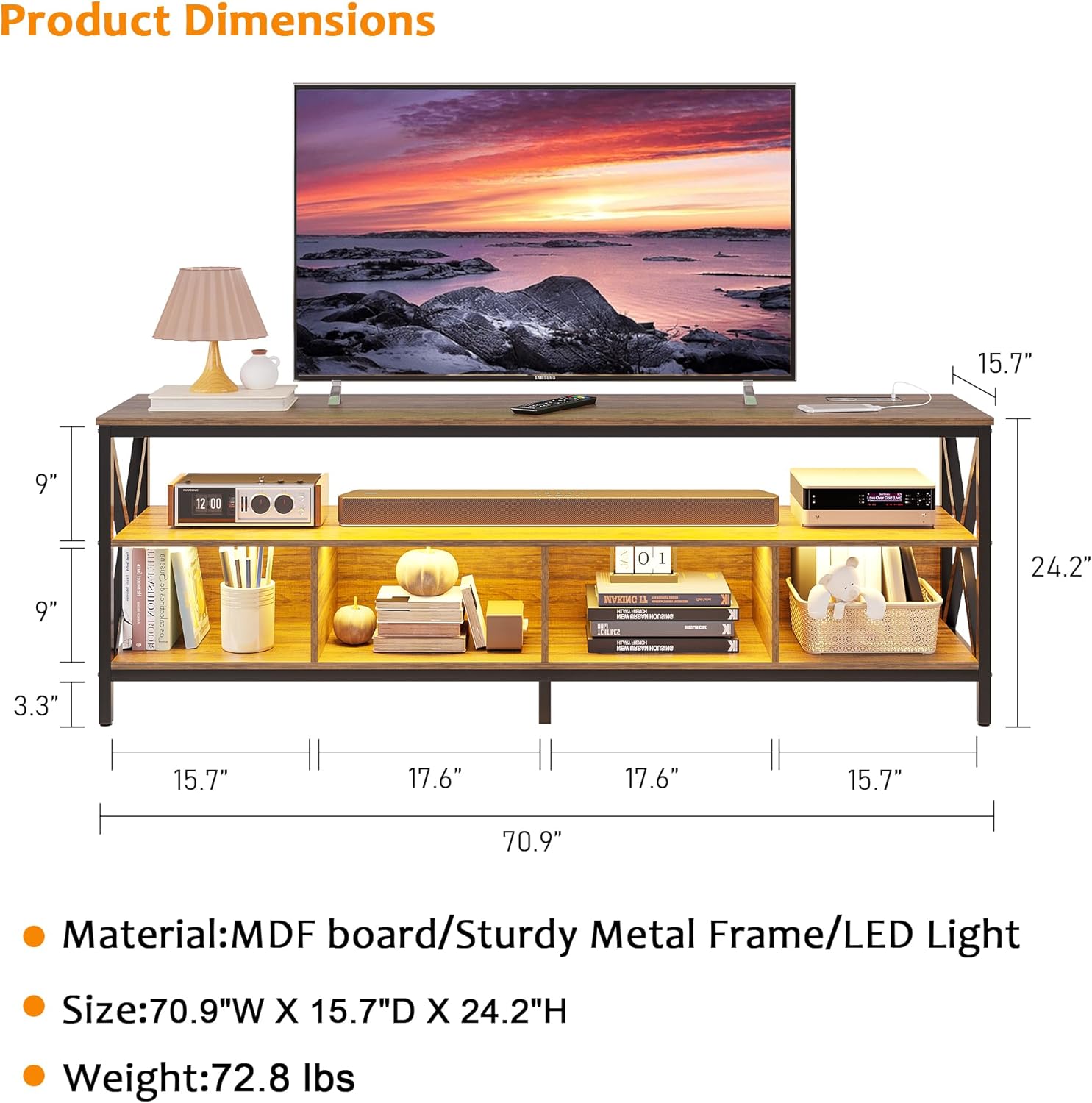
Figure 3: Product dimensions for planning placement.
5. Operating Instructions
5.1 LED Lights
The integrated LED lights offer three color options and adjustable brightness, along with a body sensor mode.
- Body Sensor Mode: Activate the body sensor mode using the 'Body' button on the control panel. The lights will automatically turn on when motion is detected nearby and turn off when no motion is detected for a period.
- Color Change: Short press the 'Light' button on the control panel to cycle through the three available colors: white, yellow, and blue.
- Brightness Adjustment: Long press the 'Light' button to adjust the brightness level. Release the button when the desired brightness is reached.

Figure 4: Smart control panel for LED lights and charging.
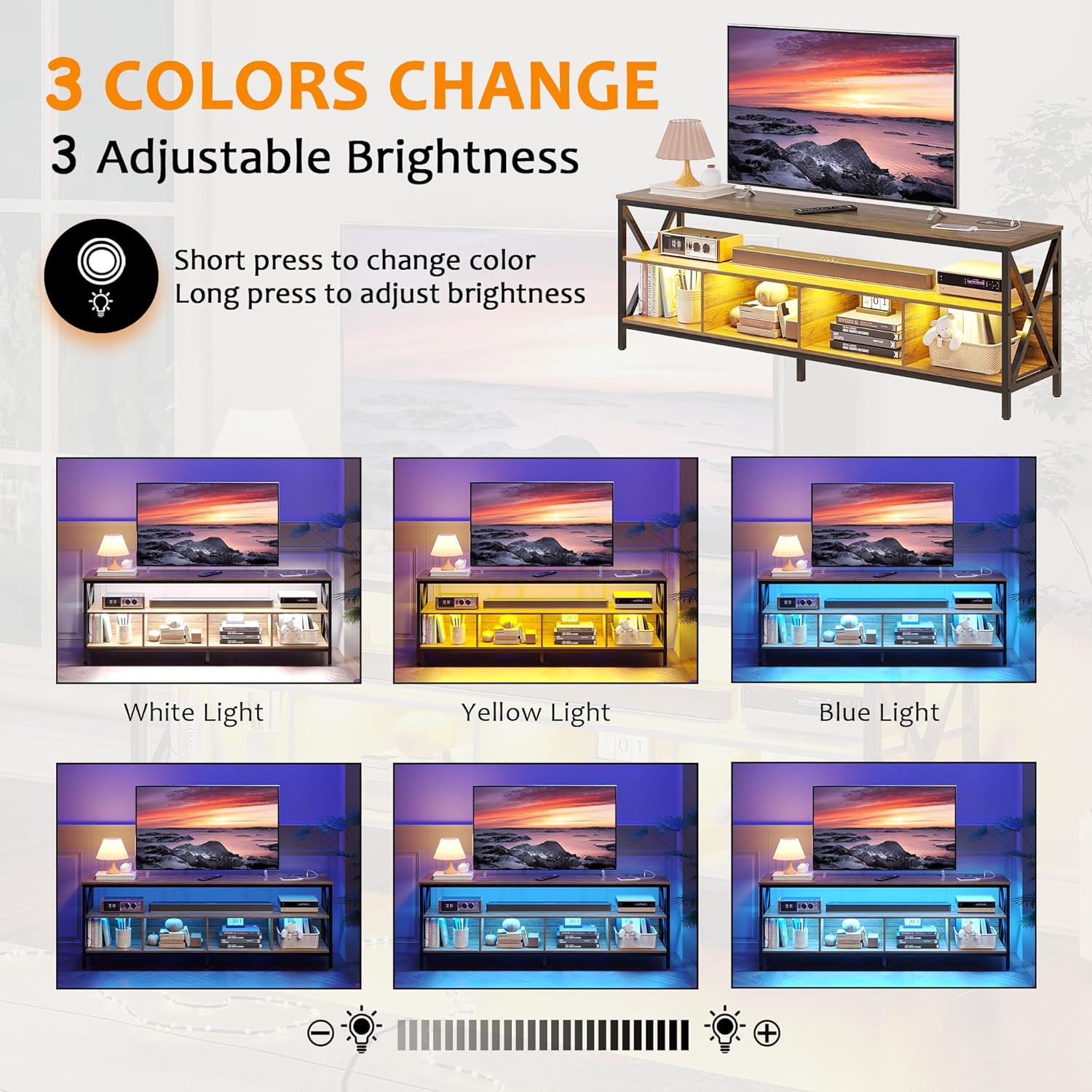
Figure 5: LED light color and brightness options.
5.2 Charging Station
The TV stand includes a versatile charging station with wireless, USB, and Type-C charging options.
- Wireless Charging: Place your compatible device on the wireless charging pad. Ensure the device is centered for optimal charging.
- USB Charging: Connect your device's USB cable to the USB port on the charging station.
- Type-C Charging: Connect your device's Type-C cable to the Type-C port on the charging station.
6. Maintenance
To maintain the appearance and functionality of your TV stand, follow these simple care instructions:
- Cleaning: Wipe the surfaces with a dry, soft cloth. Avoid using harsh chemicals or abrasive cleaners, which can damage the finish.
- Spills: Immediately wipe up any spills with a dry cloth to prevent staining or damage to the wood and electronic components.
- Inspection: Periodically check all hardware connections to ensure they remain tight. Retighten if necessary.
- Floor Protectors: Ensure the floor protectors on the legs are intact to prevent scratches on your flooring.
7. Troubleshooting
7.1 LED Lights Not Working
- Check Power: Ensure the TV stand is properly plugged into a working power outlet.
- Light Strip Connection: Verify that the LED light strip is securely connected to the power source and control unit.
- Control Panel: Ensure the 'Light' button on the control panel is pressed to turn on the lights.
7.2 Charging Station Not Working
- Power Connection: Confirm the TV stand is plugged in and receiving power.
- Device Compatibility: For wireless charging, ensure your device is wireless charging compatible and properly aligned on the pad.
- Cable Check: For USB/Type-C, ensure your charging cable is functional and securely connected to both the device and the port.
- Overload: Avoid charging too many high-power devices simultaneously, which might exceed the station's capacity.
7.3 Stability Issues
- Level Surface: Ensure the TV stand is placed on a flat, level surface.
- Tighten Hardware: Recheck and tighten all assembly screws and bolts.
- Weight Distribution: Distribute items evenly across the shelves and top surface.
8. Specifications
| Feature | Detail |
|---|---|
| Brand | SKKTKT |
| Model | B0CGJ4MCZF |
| Material | MDF Board, Sturdy Metal Frame |
| Color | Brown |
| Product Dimensions (W x D x H) | 70.9" x 15.7" x 24.2" (180cm x 40cm x 61.5cm) |
| Item Weight | 72.8 Pounds (33 kg) |
| Weight Capacity (Maximum) | 110 Pounds (50 kg) |
| TV Size Compatibility | Up to 75 inches |
| LED Lights | Auto Sensor, 3 Colors (White/Blue/Yellow), 3 Level Brightness |
| Charging Station | Wireless Charging, USB Port, Type-C Port |
| Frame Type | Metal (X-shape reinforced) |
| Floor Protection | Included on legs |
9. Customer Support
If you have any questions, concerns, or require assistance with your SKKTKT TV Stand, please contact us directly via Amazon. We are committed to providing the best solution for you within 24 hours.
For further information or to explore other products, visit the SKKTKT Store on Amazon.