
1. Product Overview
The TCDSTAR X80 is a versatile handheld game console designed for portable entertainment. It features a 7-inch HD screen, 16GB internal memory, and supports a wide range of retro game formats. Beyond gaming, it offers multimedia functions including music and video playback, a camera, and a digital recorder.

Image: Front view of the TCDSTAR X80 Handheld Game Console, showcasing its 7-inch screen and control layout.
2. Setup
2.1 Unboxing and Initial Charge
- Carefully remove the X80 console and all accessories from its packaging.
- Before first use, fully charge the console's built-in 3000mAh lithium polymer battery. Connect the provided USB cable to the console's charging port and a 5V, 2A charger (not always included).
- The charging indicator will typically show the charging status and turn off or change color when fully charged.
2.2 Identifying Ports and Controls
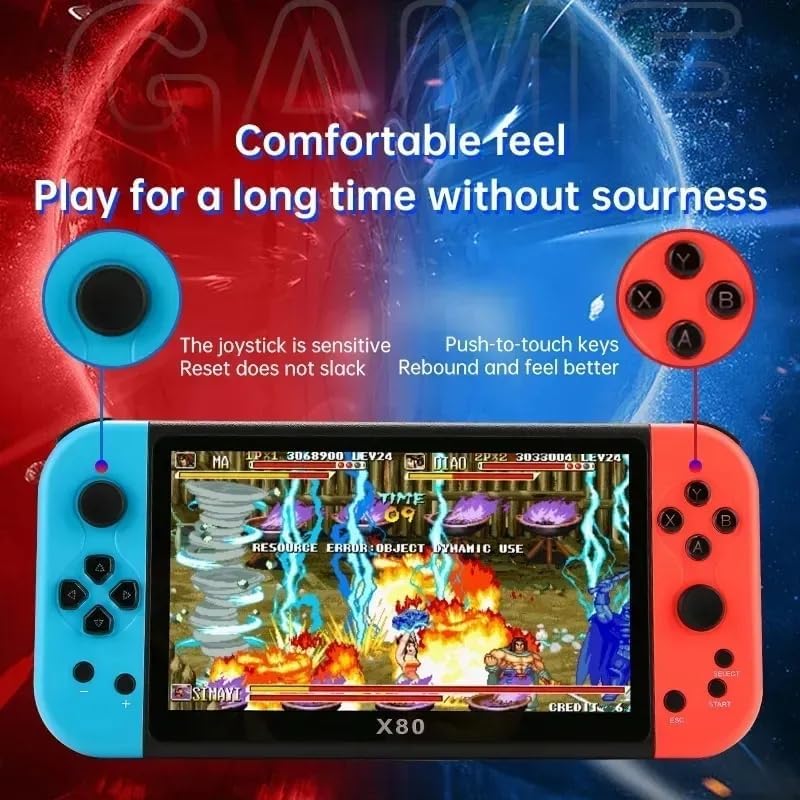
Image: Diagram illustrating the various ports and operation keys on the TCDSTAR X80 console, including TF mount, charging port, headphone jack, TV output HD interface, and operation keys.
- TF Mount: Insert a TF (MicroSD) card for expanded storage.
- Charging Port: Connect the USB charging cable.
- Headphone Jack: Connect 3.5mm headphones for private audio.
- TV Output HD Interface: Connect to a television using an HDMI cable for a larger display.
- Operation Keys: Standard gaming buttons and joysticks for control.
- Turn On Key: Power button to switch the device on/off.
2.3 Initial Power On
Press and hold the 'Turn on the key' (power button) until the screen illuminates. The console will boot to the main menu interface.
Video: An unboxing and initial setup demonstration of the X80 Handheld Game Console, showing the contents of the box and the console's first power-on sequence.
3. Operating Instructions
3.1 Navigating the Interface
Use the joysticks or directional pad (D-pad) on the left side of the console to navigate through menu options. The action buttons (A, B, X, Y) on the right are used for selection and confirmation, as indicated on-screen.

Image: The X80 console displaying its menu interface, showing options for file management, games, music, photos, and settings.
3.2 Playing Games
- From the main menu, select the 'Games' icon.
- Browse through the pre-installed games or navigate to your downloaded game files. The console supports game formats such as ZIP, MAME, GBA, GBC, GB, NES, SFC, FC, SMD, and MD.
- Select a game to launch it. Controls will adapt to the game being played.
- The console features sensitive joysticks and responsive push-to-touch keys for an enhanced gaming experience.

Image: A user holding the TCDSTAR X80 console, actively playing a game on its 7-inch screen, demonstrating the comfortable grip and dual joystick design.
3.3 Connecting to a TV
To enjoy games and videos on a larger screen, connect the X80 console to your television using an HDMI cable via the TV Output HD Interface. Ensure your TV input is set to the corresponding HDMI port.

Image: The X80 console connected to a television, displaying gameplay on the larger screen, highlighting its TV output capability.
3.4 Other Functions
The X80 console offers additional features accessible from the main menu:

Image: The X80 console displaying icons for various functions including File Management, Computer (Calculator), Music, Video, Stopwatch, E-books, Image Viewer, and Recording.
- Music Player: Supports MP3, WM/A, OGG, ACC, WA/V, APE, FLAC formats.
- Video Player: Supports full format video playback without conversion.
- Camera: Built-in 3-megapixel hardware camera.
- DV/Recorder: High-definition microphone for recording.
- Calculator: For basic calculations.
- E-books: Supports TXT format with a unique bookmark function.
- Image Browsing: Supports JPEG, BMP, GIF, TIF, PNG formats.
4. Maintenance
- Cleaning: Use a soft, dry cloth to clean the console's screen and body. Avoid abrasive cleaners or solvents.
- Battery Care: To prolong battery life, avoid fully discharging the battery frequently. Charge the console regularly, even if not in use for extended periods.
- Storage: Store the console in a cool, dry place away from direct sunlight, extreme temperatures, and humidity.
- Protection: Avoid dropping the device or exposing it to impacts. Keep it away from liquids.
5. Troubleshooting
- Console does not turn on: Ensure the battery is charged. Connect the charger and try again. If the issue persists, perform a hard reset by holding the power button for 10-15 seconds.
- Screen is unresponsive or frozen: Restart the console by holding the power button until it turns off, then power it back on.
- Games are not loading: Check if the game files are in a supported format. Ensure the game files are correctly placed in the console's memory or on the TF card.
- Poor TV output quality: Verify the HDMI cable is securely connected to both the console and the TV. Ensure the TV input is correctly selected.
- Controls are not responding: Restart the console. If specific buttons are consistently unresponsive, contact customer support.
6. Specifications

Image: A detailed table outlining the product parameters and specifications of the X80 Handheld Game Console.
| Feature | Detail |
|---|---|
| Model | X80 |
| Screen Size | 7 Inches HD TFT Color Screen, Resolution 800*480 |
| Memory Storage Capacity | 16 GB (expandable up to 128GB via TF card) |
| Number of Games | Built-in 20000+ games (including 1000+ non-duplicate games) |
| Supported Game Formats | ZIP, MAME, GBA, GBC, GB, NES, SFC, FC, SMD, MD |
| Battery | 3000 mAh Rechargeable Lithium Polymer, up to 6 hours battery life |
| Power Source | Battery Powered (requires 5V, 2A charger) |
| Hardware Interface | USB, HD Output (for TV connection) |
| Controller Type | Push Button, Dual Joysticks |
| Material | Plastic (ABS Material) |
| Product Dimensions | 12"L x 1"W x 4"H |
| Item Weight | 1.2 Pounds (520g including packaging) |
| Additional Functions | Music Player, Video Player, Camera, DV, Recorder, Calculator, E-book Reader, Image Viewer, Stopwatch |
7. Warranty Information
The TCDSTAR X80 Handheld Game Console is typically covered by a manufacturer's warranty against defects in materials and workmanship. Please refer to the specific warranty terms provided at the time of purchase or contact the seller for detailed information regarding warranty duration and coverage.
8. Support
For technical assistance, troubleshooting beyond this manual, or warranty claims, please contact the seller directly through the platform where the product was purchased. You may also visit the official TCDSTAR store on Amazon for additional product information and support resources.
TCDSTAR Store Link: Visit TCDSTAR Store