
Accutime HP4107AZ
Accutime Harry Potter Kids Smart Watch
Model HP4107AZ Instruction Manual
1. Product Overview
The Accutime Harry Potter Kids Smart Watch (Model HP4107AZ) is an interactive device designed for children, featuring a touchscreen, camera, voice recorder, step counter, and various built-in games and themed watch faces. This watch operates without Bluetooth or internet connectivity, ensuring a safe and controlled user experience. It is powered by a rechargeable battery and is suitable for wrist sizes ranging from 5.5 inches to 8 inches.

Image 1.1: Front view of the Harry Potter Kids Smart Watch.
2. Setup
2.1. Charging the Device
Before initial use, fully charge the smart watch. Connect the provided USB charging cable to the watch's USB port and to a standard USB power adapter (not included) or a computer's USB port. The charging indicator on the screen will confirm the device is charging. A full charge typically takes approximately 2-3 hours.

Image 2.1: Side view of the watch, highlighting the USB port.
2.2. Powering On/Off
To power on the watch, press and hold the power button located on the side of the device until the screen illuminates. To power off, press and hold the power button until the power-off prompt appears, then confirm your selection on the touchscreen.
2.3. Setting Time and Date
Upon first use or after a factory reset, you may need to set the correct time and date. Navigate to the 'Settings' menu on the watch, then select 'Time' or 'Date' to adjust the values using the touchscreen controls.
3. Operating Instructions
3.1. Navigating the Touchscreen Interface
The watch features a responsive touchscreen. Swipe left or right to browse through applications and features. Tap an icon to select an application or confirm an action. Use the physical buttons on the side for specific functions such as power on/off or returning to the home screen.
3.2. Changing Watch Faces
The watch includes 10 magical Harry Potter themed watch faces. To change the watch face, tap and hold the current watch face on the home screen, then swipe left or right to preview available designs. Tap to select your preferred watch face.

Image 3.1: Examples of changeable watch faces.
3.3. Using the Camera and Voice Recorder
The watch is equipped with a built-in camera for taking photos and recording short videos, and a microphone for voice memos. Access the 'Camera' or 'Voice Recorder' application from the main menu. Follow the on-screen prompts to capture media. Captured media can be viewed in the 'Album Viewer' application.
3.4. Playing Built-in Games
Six interactive games are pre-loaded on the watch. Navigate to the 'Games' application and select a game from the list. Instructions for each game are typically provided within the application.
3.5. Utilizing Time Management Tools
The watch includes an alarm, timer, and stopwatch. Access these features through their respective applications. Set alarms for daily routines, use the timer for specific activities, or employ the stopwatch for tracking durations.
3.6. Activity Tracking
The integrated step counter and calorie tracker provide a playful way to monitor physical activity. Access the 'Pedometer' application to view daily step counts and estimated calories burned.
Video 3.2: An overview of the iTime Smart Watch features, including activity tracking and games.
4. Maintenance
4.1. Cleaning the Watch
To clean the watch, gently wipe the screen and strap with a soft, dry, lint-free cloth. For stubborn marks, a slightly damp cloth can be used, but avoid excessive moisture. Do not use harsh chemicals or abrasive materials.
4.2. Battery Care
To prolong battery life, avoid fully discharging the watch frequently. Charge the device regularly. If storing the watch for an extended period, ensure it has at least a 50% charge and recharge it every few months.
4.3. Storage
Store the watch in a cool, dry place away from direct sunlight and extreme temperatures. Keep it away from strong magnetic fields.
5. Troubleshooting
5.1. Watch Not Turning On
Ensure the watch is fully charged. If the battery is completely depleted, it may take a few minutes of charging before the watch responds. If the issue persists, try performing a soft reset by holding the power button for an extended period (e.g., 10-15 seconds).
5.2. Screen Unresponsive
If the touchscreen is not responding, try restarting the watch. If the problem continues, ensure the screen is clean and dry. Avoid using the watch with wet hands.
5.3. Battery Not Charging
Verify that the USB cable is securely connected to both the watch and the power source. Try using a different USB port or power adapter. Inspect the charging cable for any damage.
6. Specifications
- Model Number: HP4107AZ
- Manufacturer: Accutime Watch Corp.
- Power: 1 Lithium Polymer battery (included)
- Wrist Size Compatibility: 5.5" to 8"
- Connectivity: No Bluetooth, No Internet
- Features: Touchscreen, Camera, Voice Recorder, Step Counter, 10 Watch Faces, 6 Games, Alarm, Timer, Stopwatch
- Package Dimensions: 5.79 x 3.7 x 3.31 inches
- Item Weight: 7.05 ounces
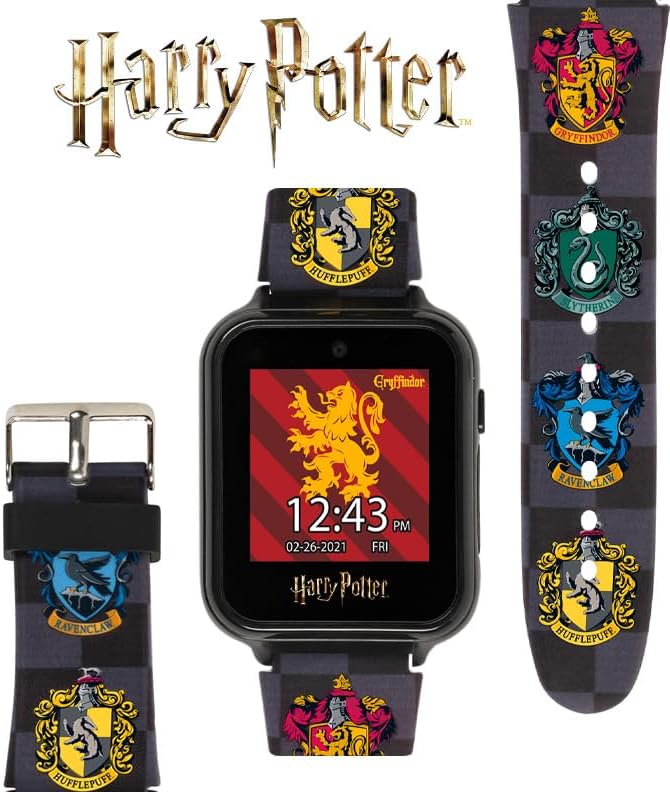
Image 6.1: Back of the watch with model information.
7. Warranty and Support
For information regarding product warranty or technical support, please refer to the documentation included with your purchase or contact Accutime Watch Corp. directly. Specific warranty terms and support contact details are provided by the manufacturer.
Ask a question about this manual
Ask about setup, troubleshooting, compatibility, parts, safety, or missing instructions. Manuals+ will review the question and use this page’s manual context to help answer it.