
1. Setup
This section provides instructions for the initial setup of your LG 45GR75DC-B Ultragear Curved Gaming Monitor.
1.1 Unboxing and Assembly
Carefully remove all components from the packaging. Ensure all parts are present before proceeding with assembly. The monitor includes a 3-way adjustable stand for ergonomic positioning.

Front view of the LG 45GR75DC-B Ultragear Curved Gaming Monitor on its stand.
1.2 Connecting Your Devices
The monitor supports various connectivity options. Connect your computer or gaming console using the appropriate cables.
- HDMI: Use an HDMI 2.1 cable for high-resolution and high-refresh-rate connections.
- DisplayPort: Use a DisplayPort 1.4 cable for optimal performance, especially for DQHD resolution at 200Hz.
- USB Type-C: Connect compatible devices for video, data transfer, and up to 90W power delivery.
- USB Ports: Utilize the additional USB ports for peripherals such as keyboards, mice, or external storage.
- 4-pole Headphone Jack: Connect your headphones for audio output and microphone input.

Connectivity options for DQHD at 200Hz via DisplayPort, HDMI, and USB Type-C.

USB Type-C port supporting video, data transfer, and 90W power delivery.
2. Operating Instructions
Learn how to utilize the various features and settings of your LG Ultragear monitor for an optimized viewing and gaming experience.
2.1 Display Features
The 45-inch curved QHD (5120 x 1440) display with a 32:9 aspect ratio offers an expansive visual field. It supports VESA DisplayHDR 600 and covers up to 95% of the DCI-P3 color gamut for rich, accurate colors and dynamic contrast.

The curved panoramic display provides an immersive viewing experience.

High-fidelity color and dynamic contrast with VESA DisplayHDR 600 and DCI-P3 95%.
2.2 Performance Features
Experience smooth and responsive gameplay with a 200Hz refresh rate and a 1ms (GtG) response time. The monitor also features AMD FreeSync Premium Pro for tear-free and stutter-free gaming.

Visual comparison demonstrating the smoothness of 200Hz refresh rate and 1ms response time.

AMD FreeSync Premium Pro ensures a fluid, tear-free gaming experience.
2.3 Multitasking and Gaming Enhancements
The monitor offers features to enhance both productivity and gaming.
- Picture-in-Picture (PiP) / Picture-by-Picture (PbP): Use OnScreen Control to display content from two separate input sources simultaneously.
- Enhanced Gaming GUI: Access various modes like Gamer, FPS, or RTS to optimize display settings. Features include Dynamic Action Sync, Black Stabilizer, FPS Counter, and Crosshair.
- DTS HP:X: Provides accurate spatialization and localization for 3D audio over headphones via the 4-pole headphone jack.

Picture-in-Picture (PiP) allows viewing multiple sources at once.

The Enhanced Gaming GUI provides quick access to game-specific settings.
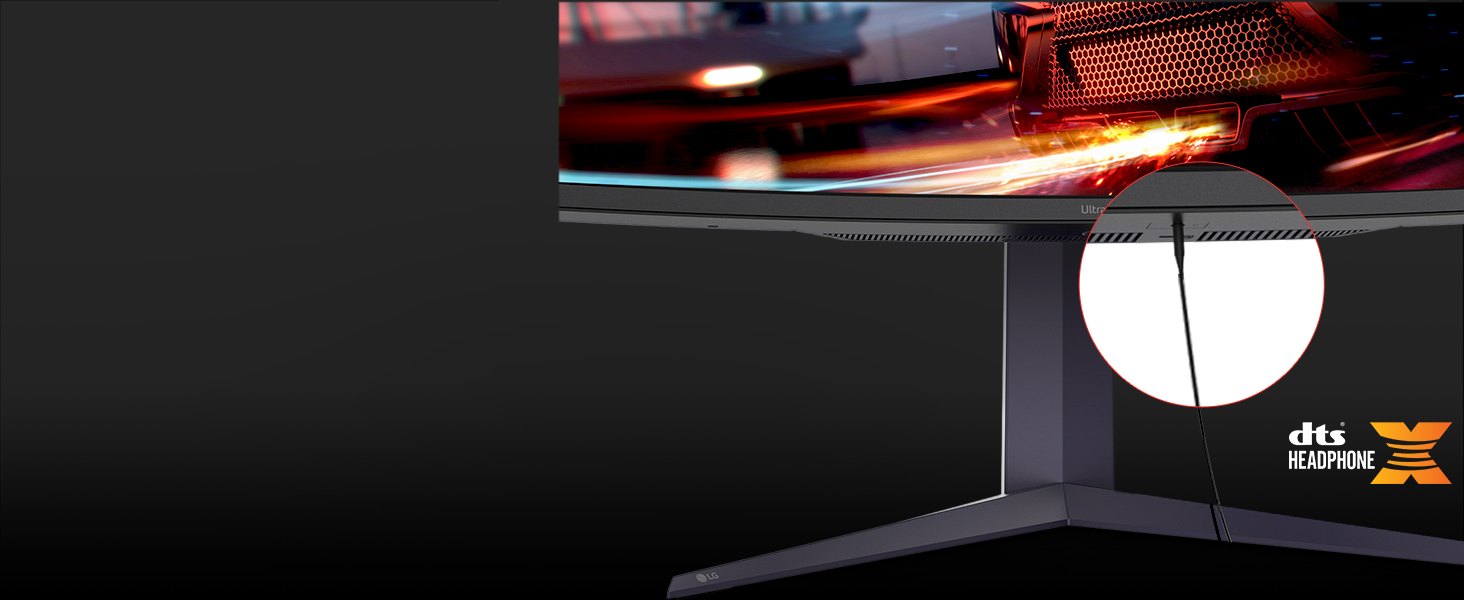
DTS HP:X provides immersive 3D audio through the 4-pole headphone jack.
3. Maintenance
Proper maintenance ensures the longevity and optimal performance of your monitor.
3.1 Cleaning the Monitor
To clean the screen, gently wipe it with a soft, lint-free cloth. For stubborn marks, lightly dampen the cloth with water or a specialized screen cleaner. Avoid using harsh chemicals or abrasive materials. For the monitor body, use a soft, dry cloth.
3.2 Adjusting the Stand
The monitor's stand allows for various adjustments to achieve an ergonomic viewing position.
- Height Adjustment: Raise or lower the monitor to your preferred eye level.
- Tilt Adjustment: Adjust the vertical angle of the screen to minimize glare and improve viewing comfort.
- Swivel Adjustment: Rotate the monitor horizontally to share your screen or change your viewing angle.

Height Adjustment

Tilt Adjustment

Swivel Adjustment
4. Troubleshooting
If you encounter issues with your monitor, refer to the following common troubleshooting steps.
4.1 No Display or Signal
- Check Cables: Ensure all video cables (HDMI, DisplayPort, USB-C) are securely connected to both the monitor and your source device.
- Power: Verify the monitor's power cable is properly connected and the power outlet is functional. Press the power button on the monitor.
- Input Source: Use the monitor's OSD (On-Screen Display) menu to manually select the correct input source.
- Source Device: Confirm your computer or gaming console is powered on and outputting a signal. Try connecting another display to the source device to rule out a problem with the source.
4.2 Resolution or Refresh Rate Issues
- Graphics Drivers: Ensure your graphics card drivers are up to date.
- Display Settings: Adjust the resolution and refresh rate in your operating system's display settings. For optimal performance, use 5120x1440 resolution and 200Hz refresh rate.
- Cable Compatibility: Verify that your cables (especially HDMI and DisplayPort) support the desired resolution and refresh rate. Older cables may have limitations.
4.3 Audio Problems
- Volume: Check the volume settings on both the monitor and your source device.
- Audio Output: Ensure the monitor is selected as the default audio output device in your operating system.
- Headphone Connection: If using headphones, ensure they are fully plugged into the 4-pole headphone jack.
5. Specifications
Detailed technical specifications for the LG 45GR75DC-B Ultragear Curved Gaming Monitor.
| Feature | Specification |
|---|---|
| Brand | LG |
| Model Number | 45GR75DC-B |
| Screen Size | 45 Inches |
| Resolution | 5K QHD (5120 x 1440) |
| Aspect Ratio | 32:9 |
| Curvature | Curved |
| Refresh Rate | 200 Hz |
| Response Time | 1 Milliseconds (GtG) |
| Display Type | VA |
| Brightness | 400 Candela per Square Meter |
| Contrast Ratio | 3000:1 |
| Color Gamut | DCI-P3 95% |
| HDR Support | VESA DisplayHDR 600 |
| Adaptive Sync | AMD FreeSync Premium Pro |
| Connectivity | 2x HDMI, 1x DisplayPort, 1x USB Type-C (90W PD), 3x USB Ports, 1x 4-pole Headphone Jack |
| Power Consumption | 35 Watts (Typical) |
| Item Dimensions (D x W x H) | 12.9"D x 42.7"W x 22"H |
| Item Weight | 19.4 Pounds |
6. Warranty & Support
This section outlines the warranty information and how to obtain support for your LG monitor.
6.1 Warranty Information
The LG 45GR75DC-B Ultragear Curved Gaming Monitor comes with a 1 Year Manufacturer Warranty covering both parts and labor. Please retain your proof of purchase for warranty claims.
6.2 Customer Support
For technical assistance, service, or further inquiries, please contact LG Customer Support. You can find contact information on the official LG website or in the documentation included with your product.
When contacting support, please have your monitor's model number (45GR75DC-B) and serial number ready.