
1. Introduction
The ORICO MetaCube Mini CD2510 is a compact and efficient network-attached storage (NAS) enclosure designed to provide a personal cloud solution for your digital life. It supports 2.5" SATA HDDs or SSDs, allowing you to store and access your photos, videos, music, and documents securely from anywhere. With its intuitive Weline APP, VPN exclusive channel, and versatile connectivity, the MetaCube Mini offers a convenient and private way to manage your data.

Figure 1: ORICO MetaCube Mini CD2510 with data flow illustration.
This image shows the ORICO MetaCube Mini CD2510, a compact grey device with a patterned magnetic lid. A 2.5-inch SATA hard drive is visible inside, and colorful app icons are depicted flowing from the device towards a smartphone, symbolizing seamless data transfer and access.
2. What's in the Box
- MetaCube CD2515 (ORICO MetaCube Mini CD2510)
- USB-A to USB-C Cable
- Network Cable
- User Manual

Figure 2: Package Contents.
This image displays the contents of the ORICO MetaCube Mini CD2510 package, including the main device, power adapter, USB-A to Type-C cable, network cable, and instruction manual, all neatly arranged on a light wooden surface.
3. Specifications
| Feature | Detail |
|---|---|
| Model Number | MetaCube Mini CD2510 |
| Product Dimensions | 5.7 x 1.36 x 3.74 inches (5.7"D x 1.36"W x 3.74"H) |
| Item Weight | 1.19 pounds |
| Compatible Drive Type | 2.5" SATA HDD/SSD |
| Material | Metal |
| Color | Silver |
| CPU | Quad Core CPU |
| Ethernet Port | Gigabit Ethernet |
| USB Interface | USB C |
| Intranet Speed (Gigabit Ethernet) | Max 120MB/s |
| Intranet Speed (WiFi) | Max 60MB/s |
| Cross-Region Transmission Speed | 4-7MB/s |
| Supported Protocols | Samba, DLNA |
| Encryption Technology | SDVN Encryption (VPN Exclusive Channel) |
4. Setup Guide
4.1. Hardware Installation
- Remove the magnetic cover from the MetaCube Mini.
- Align the pins and insert your 2.5" SATA HDD/SSD into the enclosure.
- Rotate the direction knob to fix the hard disk securely in place.
- Put the magnetic cover back on.
Video 1: ORICO Networkable Hard Drive for 2.5/3.5 SSD/HDD Installation Guide.
This short video demonstrates the physical installation of a hard drive into the ORICO MetaCube Mini. It shows how to remove the magnetic cover, insert a 3.5-inch SATA hard drive (note: product supports 2.5-inch drives), secure it with a knob, and replace the cover. It also briefly shows connecting the network and power cables.
4.2. Connecting to Network and Power
- Connect the provided network cable from the MetaCube Mini's LAN port to your router.
- Connect the power adapter to the DC IN 12V port on the device and plug it into a power outlet.
4.3. Software Setup (Weline APP)
- Download the "Weline.io" APP from your mobile device's App Store (iOS) or Google Play Store (Android). You can also scan the QR codes located under the magnetic lid of the device.
- Open the Weline APP. Upon first use, you will need to register an account.
- Grant VPN access when prompted. The SDVN technology establishes an encrypted channel between your device and the NAS server for secure remote access.
- Ensure your phone and the MetaCube Mini are on the same network for initial setup.
- Scan the QR code at the bottom of the enclosure to connect your device to the APP.
- If you've inserted a new hard disk, the "DISK" indicator light may blink red, indicating it needs to be formatted. Follow the instructions in the Weline APP (Settings > Node Space > Format hard disk) to format the disk. Once the light turns blue, it's ready for normal use.

Figure 3: Tool-free Installation and App Connection.
This image illustrates the five steps for setting up the ORICO MetaCube Mini: 1) Inserting the hard drive, 2) Downloading the Weline app, 3) Connecting network and power, 4) Scanning the QR code to connect the device, and 5) Formatting the hard disk via the app.
4.4. Network Drive Mapping (Samba Function)
The MetaCube Mini supports Samba protocol, allowing you to map it as a network drive on Windows or macOS for direct file access.
For Windows:
- Open the Weline APP on your PC.
- Navigate to the Samba settings within the app to set a Samba password.
- On your Windows PC, open File Explorer, right-click on 'This PC' or 'Network', and select 'Map network drive'.
- Enter the network path (e.g., \\192.168.X.X\public) and your credentials (phone number as username, Samba password).

Figure 4: Windows Samba Setup.
This image provides a three-step visual guide for mapping a network drive on Windows using the Samba function. It shows navigating the Weline PC app, setting the Samba password, and then mapping the drive in Windows File Explorer.
For macOS:
- On your macOS device, go to Finder > Go > Connect to Server.
- Enter the server address (e.g., smb://192.168.X.X).
- Connect as a Registered User and enter your credentials (phone number as username, Samba password).
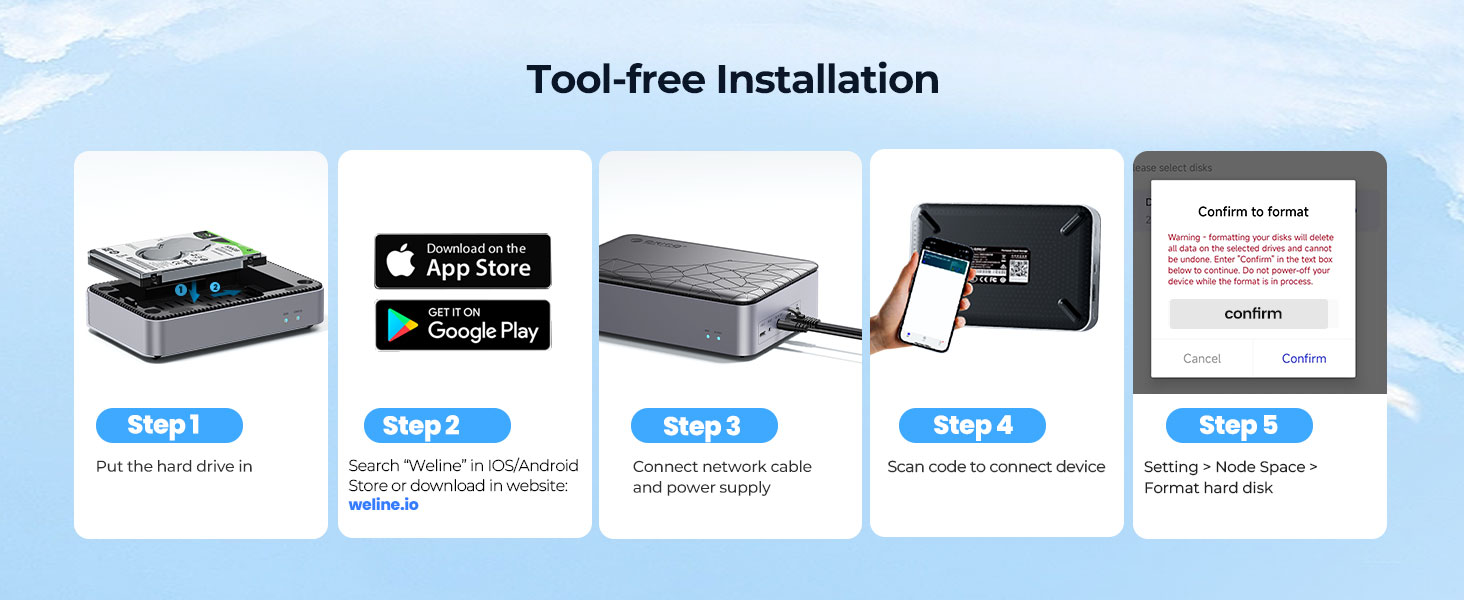
Figure 5: macOS Samba Setup.
This image illustrates the steps for mapping a network drive on macOS using the Samba function. It shows accessing 'Connect to Server' in Finder, entering the server address, and providing login credentials.
5. Operating Instructions
5.1. File Management (Weline APP)
The Weline APP allows you to manage your files within three main spaces: My Space (private storage), Public Space (file sharing), and Group Space (collaborative use).
- Open the Weline APP and select your MetaCube Mini (CD2510).
- To upload files: Go to any space (My Space, Public Space, Group Space) and click on the '+' icon in the bottom right corner. Choose the file type (e.g., photos, videos, documents) you want to upload, select the files, and click "Upload". You can change the upload path by tapping the arrow icon above the "Upload" button.
- To download files: Navigate to the desired space, click on the file you wish to download, and the download button will appear below. Click it to save the file to your local device.
5.2. Sharing Files and Member Management
The MetaCube Mini allows you to share files with friends and manage user permissions.
- Open the device's main page in the Weline APP.
- Click on the avatar in the upper right corner to access settings.
- Click on "Share Node". Your friends can be added by scanning the QR code displayed. You can set their permissions using the switch below.
- You can also invite friends by sharing the invitation code.
- To manage members: From the main page, select "Me" and click "Notification" in the upper right corner. Here you can agree to device binding requests from your friends.
- Alternatively, from the main page, click the avatar in the upper right corner, then go to "Settings - Member Management". From this screen, you can view all added members. Selecting a member individually allows you to manage their permissions or remove them.
- For Group Space settings: Open the device's main page and click "Group Space". Enter the group space and click '+' to create a new group. Type the group name, select users, and click OK. You can rename the group or manage members by clicking the "More" button on the side of the group space.
5.3. Phone Backup
The Weline APP provides convenient backup features for your phone's photos and contacts.
Backup Photos:
- Open the Weline App and find "Backup Photo" in the apps section at the bottom of the homepage.
- Select your MetaCube Mini (CD2510).
- For Android clients, you can select specific albums to back up.
- Click "Start Backup". The pictures will be uploaded to your MetaCube Mini.
- After the upload is finished, you can find the backed-up pictures in "My Space".
- You can enable the "Auto Backup Album" function to automatically back up your phone album every time it's updated, without manual operation.
- To reset the backup, click the icon on the upper right corner of the Backup Photo page and choose "Reset Backup Album".
Backup Contacts:
- Open the Weline App and find "Backup Contacts" in the apps section at the bottom of the homepage.
- Select your MetaCube Mini (CD2510) and click "Start backup".
- When the backup is complete, you can tap "Start Recovery" at the bottom of the interface to restore the backed-up contacts to your current phone.
5.4. Remote Access (VPN Exclusive Channel)
The ORICO MetaCube Mini utilizes SDVN technology to establish an encrypted VPN channel between your devices and the NAS server. This allows for direct data transfer without relying on third-party public servers, enhancing data protection for both wired and wireless connections.
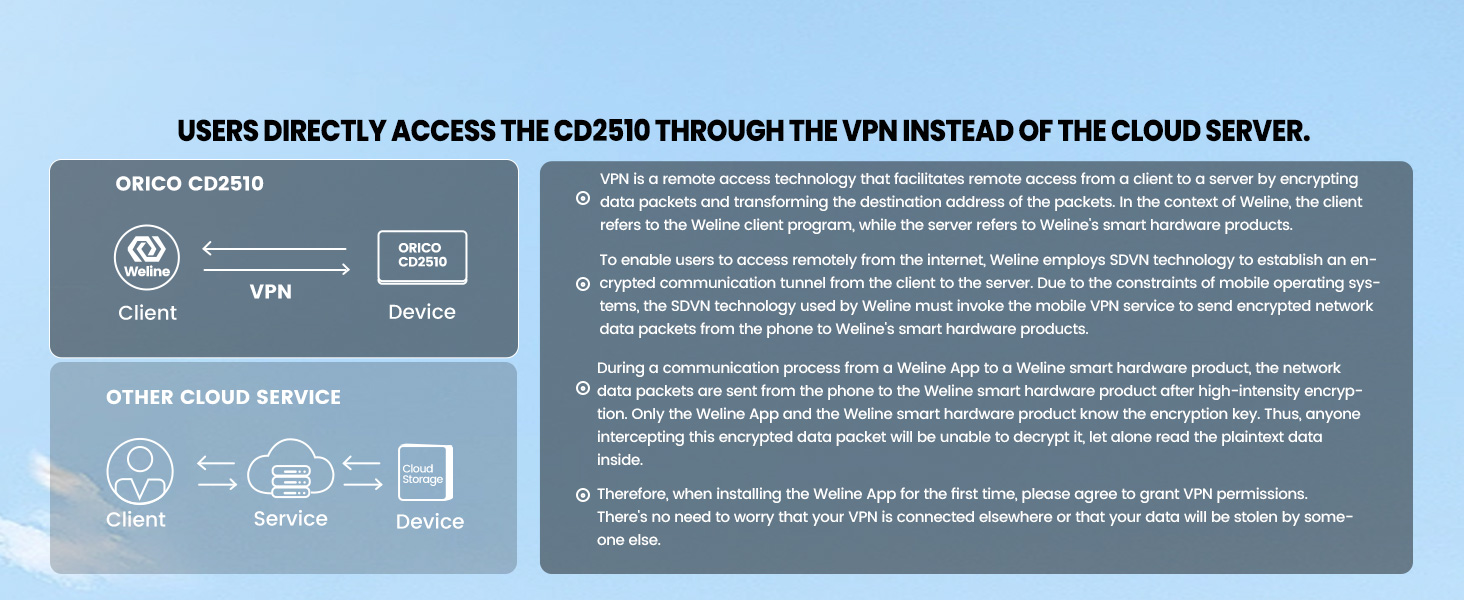
Figure 6: Direct VPN Access.
This diagram contrasts the ORICO CD2510's direct VPN access model with a traditional cloud service. It highlights that the Weline App client connects directly to the ORICO CD2510 device via a VPN, ensuring data is transferred securely and privately without passing through an external cloud server.
6. Troubleshooting
6.1. Disk Indicator Light Blinking Red
When you first insert your hard disk, the "DISK" indicator light may blink red. This means your disk needs to be formatted. Follow the instructions in the Weline APP to format the disk. Once the light is blue, it will be ready for normal use.
6.2. Network Connection Failure (Status Light Red)
A red light on the "STATUS" indicator may indicate a network connection failure. Please check the network cable connection to your router and ensure your router is functioning correctly. If the blue light is on, you can connect your device.
6.3. Slow Transmission Speed
The intranet speed can reach 60-80MB/s (up to 120MB/s via Gigabit Ethernet, 60MB/s via WiFi). Cross-region transmission can reach 4-7MB/s. If you are not achieving the desired speed, it may be related to your hard disk performance or your network environment. Ensure your hard drive is healthy and consider checking your network configuration. For persistent issues, contact ORICO customer service.
6.4. App Required for Setup and Connectivity
Please note that the Weline APP is required for initial setup and for phone-to-NAS connectivity, especially for cloud storage features. While Samba allows direct network drive mapping on PC/Mac, the app is central to the personal cloud functionality and VPN access.
7. Warranty and Support
ORICO offers an 18-month warranty for the MetaCube Mini CD2510. Additionally, lifetime service support is provided for any technical assistance or inquiries you may have.
For user manual in PDF format, you can refer to the official document: User Manual (PDF)
8. Important Notes on Privacy and Functionality
The Weline APP utilizes a VPN connection for secure data transfer, which requires installing a VPN certificate on your device. It is important to review the privacy policy associated with the Weline APP to understand data handling practices. Some users have noted that the app's privacy policy indicates data storage in the People's Republic of China and that certain functionalities, particularly cloud storage and remote access, are exclusively managed through the app's VPN. While the device can function as a Direct Attached Storage (DAS) via USB-C, its full network and cloud capabilities are integrated with the Weline APP's ecosystem.

