
AOSHIDA DO300EX
AOSHIDA SMSL DO300EX HiFi DAC Headphone Amplifier User Manual
Model: DO300EX | Brand: AOSHIDA
Introduction
The AOSHIDA SMSL DO300EX is a high-fidelity Digital-to-Analog Converter (DAC) and headphone amplifier designed to deliver premium audio decoding and powerful headphone amplification. Featuring advanced AKM DAC chips and XMOS XU-316, it supports high-resolution audio formats up to DSD512 and PCM 32Bit/768kHz, ensuring exceptional sound clarity and detail. With versatile connectivity options and MQA decoding capabilities, the DO300EX is an ideal component for any serious audio setup.
What's in the Box
The following items are included with your SMSL DO300EX HiFi DAC Headphone Amplifier:
- 1 * AC Power Cable
- 1 * USB Cable
- 1 * User Manual
- 1 * Remote Control
- 1 * Bluetooth Antenna
- 1 * SMSL Card
Video: Unboxing the SMSL DO300EX HiFi DAC Headphone Amplifier, showing all included accessories.
Product Overview
Familiarize yourself with the front and rear panels of the DO300EX.

Image: Front and rear panel overview of the SMSL DO300EX.

Image: Detailed labeled diagram of the SMSL DO300EX's front and rear panels, indicating display screen, function knob, headphone jacks, RCA output, XLR output, Bluetooth input, optical input, coaxial input, I2S input, USB input, and power switch.
Setup
Connecting Your Device
The SMSL DO300EX offers multiple connectivity options to integrate with your audio system.
- USB Connection: Connect the USB cable from your computer (PC/Mac) to the USB input on the DO300EX. This supports high-resolution audio playback.
- Bluetooth Connection: Attach the Bluetooth antenna to the designated port. This allows wireless audio streaming from mobile phones, tablets, and PCs.
- Coaxial/Optical Connection: Use coaxial or optical cables to connect to devices like TVs, CD/DVD players, or other DACs.
- I2S Connection: Connect an I2S cable for high-fidelity digital audio transmission, typically from compatible DACs or audio sources.
- XLR Output: For balanced audio output, connect XLR cables to a power amplifier or passive speakers.
- RCA Output: For unbalanced audio output, connect RCA cables to a power amplifier, passive speakers, or active speakers.

Image: Detailed diagram illustrating the various input and output connections available on the SMSL DO300EX.
Operating Instructions
Basic Operation with Remote Control
The SMSL DO300EX can be conveniently operated using the included remote control. Ensure 2 x R03/AAA batteries are inserted (not included).
- Power ON/OFF: Press the power button on the remote to turn the device on or off.
- Menu Navigation: Use the arrow keys (Up, Down, Left, Right) to navigate through the menu options on the display screen.
- Select/OK: Press the 'MENU/OK' button to confirm a selection.
- Return: Use the 'Return' button to go back to the previous menu.
- Input Selection: Press the 'Input select' button to cycle through available input sources (USB, Bluetooth, Optical, Coaxial, I2S).
- Volume Control: Use the 'Volume +' and 'Volume -' buttons to adjust the output volume.
- Mute: Press the 'Mute' button to temporarily silence the audio output.
- FN Button: The 'FN' button can be defined in the menu for a custom function.
Video: Demonstration of remote control functions for the SMSL DO300EX, including power, menu navigation, input selection, and volume.
MQA Decoding
The DO300EX supports MQA (Master Quality Authenticated) technology, allowing for the playback of MQA audio files and MQA-CDs, delivering high-resolution audio quality.
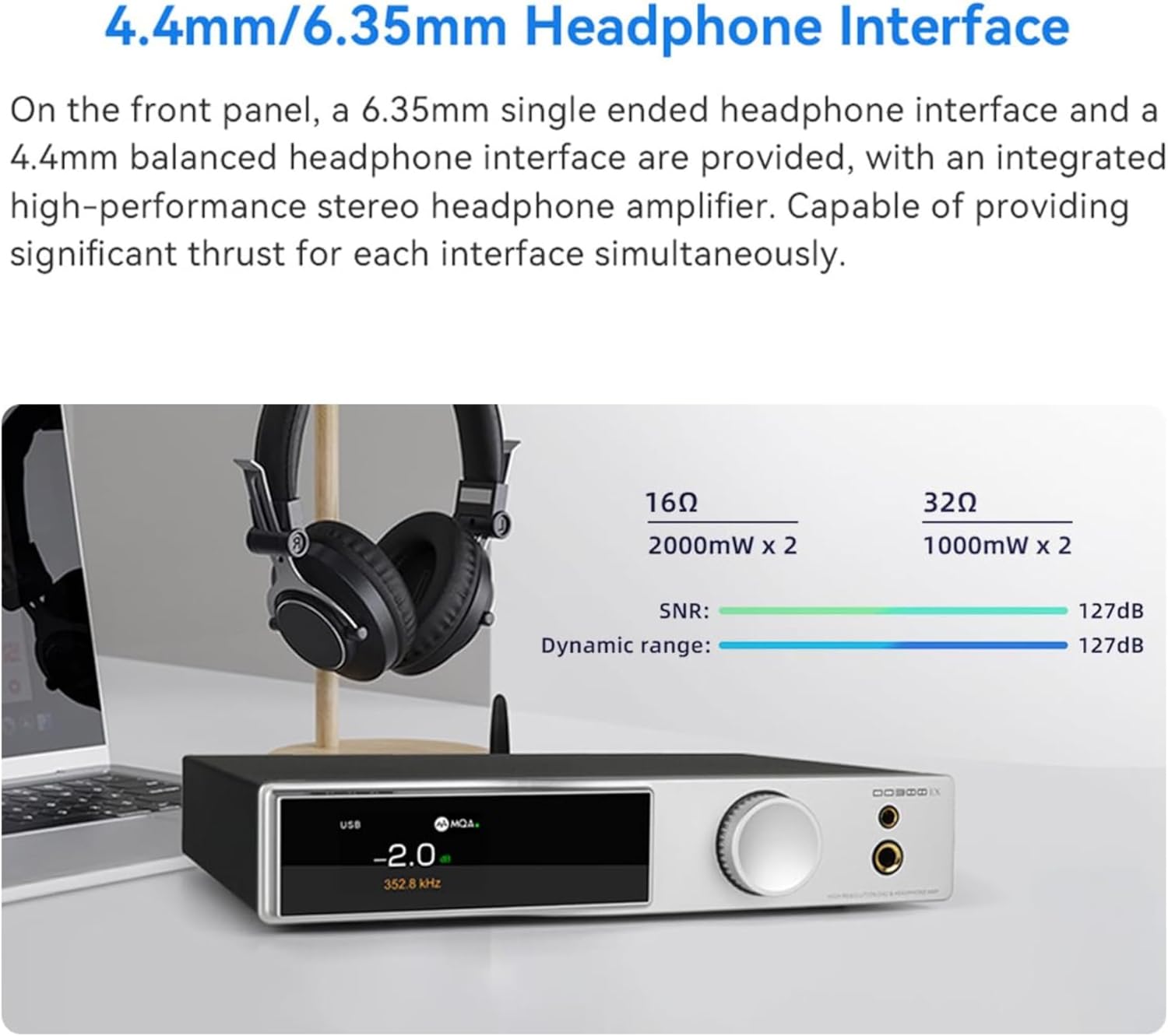
Image: The SMSL DO300EX supports MQA-CD playback via coaxial and optical inputs.
Maintenance
- Keep the device clean by wiping it with a soft, dry cloth.
- Avoid exposing the device to extreme temperatures, humidity, or direct sunlight.
- Ensure proper ventilation around the unit to prevent overheating.
- Do not attempt to disassemble or repair the device yourself. Refer to qualified service personnel.
Troubleshooting
This section addresses common questions and issues you might encounter with your HiFi DAC.
Video: A beginner's guide to HiFi DACs, covering common questions and setup tips.
Common Issues and Solutions
- What is a HiFi DAC and why do I need one?
A HiFi (High Fidelity) DAC (Digital-to-Analog Converter) is a device that converts digital audio signals into analog signals that your headphones or speakers can play. It provides a significant improvement in sound quality compared to the built-in DACs in most devices.
- How to Connect Your DAC (Common Connection Methods)?
- DAC → Headphone Amplifier → Headphones:
- Connect the DAC to your source device (computer, phone, etc.) using a cable such as USB, optical, etc.
- Use a pair of RCA or other audio cables to connect the DAC to the headphone amplifier.
- Connect your headphones to the headphone amplifier.
- DAC → Power Amplifier → Passive Speakers:
- Connect the DAC to your source device (computer, phone, etc.) using a cable such as USB, optical, etc.
- Use a pair of RCA or other audio cables to connect the DAC to the power amplifier.
- Connect your passive speakers to the power amplifier.
- DAC (with headphone jack output) → Headphones:
- Connect the DAC to your source device (computer, phone, etc.) using a cable such as USB, optical, etc.
- Connect your headphones directly to the DAC.
- DAC → Active Speakers:
- Connect the DAC to your source device (computer, phone, etc.) using a cable such as USB, optical, etc.
- Connect the DAC directly to your active speakers using an RCA cable.
- DAC → Headphone Amplifier → Headphones:
- How to Configure Your Source Device?
- Go to the sound settings on your source device.
- Select your DAC as the output device.
- If available, set the audio format to the highest quality.
- How do I set the PCM to the highest specification on my computer?
- On Windows:
- Install the DAC USB driver in advance.
- Right-click on the speaker icon in the taskbar and select 'Sounds'.
- Go to the 'Playback' tab, find your DAC in the list, and click 'Properties'.
- In the new window, go to the 'Advanced' tab. Here you can select the highest sample rate and bit depth.
- On macOS:
- Go to 'Applications' > 'Utilities' > 'Audio MIDI Setup'.
- Select your DAC from the list on the left, and then select the highest sample rate on the right.
- On Windows:
- How to Configure Your DAC?
- Make sure the DAC is in the correct input and output modes.
- If your DAC has a volume control, adjust to a comfortable level.
- If your DAC has a filter setting, try different options to see which you prefer.
- If your DAC has a gain switch, use low gain for sensitive headphones and high gain for harder to drive headphones.
- Why is my HiFi DAC not working or sounding as expected?
Ensure that your DAC is properly connected and that your device's sound settings are correctly configured. Also, make sure your audio files are of high quality.
- How can I maximize the sound quality of my DAC?
To get the most out of your DAC, consider the following tips:
- Use high-quality audio files: The better the quality of your original audio file, the better the sound you'll get from your DAC.
- Set your source device to the highest audio format: In your source device's sound settings, set the audio format to the highest possible quality. For example, set the PCM of the computer to the highest specifications.
- Use high-quality cables and connectors: The quality of your cables and connectors can also affect sound quality.
- Why is the sound of my DAC not loud enough?
The volume level can be affected by several factors. First, check the volume level on your source device and make sure it's set to the maximum. Second, check the volume on your DAC (if it has a volume control). If the sound is still not loud enough, you may need to use an amplifier with your DAC.
- My USB DAC supports up to PCM 32Bit/768kHz or DSD512. How can I set it up?
- Ensure that your DAC is properly connected to your computer or audio source.
- Check the manufacturer's website for the correct drivers.(Windows computers need to install drivers, while other computers do not require drivers.)
- On your computer or audio source, navigate to the audio settings. This is usually found in the system preferences or control panel.
- In the audio settings, select your DAC as the output device.
- Look for an option to adjust the audio format or quality. This is where you can select PCM 32Bit 768kHz or DSD512.
- Download additional software if needed: If your computer or audio source doesn't support high-resolution audio formats, you may need to download additional software. Options include software such as JRiver Media Center, Roon, and more. These programs support high-resolution audio formats and can help you set your DAC to the desired format.
- Once you've made your selection, save your settings. You may need to restart your audio source or DAC for the changes to take effect.
- Why can't I hear a difference when adjusting the DAC's filter?
The changes made by adjusting a DAC's filter can often be subtle and may not be easily noticeable, especially if you're not using high-quality audio equipment or listening to high-resolution audio files. Different filter settings can affect the sound in various ways.
- How do I choose the best filter setting for my DAC?
The best filter setting for your DAC can depend on a variety of factors, including your personal listening preferences, the type of music you're listening to, and the quality of your audio equipment. You may want to experiment with different settings to see which one you prefer.
Specifications
Detailed technical specifications for the SMSL DO300EX.

Image: Comprehensive table detailing the technical specifications of the SMSL DO300EX.
| Feature | Detail |
|---|---|
| Product Dimensions | 8.74 x 8.15 x 1.54 inches |
| Item Weight | 3.39 pounds |
| Manufacturer | SMSL |
| ASIN | B0CGDFNCRG |
| Item model number | DO300EX Black |
| Customer Reviews | 4.3 out of 5 stars (72 ratings) |
| Date First Available | August 23, 2023 |
Key Features
- Premium Audio Decoding: Experience superior sound with AK4191+AK4499EX decoding chip, delivering distortion as low as 0.00006% (-124dB) for high-resolution audio clarity.
- Versatile Headphone Amplification: Enjoy powerful audio with 2000mW(16Ω)/1000mW(32Ω) HPA output, 4.4mm/6.35mm headphone outputs, and 127dB SNR & dynamic range, catering to various headphone types.
- AKM DAC Chip-Set: Benefit from XMOS XU-316 and 5*OPA1612A chips, DSD512, and 32bit/768kHz support, ensuring high-quality audio playback with low noise power supply.
- MQA Decoding Excellence: Unlock the full potential of your music with MQA technology, reducing distortion, and offering an immersive listening experience.
- Rich Connectivity Options: Connect effortlessly with 5 input options (USB, Optical, Coaxial, IIS, Bluet...), 2 headphone outputs, XLR/RCA line outputs, and MQA-CD support, providing versatility for your audio setup.

Image: The AK4191+AK4499EX decoding chip, central to the DO300EX's premium audio performance.

Image: The new 3rd generation XMOS XU-316 chip, providing advanced USB audio processing.
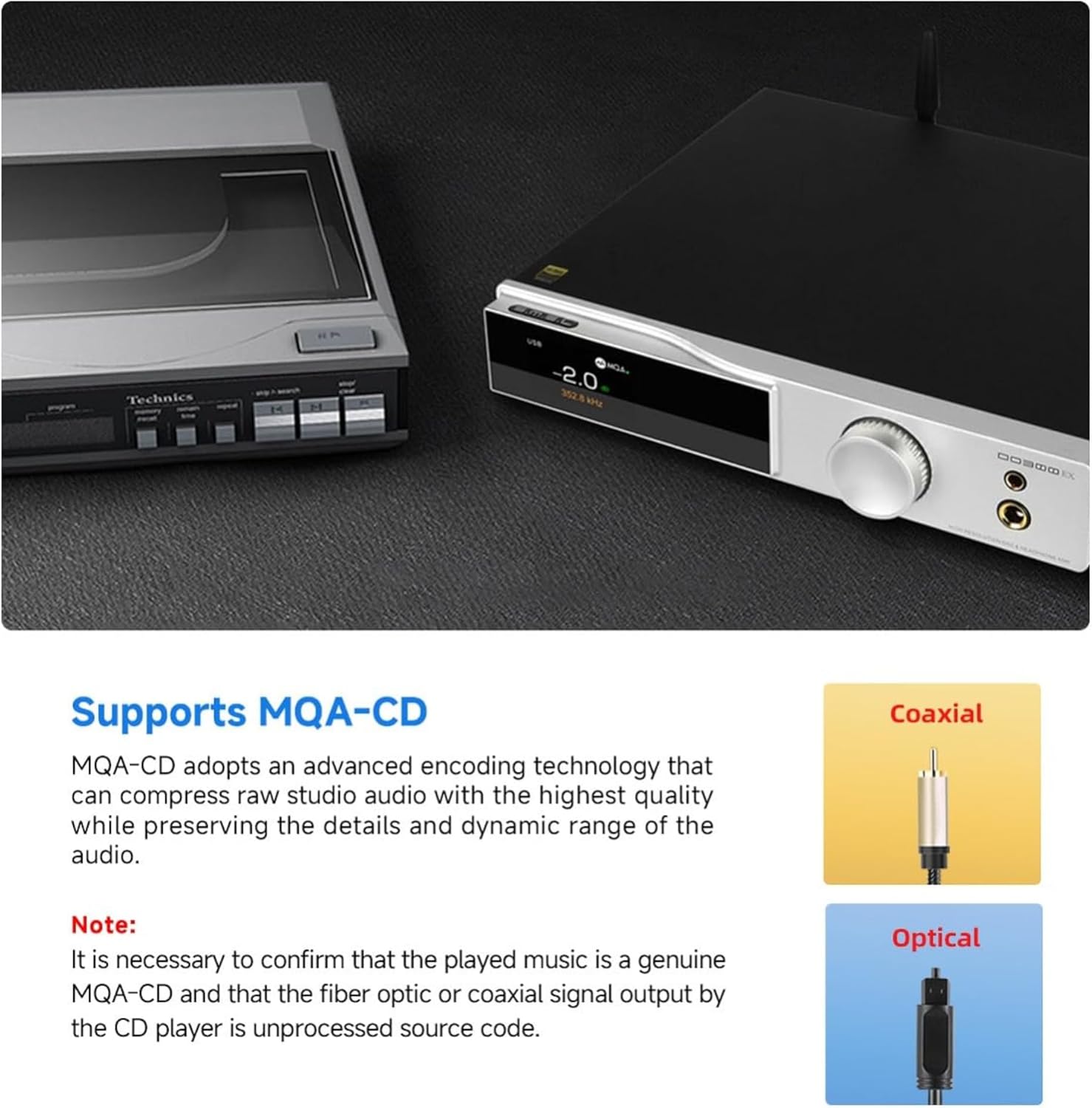
Image: Bluetooth 5.1 chip supporting LDAC, aptX-HD, aptX, SBC, and AAC codecs.

Image: Headphone amplifier output power specifications for 4.4mm/6.35mm interfaces.
Warranty and Support
Your SMSL DO300EX comes with a warranty. Please refer to the included Warranty Card for details regarding coverage and terms.
For further questions or technical assistance, please contact AOSHIDA Audio-US customer support. Contact information can typically be found on the manufacturer's website or the warranty card.
Related documentsDO300EX


Ask a question about this manual
Ask about setup, troubleshooting, compatibility, parts, safety, or missing instructions. Manuals+ will review the question and use this page’s manual context to help answer it.