1. Introduction
The Maxuni Dual-Band WiFi Extender/Repeater is designed to expand your existing wireless network coverage and eliminate Wi-Fi dead zones. This device supports dual-band operation (2.4GHz and 5GHz) and can extend coverage up to 1600 sq.ft, supporting connections for up to 30 devices. It offers multiple operating modes to suit various networking needs, including Repeater Mode and Access Point (AP) Mode.
This manual provides detailed instructions for setting up, operating, and maintaining your Maxuni WiFi Extender/Repeater. Please read it carefully before use to ensure proper installation and optimal performance.
2. Product Overview
2.1 Key Features
- Dual-Band Connectivity: Supports both 2.4GHz and 5GHz wireless bands for flexible and high-speed connections.
- Extended Coverage: Expands Wi-Fi signal up to 1600 sq.ft, ideal for larger homes or offices.
- High Device Capacity: Connects up to 30 devices simultaneously.
- Four External Antennas: Enhances signal stability and range.
- Multiple Operating Modes: Functions as a Wi-Fi Repeater or an Access Point.
- Fast Ethernet Port: Allows for wired connections to devices like PCs, game consoles, or smart TVs.
- Easy Setup: Simple configuration process via a web browser or WPS button.
- Compact and Portable Design: Plugs directly into a wall outlet for convenient placement.
2.2 Device Components
Familiarize yourself with the various parts of your Maxuni WiFi Extender/Repeater:
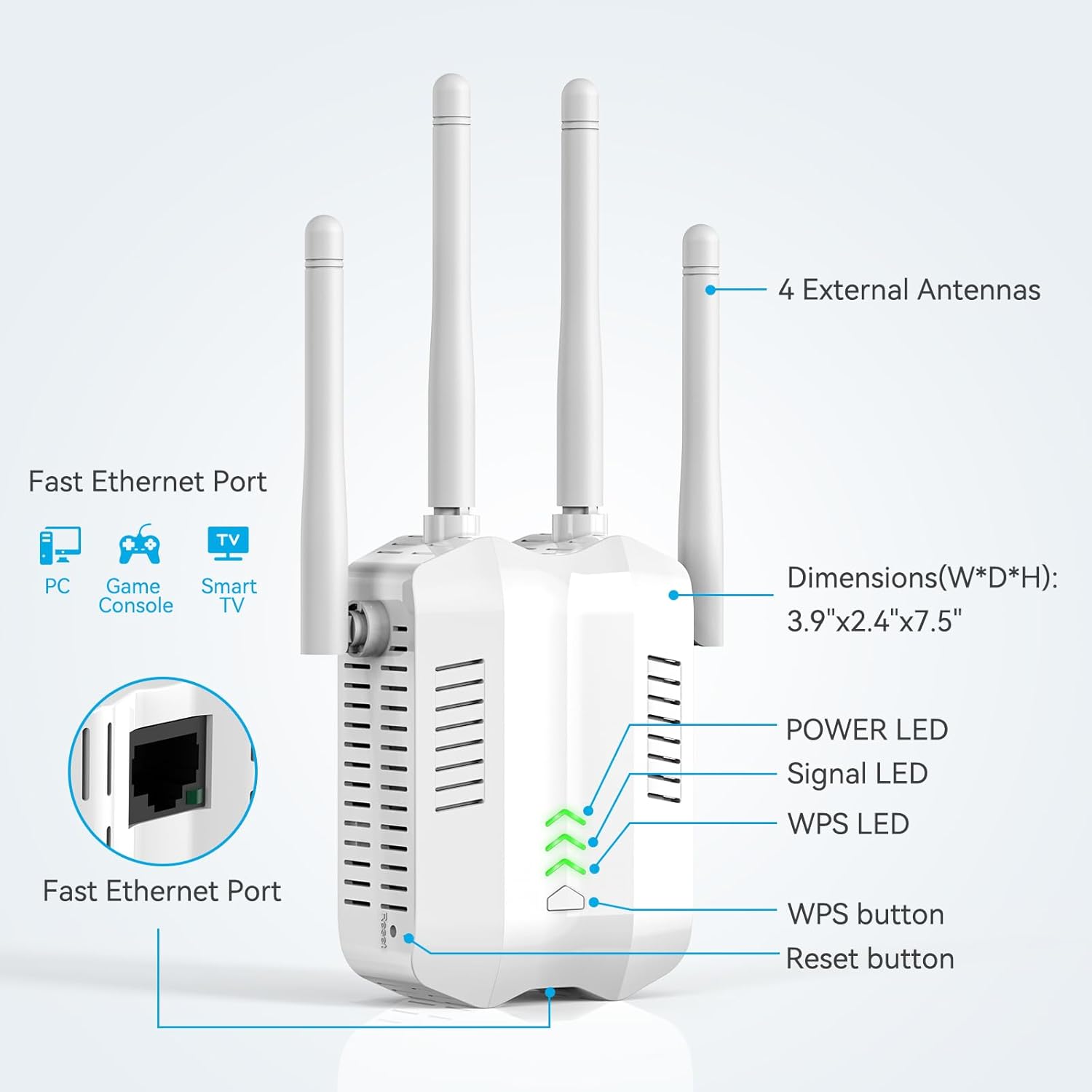
Image: Maxuni WiFi Extender showing its four external antennas, Fast Ethernet Port, Power LED, Signal LED, WPS LED, WPS button, and Reset button.
- Four External Antennas: Adjustable antennas for optimizing signal reception and transmission.
- Fast Ethernet Port: RJ45 port for wired network connections.
- Power LED: Indicates the power status of the device.
- Signal LED: Shows the strength of the Wi-Fi signal received from the main router.
- WPS LED: Indicates the status of the Wi-Fi Protected Setup (WPS) function.
- WPS Button: Used for quick and easy connection to a WPS-enabled router.
- Reset Button: Used to restore the device to factory default settings.
3. Setup Guide
Follow these steps to set up your Maxuni WiFi Extender/Repeater:
3.1 Initial Power On and Reset
- Plug In: Plug the WiFi Extender into a power outlet. Wait for the Power LED to light up.
- Reset (Optional but Recommended): If this is the first time using the device or if you encounter issues, perform a factory reset. Use a pin or paperclip to press and hold the Reset button for 5-8 seconds until the Power LED flashes quickly. Release the button and wait for the device to restart.
Video: Official Maxuni guide demonstrating the initial setup and reset process for the WiFi Extender.
3.2 Connecting to the Extender (Wireless)
- On your mobile phone or computer, go to Wi-Fi settings.
- Look for a new Wi-Fi network named "WiFi pro_XXXXXX" or "WiFi 5G pro_XXXXXX" (where XXXXXX are the last 6 characters of the extender's MAC address, usually found on a sticker on the device). Connect to this network. This network will initially be unsecured.
- Once connected, open a web browser (e.g., Chrome, Firefox) and enter the default IP address or domain name provided in the quick installation guide (e.g.,
192.168.10.1orzrelogin.cn). - You will be prompted to log in. The default username and password are typically "admin" (check your quick installation guide for exact details).
3.3 Configuration Steps (Repeater Mode)
This mode extends your existing Wi-Fi network.
- After logging in, select "Repeater Mode" or "Wireless Extend".
- The extender will scan for available Wi-Fi networks. Select your main router's Wi-Fi network (SSID) from the list. If your network is hidden, you may need to enter it manually.
- Enter the password for your main router's Wi-Fi network.
- You can choose to keep the same SSID for the extended network or create a new one (e.g., "YourNetworkName-EXT").
- Click "Next" or "Apply" to save the settings. The extender will restart.
- Wait approximately 30 seconds for the extender to apply settings and restart.
- Reconnect your devices to the new extended Wi-Fi network using the password you set.

Image: Visual guide showing the 6-step setup process for the WiFi Extender via a smartphone interface, including connecting to the extender's network, logging in, selecting repeater mode, choosing the main WiFi network, entering its password, and confirming settings.
4. Operating Modes
The Maxuni WiFi Extender/Repeater supports two primary operating modes:
4.1 Repeater Mode (Wireless Extension)
In Repeater Mode, the device wirelessly connects to your existing router's Wi-Fi network and re-broadcasts it, extending the coverage area. This is ideal for eliminating Wi-Fi dead zones in your home or office.
- Connects wirelessly to your main router.
- Extends the range of your existing Wi-Fi signal.
- Suitable for areas with weak Wi-Fi signals.
4.2 Access Point (AP) Mode (Wired to Wireless)
In AP Mode, the device connects to your router via an Ethernet cable and then broadcasts a new Wi-Fi network. This is useful for adding wireless capability to a wired network or creating a new Wi-Fi hotspot in a specific area.
- Connects to your main router via an Ethernet cable.
- Creates a new Wi-Fi network from a wired connection.
- Ideal for converting a wired network into a wireless one.

Image: Diagram showing two configurations for Repeater Mode (wireless and wired connection to a PC) and one for AP Mode (wired connection from router to extender, then wireless to devices).
5. Placement Recommendations
Proper placement of your WiFi Extender is crucial for optimal performance. Consider the following guidelines:
- Optimal Distance: Place the extender approximately 10-40 feet (3-12 meters) from your main router.
- Avoid Obstructions: Walls, large metal objects, and electronic devices can interfere with Wi-Fi signals. Try to place the extender in an open area.
- Signal Strength Indicator: Use the Signal LED on the extender to determine the best placement. A solid green light typically indicates a good connection to the main router.
- Central Location: Position the extender in a central location between your router and the area where you need improved Wi-Fi coverage.

Image: Visual guide illustrating optimal placement (10-40 feet from router for full signal) versus incorrect placements (too close or too far, resulting in weak or unstable signals).
6. Specifications
| Feature | Description |
|---|---|
| Brand | Maxuni |
| Wireless Communication Standard | 802.11n |
| Data Transfer Rate | 1200 Megabits Per Second |
| Special Feature | 4-antenna design, dual-band support, high data transfer rate, portability, lightweight, easy to use |
| Compatible Devices | Router |
| Item Weight | 5.3 ounces |
| Package Dimensions | 5.08 x 4.69 x 4.37 inches |
7. Troubleshooting
If you encounter issues with your Maxuni WiFi Extender/Repeater, refer to the following common problems and solutions:
- No Power:
- Ensure the extender is securely plugged into a working power outlet.
- Check if the power outlet is functional by plugging in another device.
- Cannot Connect to Extender's Wi-Fi:
- Make sure the extender is powered on and the Power LED is lit.
- Perform a factory reset (see Section 3.1) and try connecting again.
- Verify you are selecting the correct initial Wi-Fi network (e.g., "WiFi pro_XXXXXX").
- No Internet After Connecting to Extended Wi-Fi:
- Ensure the extender is successfully connected to your main router. The Signal LED should indicate a good connection.
- Verify the password entered for your main router's Wi-Fi network during setup is correct.
- Try repositioning the extender closer to your main router (see Section 5).
- Restart both your main router and the extender.
- Slow Speed on Extended Wi-Fi:
- Relocate the extender to an optimal position, ensuring it's not too far from the main router or too close to obstructions.
- Check for interference from other electronic devices.
- Ensure your main router is providing a strong and stable signal.
- If using Repeater Mode, consider switching to AP Mode if a wired connection to the router is feasible for better performance.
- Forgot Login Password for Extender's Web Interface:
- Perform a factory reset (see Section 3.1) to restore the default login credentials.
8. Safety Information
- Do not expose the device to water, fire, humidity, or hot environments.
- Do not attempt to disassemble, repair, or modify the device.
- Use only the power adapter provided or recommended by the manufacturer.
- Ensure the power outlet is easily accessible for disconnecting the device if needed.
- Keep the device away from medical devices and other electronic equipment that may be sensitive to radio frequency interference.
9. Warranty and Support
For warranty information and technical support, please refer to the documentation included in your product packaging or visit the official Maxuni website. Keep your purchase receipt for warranty claims.


