
Introduction
The Closer Pets TreatView is an indoor pet security camera with an integrated treat dispenser, designed to help you monitor and interact with your pets remotely. This device features a wide-angle HD camera, two-way audio communication, and remote treat dispensing capabilities, all controlled via a user-friendly mobile application.

Image: The TreatView pet camera shown alongside a smartphone displaying its app interface, demonstrating live view and control options.
Product Overview
The TreatView camera offers several key features to enhance your pet monitoring experience:
- Seamless Connection: Supports both 2.4GHz and 5.0GHz Wi-Fi for stable and fast connectivity.
- Interactive Two-Way Audio: Allows communication with your pet and remote treat dispensing through the app.
- Wide Field of View: A 130° angle camera monitors a broad area, keeping you connected to your pet.
- Compact Design: Dimensions of H 23cm x W 19cm x D 11cm (approximately 8.97 x 7.28 x 4.33 inches) for easy integration into your home.
- Easy Installation: Wall-mountable with an included adhesive bracket, requiring no drilling.
- Night Vision: Equipped with night vision for clear monitoring in low-light conditions.
- No Subscription Needed: The accompanying app is free to use.

Image: A side-angle view of the white Closer Pets TreatView camera, highlighting its sleek and compact design.
Safety Information
- Ensure the device is placed on a stable surface or securely mounted to prevent accidental falls.
- Keep power cords out of reach of pets to prevent chewing or entanglement.
- Use only treats that are appropriate in size and texture for the dispenser and your pet. Avoid sticky or crumbly treats that may cause blockages.
- Regularly clean the treat dispenser to maintain hygiene and prevent mold or bacterial growth.
- Do not immerse the device in water or expose it to excessive moisture.
- This device is for indoor use only.
Setup
1. Unpacking and Placement
Carefully remove all components from the packaging. Choose a location for your TreatView camera that provides a clear view of your pet's area. The device can be placed on a flat surface or mounted to a wall using the provided adhesive bracket. Ensure it is within range of your Wi-Fi network and a power outlet.

Image: The TreatView camera is shown mounted on a wall, with a dog standing on its hind legs, looking towards the dispenser.
2. Power Connection
Connect the power adapter to the TreatView camera and plug it into a standard electrical outlet. The device will power on automatically.
3. App Download and Installation
Download the "Closer Pets" app from the Apple App Store (for iOS devices) or Google Play Store (for Android devices). Search for "Closer Pets" and follow the on-screen instructions to install the app. No subscription is required to use the app's core features.
4. Wi-Fi Connection
- Open the Closer Pets app and create an account or log in.
- Follow the in-app instructions to add a new device. You will typically be prompted to scan a QR code on the camera or its packaging to initiate the connection.
- Select your home Wi-Fi network (supports both 2.4GHz and 5.0GHz) and enter the password.
- Wait for the camera to connect to your network. A confirmation message will appear in the app once connected.
5. Filling the Treat Dispenser
Open the treat compartment on top of the device. Fill it with your pet's favorite dry treats. Ensure treats are small enough to pass through the dispensing mechanism without jamming. Close the compartment securely.
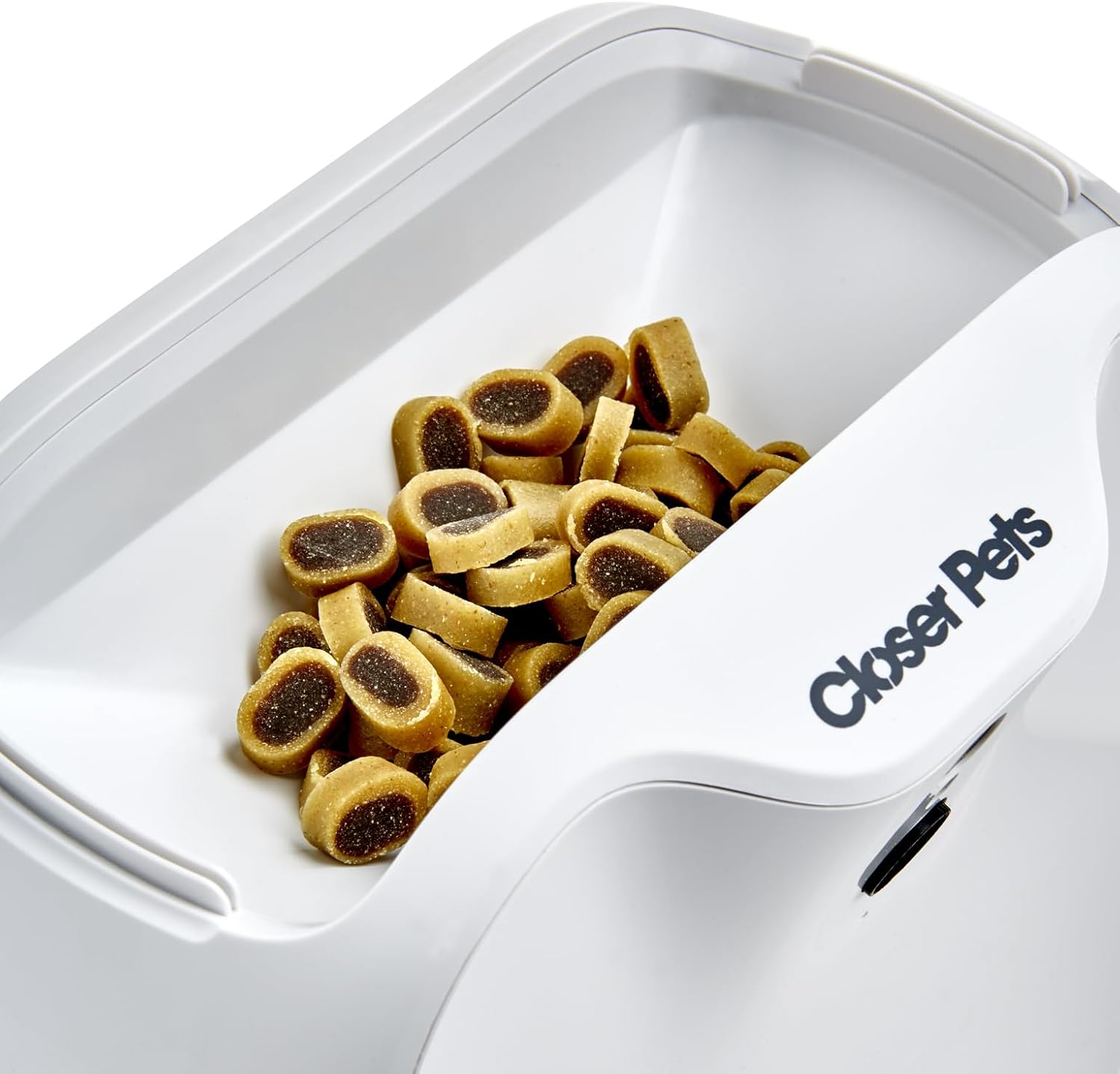
Image: A close-up view of the TreatView camera's top compartment, showing it filled with pet treats.
Operating Instructions
1. Live View
Once connected, open the app and select your TreatView camera to access the live video feed. The 130° wide-angle HD camera provides a broad view of the room. Night vision automatically activates in low-light conditions, ensuring clear visibility 24/7.

Image: A smartphone screen showing the live feed from the TreatView camera, demonstrating the 130-degree wide-angle view of a room with pets.
2. Two-Way Audio
Tap the microphone icon in the app to speak to your pet through the camera's speaker. Tap the speaker icon to listen to sounds from your pet's environment. This feature allows for interactive communication.
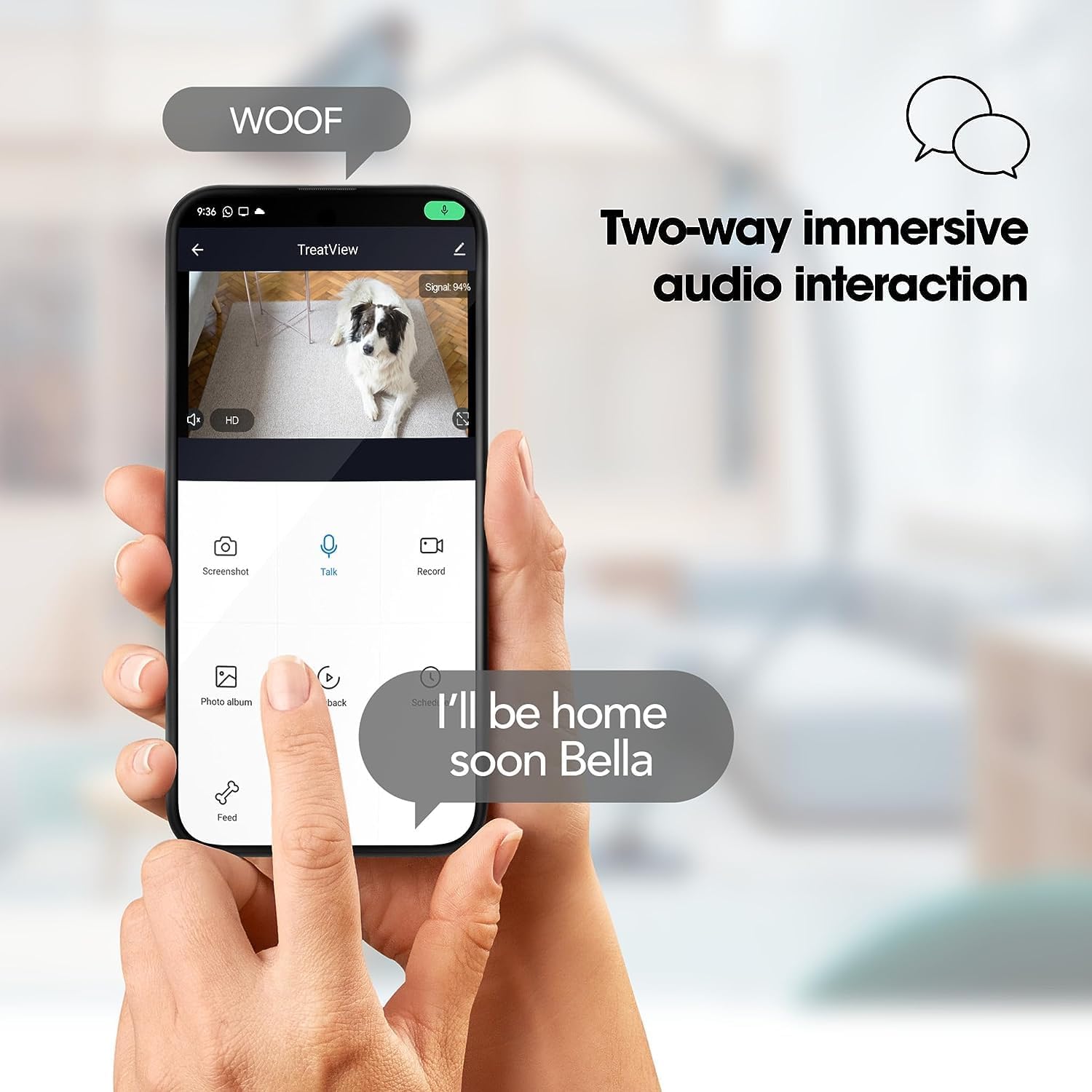
Image: A smartphone displaying the TreatView app with options for two-way audio, showing a dog on screen and speech bubbles indicating interaction.
3. Treat Dispensing
To dispense a treat, tap the "Feed" or treat icon within the app. The camera will emit a sound (if enabled) and then dispense a treat. You can adjust the portion size or frequency within the app settings.
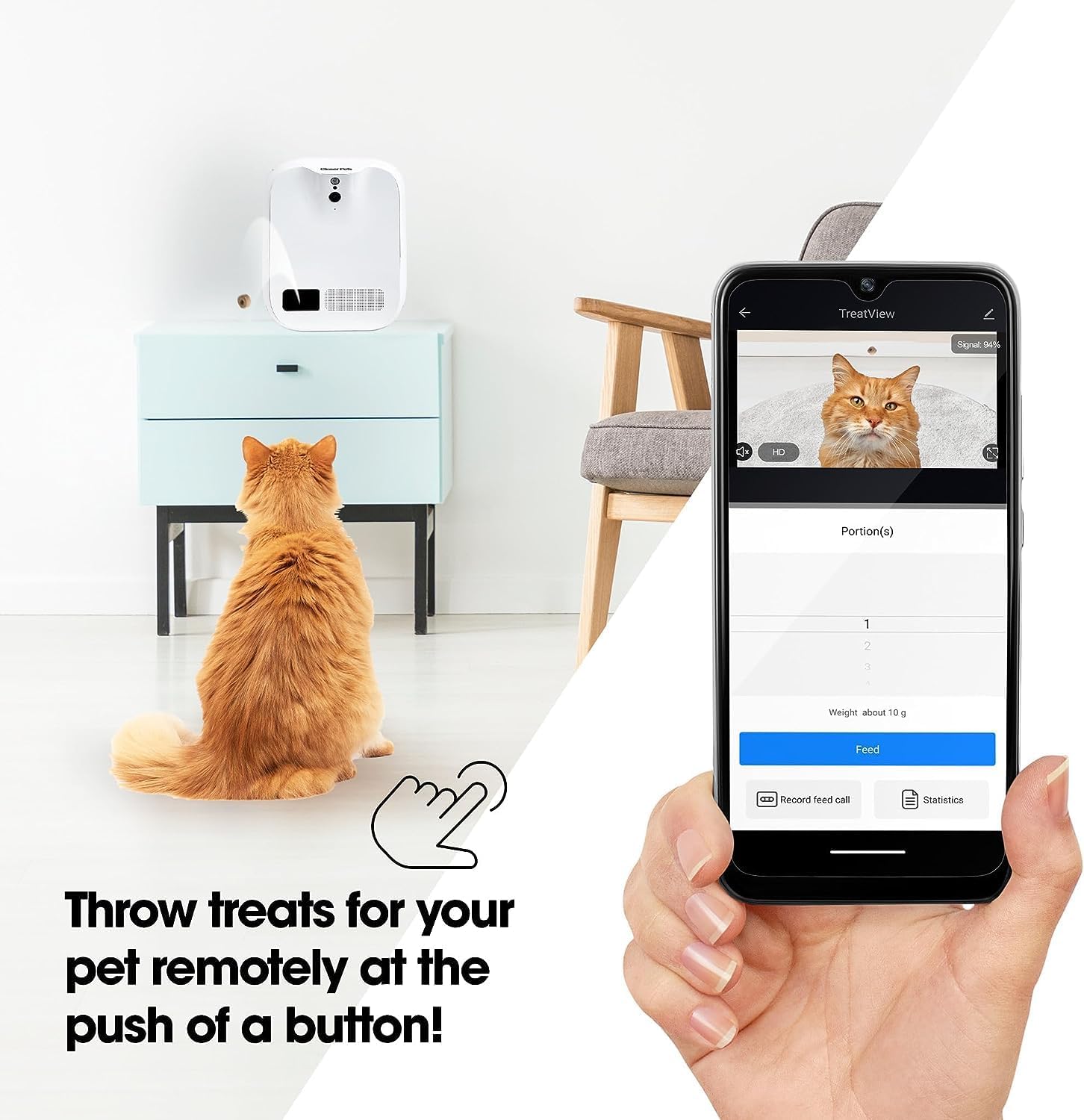
Image: A hand holding a smartphone with the TreatView app open, showing a "Feed" button to remotely dispense treats to a cat.
4. Recording and Screenshots
While viewing the live feed, you can capture screenshots or record video clips directly to your smartphone's gallery. Look for the "Screenshot" and "Record" buttons in the app interface.
5. Motion Detection and Alerts
The TreatView camera features motion detection. You can configure settings in the app to receive alerts on your phone when motion is detected in the camera's view. This helps you stay informed about your pet's activity.
Maintenance
- Cleaning: Wipe the exterior of the camera with a soft, dry cloth. For the treat compartment, remove any remaining treats and wipe with a damp cloth, then dry thoroughly before refilling. Do not use harsh chemicals or abrasive cleaners.
- Treat Refill: Regularly check the treat level and refill as needed to ensure continuous dispensing.
- Firmware Updates: Periodically check the app for any available firmware updates for your camera to ensure optimal performance and access to new features.
Troubleshooting
| Problem | Solution |
|---|---|
| Camera not connecting to Wi-Fi. | Ensure your Wi-Fi network is 2.4GHz or 5.0GHz. Check that the Wi-Fi password is entered correctly. Move the camera closer to your Wi-Fi router. Restart both the camera and your router. |
| Treats not dispensing. | Check if the treat compartment is empty. Ensure treats are not too large or sticky, which can cause jams. Clean the dispensing mechanism if necessary. |
| Poor video quality or lag. | Verify your Wi-Fi signal strength. A stronger signal provides better video quality. Reduce the number of devices connected to your Wi-Fi network. |
| Two-way audio not working. | Check your phone's volume settings and ensure the microphone/speaker icons are enabled in the app. Ensure there are no obstructions blocking the camera's microphone or speaker. |
| App not available or not working on iPhone. | Ensure your iPhone's operating system is up to date. Check the Apple App Store for the latest version of the "Closer Pets" app. If the app is not found, contact Closer Pets customer support for alternative download methods or compatibility information. |
Specifications
- Brand: Closer Pets
- Model Number: TreatView
- Dimensions (L x W x H): 7.28 x 4.33 x 8.97 inches (18.5 x 11 x 22.8 cm)
- Viewing Angle: 130 Degrees
- Video Capture Format: MPEG-4
- Night Vision: Yes (Night Color)
- Wi-Fi Compatibility: 2.4GHz and 5.0GHz
- Power Source: AC Adapter (Batteries Not Required)
- Unit Count: 1.0 Count
- UPC/GTIN: 035368901423

Image: A diagram showing the dimensions of the TreatView pet camera: 7.28 inches length, 4.33 inches width, and 8.97 inches height.
Official Product Video
Video: An official video from Closer Pets introducing the brand and its commitment to pet care, showcasing various products including feeders, fountains, and pet doors. This video highlights the brand's philosophy of keeping owners close to their pets.
Warranty and Support
For warranty information and customer support, please refer to the documentation included with your product or visit the official Closer Pets website. You can also contact their customer service team for assistance with setup, operation, or any technical issues.
Closer Pets Website: Visit the Closer Pets Store on Amazon
