
1. Introduction
Thank you for choosing the CUBOT Kingkong 8 Rugged Smartphone. This device is engineered for durability and performance, designed to withstand challenging environments while providing a full range of smartphone functionalities. It features a robust build, a powerful 10600mAh battery, a 6.52-inch HD+ display, and runs on Android 13.
Key features include a 48MP main camera, a 5000LM LED flashlight, and IP68/IP69K ratings for water and dust resistance. This manual provides essential information on setting up, operating, maintaining, and troubleshooting your device to ensure optimal performance and longevity.
2. What's in the Box
Upon unboxing your CUBOT Kingkong 8, please verify that all the following items are included:
- CUBOT Kingkong 8 Smartphone
- Charging Cable
- SIM Card Ejector Tool
If any items are missing or damaged, please contact your retailer or CUBOT customer support immediately.
3. Device Layout
Familiarize yourself with the physical components of your CUBOT Kingkong 8 smartphone.
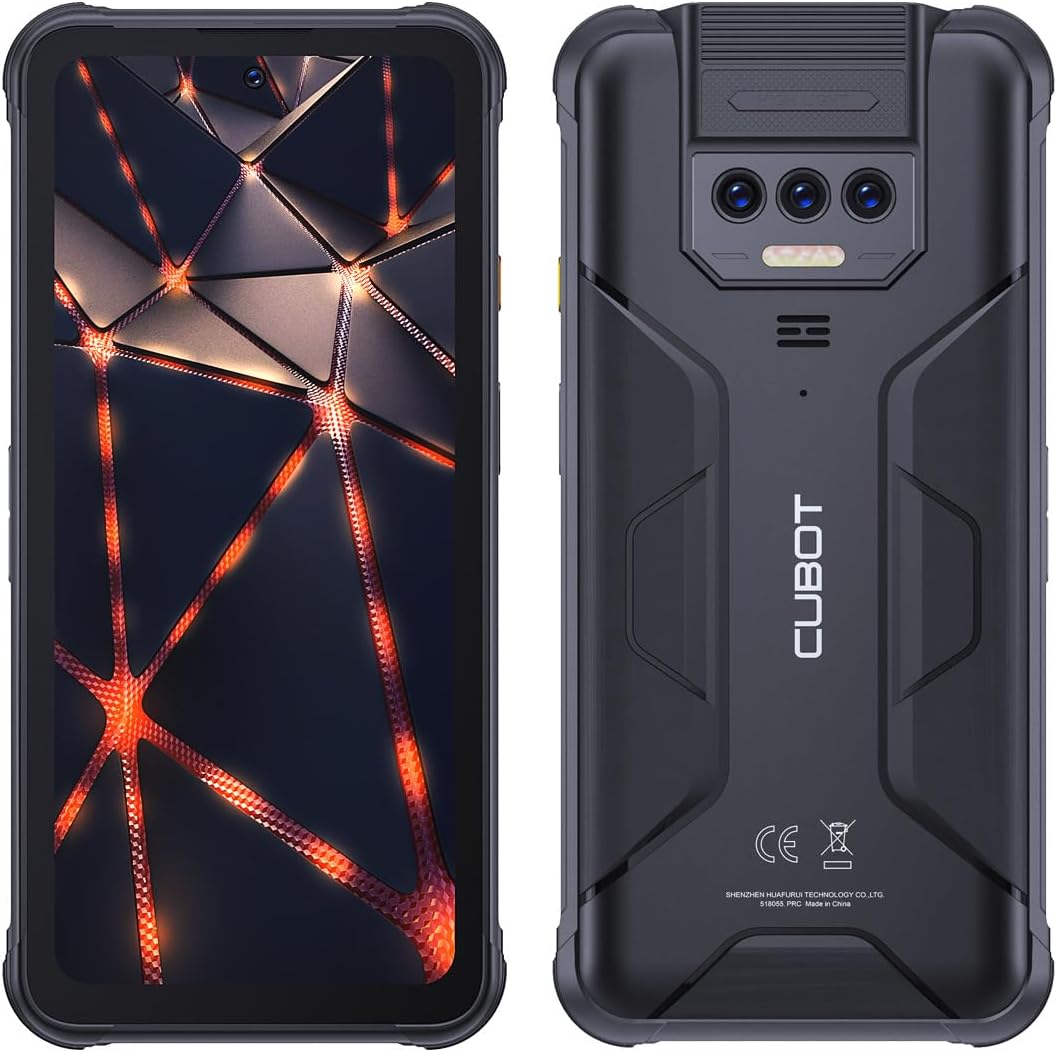
Figure 3.1: Front and Back View of CUBOT Kingkong 8. This image displays the front of the phone with its 6.52-inch display and the rear panel showing the triple camera module, LED flashlight, and CUBOT branding. The ruggedized casing is visible around the edges.

Figure 3.2: Side View of CUBOT Kingkong 8. This image highlights the side of the phone, clearly showing the SIM card tray, volume buttons, and power button, all integrated into the rugged frame.
3.1 Front Panel
- Display: 6.52-inch HD+ touchscreen.
- Front Camera: Located at the top of the display.
- Earpiece: For calls, located above the display.
3.2 Rear Panel
- Main Camera Module: Houses the 48MP main camera and other lenses.
- LED Flashlight: Powerful 5000LM LED light for illumination.
- CUBOT Branding: Manufacturer's logo.
3.3 Side Panels
- SIM Card Tray: Supports Dual SIM cards. Use the provided ejector tool to open.
- Volume Buttons: Adjust media volume and call volume.
- Power Button: Turns the device on/off, locks/unlocks the screen.
- USB-C Port: For charging and data transfer.
4. Getting Started (Setup)
4.1 SIM Card Installation
- Locate the SIM card tray on the side of the device.
- Insert the provided SIM ejector tool into the small hole next to the tray and push gently until the tray pops out.
- Place your Nano-SIM cards (up to two) and/or a microSD card (if supported for expansion) into the designated slots on the tray, ensuring correct orientation.
- Carefully push the tray back into the phone until it is flush with the device body.
4.2 Initial Charging
Before first use, it is recommended to fully charge your CUBOT Kingkong 8. The device is equipped with a large 10600mAh battery.
- Connect the charging cable to the USB-C port on your phone.
- Connect the other end of the cable to a compatible power adapter (not included) and plug it into a power outlet.
- The charging indicator will appear on the screen. Allow the device to charge until the battery icon shows full.
4.3 Powering On/Off
- To Power On: Press and hold the Power button until the CUBOT logo appears on the screen.
- To Power Off: Press and hold the Power button until the power options menu appears, then select "Power off".
- To Restart: From the power options menu, select "Restart".
5. Basic Operations
5.1 Touchscreen Navigation
Your CUBOT Kingkong 8 uses a capacitive touchscreen for interaction. Common gestures include:
- Tap: To select an item or open an application.
- Tap and Hold: To access contextual menus or move icons.
- Swipe: To scroll through lists or switch between screens.
- Pinch: To zoom in or out on images and web pages.
5.2 Camera Usage
The CUBOT Kingkong 8 features a 48MP main camera for high-resolution photos and a front camera for selfies and video calls.
- Open the "Camera" application from your home screen or app drawer.
- Select your desired mode (Photo, Video, Portrait, etc.).
- Tap the shutter button to capture a photo or start/stop video recording.
- Tap the camera switch icon to toggle between the front and rear cameras.
5.3 LED Flashlight
The device is equipped with a powerful 5000LM LED flashlight.
- To activate the flashlight, swipe down from the top of the screen to open the Quick Settings panel.
- Tap the "Flashlight" icon to turn it on or off.
5.4 Connectivity
- 4G Cellular: Insert a valid SIM card to access 4G mobile data and make calls.
- Wi-Fi: Connect to wireless networks via Settings > Network & internet > Wi-Fi.
- Bluetooth: Pair with Bluetooth devices like headphones or speakers via Settings > Connected devices > Bluetooth.
- NFC: Use Near Field Communication for contactless payments or quick pairing with compatible devices.
- GPS: The integrated GPS module provides accurate location services for navigation and location-based apps.
- OTG (On-The-Go): Supports connecting USB peripherals like flash drives or keyboards using an OTG adapter (sold separately).
6. Maintenance and Care
Proper care will extend the life of your CUBOT Kingkong 8.
6.1 Cleaning the Device
- Use a soft, lint-free cloth to wipe the screen and body.
- For stubborn smudges, slightly dampen the cloth with water or a screen cleaner. Avoid harsh chemicals.
- Ensure all port covers are securely closed before cleaning with any moisture.
6.2 Water and Dust Resistance (IP68/IP69K)
The CUBOT Kingkong 8 is rated IP68 and IP69K, meaning it is highly resistant to dust and water ingress. However, this resistance is not permanent and may decrease over time with normal wear.
- Ensure all port covers (USB-C, SIM tray) are firmly sealed before exposing the device to water or dust.
- Do not intentionally submerge the device in water beyond specified depths or for extended periods.
- Avoid exposing the device to high-pressure water jets or hot water.
- If the device gets wet, dry it thoroughly with a clean cloth before charging or opening any ports.
6.3 Battery Care
The 10600mAh battery provides extended usage. To maximize battery lifespan:
- Avoid extreme temperatures.
- Do not let the battery drain completely frequently.
- Use only approved chargers and cables.
6.4 Software Updates
Regularly check for and install software updates to ensure your device has the latest features, security patches, and performance improvements. You can usually find this option in Settings > System > System update.
7. Troubleshooting
If you encounter issues with your CUBOT Kingkong 8, try the following common solutions:
| Problem | Possible Solution |
|---|---|
| Device won't turn on | Ensure the battery is charged. Connect to a charger for at least 15 minutes. Try holding the Power button for 10-15 seconds. |
| Poor network signal | Check SIM card insertion. Move to an area with better coverage. Restart the device. |
| Apps crashing or freezing | Close and reopen the app. Clear the app's cache (Settings > Apps > [App Name] > Storage & cache). Restart the phone. |
| Battery drains quickly | Reduce screen brightness. Close background apps. Disable unnecessary features like Wi-Fi, Bluetooth, GPS when not in use. |
| Cannot connect to Wi-Fi | Ensure Wi-Fi is enabled. Restart your router. Forget the network and reconnect. |
If these solutions do not resolve your issue, please refer to the Warranty and Support section for further assistance.
8. Specifications
Detailed technical specifications for the CUBOT Kingkong 8:
| Feature | Specification |
|---|---|
| Brand | CUBOT |
| Model Number | CBTKK8BLK |
| Operating System | Android 13.0 |
| Screen Size | 6.5 Inches |
| Resolution | 1600 x 720 |
| Refresh Rate | 60 hertz |
| RAM Memory Installed Size | 12 GB |
| Memory Storage Capacity | 256 GB |
| Battery Capacity | 10600 Milliamp Hours |
| Phone Talk Time | 35 Hours |
| Item Weight | 13.5 ounces (382 Grams) |
| Wireless Carrier | Unlocked for All Carriers |
| Cellular Technology | 4G |
| Connectivity Technologies | 4G, Cellular, NFC |
| GPS | True |
| Form Factor | Smartphone |
| Color | Black |
| Manufacturer | CUBOT |
| Date First Available | December 5, 2023 |
9. Warranty and Support
CUBOT provides a standard warranty for its products. For specific warranty terms and conditions, please refer to the warranty card included with your product or visit the official CUBOT website.
For technical support, troubleshooting assistance beyond this manual, or warranty claims, please contact CUBOT customer service. You can find contact information on the official CUBOT website or through their Amazon brand store:
Please have your product model number (CBTKK8BLK) and purchase details ready when contacting support.


