
1. Introduction
This manual provides detailed instructions for the installation, operation, and maintenance of your UNITOPSCI Single Din Car Stereo, Model A3460. This unit features a 6.86-inch HD touch screen, Apple CarPlay, Android Auto, Bluetooth 5.0, FM radio, mirror link functionality, and support for a backup camera and DVR. Please read this manual thoroughly before use to ensure proper functionality and safety.
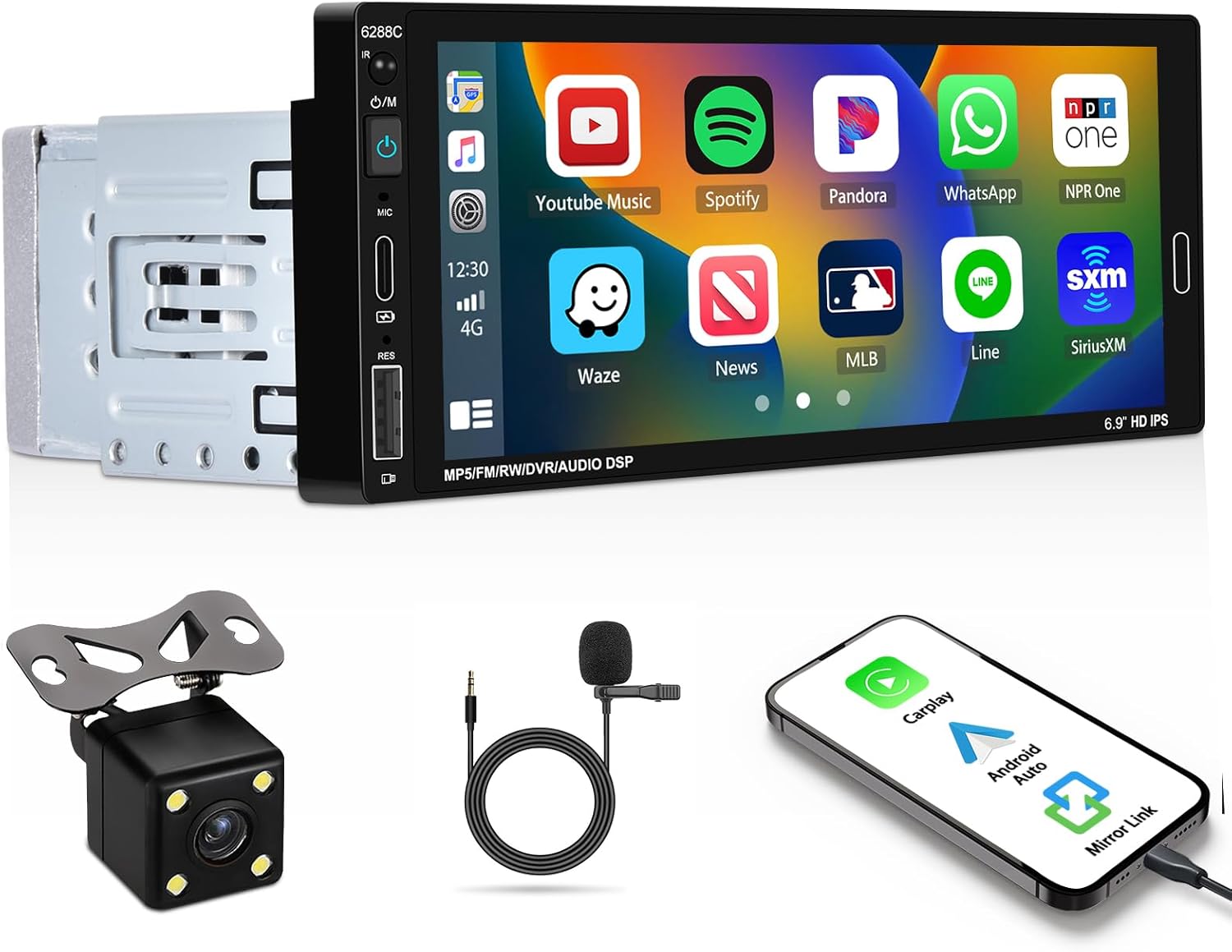
Image 1.1: UNITOPSCI Single Din Car Stereo with backup camera, microphone, and smartphone showing CarPlay/Android Auto connection.
2. What's in the Box
Verify that all items listed below are included in your package:
- 1 x Car Stereo
- 1 x Backup Camera
- 1 x Remote Control (Battery Not included)
- 1 x Steering Wheel Control (Battery Not included)
- 1 x Power Cable
- 1 x Horn Cable
- 1 x User Manual
- 1 x Microphone
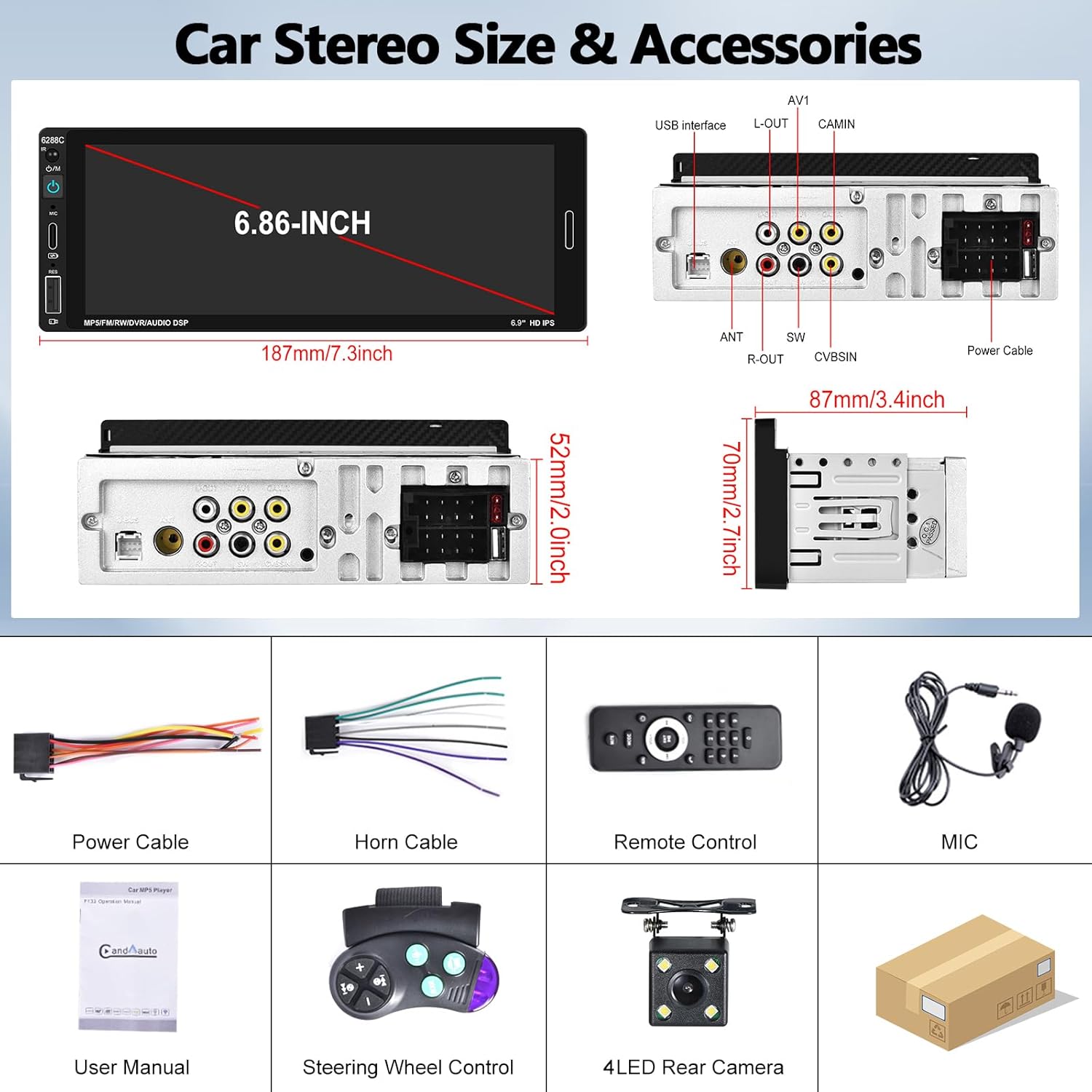
Image 2.1: Visual representation of the car stereo unit, power cables, remote control, microphone, user manual, steering wheel control, and 4-LED rear camera.
3. Specifications
| Feature | Detail |
|---|---|
| Model Number | A3460 |
| System | WINCE |
| CPU Chip | F133 |
| Screen Size | 6.86 inches |
| Screen Resolution | 1280 x 480 |
| Power Output | 45W x 4 |
| Bluetooth Version | 5.0 |
| Bluetooth Name | CAR BT |
| Radio Chip | QN8035 |
| Power Amplifier Chip | TDA7388 |
| Connectivity | Bluetooth, USB, Type-C |
| Special Features | Apple CarPlay, Android Auto, Mirror Link, FM Tuner, Backup Camera Input, DVR Function, DSP Sound, Steering Wheel Control, Colorful Backlight |
| Audio Formats | MP3/WMA/WAV/APE/FLAC |
| Video Formats | RM/RMVB/AVI/MP4/MKV/3GP |
| Picture Formats | JPG BMP PNG |
| Supported Languages | English, Chinese, Spanish, Portuguese, Russian, Italian, German, French, Turkish, Czech, Arabic, Polish, Hebrew |
| Product Dimensions | 3.42"D x 7.4"W x 2.04"H (87mm x 187mm x 52mm) |
| Item Weight | 1.92 pounds |
| Operating Voltage | DC 12V |
| Operating Temperature | -10°C to 60°C |
4. Setup & Installation
4.1. Pre-Installation Check
Before beginning installation, ensure your vehicle has a single DIN radio opening. The unit dimensions are approximately 187mm (length) x 52mm (height) x 87mm (depth). Some vehicles may require a special wire harness, which is sold separately.

Image 4.1: Comparison of a standard car dashboard before and after installation of the UNITOPSCI 6.86-inch touch screen car stereo.
4.2. Wiring Diagram
Refer to the provided wiring diagram for correct connections. Incorrect wiring can damage the unit or vehicle electrical system. The pink wire is typically for the reverse trigger signal.
Image 4.2: Rear view of the car stereo showing various ports and a detailed wiring diagram for power, horn, USB, AV, camera, and steering wheel control connections.
- Power Cable: Connect to vehicle's power supply (ACC, B+, Ground).
- Horn Cable: Connect to vehicle's speaker outputs.
- Backup Camera: Connect the camera's video output to the CAMIN port and the power to the reverse light circuit. The pink wire on the stereo is the reverse trigger.
- Steering Wheel Control (SWC): Connect the SWC wires to your vehicle's steering wheel control interface.
- Microphone: Plug the external microphone into the dedicated MIC input for improved call quality.
4.3. Backup Camera Installation
The included backup camera should be mounted at the rear of the vehicle. Ensure the camera is securely fastened and its view is unobstructed. Connect the camera's power to the vehicle's reverse light circuit so it activates when the vehicle is in reverse gear. Connect the video cable to the "CAMIN" input on the stereo. The stereo's pink wire must be connected to the reverse trigger signal from the vehicle.

Image 4.3: Illustration of a backup camera mounted on a vehicle and its connection to the car stereo for displaying reversing images.
5. Operating Instructions
5.1. Apple CarPlay & Android Auto
Connect your iOS or Android smartphone to the stereo via a USB cable. The unit will automatically detect and launch Apple CarPlay or Android Auto. This allows voice control for navigation, calls, messages, and music playback, enhancing driving safety and convenience.
- Voice Control: Use "Hey Siri" or "Hey Google" to issue commands.
- Navigation: Access your phone's navigation apps directly on the stereo screen.
- Communication: Make calls and send messages hands-free.
- Media: Play music and podcasts from your phone.

Image 5.1: The car stereo displaying Apple CarPlay and Android Auto interfaces, demonstrating voice control commands for navigation and communication.
5.2. Bluetooth Connectivity
The stereo features Bluetooth 5.0 for hands-free calling and wireless audio streaming (A2DP).
- Pairing: Go to the Bluetooth settings on the stereo and your phone. Search for "CAR BT" and pair.
- Hands-Free Calling: Use the built-in microphone or external microphone for clear calls.
- Audio Streaming: Play music from your phone wirelessly through the car stereo.

Image 5.2: The car stereo's Bluetooth setup screen for connecting a phone and the FM radio interface with station presets.
5.3. FM Radio
Access FM radio stations with 18 preset memory slots. The DSP sound effect feature can enhance audio quality.
- Tuning: Use the touch screen controls to scan for stations or manually tune.
- Presets: Save your favorite stations for quick access.
- Frequency Range: 87.5-108MHz.
5.4. Mirror Link Function
Connect your iOS or Android phone via USB cable to mirror its screen onto the stereo display. This allows you to view maps, videos, or other content from your phone. Note: Mirror Link functionality may not be compatible with all Samsung phone models.
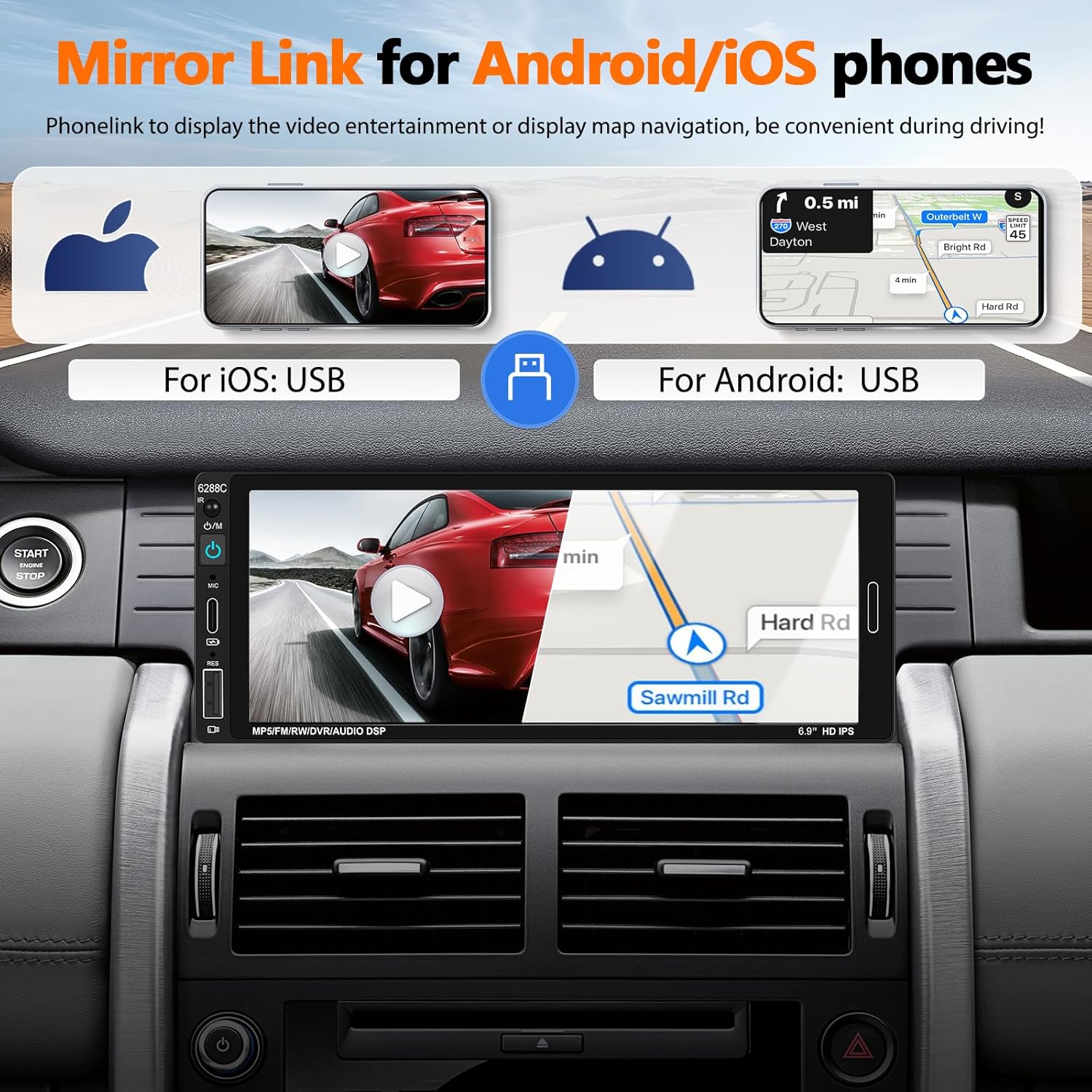
Image 5.3: The car stereo screen showing a mirrored smartphone display, illustrating navigation and video playback via Mirror Link.
5.5. Backup Camera Display
When the vehicle is shifted into reverse gear, the stereo will automatically switch to display the live feed from the connected backup camera. The camera provides a wide-angle view, night vision, and is waterproof, assisting with safer parking maneuvers. Parking guidelines are displayed on the screen.
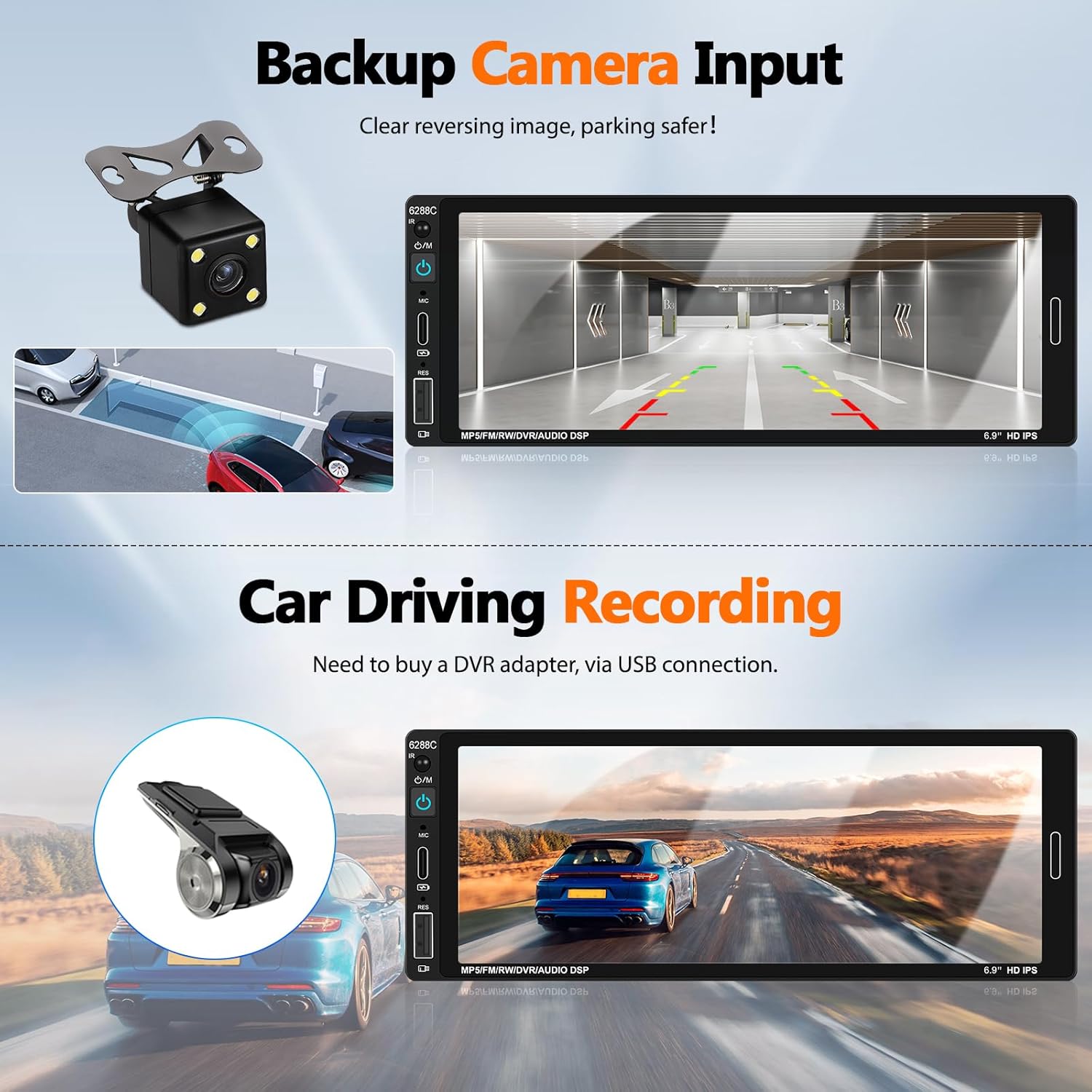
Image 5.4: The car stereo screen showing a clear reversing image from the backup camera with parking assistance lines.
5.6. DVR Function (Optional)
The unit supports a DVR (Driving Video Recorder) function. To use this, connect a compatible USB DVR adapter (purchased separately) to the rear USB slot. This enables recording of your driving footage directly through the head unit.
5.7. Steering Wheel Control (SWC)
If your vehicle supports steering wheel controls, connect the provided SWC module. This allows you to easily control functions such as volume, track skipping, and answering calls directly from your steering wheel, reducing distractions while driving.
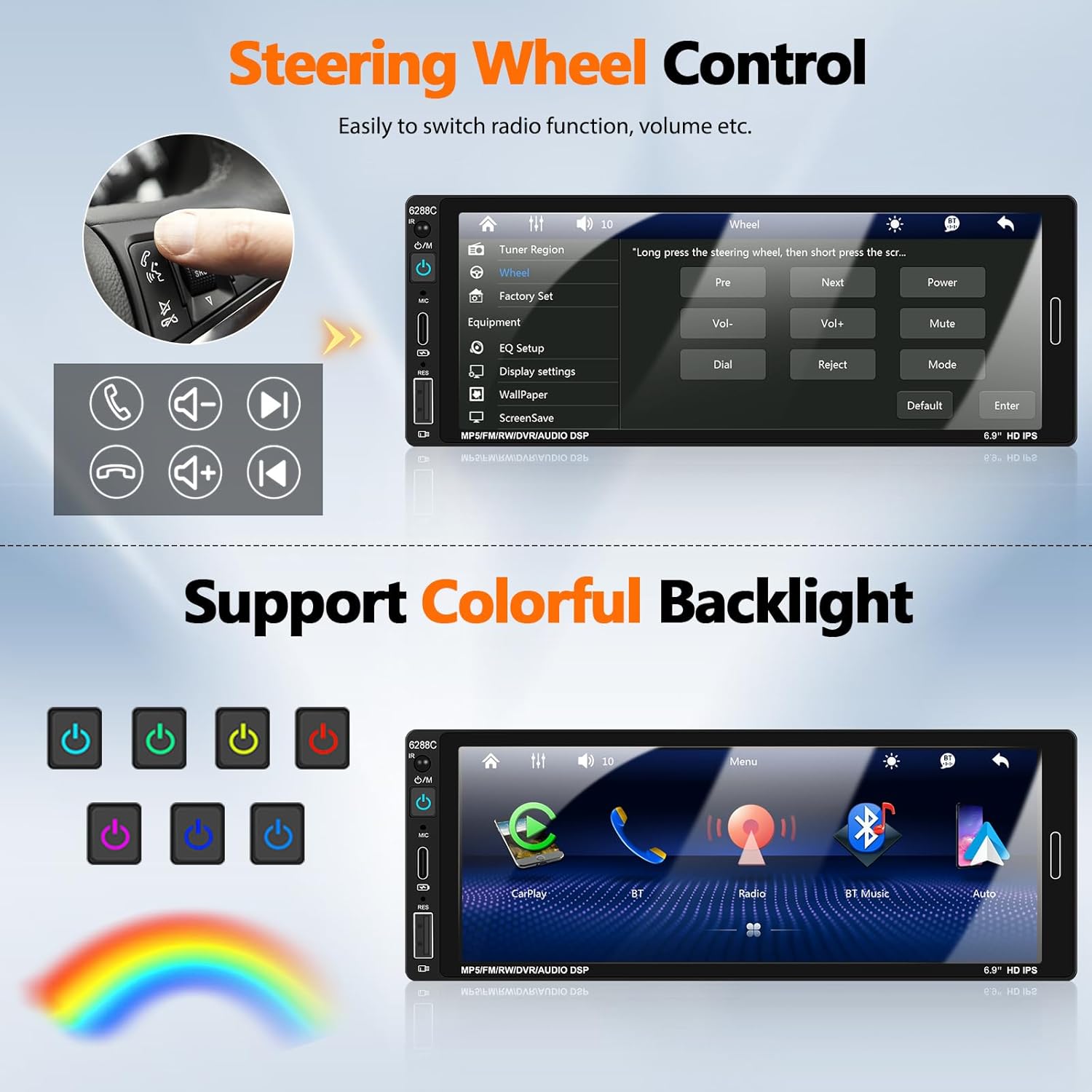
Image 5.5: Illustration of steering wheel controls and the corresponding settings screen on the car stereo for mapping functions.
5.8. DSP Sound Settings
The Digital Sound Processor (DSP) allows you to customize the audio output. Access the EQ settings to adjust bass, treble, balance, and other sound parameters to your preference.

Image 5.6: Various user interface screens, including detailed EQ settings for audio customization.
5.9. Colorful Backlight
The unit features 7-color backlight buttons. You can customize the button illumination color to match your vehicle's interior lighting or your personal preference.
6. Maintenance
- Cleaning: Use a soft, dry cloth to clean the screen and unit. Avoid abrasive cleaners or solvents.
- Temperature: Operate the unit within the recommended temperature range (-10°C to 60°C).
- Connections: Periodically check all wiring connections to ensure they are secure.
7. Troubleshooting
| Problem | Possible Cause / Solution |
|---|---|
| Unit does not power on. | Check power cable connections (ACC, B+, Ground). Ensure vehicle's fuse is intact. |
| No sound from speakers. | Verify speaker wire connections. Check volume level and mute settings. Ensure "Horn Cable" is correctly connected. |
| Apple CarPlay / Android Auto not connecting. | Ensure a genuine USB cable is used. Check phone settings for CarPlay/Android Auto permissions. Try a different USB port if available. Restart both phone and stereo. |
| Backup camera not displaying. | Check CAMIN video connection. Ensure the pink reverse trigger wire is correctly connected to the vehicle's reverse light signal. Verify camera power supply. |
| Bluetooth not pairing or unstable. | Ensure Bluetooth is enabled on both devices. Forget previous pairings and try again. Ensure devices are within range. |
| Remote control not working. | Check battery in the remote control. Ensure there are no obstructions between the remote and the stereo's IR receiver. |
| Mirror Link not working for Samsung phone. | Some Samsung phone models may not be compatible with the Mirror Link function. This is a known limitation. |
8. Warranty & Support
UNITOPSCI is committed to providing high-quality products and satisfactory services. We offer comprehensive support for your car stereo.
- Replacement: Available within 24 months of purchase.
- Returns: 60-day no-worry return policy.
- Technical Support: Lifetime after-sales consultation and technical support.
- Contact: For any inquiries or support, please contact us at UNITOPSCI@126.com. We aim for a quick response within 16 hours.

Image 8.1: Overview of UNITOPSCI's customer support, including replacement policy, quick response time, lifetime technical support, and contact email.

