
1. Safety Instructions
Please read and understand all safety instructions before assembling, operating, or maintaining your Cubiker Electric Standing Desk. Failure to follow these instructions may result in injury or damage to the product.
- Always follow the assembly instructions carefully.
- Keep fingers and other body parts away from moving parts when adjusting the desk height to prevent pinching or crushing.
- Do not overload the desk surface. Refer to the specifications for maximum weight capacity.
- Ensure the desk is placed on a stable, level surface and is properly anchored if required, to prevent tipping.
- Keep the power cord away from heat sources, sharp edges, and liquids. Do not place heavy objects on the power cord.
- Unplug the desk from the power outlet when not in use, during cleaning, or before performing any maintenance.
- This desk is designed for adult use. Keep children and pets away from the desk during operation.
- Do not attempt to modify or disassemble the desk's electrical components. Contact customer support for service.
2. Product Overview
The Cubiker 63" L-Shaped Electric Standing Desk is designed to provide a versatile and ergonomic workspace for your home or office. It features electric height adjustment, ample storage, and a robust construction.

Figure 2.1: Overall view of the Cubiker 63" L-Shaped Electric Standing Desk.
Key Features:
- Electric Height Adjustment: Smooth and quiet motor for effortless transitions between sitting and standing positions.
- L-Shaped Design: Provides a spacious work surface, ideal for multi-monitor setups or collaborative tasks.
- Integrated 3-Drawer File Cabinet: Offers secure and organized storage for documents and office supplies.
- Under-Desk Storage Shelves: Convenient open shelving for easy access to books, decor, or other items.
- Memory Presets: Store your preferred sitting and standing heights for quick adjustments.
- Anti-Collision Technology: Automatically stops and retracts if an obstruction is detected during height adjustment.
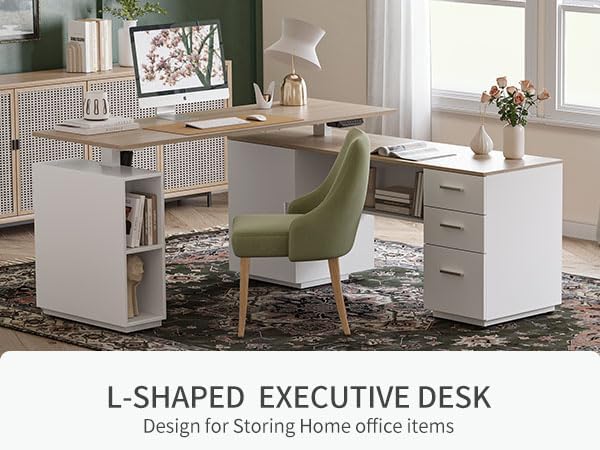
Figure 2.2: The L-shaped design offers ample space for various office items.

Figure 2.3: The integrated 3-drawer cabinet helps keep your workspace tidy.

Figure 2.4: Open storage sections provide convenient access and display space.
3. Assembly
Your Cubiker Electric Standing Desk requires assembly. All necessary assembly tools and detailed instructions with diagrams are included in the packaging.
Before You Begin:
- Unpack Carefully: Remove all components from the packaging and lay them out on a clean, soft surface (e.g., a blanket or carpet) to prevent scratches.
- Verify Parts: Check the parts list against the included components to ensure nothing is missing.
- Gather Tools: The required basic assembly tools are provided. Ensure you have them readily available.
- Read Instructions: Thoroughly read the entire assembly manual before starting. Pay close attention to safety warnings and step-by-step diagrams.
Assembly Steps:
Follow the step-by-step instructions provided in the separate assembly manual included with your desk. It is recommended to have a second person assist with assembly, especially when handling larger or heavier components.
4. Operating Instructions
This section details how to operate your electric standing desk, including height adjustment and using memory presets.
Control Panel Features:
- Up & Down Buttons: Used for momentary control of desk height. Press and hold to move the desk up or down. Release to stop.
- 3 Height Memory Presets Buttons: Allows you to save and recall up to three preferred height settings.
- Child-Friendly Memory/Screen Lock Button: Engages a lock function to prevent accidental height adjustments, enhancing safety.
- Automatic Anti-Collision Technology: Detects obstacles during height adjustment and automatically stops or reverses movement to prevent damage or injury.
Height Adjustment:
- Manual Adjustment: Press and hold the Up or Down button on the control panel. The desk will move smoothly. Release the button when the desired height is reached.
- Setting Memory Presets:
- Adjust the desk to your desired height using the Up/Down buttons.
- Press the M (Memory) button. The display will show 'S-'.
- Within 3 seconds, press one of the numbered preset buttons (e.g., 1, 2, or 3). The display will show 'S-1', 'S-2', or 'S-3' to confirm the setting is saved.
- Using Memory Presets: Simply press the corresponding numbered preset button (1, 2, or 3). The desk will automatically move to the saved height.
Child-Friendly Lock Function:
To activate or deactivate the lock function, press and hold the Lock button (often indicated by a key or child icon) for a few seconds until the display indicates 'LOC' or 'UNL'. When locked, the desk will not respond to height adjustment commands.
Anti-Collision System:
The desk is equipped with an anti-collision system. If the desk encounters an obstruction during height adjustment, it will automatically stop and reverse slightly to prevent damage. Ensure the area around the desk is clear before adjusting height.
5. Maintenance
Regular maintenance helps ensure the longevity and optimal performance of your Cubiker Electric Standing Desk.
- Cleaning:
- Always unplug the desk before cleaning.
- Wipe surfaces with a soft, damp cloth. Use a mild, non-abrasive cleaner if necessary.
- Avoid using harsh chemicals, abrasive pads, or excessive moisture, as these can damage the finish or electrical components.
- Ensure all surfaces are dry before plugging the desk back in.
- Cable Management: Regularly check and organize cables to prevent tangles, damage, and tripping hazards.
- Motor and Frame Inspection: Periodically inspect the motor and frame for any signs of wear, loose screws, or unusual noises. Tighten any loose fasteners.
- Lubrication: The desk's lifting columns are generally maintenance-free and do not require lubrication.
6. Troubleshooting
If you encounter issues with your Cubiker Electric Standing Desk, refer to the following common troubleshooting steps. If the problem persists, contact Cubiker customer support.
| Problem | Possible Cause | Solution |
|---|---|---|
| Desk does not move. | Power cord unplugged. Control panel locked. Overload. | Ensure power cord is securely plugged in. Unlock the control panel (refer to 'Child-Friendly Lock Function'). Remove some weight from the desk surface. |
| Desk moves unevenly or makes unusual noise. | Loose connections. Obstruction. Uneven weight distribution. | Check all connections and tighten screws. Ensure no objects are obstructing the lifting columns. Redistribute weight evenly on the desk surface. |
| Anti-collision system triggers frequently. | Sensitive setting. Obstruction. | Ensure the area around the desk is clear. If the issue persists, consult the full manual for sensitivity adjustment or contact support. |
| Memory presets not working. | Presets not saved correctly. | Re-save your desired height presets following the 'Setting Memory Presets' instructions. |
7. Specifications
Detailed technical specifications for the Cubiker 63" L-Shaped Electric Standing Desk.
| Feature | Detail |
|---|---|
| Brand | Cubiker |
| Model Number | B0CG8JHX68 |
| Desk Design | Standing Desk |
| Shape | Rectangular (L-Shaped Configuration) |
| Product Dimensions (D x W x H) | 63"D x 63"W x 26.4"H |
| Maximum Height | 26.4 Inches (Note: This value seems low for a standing desk max height, please refer to product documentation for actual range) |
| Color | Light Walnut (Top), White (Frame) |
| Style | Modern |
| Base Material | Metal |
| Finish Type | Painted |
| Special Feature | Electric Height Adjustment |
| Number of Drawers | 3 (File Drawer Type) |
| Storage Options | Drawers, Storage Shelf, Storage Hooks |
| Required Assembly | Yes |
| Included Components | Assembly Instructions with Diagram, Standing Desk, Storage Hooks, Storage Shelf, Drawers, Basic Assembly Tools |
8. Warranty & Support
Cubiker is committed to providing high-quality products and excellent customer service.
Warranty Information:
Specific warranty details for your Cubiker Electric Standing Desk are typically included with your purchase documentation. Please refer to these documents for information regarding warranty duration and coverage. For additional protection, 3-Year Protection Plans are often available for purchase.
Customer Support:
If you have any questions, require assistance with assembly, encounter issues with your desk, or need to claim warranty service, please contact Cubiker customer support. Have your model number (B0CG8JHX68) and purchase information ready when contacting support.
You can typically find contact information for Cubiker customer support on their official website or through the retailer where you purchased the product.


