
DAUZ DAUZya39spz4g7
DAUZ Micro ATX A88 Desktop Motherboard User Manual
Model: DAUZya39spz4g7
1. Introduction
This manual provides comprehensive instructions for the DAUZ Micro ATX A88 Desktop Motherboard. This motherboard is engineered to support FM2/FM2+ series CPUs, including A10, A8, A6, A4, and Athlon APU core graphics cards. It features dual-channel DDR3 memory support up to 16GB, a robust 6-phase power design for stable operation, and integrated HD audio. Understanding the components and following the guidelines in this manual will ensure proper installation and reliable performance of your system.

Figure 1.1: Top-down view of the DAUZ Micro ATX A88 Desktop Motherboard, showing the CPU socket, RAM slots, and various connectors.
2. Setup and Installation
Follow these steps for proper installation of your DAUZ Micro ATX A88 Desktop Motherboard and its components.
2.1 Unpacking and Inspection
Carefully remove the motherboard from its packaging. Inspect for any visible damage during transit. Ensure all included accessories are present.
2.2 Motherboard Installation
Align the motherboard with the standoffs in your computer case. Secure the motherboard using appropriate screws. Ensure no metal parts of the motherboard are touching the case directly without a standoff.
2.3 CPU Installation
Locate the FM2/FM2+ CPU socket on the motherboard. Lift the socket lever, align the CPU with the triangular mark on the socket, and gently place the CPU into the socket. Lower the lever to secure the CPU. Apply thermal paste and install the CPU cooler according to its manufacturer's instructions.
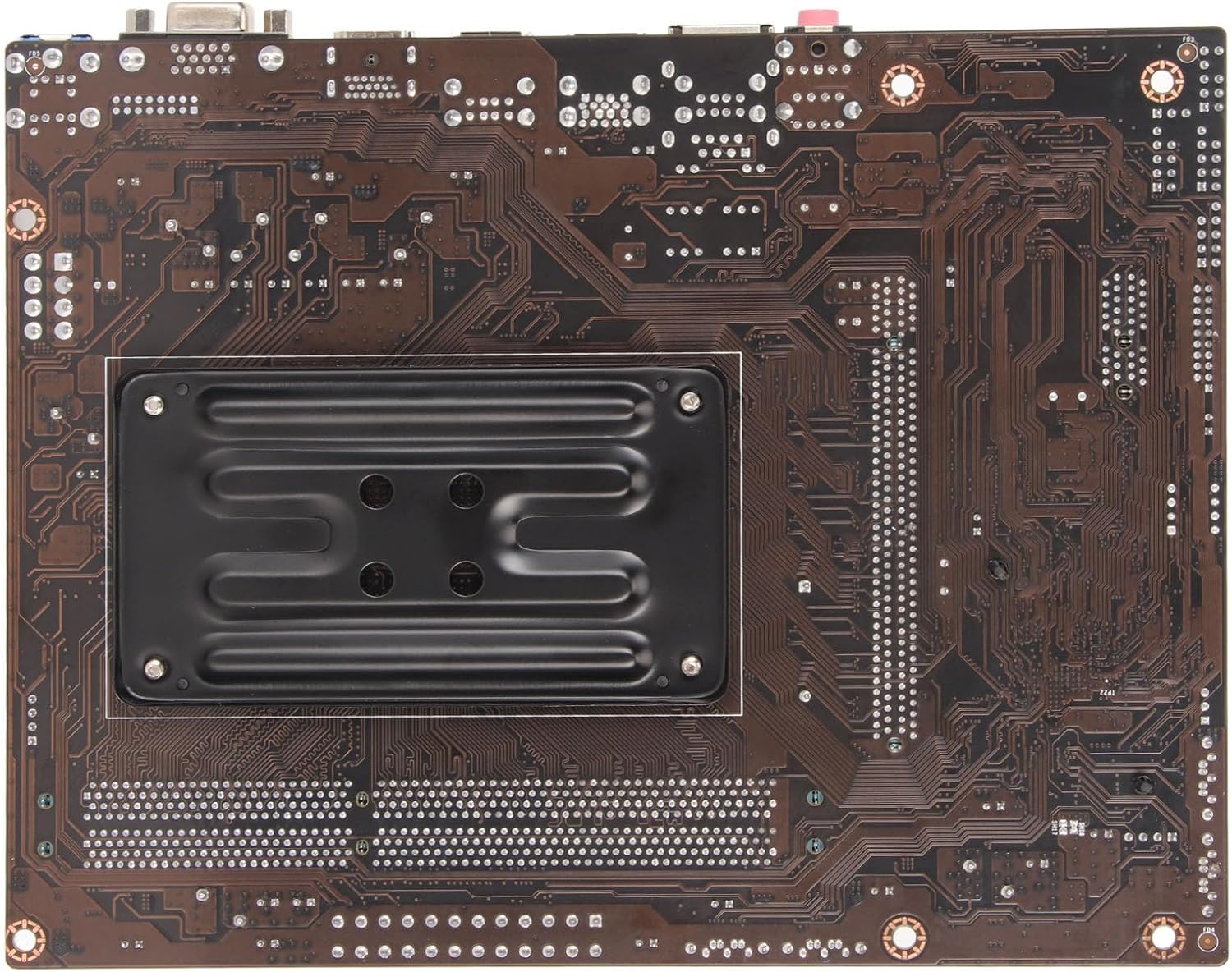
Figure 2.1: Close-up view of the FM2/FM2+ CPU socket, where the processor is installed.
2.4 Memory (RAM) Installation
This motherboard supports dual-channel DDR3 memory. Locate the two 240-pin DDR3 SDRAM memory slots. Open the clips at both ends of the slot. Align the memory module with the notch in the slot and press down firmly until the clips snap into place. For dual-channel operation, install modules in both slots.
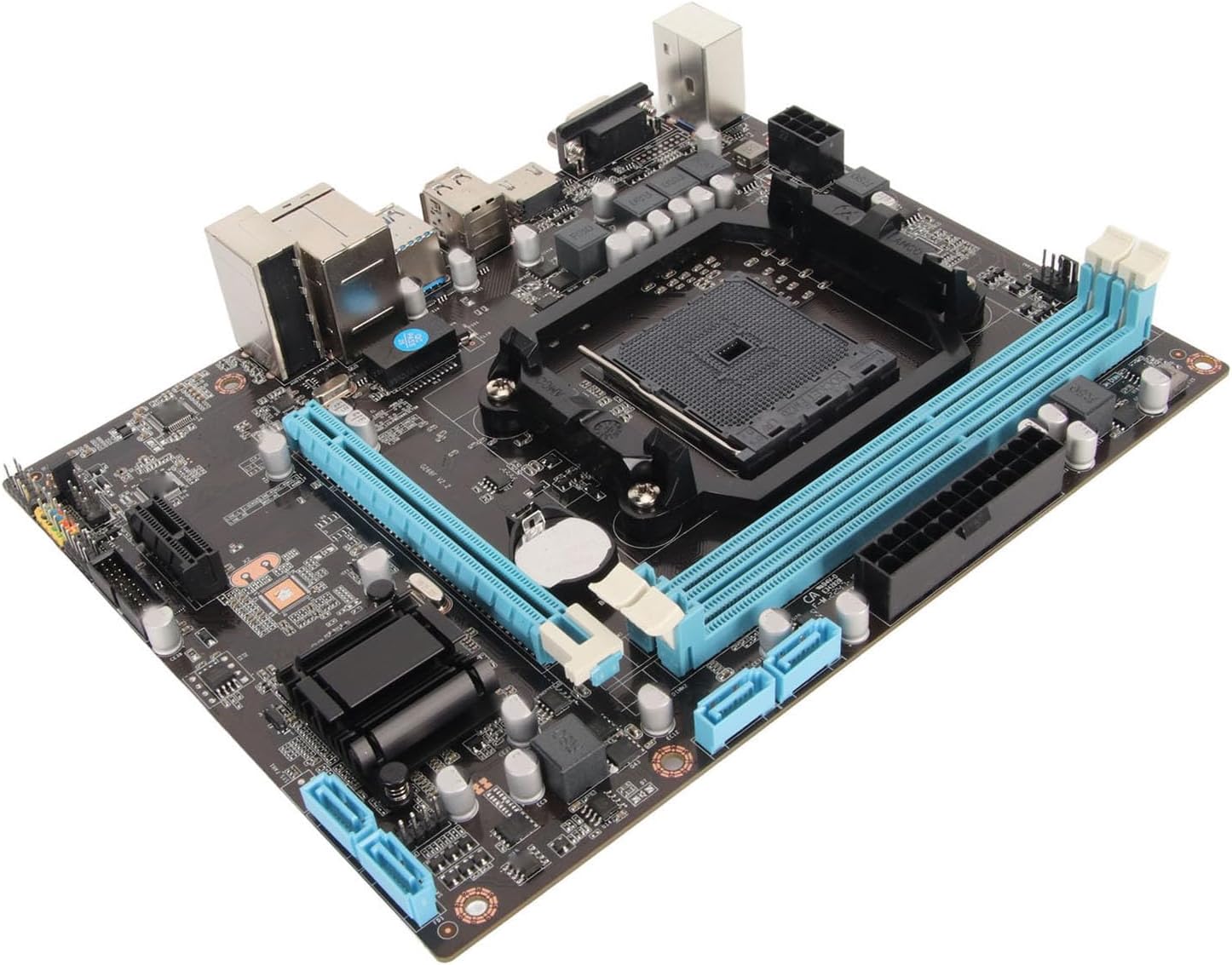
Figure 2.2: Angled view of the motherboard highlighting the two DDR3 RAM slots and the PCI Express x16 slot.
2.5 Power Connections
Connect the 24-pin ATX power connector from your power supply unit (PSU) to the main power socket on the motherboard. Also, connect the 8-pin CPU power connector to the corresponding socket near the CPU.
2.6 Storage and Expansion Card Installation
Connect your SATA storage devices (HDD/SSD) to the SATA ports on the motherboard. For graphics cards or other expansion cards, insert them into the appropriate PCI Express slots (1 x PCI Express 3.0 x16, 1 x PCI Express x1) and secure them.
2.7 Front Panel Connections
Connect the power switch, reset switch, HDD LED, power LED, and front panel audio/USB headers from your case to the corresponding pins on the motherboard. Refer to your case manual for specific pin assignments.
3. Operating Instructions
Once all components are installed, you can proceed with system operation.
3.1 Initial Boot-up
After connecting all necessary peripherals (monitor, keyboard, mouse) and power, press the power button on your computer case. The system should power on and display the BIOS/UEFI splash screen.
3.2 BIOS/UEFI Access
During the initial boot sequence, press the designated key (commonly Del, F2, F10, or F12) to enter the BIOS/UEFI setup utility. Here, you can configure boot order, system time, and other hardware settings.
3.3 Operating System Installation
Insert your operating system installation media (USB drive or DVD) and set the boot priority in BIOS/UEFI to boot from it. Follow the on-screen instructions to install your preferred operating system.
3.4 Driver Installation
After OS installation, install the necessary drivers for the motherboard's components, including chipset, audio, LAN, and integrated graphics (if using APU). These drivers are typically provided on a CD/DVD or can be downloaded from the manufacturer's website.
3.5 Connecting Peripherals
The motherboard provides various ports for connecting external devices:
- PS/2 Ports: 1 for keyboard, 1 for mouse.
- USB Ports: 4 x USB 2.0, 2 x USB 3.0 for various USB devices.
- Video Outputs: VGA and HD Multimedia Interface for display connection.
- LAN Port: 1 x RJ45 port for network connection (10/100Mbps).
- Audio Ports: 3-in-1 audio ports (Line Input/Line Output/Microphone Input) for speakers, headphones, and microphones.

Figure 3.1: Close-up view of the rear I/O panel, showing PS/2, USB, VGA, HD Multimedia Interface, LAN, and audio ports.
4. Maintenance
Regular maintenance helps ensure the longevity and stable operation of your motherboard.
4.1 Dust Removal
Periodically clean dust from inside your computer case, especially from the motherboard and CPU cooler. Use compressed air or a soft brush. Ensure the system is powered off and unplugged before cleaning.
4.2 Environmental Considerations
Operate the motherboard in a well-ventilated area with stable temperature and humidity. Avoid extreme temperatures or direct sunlight. Keep the system away from liquids and excessive moisture.
4.3 BIOS/UEFI Updates
Occasionally, the manufacturer may release BIOS/UEFI updates to improve compatibility, stability, or add new features. Refer to the DAUZ support website for instructions on how to safely update your motherboard's firmware.
5. Troubleshooting
This section provides solutions to common issues you might encounter.
5.1 No Power / No Boot
- Check all power connections (24-pin ATX, 8-pin CPU) are securely seated.
- Ensure the power supply unit (PSU) is switched on and functioning correctly.
- Verify the front panel power switch is correctly connected to the motherboard header.
- Try booting with minimal components (CPU, one RAM stick, PSU) to isolate the issue.
5.2 No Display Output
- Ensure the monitor is connected to the correct video output (VGA or HD Multimedia Interface) and is powered on.
- If using a dedicated graphics card, ensure the monitor is connected to the graphics card's output, not the motherboard's.
- Reseat the RAM modules. Faulty or improperly seated RAM can prevent display output.
- Check if the CPU cooler is properly installed and the CPU is receiving power.
5.3 Component Not Detected
- RAM: Reseat the memory modules. Try one module at a time in different slots.
- Storage (HDD/SSD): Check SATA data and power cables. Ensure the drive is enabled in BIOS/UEFI.
- PCIe Card: Reseat the expansion card. Ensure it is fully inserted into the slot and any necessary auxiliary power cables are connected.
5.4 System Instability / Crashes
- Ensure all drivers are up to date.
- Check CPU and system temperatures to prevent overheating.
- Run memory diagnostic tools to check for RAM errors.
- Verify power supply stability and wattage.
6. Specifications
Detailed technical specifications for the DAUZ Micro ATX A88 Desktop Motherboard.
- Item Type:
- Desktop Motherboard
- Material:
- Printed Circuit Board
- CPU Support:
- For FM2/FM2+ Series CPU (A10/A8/A6/A4/Athlon APU)
- Memory:
- Dual Channel DDR3, 2 x 240pin slots, supports 1066/1333/1600/1866MHz, up to 16GB
- Integrated Audio:
- Onboard 6 Channel HD Audio Codec, Front Audio Interface, Front Stereo Mic Interface
- LAN:
- 10/100Mbps LAN
- Expansion Slots:
- 1 x PCI Express 3.0 x16, 1 x PCI Express x1
- Power Interface:
- 24pin + 8pin
- Extension Interfaces (Rear I/O):
- 1 x PS/2 Keyboard Port, 1 x PS/2 Mouse Port, 4 x USB 2.0, 2 x USB 3.0, 1 x VGA Port, 1 x HD Multimedia Interface, 1 x RJ45 Port, 1 x 3-in-1 Audio Port (Line Input/Line Output/Microphone Input)
- Structure:
- Micro ATX Structure (Approx. 217 x 170mm / 8.5 x 6.7in)
- Battery:
- 240mAh CR2032 Battery (Inbuilt)
- Chipset Type:
- Intel A88
7. Warranty and Support
For warranty information and technical support, please refer to the official DAUZ product website or contact your retailer. Keep your purchase receipt as proof of purchase for warranty claims.
For further assistance, you may visit the manufacturer's support page or contact their customer service. Always provide your product model number (DAUZya39spz4g7) and a detailed description of your issue when seeking support.
Ask a question about this manual
Ask about setup, troubleshooting, compatibility, parts, safety, or missing instructions. Manuals+ will review the question and use this page’s manual context to help answer it.