
1. Introduction
This manual provides essential instructions for the proper setup, operation, and maintenance of your Dwin 7-inch UART TFT Serial LCD Touch Screen Module, model DMT80480C070_15WT. Please read this guide thoroughly before using the device to ensure optimal performance and longevity. This module is designed for integration into various electronic projects requiring a compact, interactive display interface.
2. Product Overview
The DMT80480C070_15WT is a 7-inch Thin-Film Transistor (TFT) Liquid Crystal Display (LCD) module featuring a resistive touch screen and a Universal Asynchronous Receiver-Transmitter (UART) serial interface. This design simplifies communication with microcontrollers and embedded systems, making it suitable for a wide range of applications from industrial control to consumer electronics. The module offers a resolution of 800x480 pixels, providing clear visual output.
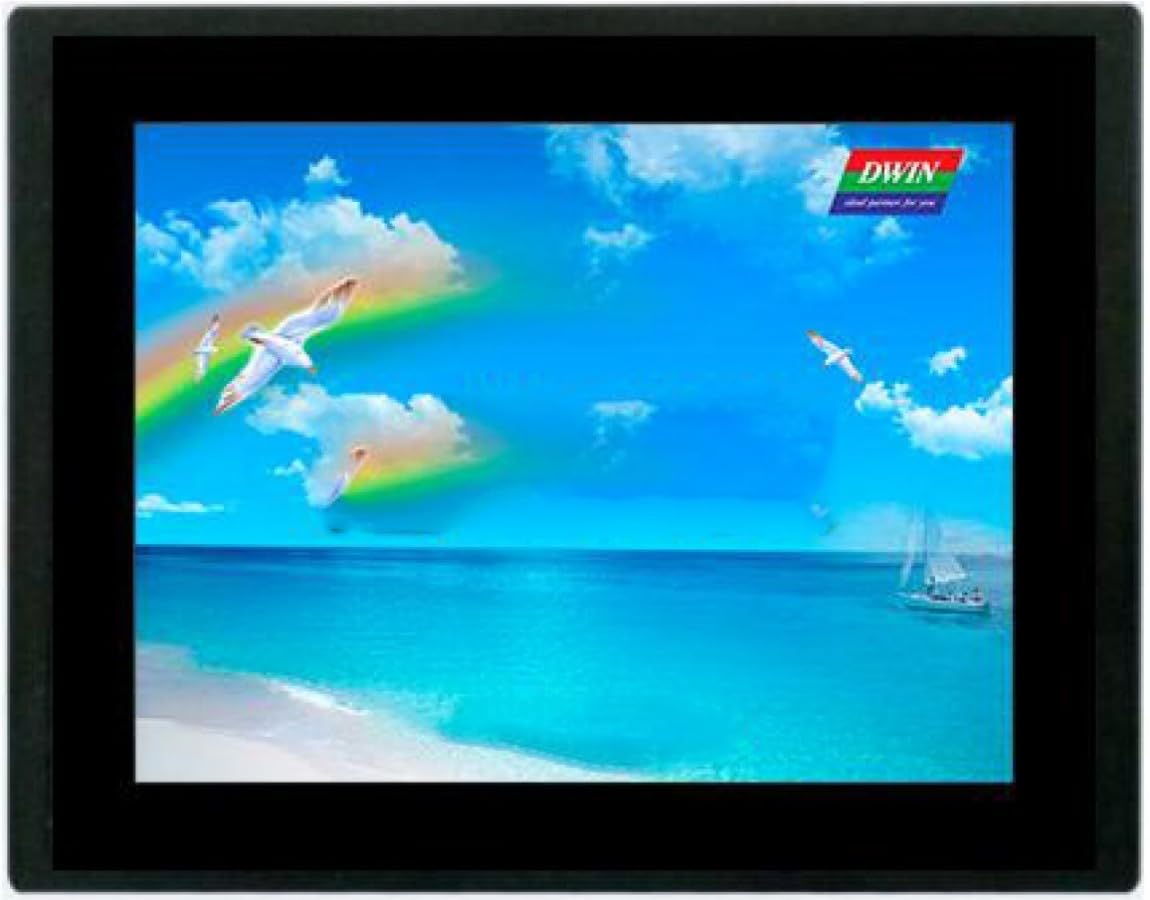
Figure 2.1: Dwin 7-inch UART TFT Serial LCD Touch Screen Module. This image shows the Dwin 7-inch UART TFT Serial LCD Touch Screen Module, highlighting its compact design and display area.
3. Setup
Follow these steps to properly set up your Dwin LCD module:
- Power Connection: Connect the module to a stable 5V DC power supply. Ensure the polarity is correct (VCC to +5V, GND to ground) to prevent damage. Refer to the module's datasheet for specific current requirements.
- UART Connection: Connect the module's UART interface to your host microcontroller or system. Typically, this involves connecting the module's TX pin to the host's RX pin, and the module's RX pin to the host's TX pin. Ensure a common ground connection between the module and the host.
- Data Transfer: Load the necessary display data or user interface files onto the module's internal memory using the appropriate Dwin development tools and software. This step is crucial for the module to display custom graphics and respond to touch inputs.
- Mounting: Securely mount the module in your enclosure or project. Avoid applying excessive pressure to the screen or circuit board.
4. Operating Instructions
Once the module is set up and powered, it operates based on the commands received via its UART interface and the pre-loaded display files.
- Displaying Content: The module will display the user interface or graphics that have been programmed into its memory. Your host system can send commands via UART to switch between different pages, update text, or display dynamic data.
- Touch Interaction: The resistive touch screen allows user input. When a user touches the screen, the module detects the coordinates and can be configured to send corresponding touch event data back to the host microcontroller via UART.
- Command Protocol: Refer to the Dwin UART communication protocol documentation for detailed information on sending commands and receiving data. This protocol defines the structure of commands for drawing, displaying text, reading touch events, and controlling various module functions.
5. Maintenance
Proper maintenance ensures the longevity and reliable operation of your LCD module.
- Cleaning the Screen: Use a soft, lint-free cloth slightly dampened with water or a non-abrasive screen cleaner. Avoid using harsh chemicals, alcohol, or abrasive materials, as these can damage the screen surface.
- Environmental Conditions: Operate and store the module within the specified temperature and humidity ranges. Avoid exposure to direct sunlight, extreme temperatures, and high humidity.
- Handling: Always handle the module by its edges. Avoid touching the display area or the circuit board components unnecessarily. Protect the module from static discharge.
- Power Supply: Ensure a stable and clean power supply. Fluctuations or incorrect voltage can damage the module.
6. Troubleshooting
If you encounter issues with your Dwin LCD module, consider the following troubleshooting steps:
- No Display:
- Check power connections (VCC, GND) and ensure the power supply is providing the correct voltage (5V).
- Verify that the display data has been successfully loaded onto the module.
- Confirm that the backlight is enabled (if controllable via software).
- Touch Not Responding:
- Ensure the touch screen is properly calibrated (if applicable to your firmware).
- Check for any physical obstructions or damage to the touch surface.
- Verify that the host system is correctly configured to receive touch data via UART.
- Communication Errors (UART):
- Check TX/RX connections between the module and host. Ensure they are not swapped.
- Verify that the baud rate and other UART parameters (data bits, stop bits, parity) are correctly matched on both the module and the host.
- Ensure a common ground connection.
- Garbled Display:
- This often indicates incorrect data transmission or corrupted display files. Re-upload the display files.
- Check UART communication parameters.
7. Specifications
| Model Number | DMT80480C070_15WT |
| Screen Size | 7 inches |
| Display Type | UART TFT Serial LCD |
| Touch Screen Type | Resistive |
| Resolution | 800 x 480 pixels |
| Manufacturer | Generic (Dwin) |
| Country of Origin | China |
| ASIN | B0CG6QW7C9 |
8. Warranty and Support
For specific warranty information regarding your Dwin 7-inch UART TFT Serial LCD Touch Screen Module, please refer to the documentation provided at the time of purchase or contact your retailer. Standard warranty terms typically cover manufacturing defects for a limited period.
If you require technical assistance, have questions about integration, or need to report a defect, please contact the seller or manufacturer directly. Provide your model number (DMT80480C070_15WT) and a detailed description of the issue to facilitate support.


