
1. Introduction
Thank you for choosing the Yoidesu 68-Key RGB Mechanical Gaming Keyboard. This manual provides essential information for setting up, operating, and maintaining your keyboard to ensure optimal performance and longevity. Please read this manual thoroughly before use.
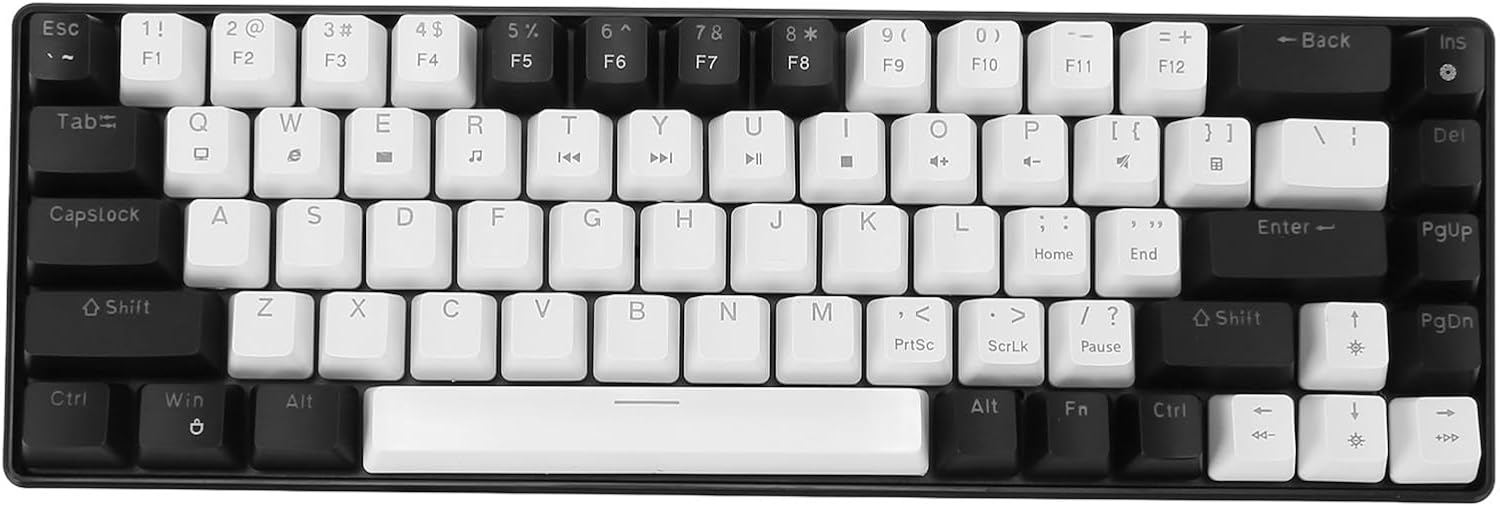
Image 1.1: Top-down view of the Yoidesu 68-Key RGB Mechanical Gaming Keyboard, showcasing its compact layout and black and white keycaps.
2. Package Contents
Verify that all items are present in the package:
- 1 x Yoidesu 68-Key Mechanical Gaming Keyboard
- 1 x Detachable USB Data Cable (5.7ft)
- 1 x Keycap Puller
- 3 x Blue Switches (Spare)
- 1 x User Manual (This document)

Image 2.1: Contents of the Yoidesu keyboard package, including the keyboard, detachable cable, keycap puller, and spare switches.
3. Specifications
| Feature | Specification |
|---|---|
| Model Name | Yoidesu962spn4brk-11 |
| Number of Keys | 68 Keys (no key conflicts) |
| Switch Type | Blue Switch (Mechanical) |
| Keycap Process | Double Color Injection Molding |
| Backlight Effect | Ice Blue Design (19 different lighting modes) |
| Keystroke Lifespan | 50 Million |
| Connection | Wired (Detachable USB Cable) |
| Cable Length | 5.7 ft |
| Compatibility | macOS, Linux, Windows Systems |
| Material | Acrylonitrile Butadiene Styrene (ABS) |
| Special Features | Backlit, Ergonomic, Waterproof (Splash-resistant) |
| Dimensions | 13.39 x 5.12 x 1.97 inches |
| Item Weight | 1.52 pounds |
4. Setup
4.1 Connecting the Keyboard
- Locate the USB-C port on the back of the keyboard.
- Connect the detachable USB data cable to the keyboard's USB-C port.
- Plug the USB-A end of the cable into an available USB port on your computer (desktop, laptop, etc.).
- The keyboard will be automatically recognized by your operating system (macOS, Linux, Windows) and ready for use.

Image 4.1: The Yoidesu keyboard with its detachable USB cable connected, ready for use with a computer.
5. Operating Instructions
5.1 Basic Key Functions
The Yoidesu 68-key layout provides a compact and efficient typing experience. All 68 keys support non-conflict input, ensuring every keystroke is registered accurately.

Image 5.1: Illustration of the keyboard's non-conflict input feature, highlighting multiple simultaneous key presses.
5.2 Backlight Control
The keyboard features an ice blue backlight with 19 different lighting modes. Use the following key combinations to control the backlight:
- Fn + \|: Cycle through 19 different backlight modes.
- Fn + ↑: Increase backlight brightness.
- Fn + ↓: Decrease backlight brightness.
- Fn + ←: Decrease backlight speed (for dynamic modes).
- Fn + →: Increase backlight speed (for dynamic modes).

Image 5.2: Close-up of the keyboard keys, showing the backlight in action and highlighting relevant control keys.
5.3 Multimedia Functions
Access multimedia functions by pressing the Fn key in combination with the designated F-keys:
- Fn + F1: My Computer
- Fn + F2: Search
- Fn + F3: Calculator
- Fn + F4: Media Player
- Fn + F5: Previous Track
- Fn + F6: Next Track
- Fn + F7: Play/Pause
- Fn + F8: Stop
- Fn + F9: Mute
- Fn + F10: Volume Down
- Fn + F11: Volume Up
- Fn + F12: Lock Keyboard
6. Maintenance
6.1 Cleaning the Keyboard
To maintain the keyboard's appearance and functionality:
- Disconnect the keyboard from your computer before cleaning.
- Use a soft, lint-free cloth slightly dampened with water or a mild cleaning solution to wipe the keycaps and surface.
- Avoid spraying liquids directly onto the keyboard.
- Use compressed air to remove dust and debris from between the keycaps.
6.2 Replacing Keycaps and Switches
The Yoidesu keyboard features hot-swappable switches, allowing for easy replacement without soldering. Use the included keycap puller and switch puller (often integrated with the keycap puller) for this process.
- Removing a Keycap: Gently attach the keycap puller to the keycap you wish to remove and pull upwards until it detaches.
- Removing a Switch: After removing the keycap, use the switch puller to grasp the top and bottom clips of the switch. Apply gentle pressure and pull the switch straight up.
- Installing a New Switch: Align the pins of the new switch with the holes on the PCB. Press down firmly until the switch clicks into place. Ensure it is seated correctly and not bent.
- Installing a Keycap: Place the keycap over the switch stem and press down gently until it is secure.
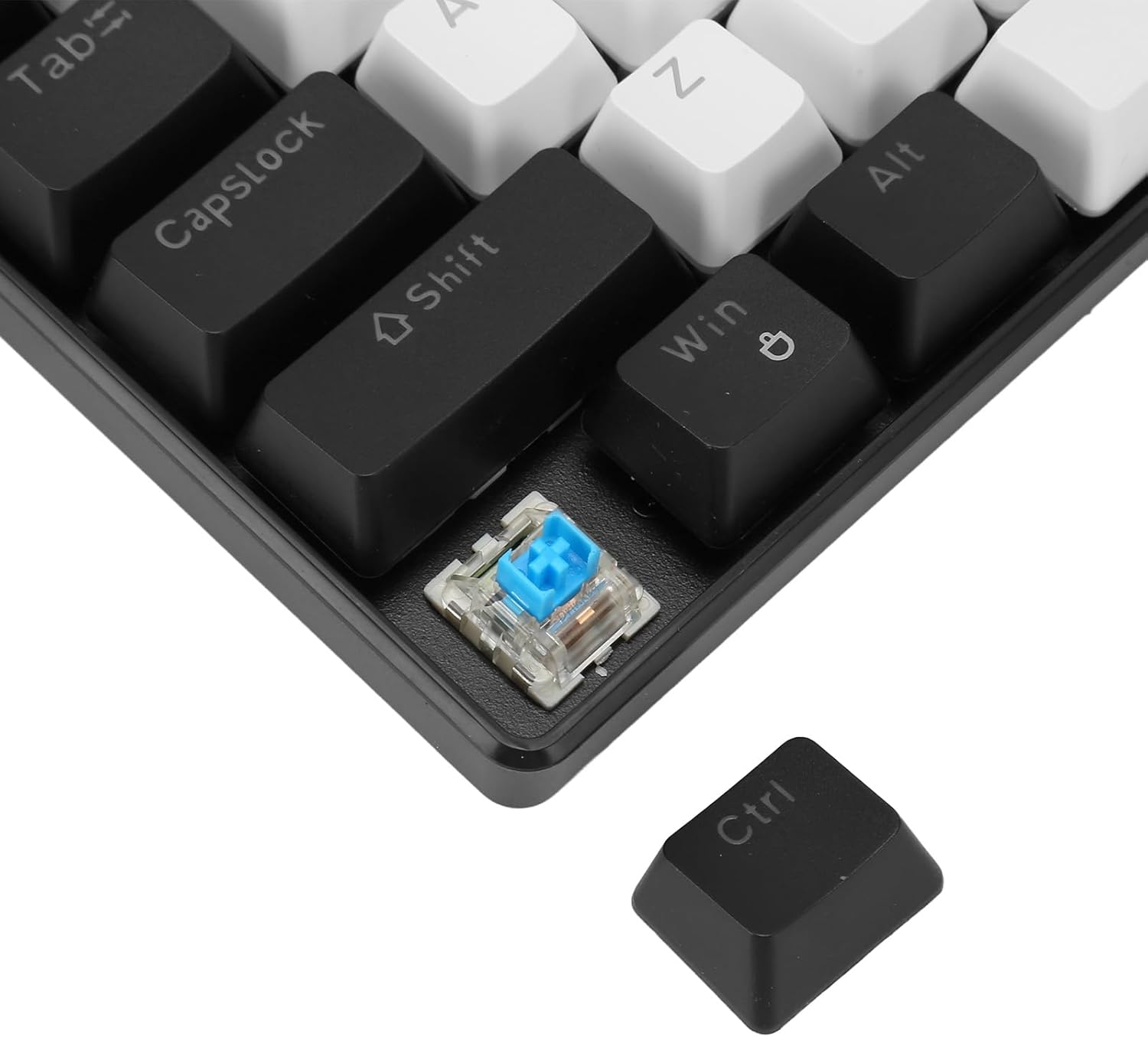
Image 6.1: Close-up view demonstrating the process of removing a keycap and a mechanical switch from the keyboard.
7. Troubleshooting
7.1 Keyboard Not Responding
- Ensure the USB cable is securely connected to both the keyboard and the computer.
- Try plugging the keyboard into a different USB port on your computer.
- Test the keyboard on another computer to rule out a system-specific issue.
- Restart your computer.
7.2 Backlight Not Working or Incorrect
- Ensure the keyboard is properly connected and receiving power.
- Press Fn + \| to cycle through different lighting modes.
- Press Fn + ↑ to increase brightness. The backlight might be set to its lowest brightness level.
7.3 Specific Keys Not Working
- Remove the keycap and inspect the switch for any visible damage or debris.
- If you suspect a faulty switch, try replacing it with one of the spare switches provided in the package (refer to Section 6.2).
- Ensure the keycap is properly seated on the switch.
8. Warranty and Support
Yoidesu products are designed for reliability and performance. For warranty information or technical support, please refer to the contact details provided with your purchase or visit the official Yoidesu website. Keep your proof of purchase for warranty claims.
