
Nargos RM
Nargos 8BitDo Micro Bluetooth Mini Controller
Model: RM
Introduction
The Nargos 8BitDo Micro is a compact, versatile Bluetooth controller designed for use with multiple platforms, including Nintendo Switch, Android devices, Windows PCs, and macOS. Its small form factor makes it highly portable, suitable for gaming on the go or as a productivity tool with customizable button mapping.

Package Contents
Verify that all items are present in the package:
- Nargos 8BitDo Micro Bluetooth Controller
- USB-C Charging Cable
- Instruction Manual

Controller Layout
Familiarize yourself with the buttons and ports on your 8BitDo Micro controller:
- D-Pad: Directional input.
- A/B/X/Y Buttons: Standard action buttons.
- Start (+) / Select (-) Buttons: System function buttons.
- Home Button (Star icon): Returns to the home screen or menu.
- Pairing Button (Grid icon): Used for Bluetooth pairing.
- L1/L2/R1/R2 Buttons: Shoulder buttons located on the top edge.
- USB-C Port: For charging and wired connection.
- Mode Switch (S-D-K): Located on the bottom, used to select the operating mode.


Setup and Pairing
Before pairing, ensure the controller is sufficiently charged. Use the included USB-C cable to connect it to a power source if needed.
1. Select Operating Mode
Locate the mode switch on the bottom of the controller and set it to the desired platform:
- S: Nintendo Switch Mode
- D: Android/Windows Mode
- K: Keyboard Mode (for customizable mapping via 8BitDo Ultimate Software)

2. Pairing Instructions
- Set the mode switch to your desired platform (S, D, or K).
- Press and hold the Pairing Button (grid icon) for 3 seconds until the LED indicator starts blinking rapidly. This indicates the controller is in pairing mode.
- On your device (Switch, Android, Windows, macOS), navigate to the Bluetooth settings.
- Search for new devices and select "8BitDo Micro" from the list.
- Once connected, the LED indicator on the controller will become solid.
For specific device pairing:
- Nintendo Switch: Go to HOME Menu > Controllers > Change Grip/Order.
- Android/Windows/macOS: Access Bluetooth settings through your device's system preferences.
Operating Modes
The 8BitDo Micro offers three distinct operating modes, selected via the switch on the bottom of the controller:
- Switch Mode (S): Designed for full compatibility with Nintendo Switch consoles.
- Direct Input Mode (D): Standard mode for Android devices and Windows PCs, recognized as a gamepad.
- Keyboard Mode (K): Allows the controller to function as a customizable keyboard. This mode is ideal for productivity applications, Anki flashcards, or custom shortcuts, especially when used with the 8BitDo Ultimate Software.
8BitDo Ultimate Software
The 8BitDo Ultimate Software (mobile version) allows for advanced customization of your controller, particularly in Keyboard Mode. This software enables you to remap buttons to specific keyboard keys or macros, enhancing its utility beyond traditional gaming.
- Download: The software is available for iOS and Android devices. Refer to the official 8BitDo website for download links.
- Customization: In Keyboard Mode, you can assign any button on the Micro controller to a specific keyboard input. This is useful for applications requiring custom shortcuts or for creating a personalized control scheme.

Charging and Battery
The 8BitDo Micro controller is equipped with a Lithium Polymer battery.
- Charging: Connect the controller to a USB power source using the provided USB-C cable. The LED indicator will show charging status.
- Battery Life: The controller offers extended playtime on a full charge. Actual battery life may vary based on usage.
Maintenance
To ensure the longevity and optimal performance of your 8BitDo Micro controller:
- Keep the controller clean by wiping it with a soft, dry cloth. Avoid abrasive cleaners or solvents.
- Store the controller in a cool, dry place away from direct sunlight and extreme temperatures.
- Avoid dropping the controller or subjecting it to strong impacts.
- Do not attempt to disassemble the controller, as this may void the warranty and cause damage.
Troubleshooting
If you encounter issues with your 8BitDo Micro controller, refer to the following common solutions:
- Controller not connecting:
- Ensure the controller is charged.
- Verify the mode switch (S, D, K) is set correctly for your device.
- Re-initiate pairing mode on the controller and re-scan for devices on your host system.
- If connecting to a PC, try a different USB port or restart your computer.
- Buttons not responding:
- Check if the controller is properly paired and connected.
- Ensure the correct operating mode is selected.
- If in Keyboard Mode, verify button mappings in the 8BitDo Ultimate Software.
- Firmware Update: If issues persist, check the official 8BitDo website for any available firmware updates for your controller. Updating firmware can resolve known bugs and improve compatibility.
Specifications
| Feature | Detail |
|---|---|
| Brand | Nargos |
| Model Name | RM |
| Connectivity Technology | Bluetooth |
| Controller Type | Gamepad |
| Compatible Devices | Android, Windows, Nintendo Switch, macOS |
| Item Weight | 2.08 ounces |
| Package Dimensions | 4.49 x 2.09 x 1.54 inches |
| Batteries | 1 Lithium Polymer battery (included) |
Warranty and Support
Nargos is committed to providing reliable products and customer satisfaction. For any inquiries or assistance, please refer to the following support details:
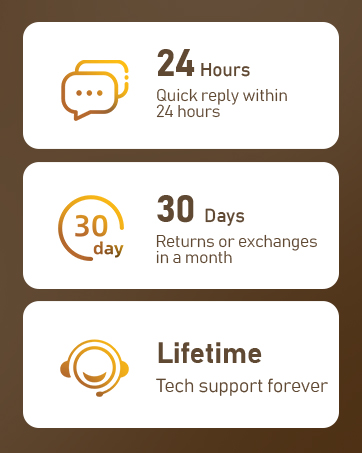
- Quick Reply: Expect a response to your queries within 24 hours.
- Returns/Exchanges: Products are eligible for returns or exchanges within 30 days of purchase.
- Technical Support: Lifetime technical support is provided for this product.
Ask a question about this manual
Ask about setup, troubleshooting, compatibility, parts, safety, or missing instructions. Manuals+ will review the question and use this page’s manual context to help answer it.