
1. Important Safety Instructions
Please read these safety instructions carefully before operating the device. Keep this manual for future reference.
- Power Source: Use only the power adapter supplied with the device. Ensure the voltage matches your local power supply.
- Water and Moisture: Do not expose the device to rain, moisture, or dripping/splashing liquids. Do not place objects filled with liquids, such as vases, on the device.
- Heat: Do not place the device near heat sources such as radiators, heat registers, stoves, or other apparatus (including amplifiers) that produce heat.
- Ventilation: Ensure proper ventilation. Do not block any ventilation openings.
- Cleaning: Unplug the device from the wall outlet before cleaning. Use a soft, dry cloth only. Do not use liquid cleaners or aerosol cleaners.
- Servicing: Do not attempt to service this product yourself. Refer all servicing to qualified service personnel.
- Placement: Place the device on a stable, flat surface. Avoid placing it in direct sunlight or in environments with extreme temperatures.
2. Package Contents
Verify that all items are present in the package:
- Denver IR-122 Internet Radio Unit
- Power Adapter
- User Manual
3. Product Overview
Familiarize yourself with the main components and controls of your Denver IR-122 Internet Radio.

Image 1: Front view of the Denver IR-122 Internet Radio. Shows the 2.4-inch color TFT display, power/menu button, navigation/volume knob, OK button, FAV button, and LINE OUT port.
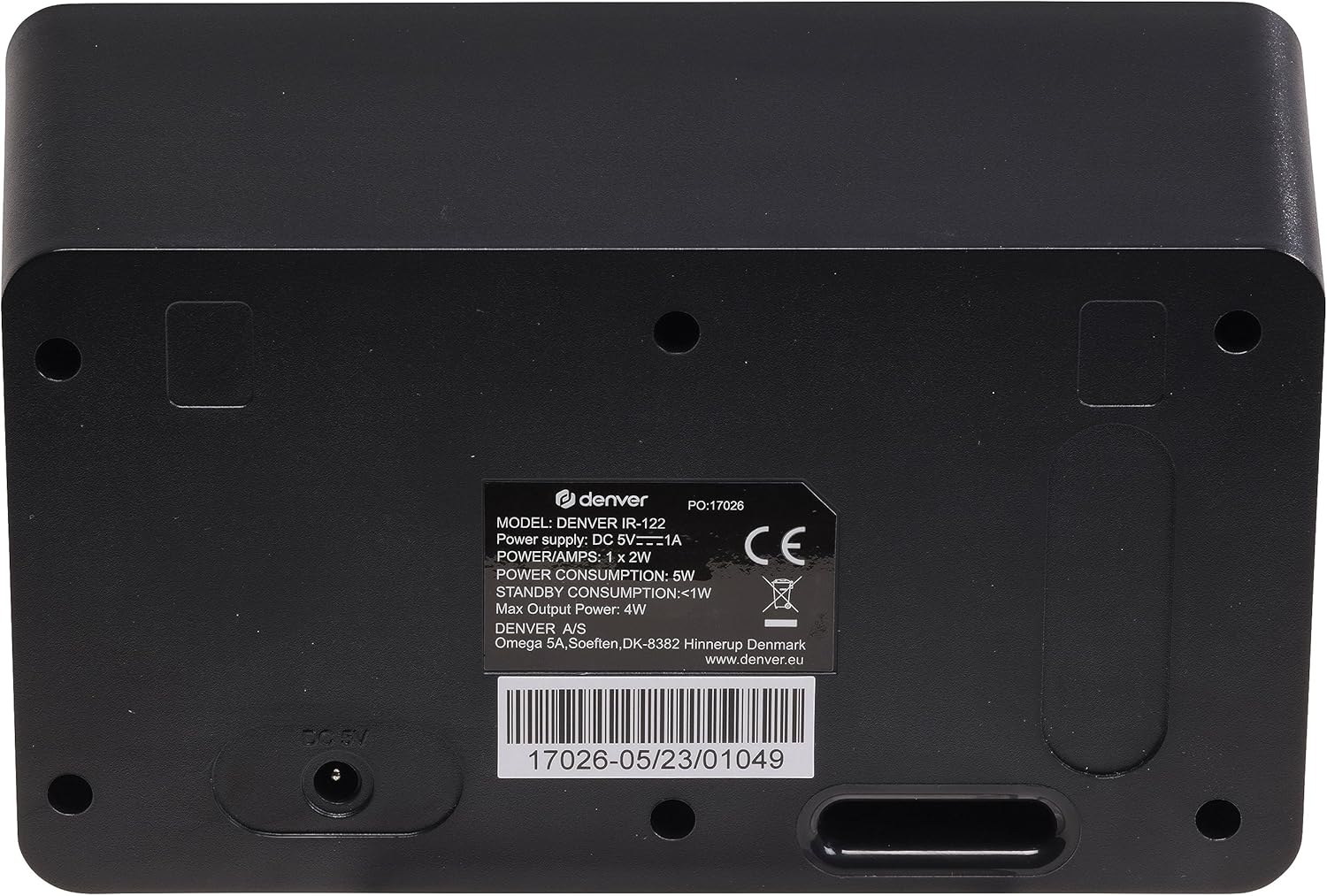
Image 2: Back view of the Denver IR-122 Internet Radio. Displays the DC 5V power input port and the product information label with model number and power specifications.
Controls and Ports:
- 2.4" Color TFT Display: Shows station information, menus, time, and settings.
- Power / Menu Button: Press to turn on/off, press to access the main menu.
- Navigation / Volume Knob: Rotate to navigate menus or adjust volume. Press to confirm selections.
- OK Button: Confirms selections in menus.
- FAV Button: Accesses or saves favorite stations.
- LINE OUT (3.5mm Jack): Connects to external amplifiers or speakers.
- DC 5V Power Input: Connects the supplied power adapter.
4. Setup
4.1 Power Connection
- Connect the supplied power adapter to the DC 5V input port on the back of the IR-122 radio.
- Plug the power adapter into a standard wall outlet (230V~).
- The radio will power on automatically or enter standby mode. Press the Power button if it does not turn on.
4.2 Wi-Fi Network Connection
To access Internet radio stations, the device must be connected to a Wi-Fi network.
- Upon first power-on, the radio will guide you through the initial setup, including Wi-Fi configuration.
- Navigate to the 'Settings' menu using the Navigation knob and press OK.
- Select 'Network' and then 'Wi-Fi Setup'.
- The radio will scan for available Wi-Fi networks. Select your network from the list.
- Enter your Wi-Fi password using the Navigation knob to select characters and OK to confirm.
- Once connected, the radio will display a confirmation message.
5. Operating Instructions
5.1 Internet Radio Mode
- From the main menu, select 'Internet Radio'.
- You can browse stations by location, genre, or search for specific stations.
- Use the Navigation knob to scroll through options and press OK to select.
- To save a station as a favorite, tune into the station and press the FAV button. Follow the on-screen prompts to save.
- To access your favorite stations, press the FAV button from any mode.
5.2 Bluetooth Mode
Connect your smartphone or tablet to the IR-122 via Bluetooth to stream audio.
- From the main menu, select 'Bluetooth'. The radio will enter pairing mode.
- On your mobile device, enable Bluetooth and search for available devices.
- Select 'Denver IR-122' from the list of devices.
- Once paired, you can play audio from your mobile device through the radio.
5.3 Alarm Clock Function
The IR-122 features a dual alarm clock with snooze functionality.
- Navigate to 'Alarm' in the main menu.
- Select 'Alarm 1' or 'Alarm 2' to configure.
- Set the alarm time, repetition (daily, weekdays, weekends, once), alarm source (buzzer, Internet radio), and volume.
- To activate snooze when an alarm sounds, press the Navigation knob.
- To turn off the alarm, press the Power button.
5.4 Sleep Timer
The sleep timer allows the radio to turn off automatically after a set period.
- Navigate to 'Sleep Timer' in the main menu or settings.
- Select the desired duration (e.g., 15, 30, 60, 90 minutes).
- The radio will automatically switch to standby mode after the selected time.
5.5 Line Out Connection
Use the 3.5mm LINE OUT jack to connect the IR-122 to an external amplifier or powered speakers for enhanced audio output.
- Connect one end of a 3.5mm audio cable (not supplied) to the LINE OUT port on the radio.
- Connect the other end to the audio input of your amplifier or powered speakers.
- Adjust the volume on both the radio and the external audio system as needed.
6. Maintenance
6.1 Cleaning
- Always unplug the radio from the power outlet before cleaning.
- Use a soft, dry, lint-free cloth to wipe the exterior surfaces.
- Do not use abrasive cleaners, waxes, or solvents as they may damage the finish.
- For the display, gently wipe with a soft, dry cloth. Avoid excessive pressure.
6.2 Storage
- If storing the radio for an extended period, unplug it from the power source.
- Store in a cool, dry place away from direct sunlight and extreme temperatures.
7. Troubleshooting
If you encounter issues with your Denver IR-122, refer to the following common problems and solutions:
| Problem | Possible Cause | Solution |
|---|---|---|
| No power | Power adapter not connected or faulty outlet. | Ensure the power adapter is securely connected to the radio and a working wall outlet. Try a different outlet. |
| No Internet connection | Incorrect Wi-Fi password, out of range, or router issue. | Verify Wi-Fi password. Move the radio closer to the router. Restart your Wi-Fi router. Check network settings on the radio. |
| Cannot find Bluetooth device | Bluetooth not enabled on mobile device or radio not in pairing mode. | Ensure Bluetooth is enabled on your mobile device. Put the radio into Bluetooth pairing mode from the main menu. |
| No sound from LINE OUT | Cable not connected properly, external amplifier off, or volume too low. | Check the 3.5mm cable connection. Ensure the external amplifier/speakers are powered on and volume is adjusted. |
| Display is blank or frozen | Temporary software glitch. | Unplug the power adapter, wait 10 seconds, then plug it back in to restart the device. |
8. Specifications
| Model: | IR-122 |
| Brand: | Denver |
| Color: | Black |
| Display: | 2.4" Color TFT |
| Connectivity: | Wi-Fi (802.11 b/g/n), Bluetooth |
| Audio Output: | LINE OUT (3.5mm jack) |
| Power Input: | DC 5V (via supplied power adapter) |
| Operating Voltage: | 230 V~ |
| Music Power: | 20 W (2 W RMS) |
| Special Features: | Internet Radio, Bluetooth Connectivity, Dual Alarm with Snooze, Sleep Timer |
| Supported Radio Bands (Secondary): | AM (535-1605 kHz), FM (87.5-108 MHz) |
| Compatible Devices: | Tablet (for Bluetooth streaming) |
| Item Model Number: | 5706751068317 |
9. Warranty Information
This product is covered by a standard manufacturer's warranty. Please refer to the warranty card included in your package or contact your retailer for specific terms and conditions. Keep your purchase receipt as proof of purchase.
10. Customer Support
For technical assistance, troubleshooting beyond this manual, or warranty inquiries, please contact your retailer or the manufacturer's customer support. Refer to the contact information provided with your product or visit the official Denver website.
Manufacturer: Denver
Website: www.denver.eu


