
Introduction
This manual provides essential instructions for the safe and effective operation of your VICTOR VC328B Mobile Thermal Imager. Please read this manual thoroughly before using the device and retain it for future reference. The VICTOR VC328B is a compact, high-resolution thermal imaging camera designed for use with Android smartphones, offering advanced thermal analysis capabilities for various applications including industrial inspection, fault detection, and PCB analysis.
Product Features
- Lightweight and portable design for mobile thermal analysis via a dedicated Android APP.
- Wide temperature measurement range: -15℃ to 600℃.
- High temperature alarm with customizable thresholds.
- Display of user-defined temperature range screens, highlighting high-temperature regions.
- High and low temperature tracking functionality.
- Supports adding points, lines, and rectangular boxes for regional temperature measurement, including high/low temperature tracking and high temperature alarms.
- Durable aluminum alloy shell.
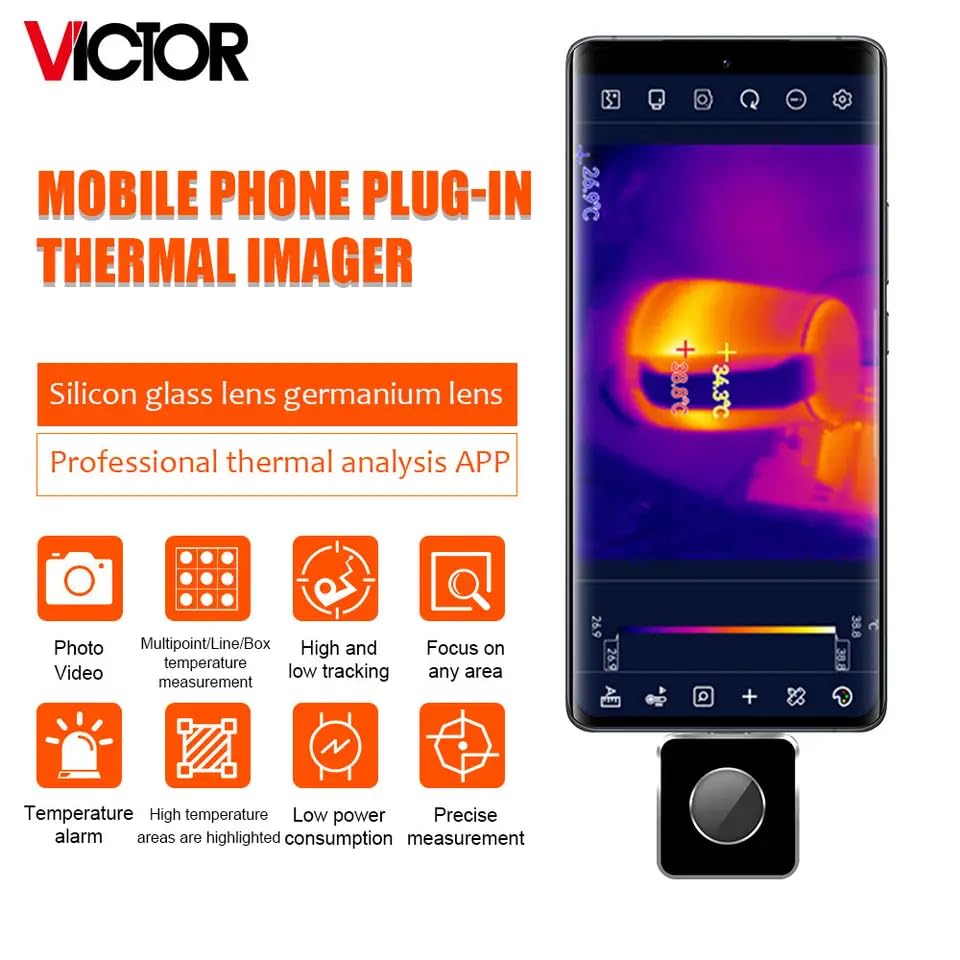
Image: Overview of the VICTOR Mobile Phone Plug-in Thermal Imager, showcasing its compact design and key functionalities such as photo/video capture, multipoint temperature measurement, high/low tracking, focus on any area, temperature alarm, and high temperature area highlighting.

Image: Visual representation of the six core functions: Photo/Video, Multipoint/Line/Box temperature measurement, High and low temperature tracking, Focus on any area, Temperature alarm, and High temperature areas are highlighted.
Setup and Initial Use
- Download the APP: Scan the QR code provided in the product packaging or search for the official "VICTOR Thermal Imager" app on your Android device's app store.
- Install the APP: Follow the on-screen instructions to install the application.
- Enable OTG Function: Ensure your Android phone has the OTG (On-The-Go) function enabled. This setting is usually found in your phone's system settings under "Connected devices" or "USB settings."
- Connect the Thermal Imager: Plug the VICTOR VC328B thermal imager into your Android phone's USB-C port. The app should automatically detect the device and display the thermal image.
Video: This video demonstrates the initial setup and basic operation of the VICTOR thermal imager. It shows how to scan a QR code to download the Android app, install it, plug in the thermal camera, and begin viewing thermal images. It also illustrates how to change language and temperature units, take pictures, and switch between different false color modes.
Operating Instructions
App Interface Overview

Image: Detailed view of the thermal imager's software interface, pointing out key elements such as the thermal image area, temperature color bar, high-brightness high-temperature area, alarm function, frame temperature, track key, area point, and color swatches.
Basic Functions
- Language and Temperature Unit: Access the settings menu (gear icon) to change the display language (e.g., English) and temperature unit (Celsius, Fahrenheit, Kelvin).
- Image Capture: Press the camera icon to take a thermal image. Captured images are saved to the app's gallery.
- Gallery Access: Press the picture icon to view your saved thermal images and videos.
- False Color Modes: Use the color palette icon to cycle through various false color modes (e.g., Iron Red, Rainbow, White Hot, Black Hot) to visualize temperature differences more effectively.
- Temperature Tracking: The app automatically tracks high and low temperatures within the visible area. You can also add specific points, lines, or rectangular boxes for detailed regional temperature measurements.
- High Temperature Alarm: Set custom temperature thresholds for alarms. The device will alert you when temperatures exceed the set limit.
Applications
The VICTOR VC328B thermal imager is suitable for a wide range of applications:
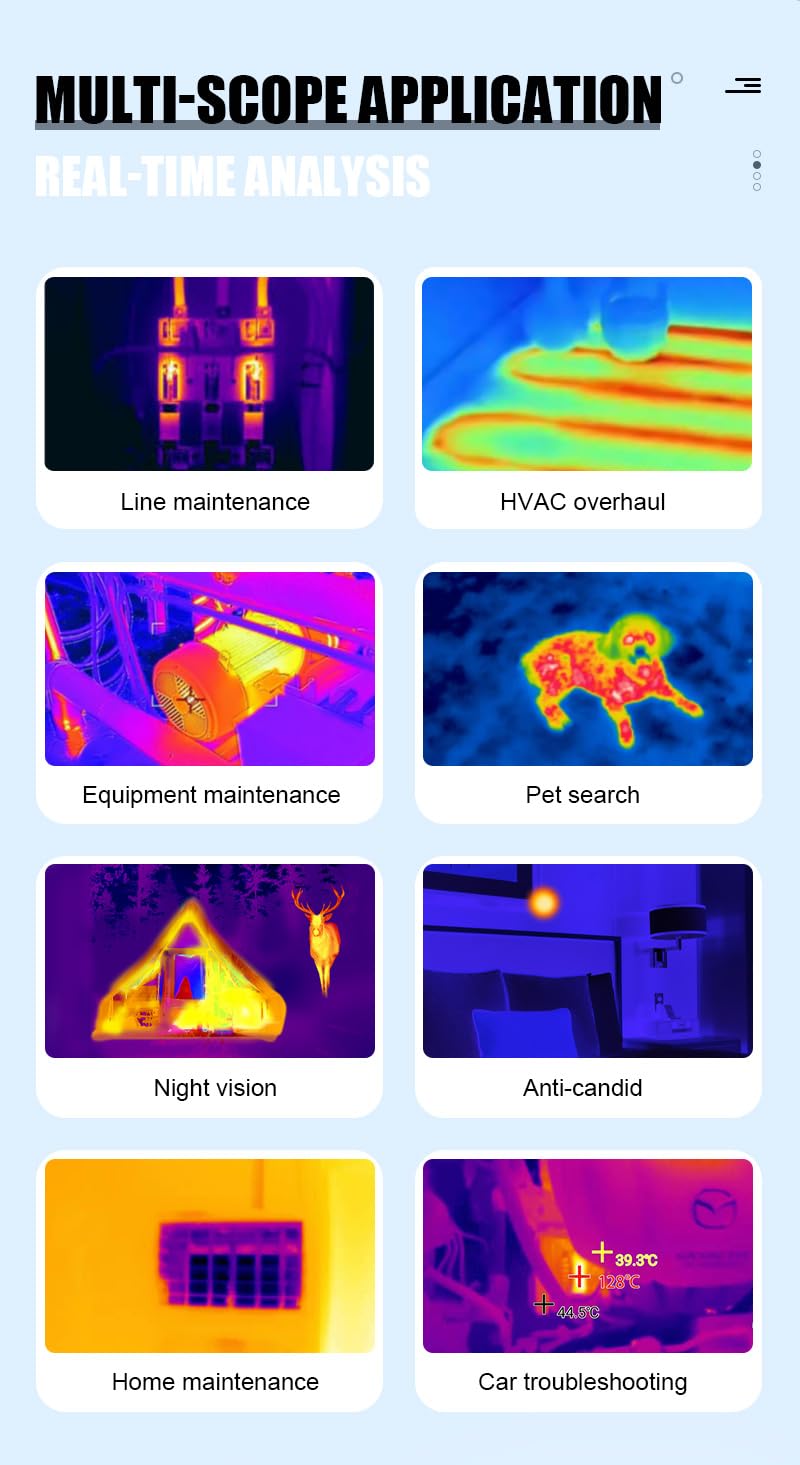
Image: Examples of various applications including line maintenance, HVAC overhaul, equipment maintenance, pet search, night vision, anti-candid (security), home maintenance, and car troubleshooting.
Specifications

Image: A table detailing the technical parameters for both VICTOR 328A and 328B models, including resolution, working wavelength, frame rate, NETD, field of view, lens, measuring range, precision, temperature measurement methods, color swatches, language options, operating temperature, storage temperature, waterproof rating, product size, and product weight.
| Parameter | Value (VC328B) |
|---|---|
| Resolution | 256 * 192 |
| Working Wavelength | 8~14 μm |
| Frame Rate | 25Hz |
| NETD | <50mK @26℃ |
| Field of View | 56° * 42° |
| Lens | 3.2mm |
| Measuring Range | -15℃~600℃ |
| Precision | ±2℃ or ±2% |
| Temperature Measurement | Highest point, lowest point, center point, regional measurement |
| Color Swatches | 6 |
| Language | Chinese / English |
| Operating Temperature | -10℃ ~ 75℃ |
| Storage Temperature | -45℃ ~ 85℃ |
| Waterproof Rating | IP54 |
| Product Dimensions | 34mm x 26.5mm x 15mm |
| Product Weight | 19g |
Note: The VC328A model has a resolution of 160*120 and a field of view of 35° x 27°.
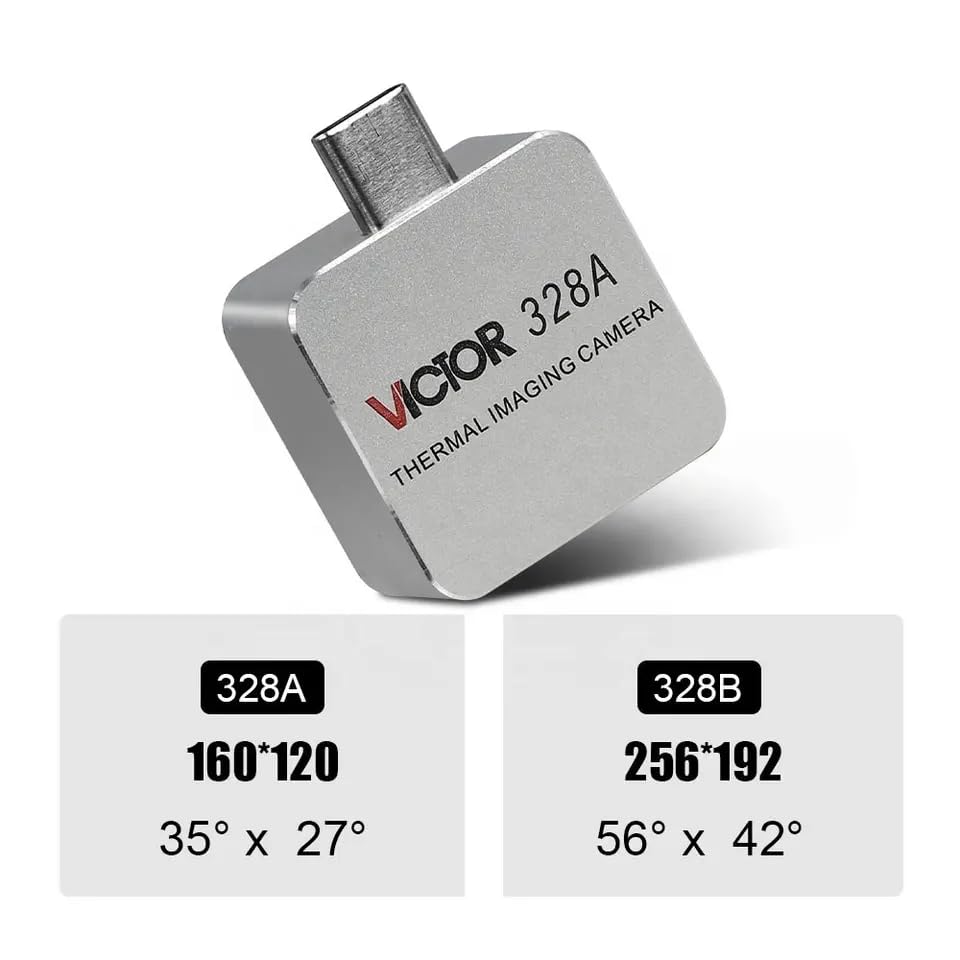
Image: A visual comparison highlighting the resolution differences between the VICTOR 328A (160x120) and 328B (256x192) models, along with their respective fields of view.
Maintenance and Care
- Keep the thermal imager clean and free from dust and debris. Use a soft, dry cloth for cleaning.
- Avoid exposing the device to extreme temperatures or direct sunlight for prolonged periods.
- Store the device in a cool, dry place when not in use.
- Do not attempt to disassemble or repair the device yourself. Contact qualified service personnel if maintenance is required.
Troubleshooting
- Device not detected: Ensure OTG function is enabled on your phone. Check the USB connection. Restart the app or your phone.
- App not displaying thermal image: Verify the device is securely connected. Close and reopen the app. Check for app updates.
- Inaccurate temperature readings: Ensure the lens is clean. Calibrate the device if an option is available in the app (refer to app settings).
Warranty and Support
For warranty information and technical support, please refer to the documentation included with your purchase or contact the manufacturer directly. Keep your purchase receipt as proof of purchase.
