
JUQITECH SGTKC2391
JUQITECH Backlit Keyboard Case User Manual
For Samsung Galaxy Tab S10 Lite, S10 FE, S9 FE, and S9
1. Product Overview
The JUQITECH Backlit Keyboard Case is designed to enhance the functionality and protection of your Samsung Galaxy Tab. It features a detachable wireless keyboard with 7-color backlighting, a multi-angle stand, and a dedicated S Pen holder, transforming your tablet into a versatile workstation.

Image 1.1: JUQITECH Backlit Keyboard Case with a Samsung Galaxy Tab, showcasing the keyboard and case design.
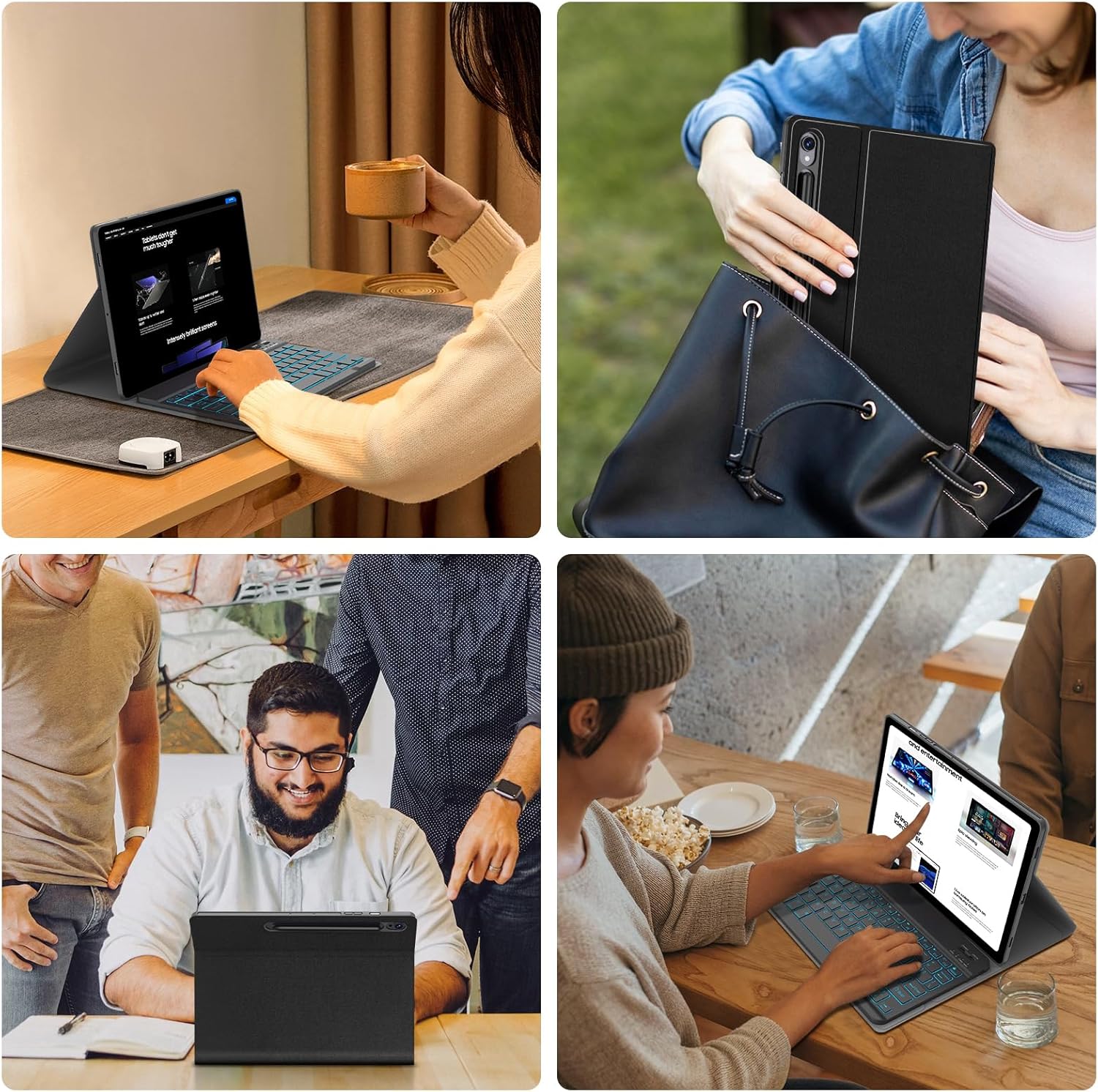
Image 1.2: Various usage scenarios demonstrating the versatility of the keyboard case for work, study, and leisure.

Image 1.3: Details on the lightweight design of the keyboard case, highlighting its portability.
Package Contents:
- 1 x Smart Case
- 1 x Wireless Backlit Keyboard
- 2 x Type-C Charging Cords
- 1 x User Manual
2. Compatibility
This keyboard case is compatible with the following Samsung Galaxy Tab models:
- Samsung Galaxy Tab S10 Lite 10.9 inch (Models: SM-X400, SM-X406, SM-X406B) - 2025 Release
- Samsung Galaxy Tab S10 FE 5G 10.9 inch (Models: SM-X520, SM-X526B, SM-X528U) - 2025 Release
- Samsung Galaxy Tab S9 FE 5G 10.9 inch (Models: SM-X510, SM-X516B, SM-X518U) - 2023 Release
- Samsung Galaxy Tab S9 11 inch (Models: SM-X710, SM-X716B, SM-X718U) - 2023 Release
To verify your tablet model:
- Go to "Settings" on your tablet.
- Tap on "About tablet".
- Locate the model number.

Image 2.1: Visual guide for identifying compatible Samsung Galaxy Tab models and checking the model number in settings.
3. Setup Instructions
3.1 Charging the Keyboard
Before first use, fully charge the keyboard. Use one of the provided Type-C charging cords to connect the keyboard to a USB power source (e.g., computer, wall adapter).
- The charging indicator light will illuminate during charging.
- A full charge typically takes approximately 2 hours.
- The keyboard has a 420mAh battery, offering over 80 hours of working time and 130 days of standby time on a single charge.

Image 3.1: The keyboard's Type-C charging port and charging specifications.
3.2 Bluetooth Pairing
Follow these steps to connect your keyboard to your Samsung Galaxy Tab via Bluetooth:
- Ensure the keyboard is charged.
- Turn on the keyboard by sliding the power switch to the "ON" position.
- Press the "Connect" button on the keyboard. The Bluetooth indicator light will start blinking, indicating it's in pairing mode.
- On your Samsung Galaxy Tab, go to Settings > Connected devices > Bluetooth.
- Turn on Bluetooth. Your tablet will search for available devices.
- Select "Bluetooth Keyboard" (or similar name) from the list of available devices.
- If prompted, enter the pairing code displayed on your tablet into the keyboard and press Enter.
- Once paired, the Bluetooth indicator light on the keyboard will stop blinking and remain solid for a moment, then turn off. The tablet will show the keyboard as "Connected".

Image 3.2: Detailed view of the keyboard, highlighting the Bluetooth connection button and Type-C charging port.
4. Operating Instructions
4.1 Attaching and Detaching the Keyboard
The keyboard is magnetically attached to the case. To attach, simply align the keyboard with the magnetic strip inside the case. To detach, gently pull the keyboard away from the magnetic strip.

Image 4.1: Illustration of the magnetically detachable keyboard, allowing flexible use.
4.2 Adjusting Viewing Angles
The case features multiple grooves to support your tablet at various viewing angles. Simply place the tablet's edge into one of the grooves to achieve your desired angle. The detachable keyboard allows for optimal positioning.

Image 4.2: Visual representation of the three available stand angles for optimal viewing and typing.
4.3 Keyboard Backlight Control
The keyboard features 7-color backlighting. Use the following key combinations to control the backlight:
- Press Fn + Light Bulb icon to turn the backlight on/off or switch between stable and breathing modes.
- Press Fn + RGB icon to change the backlight color in stable mode.

Image 4.3: A user typing on the backlit keyboard, illustrating the 7 available colors and backlight controls.
4.4 Multimedia Shortcuts
The keyboard includes a function row with multimedia shortcuts for quick access to common tablet functions:
| Key Combination | Function |
|---|---|
| Esc | Home |
| F1 | Search |
| F2 | Select All |
| F3 | Copy |
| F4 | Paste |
| F5 | Cut |
| F6 | Previous Track |
| F7 | Play/Pause |
| F8 | Next Track |
| F9 | Volume Down |
| F10 | Volume Up |
| F11 | Screen Brightness Down |
| F12 | Screen Brightness Up |
| Fn + Delete | Screen Lock |

Image 4.4: Diagram illustrating the multimedia shortcut keys on the keyboard for quick access to tablet functions.
4.5 S Pen Holder
The case includes a dedicated slot for your S Pen, ensuring it is securely stored and readily accessible. Additionally, the case supports magnetic attachment of the S Pen to the tablet's side without needing to remove the case.

Image 4.5: Close-up view of the S Pen holder and other protective features like honeycomb heat dissipation.
4.6 Auto Wake/Sleep Function
The case supports an auto wake/sleep feature. Opening the case will automatically wake your tablet, and closing it will put the tablet to sleep, conserving battery life. This function operates even when the keyboard is detached.

Image 4.6: Visual explanation of the auto wake/sleep function, showing how opening and closing the case affects the tablet's screen.
5. Maintenance
5.1 Cleaning
- Case: Wipe the case with a soft, damp cloth. Avoid harsh chemicals or abrasive cleaners.
- Keyboard: Use a soft, dry cloth to clean the keyboard. For dust between keys, use compressed air. Do not immerse the keyboard in water or use liquid cleaners directly on the keys.
5.2 Storage
When not in use for extended periods, store the keyboard case in a cool, dry place. Ensure the keyboard is turned off to preserve battery life.
6. Troubleshooting
- Keyboard not connecting via Bluetooth:
- Ensure the keyboard is charged and powered on.
- Make sure Bluetooth is enabled on your tablet.
- Press the "Connect" button on the keyboard to enter pairing mode.
- Forget the keyboard from your tablet's Bluetooth settings and try pairing again.
- Restart both your tablet and the keyboard.
- Keys not responding or typing incorrectly:
- Check the keyboard's battery level and charge if necessary.
- Ensure the keyboard is properly connected via Bluetooth.
- Clean the keyboard to remove any debris that might be obstructing the keys.
- Backlight not working:
- Ensure the keyboard is powered on and charged.
- Press Fn + Light Bulb icon to cycle through backlight modes.
- Tablet not waking/sleeping automatically:
- Ensure the tablet is correctly seated in the case.
- Check your tablet's settings for any power-saving or smart cover options that might interfere.
7. Specifications
| Brand | JUQITECH |
| Model Number | SGTKC2391 |
| Product Dimensions | 10.12 x 7.31 x 0.75 inches |
| Item Weight | 1.41 pounds |
| Material | Polyurethane (PU), Thermoplastic Polyurethane (TPU) |
| Connectivity Technology | Bluetooth |
| Keyboard Backlighting | 7 Colors (RGB) |
| Battery Type | 1 Lithium Ion battery (included) |
| Battery Capacity | 420mAh |
| Charging Port | Type-C |
| Charging Time | Approx. 2 hours |
| Working Time | > 80 hours |
| Standby Time | > 130 days |
8. Warranty and Support
For warranty information or technical support, please refer to the contact details provided with your purchase or visit the official JUQITECH website. Keep your purchase receipt for warranty claims.
Related documentsSGTKC2391


Ask a question about this manual
Ask about setup, troubleshooting, compatibility, parts, safety, or missing instructions. Manuals+ will review the question and use this page’s manual context to help answer it.