
1. Overview
The BoxWave DirectSync PD Cable is a 10-foot USB-C to USB-C cable designed for efficient power delivery and high-speed data transfer. It supports up to 100 Watts of Power Delivery (PD), making it suitable for charging a wide range of devices, including laptops, tablets, and smartphones. The cable features a durable braided nylon construction and reinforced strain reliefs to ensure longevity and reliable performance.
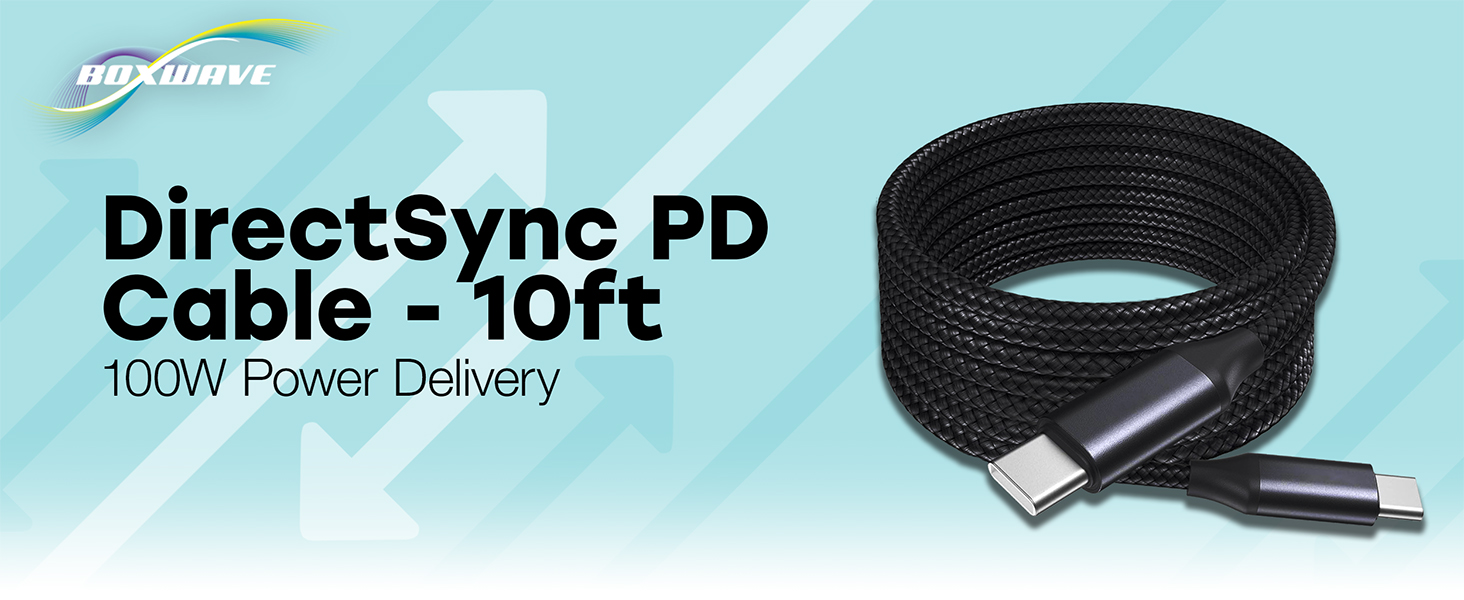
Image: The BoxWave DirectSync PD Cable, highlighting its 10-foot length and 100W Power Delivery capability.
2. Setup
Setting up your DirectSync PD Cable is straightforward. This cable is designed for universal compatibility with USB-C enabled devices.
- Identify Ports: Ensure your charging adapter and device both have USB-C ports.
- Connect to Power Source: Plug one end of the DirectSync PD Cable into a compatible USB-C power adapter or a computer's USB-C port.
- Connect to Device: Plug the other end of the cable into your device's USB-C port.
- Verify Connection: Your device should indicate that it is charging or connected for data transfer.

Image: A visual representation of the DirectSync PD Cable connected to a laptop and a smartphone, illustrating simultaneous charging and data synchronization.
3. Operating Instructions
The DirectSync PD Cable offers dual functionality for both charging and data transfer.
3.1 Charging Your Device
Connect the cable as described in the Setup section. The cable supports up to 100W Power Delivery, allowing for rapid charging of compatible devices. Charging speed will depend on your power adapter's output and your device's charging capabilities.
3.2 High-Speed Data Transfer
When connected to a computer, the DirectSync PD Cable facilitates high-speed data transfers up to 480Mbps. This allows you to sync files, photos, and videos between your device and computer efficiently while simultaneously charging.

Image: The DirectSync PD Cable connected to a laptop, illustrating its capability for high-wattage power delivery.
4. Maintenance
To ensure the longevity and optimal performance of your BoxWave DirectSync PD Cable, follow these maintenance guidelines:
- Avoid Sharp Bends: While the braided nylon is durable, avoid extreme bending or kinking, especially near the connectors.
- Clean Connectors: Periodically inspect and gently clean the USB-C connectors with a dry, soft cloth to remove dust or debris.
- Proper Storage: When not in use, coil the cable loosely. Avoid tightly wrapping it around objects or pulling it taut.
- Handle with Care: Always grasp the connector head when plugging or unplugging the cable, rather than pulling on the cable itself.

Image: Detail of the cable's durable nylon braided exterior.

Image: A close-up view of the reinforced rubberized strain relief at the connector, designed to prevent fraying.
5. Troubleshooting
If you encounter issues with your DirectSync PD Cable, refer to the following common problems and solutions:
- Device Not Charging:
- Ensure both ends of the cable are securely plugged into the power source and your device.
- Verify that your power adapter is functioning correctly and provides sufficient power for your device.
- Test the cable with another compatible device or power source to rule out issues with the cable itself.
- Check your device's charging port for any obstructions or damage.
- Slow Charging Speed:
- Confirm that your power adapter supports Power Delivery (PD) and provides adequate wattage (e.g., 100W for maximum speed).
- Ensure your device also supports fast charging via USB-C PD.
- Avoid using the device heavily while charging, as this can slow down the process.
- Data Transfer Issues:
- Ensure the cable is connected directly between your device and computer, bypassing any hubs or adapters that might not support data transfer.
- Check your device's settings to ensure data transfer mode is enabled (e.g., 'File Transfer' or 'MTP').
- Restart both your device and computer.
- Try a different USB-C port on your computer.
6. Specifications
| Feature | Detail |
|---|---|
| Brand | BoxWave |
| Connector Type | USB Type C |
| Cable Type | USB |
| Power Delivery | Up to 100W |
| Data Transfer Speed | 480Mbps |
| Cable Length | 10 feet (approximately 3 meters) |
| Material | Braided Nylon Alloy |
| Color | Jet Black |
| Connector Gender | Male-to-Male |
| Special Feature | Braided, Strain Relief |
| Item Weight | 6 Ounces |
7. Warranty and Support
BoxWave products are designed for quality and reliability. For specific warranty information regarding your DirectSync PD Cable, please refer to the packaging or the official BoxWave website. If you require technical assistance or have questions about your product, please contact BoxWave customer support through their official channels. Support contact information can typically be found on the product packaging or on the BoxWave website.
Online Support: Visit the BoxWave website for FAQs, support articles, and contact options.
Email Support: Refer to your product documentation for the customer service email address.