
1. Introduction
This manual provides detailed instructions for the installation, operation, and maintenance of your ORICO J20Pro 1TB M.2 NVMe Solid State Drive. The ORICO J20Pro is a high-performance internal SSD designed for demanding applications, offering read speeds up to 7000 MB/s and write speeds up to 6500 MB/s. It is compatible with various systems, including PS5 gaming consoles, desktop computers, and laptops.

Image: The ORICO J20Pro 1TB M.2 SSD, featuring its distinctive yellow label and compact form factor.
2. What's in the Box
Please verify that all components are present in the package:
- 1 x 1TB NVMe SSD (ORICO J20Pro)
- 1 x Cooling Vest (Aluminum Alloy Heatsink)
- 2 x Silicone Thermal Pad

Image: Diagram showing the ORICO J20Pro SSD, cooling vest, and thermal pads included in the package.
3. Product Overview and Features
The ORICO J20Pro SSD is engineered for high-speed data transfer and reliable performance. Key features include:
- Top-tier Performance: Utilizes PCIe Gen4 x4 technology, offering sequential read speeds up to 7,000 MB/s and sequential write speeds up to 6,500 MB/s. Performance may vary based on system hardware and configuration.
- Wide Compatibility: M.2 2280 form factor, compatible with PS5 gaming consoles, desktop PCs, and laptops. Supports S.M.A.R.T. function for efficient operation.
- Enhanced Reliability: Undergoes rigorous 96-hour testing, including sleep tests, continuous read/write tests, high-temperature flash memory tests, performance tests, and continuous system boot tests to ensure stability and prevent failure.
- Optimized Heat Dissipation: Includes a high-performance heat sink silicone film and an aluminum alloy cooling vest with a groove design to significantly increase the heat dissipation area, ensuring optimal cooling performance.
- Data Integrity: Supports TRIM, ECC (Error Correction Code), PLP (Power Loss Protection), and S.M.A.R.T. for reliable and safe data transmission.

Image: Visual representation of enhanced data integrity and stability features, including S.M.A.R.T., TRIM, NVMe Express, and PCIe 4.0 support.
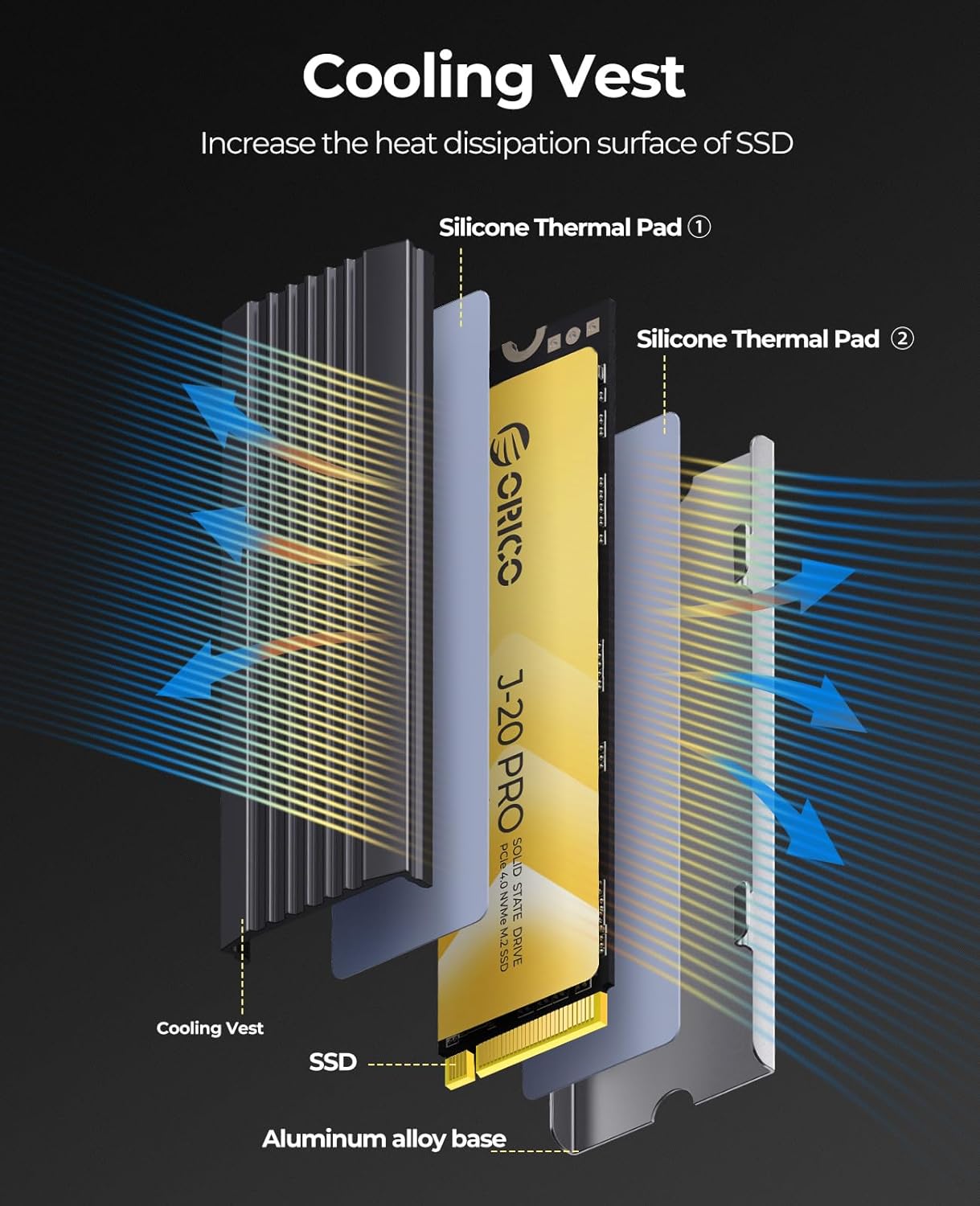
Image: Exploded view of the cooling vest system, showing the silicone thermal pads, cooling vest, and aluminum alloy base for effective heat dissipation.
4. Installation Guide
Before installation, ensure your system is powered off and unplugged. Handle the SSD by its edges to avoid static discharge.
4.1. General PC/Laptop Installation
- Locate M.2 Slot: Identify the M.2 slot on your motherboard. It is typically labeled and may be covered by a heatsink or shield.
- Prepare SSD: Apply the silicone thermal pads to the SSD, then attach the aluminum alloy cooling vest. Ensure proper alignment for maximum contact.
- Insert SSD: Gently insert the ORICO J20Pro SSD into the M.2 slot at a 30-degree angle. Push it in until it is fully seated.
- Secure SSD: Press the SSD down and secure it with the screw provided by your motherboard manufacturer.
- Close System: Reassemble your PC or laptop.
- Initialize and Format: After booting your system, the new SSD may need to be initialized and formatted through Disk Management (Windows) or Disk Utility (macOS) before it can be used.

Image: The ORICO J20Pro SSD with its cooling solution installed on a motherboard, demonstrating its compact fit.
4.2. PS5 Storage Expansion Installation
To install the ORICO J20Pro SSD into a PS5 console, follow these specific steps:
- Prepare SSD for PS5: For PS5 installation, remove the metal cooling vest from the ORICO J20Pro SSD. Only keep the thermal pad on the SSD. The PS5 has specific clearance requirements, and the included cooling vest may not fit.
- Access PS5 M.2 Slot: Power off your PS5 and unplug all cables. Remove the console's cover to access the M.2 expansion slot. Refer to your PS5's official manual for detailed instructions on cover removal.
- Insert SSD: Carefully insert the ORICO J20Pro SSD into the M.2 expansion slot.
- Secure SSD: Secure the SSD with the screw and spacer provided within the PS5's M.2 slot.
- Reassemble PS5: Replace the PS5 cover and reconnect all cables.
- Format SSD: Upon booting, your PS5 will prompt you to format the new SSD. Follow the on-screen instructions to complete the formatting process.
5. Operating Instructions
Once installed and formatted, the ORICO J20Pro SSD operates like any other storage device in your system. Its high speeds are particularly beneficial for:
- Operating System Drive: Install your operating system for rapid boot times and overall system responsiveness.
- Gaming: Store games for significantly faster loading times and smoother gameplay.
- Content Creation: Ideal for professionals working with large files, such as video editing, 3D rendering, and graphic design, enabling quicker project loading and saving.
- Data Storage: Use as a high-speed storage drive for frequently accessed files and applications.

Image: A gaming setup illustrating the benefit of high-speed SSDs for immersive gaming experiences.

Image: A professional workstation demonstrating how the ORICO J20Pro SSD can enhance productivity in video editing and other demanding applications.
6. Maintenance
Solid State Drives generally require less maintenance than traditional hard drives. However, consider the following for optimal performance and longevity:
- TRIM Command: Ensure your operating system has TRIM enabled. TRIM helps the SSD manage data more efficiently, preventing performance degradation over time. Modern operating systems typically enable this by default.
- S.M.A.R.T. Monitoring: Utilize S.M.A.R.T. (Self-Monitoring, Analysis, and Reporting Technology) tools to monitor the health and status of your SSD. This can help predict potential issues before they lead to data loss.
- Firmware Updates: Periodically check the ORICO official website for any available firmware updates for your J20Pro SSD. Firmware updates can improve performance, stability, and compatibility.
- Avoid Full Capacity: While SSDs perform well even when nearly full, leaving some free space (e.g., 10-15%) can help maintain optimal performance and extend the drive's lifespan.
- Proper Shutdown: Always shut down your system properly. Abrupt power loss can potentially lead to data corruption, although the J20Pro includes Power Loss Protection (PLP) to mitigate this risk.
7. Troubleshooting
If you encounter issues with your ORICO J20Pro SSD, refer to the following common troubleshooting steps:
| Problem | Possible Cause | Solution |
|---|---|---|
| SSD not detected by system. |
|
|
| Slow read/write speeds. |
|
|
| System crashes or freezes. |
|
|
8. Specifications
Detailed technical specifications for the ORICO J20Pro 1TB M.2 SSD:
| Feature | Detail |
|---|---|
| Model | J20Pro |
| Interface | M.2 2280 |
| Channel | PCIe Gen4 x4 |
| Capacity | 1TB |
| Sequential Read Speed | Up to 7000 MB/s |
| Sequential Write Speed | Up to 6500 MB/s |
| TBW (Terabytes Written) | 300 TBW |
| Operating Temperature | 0°C to 70°C |
| Storage Temperature | -40°C to 85°C |
| Dimensions | 80mm x 22mm x 2mm (without heatsink) |
| Weight | Approximately 0.16 ounces (4.5g) |
| Flash Memory Type | 3D NAND |
| Special Features | S.M.A.R.T., TRIM, ECC, PLP |
Note: Performance figures are based on ORICO Lab tests and may vary depending on system configuration and usage environment.

Image: A detailed table outlining the technical specifications and performance metrics of the ORICO J20Pro SSD.
9. Warranty and Support
The ORICO J20Pro 1TB M.2 SSD comes with a 5-Year Limited Warranty from the date of purchase. This warranty covers defects in materials and workmanship under normal use.
For warranty claims, technical support, or further inquiries, please contact ORICO customer service through their official website or the retailer where the product was purchased. Keep your proof of purchase for warranty validation.
You can visit the official ORICO store for more information and support: ORICO Official Store on Amazon.