
1. Product Overview
The Tenveo VHD20U is a professional 1080P Full HD 60FPS video conference camera featuring a 20x optical zoom and AI tracking capabilities. Equipped with a 1/2.8-inch SONY CMOS sensor and 2.38 megapixels, it delivers crystal-clear images with accurate color reproduction. Its ultra-wide 60° viewing angle ensures all participants are visible. The camera supports smooth and silent pan/tilt movements, with 350° horizontal rotation (±175°) and 180° vertical rotation (±90°).
The VHD20U offers versatile connectivity options including USB3.0, HDMI, RS485, and RS232, making it suitable for various scenarios such as business meetings, educational institutions, medical applications, and live streaming events. It is compatible with popular conferencing software like Zoom, Microsoft Teams, Google Meet, Skype, and OBS, and supports Windows, Mac OS, Linux, and Android operating systems.
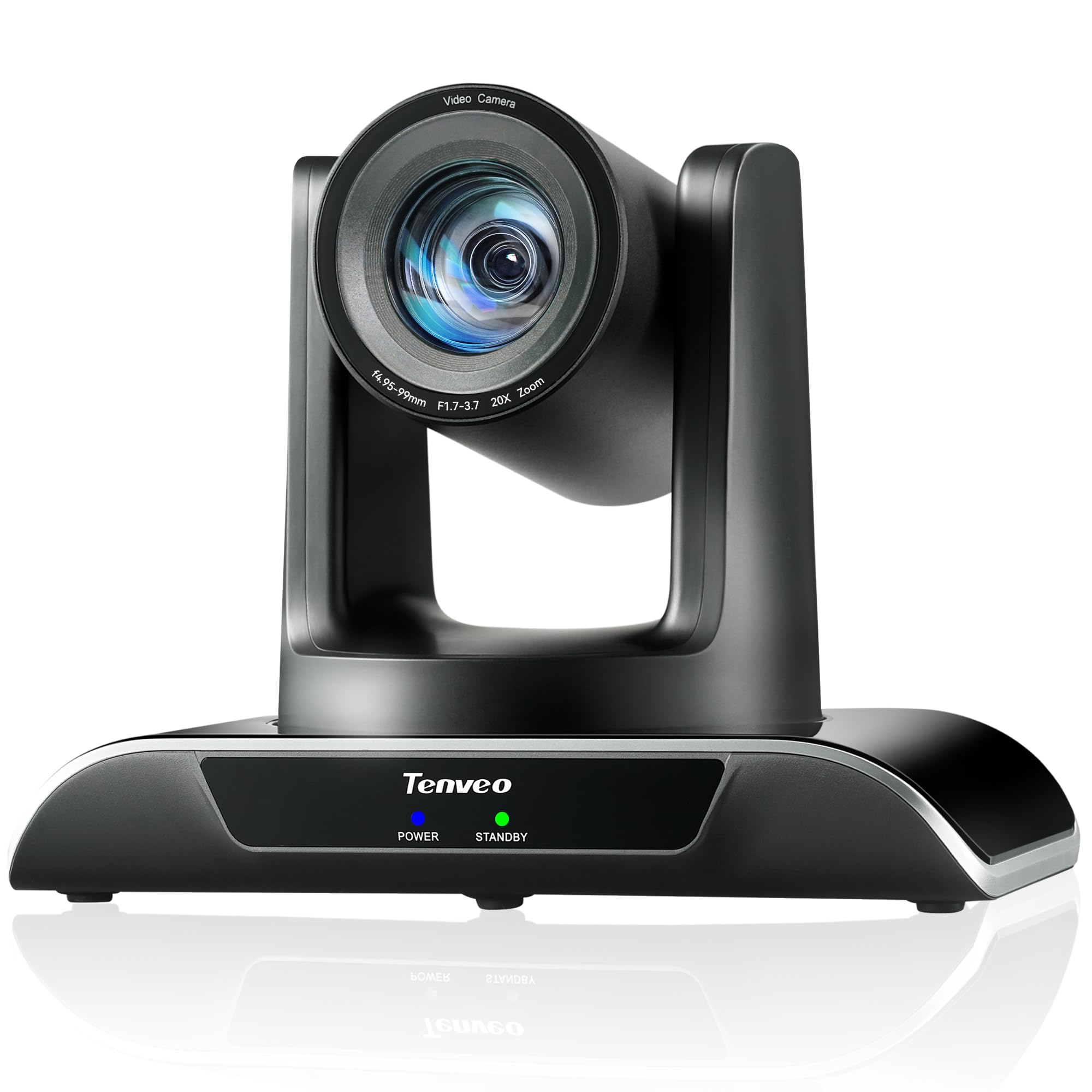
Figure 1: Tenveo VHD20U PTZ Conference Camera.

Figure 2: Tenveo VHD20U Conference Camera highlighting 20X Optical Zoom.
2. Package Contents
Please check the box for the following items:
- Tenveo VHD 20X HDMI PTZ Camera
- IR Remote Control (batteries not included)
- USB Cable
- Wall Mount Bracket with Screws
- DC 12V/2A Power Adapter
- Instruction Manual
3. Setup Instructions
Follow these steps to set up your Tenveo VHD20U camera:
- Power Connection: Connect the DC 12V/2A power adapter to the camera's power input port and then plug it into a power outlet.
- Video Output:
- USB Connection: For direct connection to a computer, use the provided USB cable to connect the camera's USB3.0 port to your computer. This is plug-and-play for most operating systems.
- HDMI Connection: For high-definition video output to a display or video switcher (e.g., Blackmagic ATEM Mini), connect an HDMI cable from the camera's HDMI port to your display device.
- Control Connections (Optional):
- RS232/RS485: For professional control systems, connect the appropriate serial cables to the RS232 or RS485 ports.
- Mounting: The camera can be installed in various ways to suit your environment: desktop, tripod, ceiling, or wall mount. Use the included wall mount bracket and screws for wall installation. Ensure the camera is securely fastened in your chosen position.

Figure 3: Various installation methods for the Tenveo VHD20U camera.

Figure 4: HDMI 2.0 connectivity for video conferencing and live streaming.
4. Operating Instructions
4.1 Remote Control Functions
The included IR remote control allows for easy adjustment of camera settings and movement:
- PTZ Control Keys: Use the arrow keys to pan (horizontal movement) and tilt (vertical movement) the camera.
- Zoom Keys: Use the '+' and '-' buttons to zoom in and out. The camera features 20x optical zoom.
- Focus Keys: Adjust the focus manually using the dedicated focus buttons. Auto-focus is the default setting.
- Preset Keys: The camera supports up to 10 presets via the IR remote. To set a preset, move the camera to the desired position, then press the 'PRESET' button followed by a number (0-9). To recall a preset, press the number button.
- Menu Button: Access the On-Screen Display (OSD) menu for advanced settings.
- PTZ Reset Key: Returns the camera to its initial home position.

Figure 5: Remote control layout and functions.
4.2 Software Compatibility
The Tenveo VHD20U camera is designed for broad compatibility with leading video conferencing and streaming platforms:
- Zoom
- Microsoft Teams
- Google Meet
- Skype
- Cisco WebEx
- BlueJeans
- OBS Studio
- vMix
- And most other compatible conferencing software.

Figure 6: Universal compatibility with various platforms and operating systems.
5. Maintenance
To ensure optimal performance and longevity of your Tenveo VHD20U camera, follow these maintenance guidelines:
- Cleaning: Use a soft, dry cloth to clean the camera body. For the lens, use a specialized lens cleaning cloth and solution. Avoid abrasive cleaners or solvents that could damage the surface.
- Storage: When not in use for extended periods, store the camera in a cool, dry place away from direct sunlight and excessive dust.
- Handling: Handle the camera with care to prevent physical damage. Avoid dropping or subjecting it to strong vibrations.
- Power: Always use the provided power adapter. Disconnect power during electrical storms or when the camera is not in use.
6. Troubleshooting
If you encounter issues with your Tenveo VHD20U camera, refer to the following common troubleshooting tips:
- No Image/Video Output:
- Ensure the camera is powered on and the power indicator light is active.
- Check all cable connections (USB, HDMI) are secure and correctly plugged into the camera and the receiving device.
- Verify that the correct input source is selected on your display or conferencing software.
- Try connecting the camera to a different USB port or computer.
- Remote Control Not Responding:
- Ensure batteries are inserted correctly and are not depleted. Replace batteries if necessary.
- Point the remote directly at the camera's IR receiver.
- Remove any obstructions between the remote and the camera.
- Poor Video Quality:
- Ensure sufficient lighting in the environment.
- Clean the camera lens with a soft, lint-free cloth.
- Check your internet connection speed if streaming or conferencing online.
- Adjust camera settings (e.g., exposure, white balance) via the OSD menu if needed.
- Camera Not Detected by Computer:
- Restart your computer and the camera.
- Ensure your operating system is up to date.
- Try a different USB cable or USB port.
7. Specifications
| Feature | Specification |
|---|---|
| Brand | Tenveo |
| Model Number | VHD20U |
| Sensor Technology | CMOS |
| Optical Sensor Size | 1/2.8-inch |
| Effective Capture Resolution | 2.38 Megapixels |
| Video Recording Resolution | 1080p |
| Effective Video Resolution | 1080 Pixels |
| Maximum Display Resolution | Full HD |
| Optical Zoom | 20x |
| Viewing Angle | 60 Degrees |
| Pan Movement | ±175° |
| Tilt Movement | ±90° |
| Connectivity Technology | HDMI, USB, RS485, RS232 |
| USB Type | USB3.0 |
| Supported Operating Systems | Windows 7/8.1/10, Mac OS X 10.4 or higher, Linux, Android |
| Recommended Product Uses | Meetings, Education, Medical, Live Streaming, Conference |
| Image Stabilization | No |
| Focus Type | Manual, Auto |
| Maximum Focal Length | 60.0 mm |
| Minimum Focal Length | 10.0 mm |
| Maximum Aperture | f/3.9 |
| Minimum Aperture | f/1.8 |
| Supported Image Format | JPEG |
| Supported Video Format | MP4 or MOV |
8. Warranty and Support
Tenveo provides comprehensive support for your VHD20U camera:
- Warranty: The product comes with a 3-year warranty covering parts and labor.
- Money-Back Guarantee: A 30-day no-questions-asked money-back guarantee is offered.
- Technical Support: Enjoy lifetime technical support for your product.

Figure 7: Warranty and money-back guarantee information.

Figure 8: Lifetime technical support available.


