
1. Introduction
Thank you for choosing the Redragon K615-R 60% Mechanical Gaming Keyboard. This compact keyboard is designed for performance and portability, featuring low-profile mechanical switches and customizable LED backlighting. This manual provides detailed instructions for setup, operation, maintenance, and troubleshooting to ensure optimal use of your device.

This image shows the Redragon K615-R keyboard's 60% compact layout, highlighting its smaller footprint while retaining essential functions through function layer keys.
2. Package Contents
Please check the package contents to ensure all items are present:
- Redragon K615-R 60% Mechanical Gaming Keyboard
- Detachable USB-C Cable
- Keycap Puller
- Switch Puller
- Spare Mechanical Switches (4 pieces)
- Warranty Card
3. Setup
3.1 Connecting the Keyboard
- Locate the USB-C port on the back of the Redragon K615-R keyboard.
- Connect one end of the provided USB-C cable to the keyboard's USB-C port.
- Connect the other end of the USB-A connector to an available USB port on your computer.
- The keyboard will automatically be recognized by your operating system (Windows 7/8/10/Vista/XP, macOS). No additional drivers are typically required for basic functionality.
4. Operating Instructions
4.1 Function Keys (Fn Combinations)
Due to its 60% compact design, many standard keys are accessed via the Function (Fn) key. Hold down the Fn key and press the corresponding key to activate its secondary function:
- F1-F12 Keys: Accessed by holding Fn and pressing the number keys 1 through =.
- Arrow Keys: Hold Fn and press W (Up), A (Left), S (Down), D (Right).
- Home: Hold Fn and press [.
- End: Hold Fn and press ].
- Page Up (PgUp): Hold Fn and press ;.
- Page Down (PgDn): Hold Fn and press '.
- Insert: Hold Fn and press P.
- Delete: Hold Fn and press \.
- Print Screen (PrtSc): Hold Fn and press P (secondary function).
4.2 Backlight Control
The Redragon K615-R features 18 pre-set LED backlight effects. You can customize the lighting directly from the keyboard:
- Change Backlight Mode: Press Fn + | to cycle through the 18 different lighting effects.
- Adjust Brightness: Press Fn + Up Arrow to increase brightness and Fn + Down Arrow to decrease brightness.
- Adjust Speed: Press Fn + Left Arrow to decrease effect speed and Fn + Right Arrow to increase effect speed.

The keyboard features 18 pre-set LED backlight effects. This image illustrates different lighting patterns and colors, along with the secondary functions printed on the keycaps.
5. Maintenance
5.1 Cleaning the Keyboard
To maintain your keyboard's performance and appearance:
- Disconnect the keyboard from your computer before cleaning.
- Use a soft, lint-free cloth dampened with a small amount of water or a mild cleaning solution to wipe down the keycaps and frame.
- For deeper cleaning, use the provided keycap puller to remove keycaps and clean underneath with compressed air or a small brush.
5.2 Switch Replacement
The Redragon K615-R keyboard features hot-swappable mechanical switches, allowing for easy replacement without soldering. This is useful for customizing your typing experience or replacing a faulty switch.
- Using the provided keycap puller, carefully remove the keycap from the switch you wish to replace.
- Use the provided switch puller to gently grip the top and bottom clips of the switch.
- Pull the switch straight up to remove it from the keyboard's PCB.
- Align the pins of the new switch with the holes on the PCB. Ensure the pins are straight to avoid bending.
- Gently press the new switch into place until it clicks securely.
- Reattach the keycap.
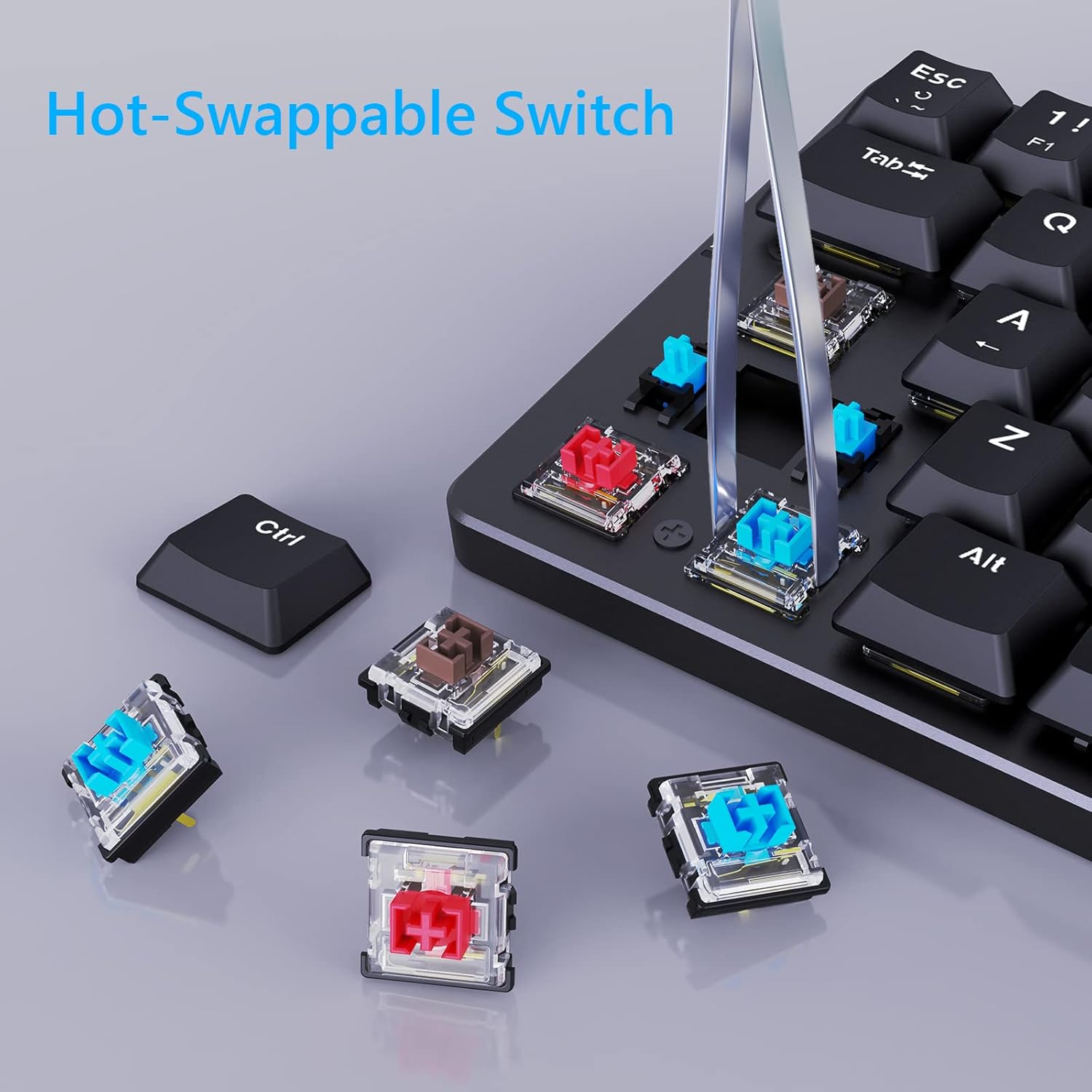
The Redragon K615-R keyboard is designed with hot-swappable switches, allowing users to easily remove and replace individual switches without soldering. This image demonstrates the process of removing a switch using the provided tool.

This diagram details the low-profile design of the K615-R's blue mechanical switches and keycaps, showing their reduced height and actuation distance for quicker response compared to standard switches.
6. Troubleshooting
6.1 Keyboard Not Responding
- Ensure the USB-C cable is securely connected to both the keyboard and the computer.
- Try connecting the keyboard to a different USB port on your computer.
- Test the keyboard on another computer to rule out system-specific issues.
- Restart your computer.
6.2 Backlight Not Working or Incorrect
- Ensure the backlight is not turned off or set to minimum brightness (use Fn + Up Arrow to increase brightness).
- Cycle through different backlight modes using Fn + | to see if the issue persists across modes.
- Disconnect and reconnect the keyboard.
6.3 Specific Keys Not Registering
- Carefully remove the keycap and inspect the switch for any debris or damage. Clean if necessary.
- If the switch is damaged, replace it using the hot-swappable switch replacement procedure described in Section 5.2.
- Ensure you are using the correct Fn combination for secondary key functions.
7. Specifications
| Feature | Detail |
|---|---|
| Model | K615-R |
| Keyboard Type | 60% Mechanical Gaming Keyboard |
| Switch Type | Low Profile Blue Mechanical Switches |
| Keycap Type | Double-shot Keycaps |
| Backlight | 18 Pre-set LED Backlight Effects |
| Connectivity | Detachable USB-C Cable |
| Compatibility | Windows 7/8/10/Vista/XP, macOS |
| Dimensions | 11.47 x 3.99 x 1.51 inches |
| Weight | 1.21 pounds (approx. 549g) |
| Material | Metal (upper cover) |
8. Warranty and Support
Your Redragon K615-R keyboard comes with a warranty. Please refer to the included Warranty Card for detailed information regarding warranty terms and conditions. For technical support, product inquiries, or further assistance, please visit the official Redragon website or contact their customer service.