
1. Introduction
This digital camera (Model H22) is designed for children aged 3-12 years, offering a fun and engaging way to explore photography and videography. It features a dual-camera setup for selfies, 1080P HD video recording, and a durable silicone casing. The camera also includes built-in games, a music player, and various photo frames and filters to enhance creativity.

Figure 1: HOOMOON H22 Kids Camera
2. Package Contents
Please verify that all items listed below are included in your package:
- 1x HOOMOON H22 Kids Camera with Cartoon Protective Case
- 1x USB Charging Cable
- 1x 32GB Memory Card (pre-installed in the card slot)
- 1x Neck Hanging Lanyard
- 1x User Manual
3. Product Overview
Familiarize yourself with the camera's components and controls:

Figure 2: Camera Buttons and Ports
- HD Camera (Front & Rear): For capturing photos and videos.
- Photo/Video Button: Press to take a photo or start/stop video recording.
- Power Button: Press and hold to turn the camera on or off.
- Microphone: Records audio during video capture.
- UP/DOWN Buttons: Navigate menu options or zoom in/out.
- Menu Button: Access camera settings and modes.
- Mode Button: Switch between photo, video, playback, games, and music modes.
- Display (2.0 inch): Screen for viewing images, videos, and menus.
- Speaker: For audio playback.
- USB Port: For charging and data transfer.
- SD Card Slot: Insert/remove the memory card here.
4. Getting Started
4.1 Charging the Camera
Before first use, ensure the camera is fully charged. Connect the provided USB charging cable to the camera's USB port and a compatible USB power source (e.g., computer, wall adapter). The charging indicator light will show the charging status. A full charge typically takes 2-3 hours and provides 2.5 hours of continuous use.
4.2 Inserting/Removing SD Card
The 32GB memory card is pre-installed in the SD card slot on the right side of the camera. To remove it, gently push the card inward until it clicks, then release to eject. To reinsert, push the card into the slot until it clicks into place.
4.3 Powering On/Off
Press and hold the Power Button (located on the top right of the camera) for a few seconds to turn the camera on or off. The display will show a welcome screen upon startup.
5. Operating Instructions
The HOOMOON H22 Kids Camera offers multiple functions for creative play:

Figure 3: Multi-function Overview
5.1 Taking Photos
From the main menu, select the camera icon. Press the Photo/Video Button to capture a still image. The camera supports 2MP resolution for photos.
5.2 Recording Videos
From the main menu, select the video camera icon. Press the Photo/Video Button to start recording. Press it again to stop. Videos are recorded in 1080P HD resolution.
Video 1: Demonstration of Kids Camera Features
This video provides a brief overview of the camera's functions, including photo and video capabilities, and highlights its suitability as a gift for children.
5.3 Using Selfie Mode
The camera features a dual-camera configuration, allowing for easy selfies. While in photo or video mode, use the navigation buttons to switch between the front and rear cameras.

Figure 4: Front and Rear Lens Capability
5.4 Applying Filters and Frames
Enhance your photos with 28 funny frames and 6 filters. While in photo mode, use the UP/DOWN navigation buttons to browse and select different frames and filters.

Figure 5: Available Photo Frames
5.5 Digital Zoom
The camera supports digital zoom. Use the UP/DOWN navigation buttons while in photo or video mode to zoom in or out.
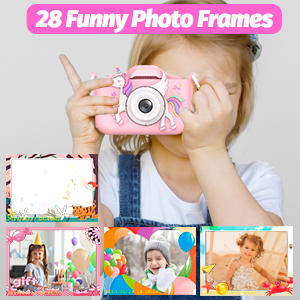
Figure 6: Digital Zoom Functionality
5.6 Time Lapse Capture
Set up time-lapse photos with options for 2s, 5s, or 10s intervals. Access this feature through the camera's menu settings.

Figure 7: Time Lapse Capture Settings
5.7 Playing Games
The camera includes 3 puzzle games for entertainment. Navigate to the games section from the main menu using the Mode Button.

Figure 8: Built-in Puzzle Games
5.8 Music Player
The camera features a music player. You can download MP3 files to the 32GB memory card and play them back on the device. Select the music icon from the main menu.
6. Maintenance
6.1 Cleaning
Use a soft, dry cloth to clean the camera body and screen. Avoid using liquid cleaners or abrasive materials.
6.2 Screen Protector
There is a protective film on the camera screen. You may choose to keep it on or carefully remove it.
6.3 Durability
The camera is equipped with a soft silicone casing designed to be anti-drop, providing protection against accidental falls.

Figure 9: Protective Silicone Case
7. Troubleshooting
- Camera Screen Freezes: If the camera screen freezes, try to reset it by pressing the small hole on the right side of the screen with a card pin or similar thin object.
- Memory Card Cannot Be Read: If the memory card cannot be read, please unplug the memory card and reinsert it firmly into the slot.
8. Specifications
| Feature | Specification |
|---|---|
| Brand | HOOMOON |
| Model Name | H22 |
| Photo Sensor Resolution | 2 MP |
| Video Resolution | 1080p |
| Screen Size | 1.5 Inches |
| Memory Storage Capacity | 32 GB (SD Card) |
| Battery Cell Type | Lithium Polymer |
| Battery Average Life | 2.5 Hours (continuous use) |
| Connectivity Technology | USB |
| Image Stabilization | Digital |
| Supported File Format | JPEG (Image), MP4 (Video) |
| Age Range Description | Kid |
9. Warranty and Support
For any questions regarding your HOOMOON H22 Kids Camera, please refer to the user manual included in the product box or contact our customer service. We are committed to providing satisfactory solutions as soon as possible.