1. Introduction
This manual provides comprehensive instructions for the UGREEN USB 3.0 Hub, model UG-USB3-25946. This device is designed to expand a single USB-A port into four USB-A 3.0 ports, facilitating the connection of multiple USB peripherals to your host device. Please read this manual carefully to ensure proper usage and optimal performance.
2. Product Overview
The UGREEN USB 3.0 Hub is an ultra-slim, compact device that offers high-speed data transfer and broad compatibility. It is ideal for users needing additional USB ports for various peripherals.

Image 1: UGREEN USB 3.0 Hub. This image displays the main unit of the hub, featuring its sleek black design, four USB 3.0 ports, and the attached USB-A cable.

Image 2: 4-in-1 USB 3.0 Hub with Peripherals. This diagram illustrates the versatility of the hub, showing it connected to common USB devices such as a mouse, USB flash drive, camera, keyboard, printer, and external hard drive.
3. Package Contents
- 1 x UGREEN USB 3.0 Hub (Model UG-USB3-25946)
4. Specifications
| Feature | Detail |
|---|---|
| Brand | UGREEN |
| Model Number | UG-USB3-25946 |
| Ports | 4 x USB 3.0 Type-A |
| Data Transfer Speed | Up to 5Gbps (USB 3.0 Standard) |
| Cable Length | 2 feet (approximately 0.6 meters) |
| Dimensions (LxWxH) | 4.33 x 1.18 x 0.39 inches (11 x 3 x 1 cm) |
| Item Weight | 2.82 ounces (80 grams) |
| Color | Black |
| Operating Systems | Windows, macOS, Linux, Chrome OS |
| Special Feature | Plug & Play |
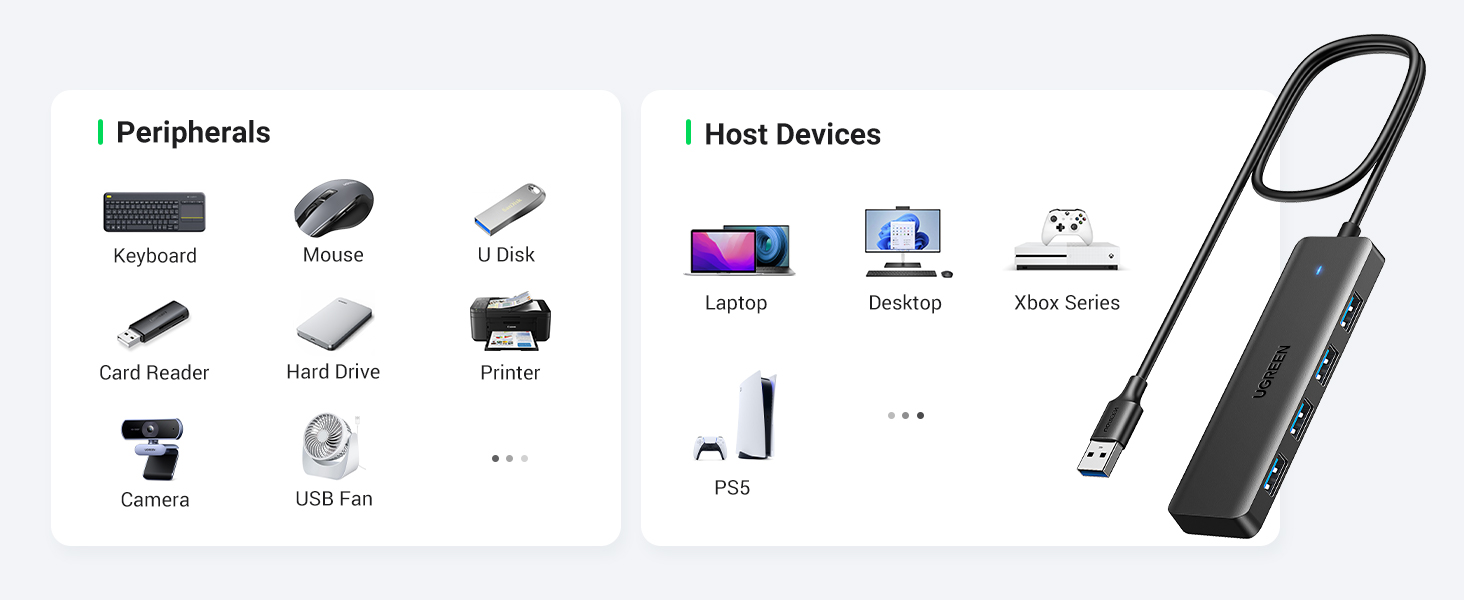
Image 3: Compact and Portable Design. This image highlights the small size of the hub, showing its dimensions (4.1 inches long, 1.1 inches wide) and the 24-inch (2 feet) cable length, emphasizing its portability.
5. Setup Instructions
The UGREEN USB 3.0 Hub is designed for simple plug-and-play operation. No additional drivers or software installation is required for most operating systems.
- Connect the Hub to Your Host Device: Insert the USB-A connector of the hub's integrated cable into an available USB-A port on your laptop, desktop PC, game console (e.g., Xbox, PS5), or other compatible host device.
- Verify Connection: A small LED indicator on the hub will illuminate, confirming a successful connection.
- Connect Peripherals: Plug your USB devices (e.g., mouse, keyboard, flash drive, printer, external hard drive) into the four available USB 3.0 ports on the hub.

Image 4: Plug and Play Setup. This image demonstrates the ease of connecting the hub to a laptop, highlighting its immediate functionality without complex installation.

Image 5: Hub in a Desktop Environment. This image shows the hub in use with a desktop computer, illustrating the practical application of its 2-foot cable for convenient placement on a desk.
6. Operating Instructions
Once connected, the UGREEN USB 3.0 Hub operates automatically, allowing simultaneous use of all four ports.
- Data Transfer: The hub supports USB 3.0 speeds, enabling data transfer rates of up to 5Gbps. This allows for quick transfer of large files, such as a 10 GB file in approximately 16.4 seconds.
- Simultaneous Use: All four ports can be used concurrently for various devices, such as a mouse, keyboard, flash drives, and other USB peripherals.
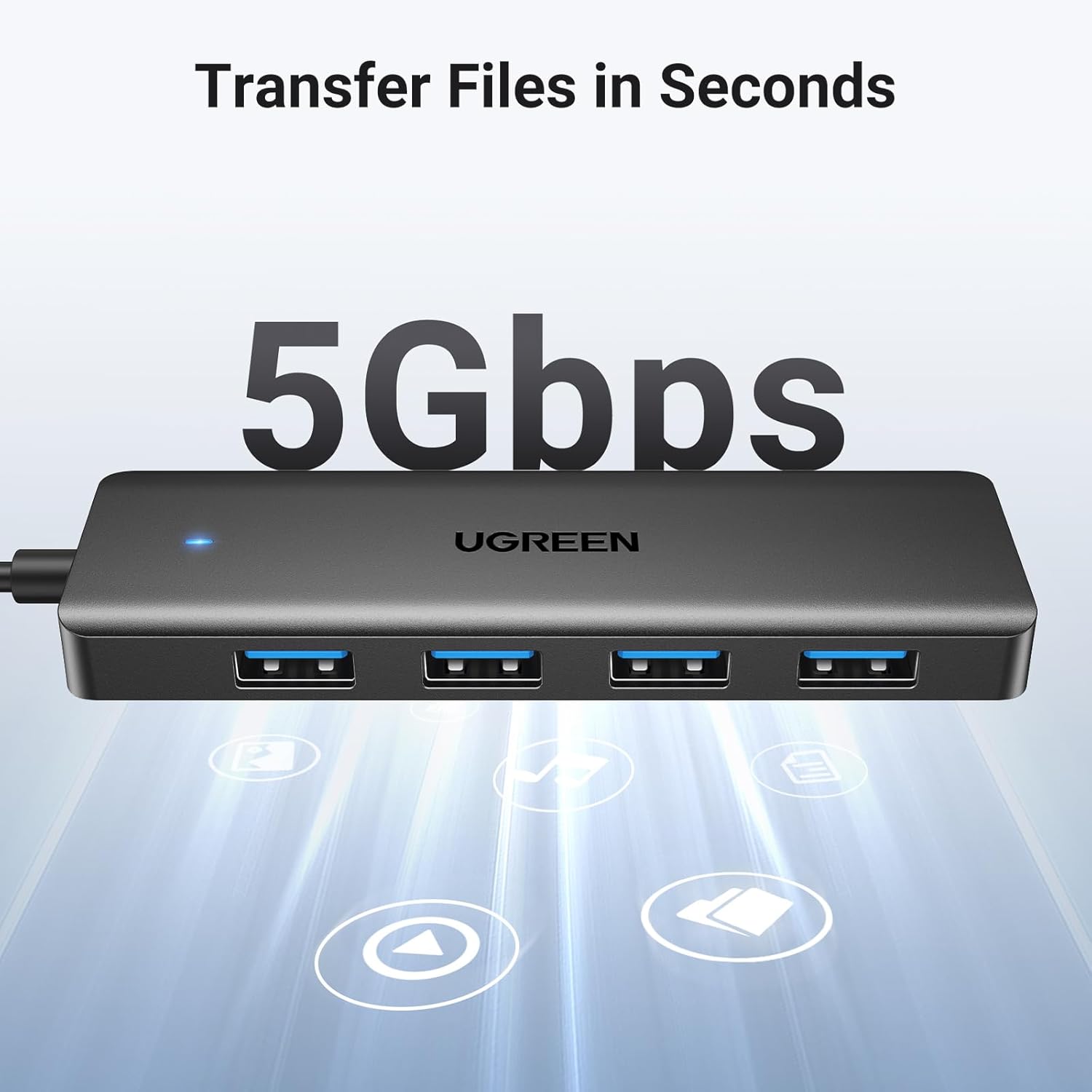
Image 6: High-Speed Data Transfer. This graphic emphasizes the 5Gbps transfer capability of the USB 3.0 hub, indicating fast and efficient data movement.
7. Compatibility
The UGREEN USB 3.0 Hub offers wide compatibility with various host devices and operating systems.
Compatible Host Devices:
- Laptops
- Desktop PCs
- Xbox Series consoles
- PlayStation 5 (PS5) consoles
- Car systems (with USB-A port)
- Other devices with a USB-A port
Compatible Operating Systems:
- Windows (e.g., Windows 10)
- macOS
- Linux
- Chrome OS
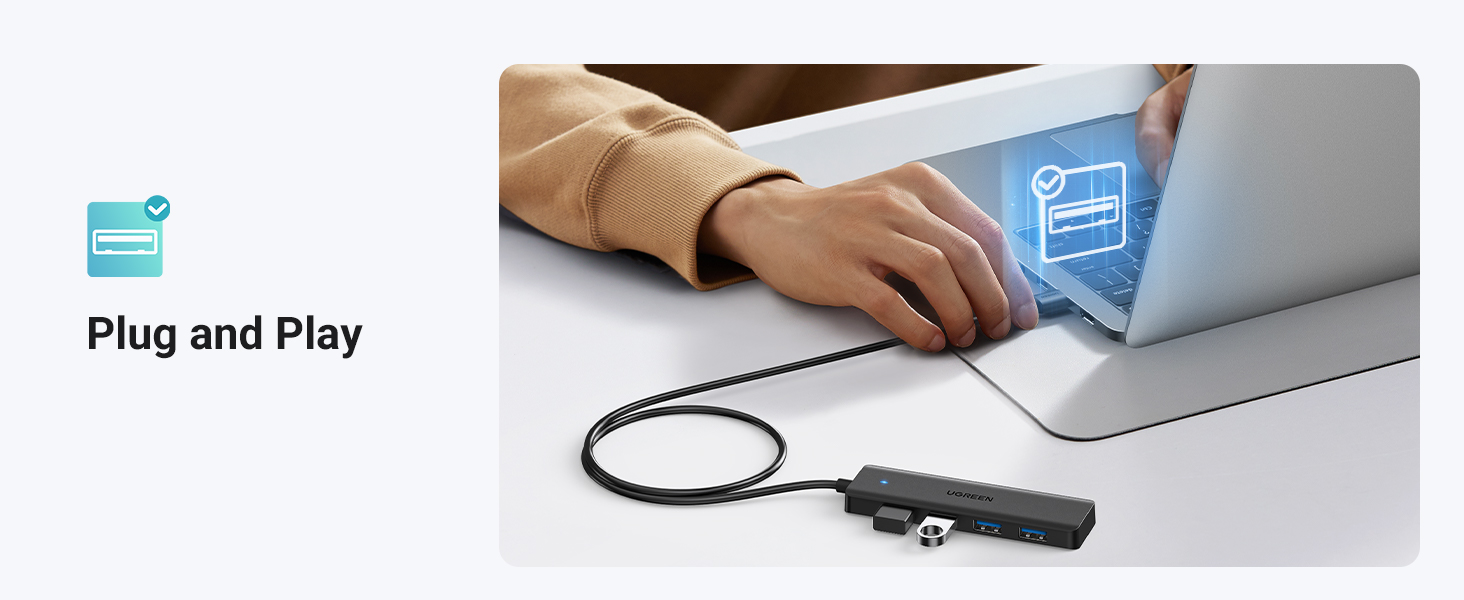
Image 7: Wide Compatibility Overview. This image visually represents the broad range of devices and operating systems compatible with the UGREEN USB 3.0 Hub, including laptops, desktops, gaming consoles, and major OS platforms.
8. Troubleshooting
- Device Not Recognized:
Ensure the hub is securely plugged into a functioning USB-A port on your host device. Try connecting the hub to a different USB-A port or a different host device to rule out port-specific issues. Verify that the peripheral device itself is working correctly by connecting it directly to your host device. - Slow Data Transfer:
While the hub supports USB 3.0 speeds, the actual transfer rate can be limited by the slowest component in the chain (e.g., a USB 2.0 device, the host device's USB port, or the storage device itself). Ensure all connected devices and the host port support USB 3.0 for optimal performance. - Insufficient Power for Certain Devices:
The UGREEN USB 3.0 Hub is a bus-powered hub, meaning it draws power directly from the host device's USB port. Some high-power-consumption devices (e.g., certain external hard drives, wireless headphone receivers, or multiple power-hungry devices simultaneously) may require more power than a bus-powered hub can provide. If you experience intermittent connections or device malfunctions with such peripherals, consider using a self-powered USB hub (one with an external power adapter) or connecting the high-power device directly to your host device. - LED Indicator Not On:
If the LED indicator on the hub does not light up, ensure the hub's USB-A connector is fully inserted into the host device's USB port. Try a different USB port on your host device.
9. Maintenance
- Keep the hub clean and free from dust. Use a soft, dry cloth for cleaning.
- Avoid exposing the hub to extreme temperatures, humidity, or direct sunlight.
- Do not attempt to disassemble or repair the device yourself. Contact customer support if issues arise.
- Store the hub in a safe place when not in use to prevent physical damage.
10. Warranty and Support
UGREEN products typically come with a standard manufacturer's warranty. For specific warranty details, please refer to the warranty card included with your purchase or visit the official UGREEN website. For technical support, troubleshooting assistance, or warranty claims, please contact UGREEN customer service through their official channels.
UGREEN Official Website: www.ugreen.com


