
TP-Link Archer AX58
TP-Link Archer AX58 Wi-Fi 6 WLAN Router User Manual
Model: Archer AX58
Introduction
Welcome to the user manual for your TP-Link Archer AX58 Wi-Fi 6 WLAN Router. This guide provides detailed instructions for setting up, operating, maintaining, and troubleshooting your device.
The Archer AX58 is a high-performance dual-band AX3000 router designed to deliver next-generation Wi-Fi 6 speeds and enhanced network capacity for your home.
Package Contents
Please verify that all items are included in your package:
- TP-Link Archer AX58 Router
- Power Adapter
- RJ45 Ethernet Cable
- Quick Installation Guide
Hardware Overview
Familiarize yourself with the physical components of your Archer AX58 router.
Front Panel
The front panel features LED indicators that provide status information about your router's operation.

Image: Front view of the TP-Link Archer AX58 Wi-Fi 6 WLAN Router, showing its sleek black design and LED indicators.
Rear Panel
The rear panel contains all the necessary ports and buttons for connectivity and control.

Image: Rear view of the TP-Link Archer AX58 Wi-Fi 6 WLAN Router, highlighting the WPS/Wi-Fi button, Reset button, four LAN ports (yellow), one WAN port (blue), Power button, and Power input.
- WPS/Wi-Fi Button: Press to enable WPS (Wi-Fi Protected Setup) or press and hold to turn Wi-Fi on/off.
- Reset Button: Press and hold for several seconds to restore factory default settings.
- LAN Ports (1-4): Connect your wired devices such as computers, smart TVs, or gaming consoles.
- WAN Port: Connect to your modem or the Ethernet port from your internet service provider.
- Power Button: Press to turn the router on or off.
- Power Input: Connect the provided power adapter.
Important Note: The Archer AX58 is a WLAN router and does not have an integrated modem. It does not support DSL functionality.
Setup and Installation
Follow these steps to set up your TP-Link Archer AX58 router.
- Position the Router: Place the router in a central location in your home for optimal Wi-Fi coverage. Avoid placing it near obstructions or other electronic devices that may cause interference.
- Connect Hardware:
- Power off your modem.
- Connect the WAN port of your Archer AX58 router to your modem's Ethernet port using the provided RJ45 Ethernet cable.
- Power on your modem, then wait for about 2 minutes for it to start up.
- Connect the power adapter to the router and plug it into a power outlet. Press the Power button if the router does not turn on automatically.
- Wait for the LED indicators on the router to stabilize, indicating a successful connection.
- Connect to the Router:
- Wired Connection: Connect your computer to one of the router's LAN ports using an Ethernet cable.
- Wireless Connection: Find the Wi-Fi network name (SSID) printed on the label on the bottom of the router. Connect to this network using the provided Wi-Fi password.
- Configure the Router:
- Open a web browser on your connected device.
- Type http://tplinkwifi.net or http://192.168.0.1 (or http://192.168.1.1) into the address bar and press Enter.
- Create a login password when prompted.
- Follow the on-screen instructions of the Quick Setup Wizard to configure your internet connection and wireless settings.
- Using the TP-Link Tether App:
For an easier setup and management experience, download the TP-Link Tether app from the App Store or Google Play.
- Open the Tether app and log in with your TP-Link ID. If you don't have one, create one first.
- Tap the + icon in the top right corner and select Router > Wireless Router.
- Follow the app's instructions to complete the setup.
Operating Your Router
Wi-Fi 6 Performance
The Archer AX58 supports Wi-Fi 6 (802.11ax) technology, providing significantly faster speeds and improved efficiency compared to previous Wi-Fi standards. It offers up to 2402 Mbps on the 5 GHz band and 574 Mbps on the 2.4 GHz band, ensuring smooth streaming and faster downloads.
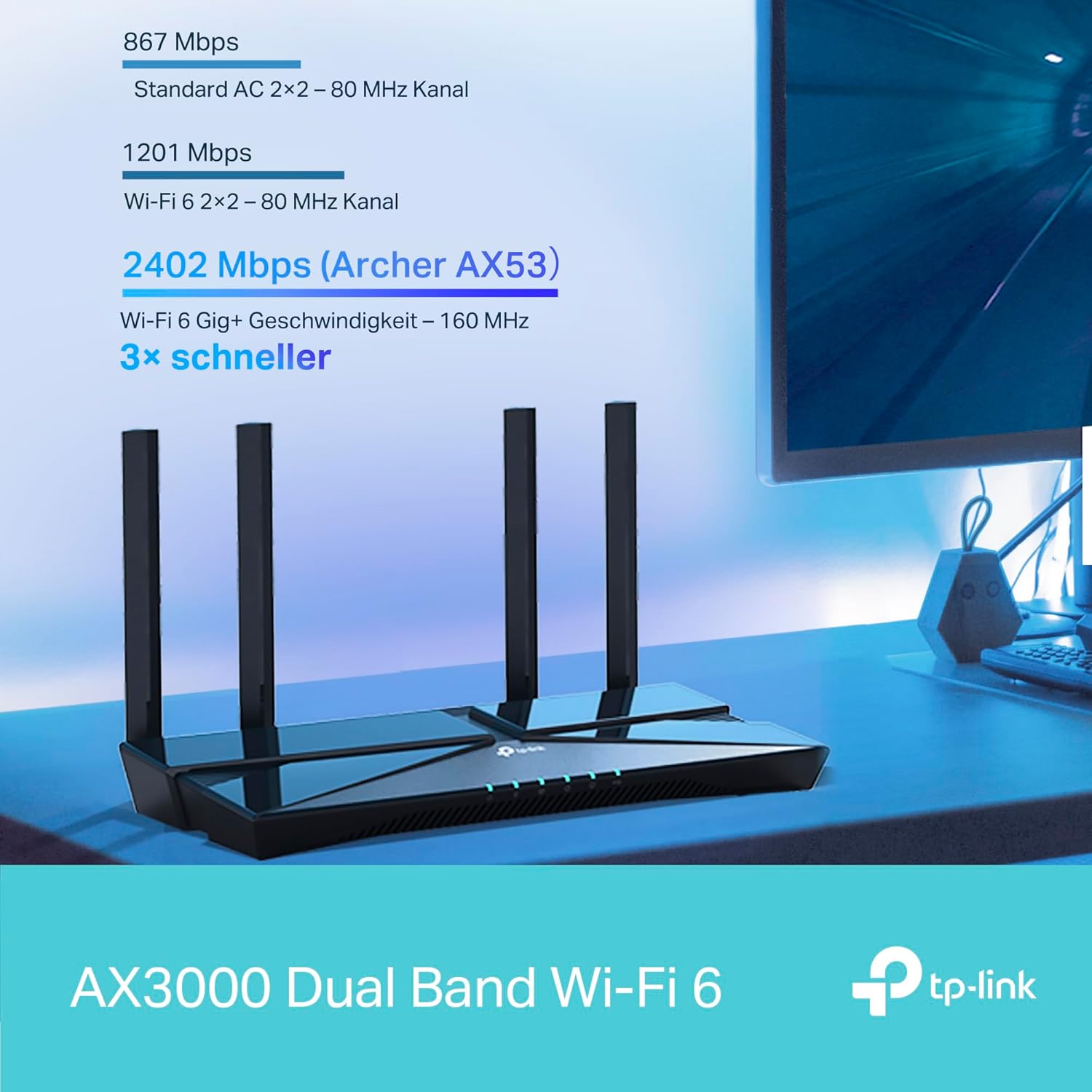
Image: A visual representation comparing Wi-Fi speeds, highlighting the 2402 Mbps speed of the Archer AX58 (AX3000) as 3x faster than standard AC.
Enhanced Coverage with Beamforming
The router utilizes Beamforming technology to concentrate Wi-Fi signals towards your connected devices, extending coverage and improving signal strength, especially for devices further away.

Image: An illustration demonstrating how Beamforming technology directs Wi-Fi signals to specific devices, ensuring extended coverage throughout your home.
TP-Link OneMesh
The Archer AX58 is compatible with TP-Link OneMesh, allowing you to create a seamless whole-home Wi-Fi network by adding OneMesh-compatible range extenders. This eliminates Wi-Fi dead zones and provides a unified network name for smooth roaming.
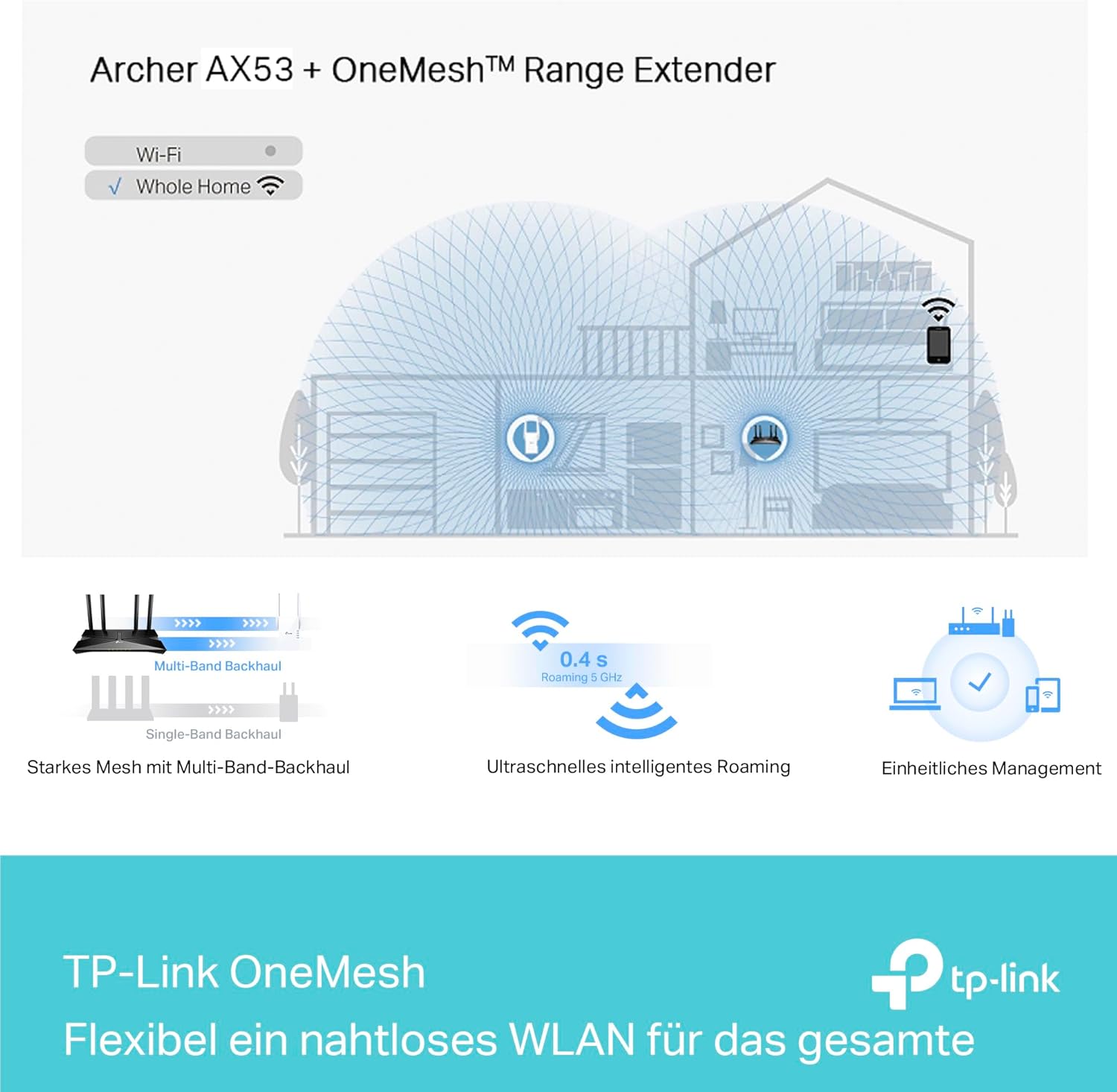
Image: A diagram showing the Archer AX58 router integrated into a OneMesh system with a range extender, providing whole-home Wi-Fi coverage.
Advanced Security with WPA3
The router supports WPA3, the latest Wi-Fi security protocol, offering enhanced encryption and protection against brute-force attacks, safeguarding your home network and connected devices.
Parental Controls
Manage and monitor your children's online activities. You can block inappropriate content and set time limits for internet access to promote healthier online habits.
Guest Network
Create a separate Wi-Fi network for guests to ensure the security and privacy of your main network.
Tether App Features
The TP-Link Tether app provides convenient management features:
- Block inappropriate content and customize internet access times for family members.
- Receive notifications when new devices connect to your network, allowing you to identify and block suspicious connections.
- Perform one-click firmware upgrades (OTA updates) to keep your router secure and up-to-date. You can also enable automatic update schedules.
Maintenance
Regular maintenance helps ensure optimal performance and longevity of your router.
- Firmware Updates: Regularly check for and install firmware updates through the router's web management interface or the Tether app. Updates often include performance improvements, bug fixes, and security enhancements.
- Restarting the Router: If you experience network issues, try restarting the router by unplugging the power adapter for 10 seconds and then plugging it back in.
- Cleaning: Keep the router clean and free from dust. Use a soft, dry cloth to wipe the exterior. Do not use liquid cleaners or aerosols.
- Ventilation: Ensure the router is placed in a well-ventilated area to prevent overheating. Do not cover the ventilation holes.
- Password Management: Change your Wi-Fi password and router login password periodically to enhance security.
Troubleshooting
If you encounter issues with your Archer AX58 router, refer to the following common solutions.
Internet Access Issues
- No Internet Connection:
- Check if your modem is working correctly.
- Ensure the Ethernet cable from your modem is securely connected to the router's WAN port.
- Restart both your modem and router.
- Verify your internet connection settings in the router's web management interface.
- Slow Internet Speed:
- Ensure your devices are connected to the 5 GHz band for higher speeds, if supported.
- Reduce the number of active devices or bandwidth-intensive activities.
- Check for interference from other electronic devices.
- Update your router's firmware.
Wi-Fi Connection Issues
- Cannot Connect to Wi-Fi:
- Ensure the Wi-Fi LED indicator on the router is on. If not, press the WPS/Wi-Fi button.
- Verify you are using the correct Wi-Fi password.
- Move closer to the router to improve signal strength.
- Frequent Disconnections:
- Check for channel interference and try changing the Wi-Fi channel in the router settings.
- Ensure your router's firmware is up to date.
- Consider using TP-Link OneMesh extenders for larger homes.
Router Login Issues
- Cannot Access Web Management Page:
- Ensure your device is connected to the router (wired or wireless).
- Verify you are typing http://tplinkwifi.net or the correct IP address (http://192.168.0.1 or http://192.168.1.1) into the browser.
- Clear your browser's cache and cookies, or try a different browser.
- Forgot Login Password:
- If you forgot your login password, you will need to reset the router to factory default settings by pressing and holding the Reset button on the rear panel for about 10 seconds. This will erase all your custom settings.
Specifications
| Feature | Detail |
|---|---|
| Model | Archer AX58 |
| Wi-Fi Standard | IEEE 802.11ax/ac/n/a (5 GHz), IEEE 802.11ax/n/b/g (2.4 GHz) |
| Wi-Fi Speeds | 2402 Mbps (5 GHz), 574 Mbps (2.4 GHz) |
| Antennas | 4 Fixed High-Performance Antennas |
| Ethernet Ports | 1x Gigabit WAN Port, 4x Gigabit LAN Ports |
| Dimensions (W x D x H) | 26 x 13.5 x 4.16 cm |
| Weight | 440 grams |
| Power Input | 12V DC |
| Operating System | Linux |
| Security | WPA, WPA2, WPA3, WPA/WPA2-Enterprise |
| Special Features | Wi-Fi 6, Dualband, OFDMA, Beamforming, OneMesh Compatible, Parental Controls, Guest Network |
Warranty and Support
For warranty information, please refer to the warranty card included in your product package or visit the official TP-Link website.
For technical support, frequently asked questions, and driver downloads, please visit the TP-Link support page: www.tp-link.com/support
You can also contact TP-Link customer service directly for assistance.
Related documentsArcher AX58


Ask a question about this manual
Ask about setup, troubleshooting, compatibility, parts, safety, or missing instructions. Manuals+ will review the question and use this page’s manual context to help answer it.